
Introduction
The HP OfficeJet 5255 is a versatile all-in-one color printer designed for home office use, offering print, scan, copy, and fax functionalities. It features fast speeds, vivid color output, crisp text, and borderless photo printing. Key features include a 35-page automatic document feeder (ADF) and automatic two-sided printing. The HP Smart app facilitates easy setup, mobile scanning, and printing from cloud services.
Key Features:
- Wireless Connectivity: Bluetooth Smart, improved Wi-Fi connectivity for stable and reliable connections.
- All-in-One Functionality: Print, scan, copy, and fax capabilities.
- Efficiency: 35-page automatic document feeder (ADF) and automatic two-sided printing.
- HP Smart App Integration: Easy setup, mobile scanning, and printing from social media or cloud services (iCloud, Google Drive, Dropbox).
- Versatile Printing: Supports various paper sizes including letter, legal, 4x6 in, 5x7 in, 8x10 in, and No. 10 envelopes.
- HP Instant Ink Eligible: Optional service for ink delivery to your home as needed.
Setup
1. Unboxing and Initial Placement
Carefully remove the printer from its packaging. Ensure all protective tapes and packing materials are removed from the exterior and interior of the printer. Place the printer on a stable, flat surface near a power outlet and within range of your wireless network.
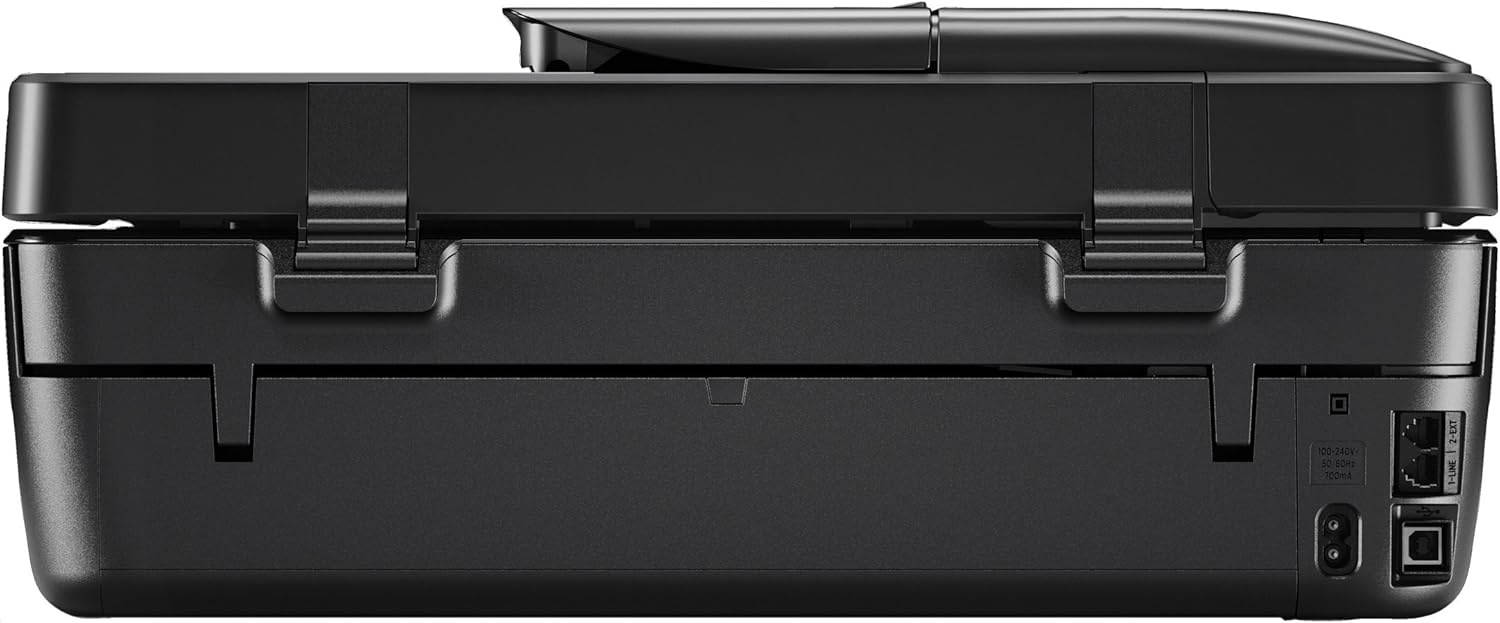
Figure 1: Front view of the HP OfficeJet 5255 printer.
2. Power On and Ink Cartridge Installation
- Connect the power cord to the printer and then to a wall outlet.
- Press the Power button (⏻) to turn on the printer.
- Open the ink cartridge access door. Wait for the print carriage to move to the center.
- Install the HP 63 Setup Black Instant Ink Ready Cartridge and HP 63 Setup Tri-color Instant Ink Ready Cartridge into their respective slots. Ensure they click into place.
- Close the ink cartridge access door.
3. Wireless Network Setup
The HP OfficeJet 5255 supports wireless connectivity via dual-band Wi-Fi and Bluetooth Smart. For the easiest setup, download the HP Smart app on your smartphone or computer.
- Follow the on-screen instructions in the HP Smart app to connect your printer to your Wi-Fi network.
- The app will guide you through connecting via Bluetooth Smart for a quick and seamless setup process.
- Ensure your router is powered on and broadcasting a signal.
Operating the Printer
1. Loading Paper
The input tray has a maximum capacity of 100 sheets. This printer supports various media types including envelopes, plain paper, labels, glossy photo paper, and high-resolution paper.
- Pull out the input tray from the front of the printer.
- Adjust the paper guides to fit the size of the paper you are loading.
- Load the paper stack with the print side facing down.
- Push the input tray back into the printer.
2. Printing Documents and Photos
You can print from various devices including smartphones, PCs, and laptops. The printer supports direct printing from a USB port.
- From Mobile Devices: Use the HP Smart app to print documents, email attachments, flyers, or photos directly from your phone or cloud services.
- From Computer: Select the HP OfficeJet 5255 as your printer in your application's print dialog. Adjust settings like paper size, print quality, and duplex printing as needed.
- From USB: Insert a USB drive into the printer's USB port and follow the on-screen prompts to select and print files.
3. Scanning Documents
The printer offers both flatbed and automatic document feeder (ADF) scanning options.
- Using the ADF: Load up to 35 pages into the ADF tray. Select 'Scan' on the printer's touchscreen or through the HP Smart app.
- Using the Flatbed: Lift the scanner lid and place the document face down on the glass. Close the lid. Select 'Scan' on the printer's touchscreen or through the HP Smart app.
- Choose your scan destination (e.g., computer, email, cloud service).
4. Copying and Faxing
The printer allows for quick copying and faxing directly from the device.
- Copying: Place your document on the flatbed or in the ADF. Select 'Copy' on the touchscreen, choose the number of copies, and press Start.
- Faxing: Connect a phone cord to the rear phone port. Load your document. Select 'Fax' on the touchscreen, enter the recipient's number, and send.
Maintenance
1. HP Instant Ink Program
Enroll in the optional HP Instant Ink program to have ink delivered to your home automatically when your printer detects low ink levels. This service includes shipping and recycling of used cartridges, ensuring you always have ink when you need it.
2. Cleaning the Printer
Regular cleaning helps maintain print quality and extends the life of your printer.
- Exterior: Wipe the exterior surfaces with a soft, lint-free cloth.
- Scanner Glass: Use a soft cloth dampened with glass cleaner (non-abrasive) to clean the scanner glass.
- Printhead Cleaning: If print quality issues arise (streaks, faded colors), use the printer's maintenance menu to perform a printhead cleaning cycle.
Troubleshooting
If you encounter issues with your HP OfficeJet 5255, consider the following common troubleshooting steps:
- Connectivity Issues: Ensure the printer is connected to the correct Wi-Fi network. Restart your router and printer. Check the HP Smart app for connection status.
- Paper Jams: Follow the on-screen instructions on the printer's display to clear any paper jams. Refer to the user manual for detailed steps.
- Print Quality Problems: Perform a printhead cleaning or alignment from the printer's maintenance menu. Ensure genuine HP ink cartridges are used.
- Error Codes: Consult the User Guide (PDF) for specific error code meanings and solutions.
For more comprehensive troubleshooting, refer to the official HP support website or the detailed user manuals provided with your product.
Specifications
| Feature | Detail |
|---|---|
| Product Dimensions | 14.45"D x 17.52"W x 7.52"H |
| Controller Type | Vera, Amazon Alexa |
| Maximum Media Size | 8.5 x 14 inch |
| Power Consumption | 14 Watts |
| Print Media | Envelopes, Paper (plain), Labels, Glossy photo paper, High-resolution paper |
| Scanner Type | Photo, Sheetfed |
| Max Input Sheet Capacity | 100 |
| Compatible Devices | Smartphones, PC, Laptops |
| Sheet Size | 3 x 5 to 8.5 x 14, Letter, Legal, Envelope |
| Dual-sided printing | Yes (Automatic) |
| Hardware Interface | USB 2.0 |
| Ink Color | Cyan, Magenta, Yellow, Black |
| Additional Printer Functions | Copy, Scan, Fax |
| Model Name | M2U75A#B1H |
| Item Weight | 14.44 pounds |
| Connectivity Technology | Cloud Printing, Bluetooth, Wi-Fi, USB |
| Printing Technology | Inkjet |
Warranty and Support
The HP OfficeJet 5255 comes with a one-year limited hardware warranty. HP provides 24-hour, 7 days a week FREE HP Web support for assistance with your printer.
For detailed instructions and further assistance, please refer to the official user guides: