
1. Product Overview
The OSRAM Encelium EN-SIM-AI/SPS-GB2-BK is a 24V Sensor Interface Module designed to provide an interface between an occupancy sensor and the GreenBusII Network. This module facilitates integration of various sensors into the Encelium lighting control system, enabling advanced energy management functionalities.
- 24 Volt Sensor Module Interface
- Provides Interface Between Occupancy Sensor and GreenBusII Network
- Color: Black
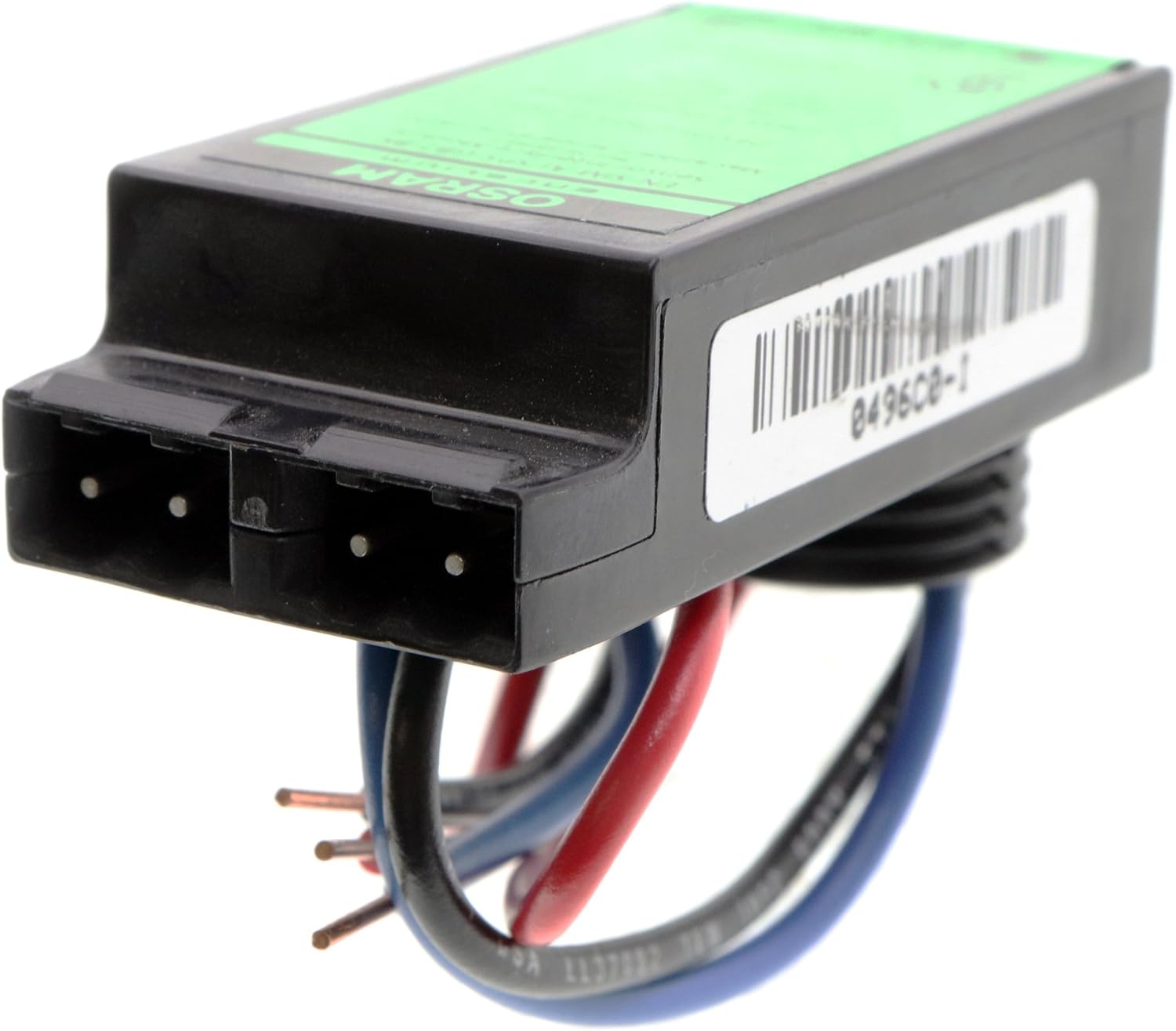
Figure 1: Front view of the Osram Encelium EN-SIM-AI/SPS-GB2-BK Sensor Interface Module, showing its compact black housing and integrated wiring harness.
2. Installation and Setup
This module is intended for professional installation within a compatible Encelium GreenBusII network. Ensure power is disconnected before beginning installation.
2.1 Wiring Instructions
The module features a pre-attached wiring harness for connection. Adhere to the following color-coded wiring scheme for proper operation:
- Red Wire: Power (24Vdc Class 2 Input)
- Black Wire: Common
- Blue Wire: Sense (Input from Occupancy Sensor)

Figure 2: Close-up view of the product label, detailing the wiring connections for the Red (Power), Black (Common), and Blue (Sense) wires. This label also indicates the 24Vdc Class 2 Input and maximum ambient temperature.
Ensure all connections are secure and insulated according to local electrical codes. After wiring, connect the module to the GreenBusII network as per system design specifications.
3. Operating Principles
The EN-SIM-AI/SPS-GB2-BK module acts as a translator, converting signals from a connected occupancy sensor into a format compatible with the Encelium GreenBusII network. When an occupancy sensor detects presence, it sends a signal to this module. The module then relays this information to the central Encelium system, allowing for automated lighting control based on occupancy status.
This integration enables energy savings by ensuring lights are only on when spaces are occupied, or by adjusting lighting levels based on occupancy patterns.
4. Maintenance
The Osram Encelium Sensor Interface Module is designed for long-term, maintenance-free operation. However, periodic inspection is recommended to ensure optimal performance:
- Keep the module clean and free from dust and debris. Use a dry, soft cloth for cleaning.
- Ensure the module is installed in a dry environment, away from excessive moisture or extreme temperatures.
- Periodically check all wiring connections for tightness and integrity.
- Do not attempt to open or service the module. Refer all servicing to qualified personnel.
5. Troubleshooting
If the module is not functioning as expected, consider the following troubleshooting steps:
- No Response from Sensor:
- Verify that the 24Vdc power supply to the module is active and stable.
- Check all wiring connections (Red, Black, Blue) for proper polarity and secure contact.
- Ensure the occupancy sensor connected to the module is powered and functioning correctly.
- Confirm the GreenBusII network connection is active and the system is properly configured to recognize the module.
- Intermittent Operation:
- Inspect for loose wiring connections or damaged insulation.
- Check for environmental factors such as excessive heat or electromagnetic interference near the module.
If issues persist after performing these checks, contact OSRAM technical support or a certified Encelium system integrator.
6. Specifications
| Attribute | Value |
|---|---|
| Model Number | EN-SIM-AI/SPS-GB2-BK |
| Brand | OSRAM |
| Input Voltage | 24 Volts DC (Class 2) |
| Output Type | Push-Pull |
| Material | Plastic |
| Color | Black |
| Item Dimensions (L x W x H) | 2 x 1 x 1 inches |
| Item Weight | 1 pound (approx. 16 ounces) |
| Specific Uses | Commercial lighting, occupancy detection |
| Manufacturer | Osram |
| UPC | 046135452468 |
| Date First Available | January 1, 2014 |
7. Warranty and Support
For information regarding product warranty, please refer to the official OSRAM warranty policy available on their website or contact OSRAM customer service directly. Keep your proof of purchase for warranty claims.
For technical support, installation assistance, or further inquiries, please contact OSRAM customer support or visit the official OSRAM store:
OSRAM Official Store on Amazon
When contacting support, please have your product model number (EN-SIM-AI/SPS-GB2-BK) and any relevant purchase details ready.