
1. Introduction
This manual provides detailed instructions for the installation, operation, and maintenance of your Pioneer MVH-1400NEX Digital Multimedia Receiver. This unit features a 6.2-inch clear-resistive touchscreen display and supports Apple CarPlay for seamless smartphone integration. It is designed to enhance your in-car audio and connectivity experience.
2. Important Safety Information
- Read all instructions carefully before installation and use.
- Professional installation is recommended to ensure proper function and safety.
- Do not operate the unit in a manner that distracts you from driving. Always prioritize road safety.
- Ensure all wiring is correctly connected to prevent electrical shorts or damage.
- Avoid exposing the unit to extreme temperatures, direct sunlight for prolonged periods, or excessive moisture.
3. What's in the Box
Verify that all the following items are included in your package:
- Digital media receiver with fixed 6.2" touchscreen monitor (10A fuse inserted in chassis)
- Wiring harness
- 58" USB extension cable
- Microphone with mounting-bracket (attached 13' cable terminated by a right-angle 2.5mm connector)
- Two-sided tape
- 6 Pan-head ISO screws (M5 x 6mm)
- 6 Flat-head ISO screws (M5 x 6mm)
- Quick Start Guide
- Installation Manual
- Warranty Information
4. Installation
Installing the Pioneer MVH-1400NEX requires technical knowledge and experience with car audio systems. It is highly recommended to have the unit installed by a qualified professional to prevent damage to the unit or your vehicle.
4.1. Unit Overview

Image 4.1.1: Front view of the Pioneer MVH-1400NEX Digital Multimedia Receiver, showcasing its 6.2-inch touchscreen display with the Apple CarPlay interface active. The screen shows icons for Phone, Music, Maps, Messages, Now Playing, NEX, Podcasts, and Audiobooks, along with volume controls and other function buttons on the left bezel.
4.2. Rear Connections

Image 4.2.1: Rear view of the MVH-1400NEX unit, illustrating the comprehensive array of input and output ports for power, speakers, auxiliary devices, USB, and video. This view is crucial for understanding wiring connections during installation.
4.3. Wiring Harness and Cables
The included wiring harness connects the unit to your vehicle's electrical system and speakers. The USB extension cable allows for convenient connection of USB devices, including iPhones for Apple CarPlay. The microphone is essential for hands-free calling and voice commands.
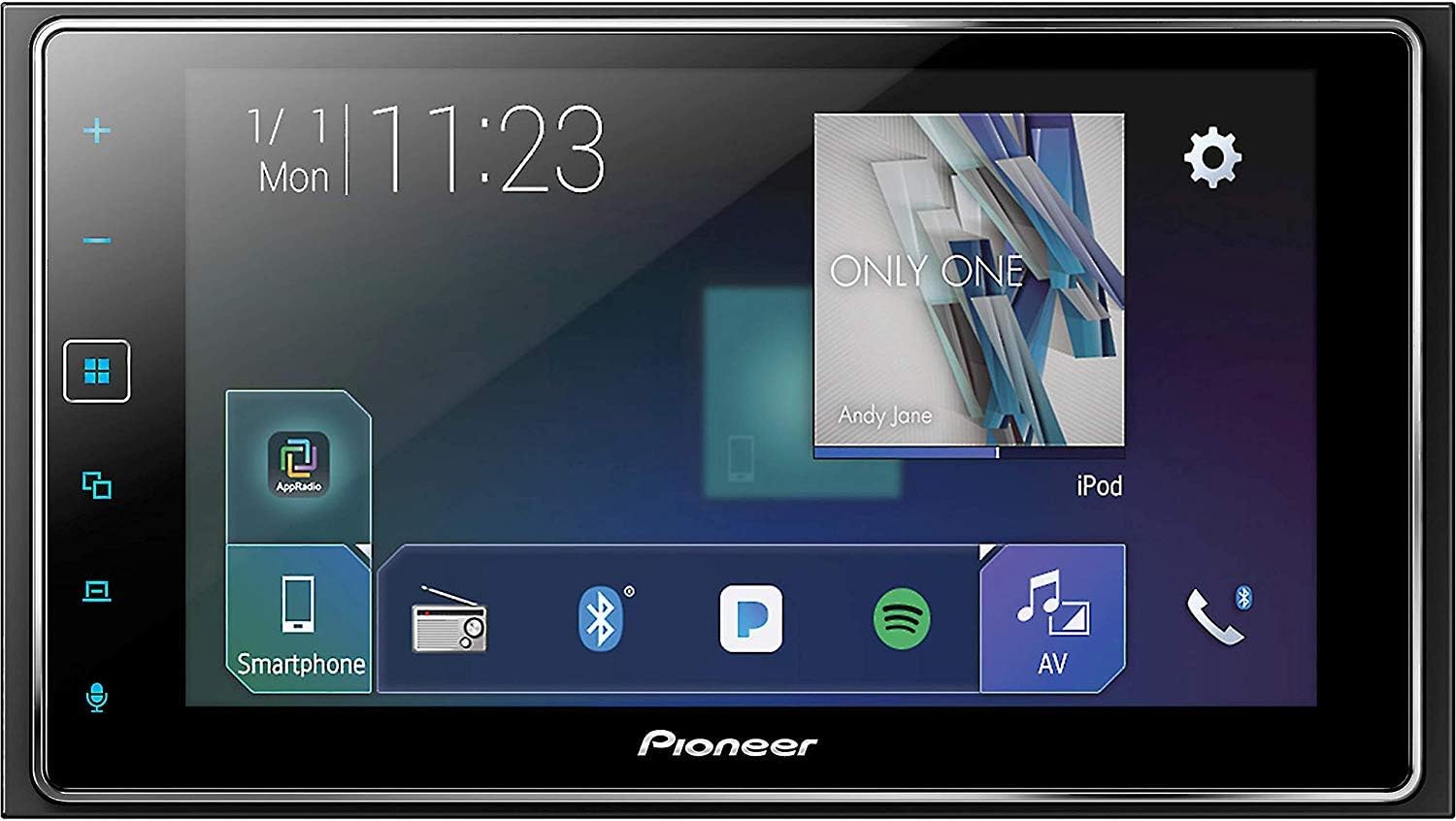
Image 4.3.1: A detailed close-up of the rear panel of the MVH-1400NEX, focusing on the wiring harness connector, USB port, and other audio/video inputs and outputs. This image helps in identifying specific connection points.
5. Initial Setup
5.1. Power On and Basic Settings
After installation, turn on your vehicle's ignition. The unit should power on automatically. Follow any on-screen prompts for initial setup, such as language selection and time/date settings. Access the settings menu by tapping the gear icon on the main screen.

Image 5.1.1: The main menu screen of the Pioneer MVH-1400NEX, showing various source options like Smartphone, Radio, Bluetooth, Spotify, and AV. The layout is intuitive, allowing users to quickly navigate between functions.
5.2. Connecting Your iPhone for Apple CarPlay
- Connect your iPhone to the unit's USB port using a certified USB cable.
- The unit will detect your iPhone and prompt you to launch Apple CarPlay.
- Follow the on-screen instructions on both the unit and your iPhone to complete the connection.
5.3. Bluetooth Pairing
- On the unit, navigate to the Bluetooth settings menu.
- Enable Bluetooth on your mobile device and search for available devices.
- Select "MVH-1400NEX" from the list on your device.
- Confirm the pairing code on both devices.
- Once paired, you can make hands-free calls and stream audio wirelessly.
6. Operating Instructions
6.1. Apple CarPlay Functions
- Navigation: Use Apple Maps or other compatible navigation apps for turn-by-turn directions.
- Communication: Make and receive calls, send and read messages using Siri voice commands or the touchscreen.
- Music & Audio: Access your music library, Spotify, Podcasts, and other audio apps.
- Siri: Activate Siri by pressing the voice control button on the unit or your steering wheel (if connected).
6.2. Radio Operation
- Select the "Radio" source from the main menu.
- Use the on-screen controls to tune to FM or AM stations.
- Save your favorite stations as presets for quick access.
6.3. USB and AUX Input
- Connect USB storage devices to play audio and video files.
- Use the AUX input for connecting external audio players via a 3.5mm cable.
6.4. Backup Camera Input
If a compatible backup camera is connected, the display will automatically switch to the camera view when the vehicle is put into reverse. You can also manually access the camera view from the main menu.
6.5. Audio Customization
The unit offers extensive audio customization options, including a graphic equalizer, fader, balance, and subwoofer control. Access these settings through the audio menu to fine-tune your sound experience.
7. Maintenance
- Screen Cleaning: Use a soft, dry cloth to gently wipe the touchscreen. For stubborn smudges, slightly dampen the cloth with water or a screen-safe cleaner. Avoid harsh chemicals or abrasive materials.
- General Care: Keep the unit free from dust and debris. Ensure proper ventilation around the unit to prevent overheating.
8. Troubleshooting
| Problem | Possible Cause | Solution |
|---|---|---|
| Unit does not power on. | Blown fuse, incorrect wiring, power supply issue. | Check the 10A fuse on the unit. Verify all power connections. Consult a professional installer. |
| No sound. | Volume too low, mute activated, incorrect speaker wiring. | Increase volume. Check mute status. Verify speaker connections. |
| Touchscreen unresponsive or glitching. | Temporary software issue, screen calibration needed. | Restart the unit (turn off and on vehicle ignition). Perform a system reset (refer to the detailed installation manual for reset procedure). |
| Apple CarPlay not connecting. | Faulty USB cable, iPhone software issue, incorrect settings. | Use a certified Apple USB cable. Ensure iPhone is updated. Check CarPlay settings on both devices. |
| Bluetooth not pairing. | Device not in pairing mode, incorrect pairing code, interference. | Ensure device is discoverable. Re-enter pairing code. Try pairing in a different location. |
9. Specifications
- Model Number: MVH-1400NEX
- Screen Size: 6.2 Inches
- Display Type: LED, Clear-Resistive Touchscreen
- Display Resolution: 800 x 400 pixels
- Connectivity: USB, Bluetooth, Composite A/V Input, Wired Remote Input
- Audio Playback: WMA/WAV/MP3/AAC/FLAC
- Video Playback: MPEG-2/MPEG-1/MPEG-4/DivX/WMV
- USB Port: 1.5A output
- Dimensions (Product): 11.1 x 9.7 x 3.45 inches
- Item Weight: 2.93 pounds
10. Warranty and Support
For warranty information, please refer to the 'Warranty Information' document included in your product package. For technical support, product registration, or to find authorized service centers, please visit the official Pioneer website or contact their customer service department.
Online Support: Pioneer Electronics Official Website