
Introduction
Welcome to the user manual for your new ExquizOn GT-S9 Mini Video Projector. This projector is designed to provide a versatile and immersive viewing experience, featuring direct smartphone mirroring capabilities and enhanced brightness. This manual will guide you through the setup, operation, maintenance, and troubleshooting of your device, ensuring you get the most out of its features.

Image: The ExquizOn GT-S9 Mini Video Projector, showcasing its compact design, 1800 lumens brightness, 30000 hours LED life, and screen projection up to 176 inches. It also highlights multi-screen display, HDMI, and USB connectivity, with a smartphone connected via USB.
Package Contents
Before proceeding with the setup, please ensure that all the following items are present in your package:
- ExquizOn GT-S9 Mini Video Projector
- Power Cable
- AV Cable
- User Manual (this document)
- Remote Control
- Lens Cloth

Image: Contents of the ExquizOn GT-S9 projector package, including the projector unit, power cable, AV cable, user manual, remote control, and lens cleaning cloth.
Product Overview
Familiarize yourself with the various parts and interfaces of your ExquizOn GT-S9 projector to ensure proper usage and connectivity.

Image: A detailed diagram illustrating the different components and connection ports of the ExquizOn GT-S9 projector, including USB mirroring ports, various input interfaces (HDMI, VGA, AV), function keys, height adjustment knob, adjustable lens, focus and keystone correction, and the hanging hole for ceiling mounting.
- Adjustable Lens: Rotate this ring to achieve a clear and sharp projected image.
- Focus & Keystone Dials: Used for fine-tuning image clarity and correcting trapezoidal distortion, ensuring a perfectly rectangular display.
- Function Keys: On-device buttons for navigating menus, adjusting settings, and controlling playback.
- USB Mirroring Ports: Dedicated USB ports for direct connection and screen mirroring from compatible smartphones.
- Various Interfaces: Includes HDMI, VGA, USB, AV, and SD card slots for connecting a wide range of external devices.
- Height Adjustment: A retractable foot or screw at the front to adjust the projector's vertical angle.
- Hanging Hole: A threaded insert for mounting the projector to a ceiling bracket or tripod.
Setup
1. Placement
Place the projector on a stable, flat surface, or mount it securely using a compatible bracket. Ensure there is sufficient space around the projector for proper ventilation to prevent overheating.
For optimal viewing, the recommended projection distance ranges from 1.2 to 5 meters (approximately 4 to 16.4 feet), with the best viewing size achieved between 120-130 inches.
2. Power Connection
- Connect the provided power cable to the power input port on the projector.
- Plug the other end of the power cable into a standard electrical wall outlet.
- Press the power button on the projector or the remote control to turn on the unit. The indicator light will illuminate.
3. Connecting Devices
The ExquizOn GT-S9 projector offers a variety of input options to connect your media devices:

Image: An illustration of the ExquizOn GT-S9 projector's versatile connectivity, showing compatibility with TF cards, PS4/PS3 consoles, cameras, laptops, external audio devices, PCs, USB drives, HDMI devices, and AV sources, highlighting its LED light source and Full HD 1080P support.
- HDMI: Connect high-definition devices such as Blu-ray players, game consoles (PS4/PS3), laptops, or desktop PCs using an HDMI cable.
- USB: Insert a USB flash drive to play supported media files directly from the drive.
- VGA: Connect older computers or laptops using a VGA cable.
- AV: Use the included AV cable to connect devices like DVD players or older video game consoles.
- TF Card: Insert a TF (Micro SD) card into the designated slot to access and play media files.
- Smartphone Mirroring: A unique feature allowing direct connection of your smartphone. For iOS devices, use your original Lighting cable. For Android devices, use a Micro USB cable. No additional adapters are required.
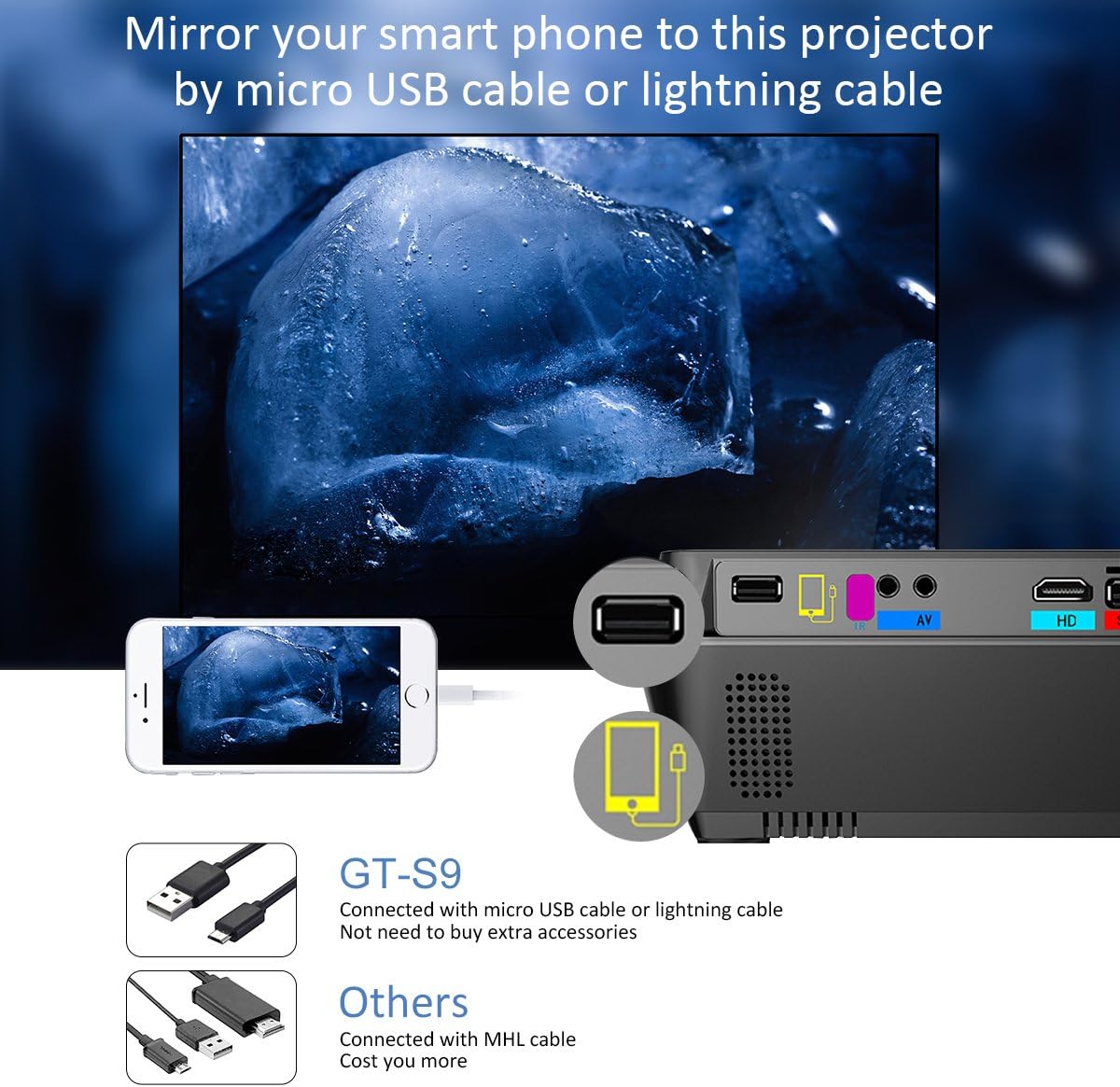
Image: A comparison highlighting the ExquizOn GT-S9's unique feature of direct smartphone mirroring via micro USB or Lightning cable, eliminating the need for extra accessories like MHL cables often required by other projectors.
Operating Instructions
1. Power On/Off
To power on the projector, press the power button on the unit or the remote control. To power off, press the power button again. Allow a few seconds for the projector to complete its startup or shutdown sequence.
2. Source Selection
After connecting your desired device, press the "Source" button on the remote control or the projector's control panel. Use the navigation buttons to select the appropriate input source (e.g., HDMI, USB, AV, VGA, TF Card, or USB Mirroring) and press OK to confirm.
3. Image Adjustment
- Focus: Rotate the focus ring located around the projector lens until the projected image appears sharp and clear on the screen.
- Keystone Correction: If the projected image appears trapezoidal (wider at the top or bottom), adjust the keystone dial until the image is perfectly rectangular.
- Height Adjustment: Use the adjustable foot at the front of the projector to slightly tilt the unit up or down, aligning the image with your screen.
4. Smartphone Mirroring
The GT-S9 projector simplifies smartphone screen sharing:
- Connect your smartphone to the projector using your phone's original Lighting cable (for iOS devices) or Micro USB cable (for Android devices).
- Select the "USB Mirroring" input source on the projector.
- Your smartphone's display should now be mirrored on the projection screen. Ensure your phone is unlocked and allows access if prompted.
5. Usage Scenarios
The ExquizOn GT-S9 projector is versatile and suitable for a variety of applications:

Image: Collage demonstrating the versatility of the ExquizOn GT-S9 projector across four common uses: viewing photos, creating a backyard cinema experience, enjoying home movies, and playing video games.
- Home Theater: Enjoy movies, TV shows, and streaming content on a large, immersive screen.
- Gaming: Connect your game consoles for an enhanced gaming experience with a larger display.
- Photo Viewing: Share your cherished photos and videos with family and friends on a big screen.
- Presentations: Ideal for small business meetings, educational purposes, or casual presentations.
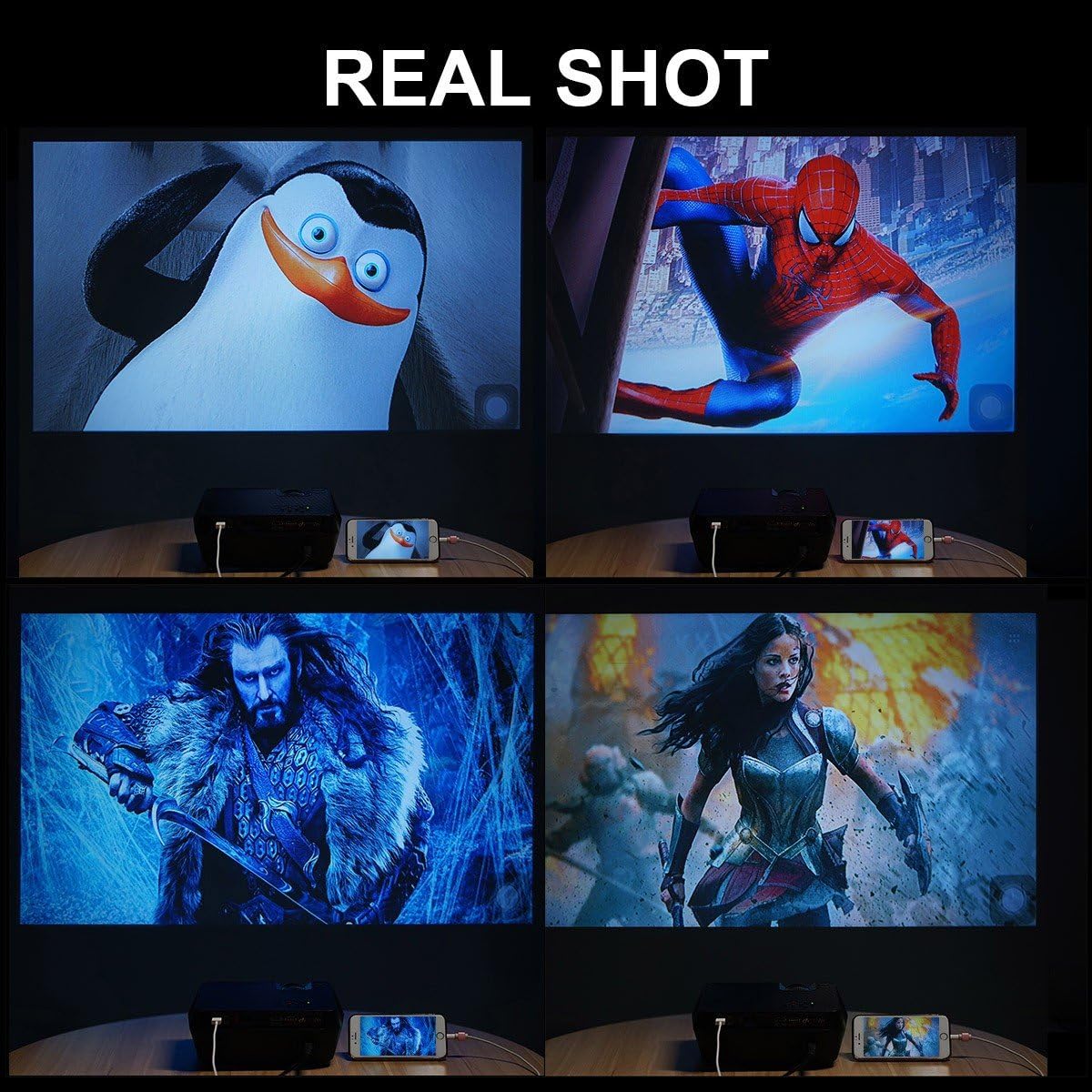
Image: "REAL SHOT" examples of the ExquizOn GT-S9 projector's display quality, showing vibrant and clear projections of various movie scenes and animated characters.
Maintenance
Proper maintenance will extend the lifespan of your projector and ensure optimal performance.
1. Cleaning the Lens
Gently wipe the projector lens with the provided lens cloth or a soft, lint-free cloth. Avoid using abrasive cleaners, solvents, or excessive pressure, as these can damage the lens coating.
2. Dust Removal
Regularly inspect and clean the air vents to prevent dust buildup, which can impede airflow and affect the cooling system. Use a soft brush or a can of compressed air to carefully remove any dust from the vents.
3. Storage
When the projector is not in use for an extended period, store it in a cool, dry place, away from direct sunlight and extreme temperatures. Always place the lens cap back on to protect the lens from dust and scratches.

Image: Internal features of the ExquizOn GT-S9 projector, highlighting its high transmittance glass lens for clear images, an efficient cooling system to prevent overheating, and a durable LED light source with a lifespan of 30,000 hours.
Troubleshooting
If you encounter any issues with your projector, please refer to the following common problems and their solutions:
- No Power:
- Ensure the power cable is securely connected to both the projector and a functional power outlet.
- Check if the power outlet is working by plugging in another device.
- No Image:
- Verify that the correct input source (HDMI, USB, AV, VGA, TF Card, USB Mirroring) is selected.
- Check the connection cable between the projector and the source device for any loose connections or damage.
- Ensure the source device (e.g., laptop, game console) is powered on and outputting a signal.
- Blurry Image:
- Adjust the focus ring on the projector lens until the image becomes clear.
- Ensure the projector is placed at an optimal distance from the screen.
- Use the keystone correction dial to correct any trapezoidal distortion.
- No Sound:
- Check the volume settings on both the projector and the connected source device.
- If using external speakers, ensure they are properly connected and powered on.
- Smartphone Mirroring Not Working:
- Ensure you are using your smartphone's original Lighting (for iOS) or Micro USB (for Android) cable.
- Confirm that "USB Mirroring" is selected as the input source on the projector.
- Some copyrighted content or applications may restrict screen mirroring.
Specifications
Below are the detailed technical specifications for the ExquizOn GT-S9 Mini Video Projector:
| Feature | Detail |
|---|---|
| Brand | ExquizOn |
| Model | GT-S9 |
| Model Year | 2018 |
| Image Brightness | 1800 Lumens |
| Image Contrast Ratio | 1000:1 |
| Display Resolution | 1920 x 1080 (1080P Supported) |
| Standing Screen Display Size | 130 Inches (up to 170 inches) |
| Display Technology | VFD |
| Light Source Life | 30,000 Hours (LED) |
| Connectivity Technology | TV BOX, HDMI, VGA, USB, AV, SD |
| Special Feature | Portable, Smartphone Mirroring (Lighting/Micro USB) |
| Wattage | 60 watts |
| Product Dimensions | 22.86 x 17.02 x 8.38 cm; 1.09 kg |
| Mounting Type | Tabletop Mount |
Warranty and Support
ExquizOn is dedicated to providing high-quality products and exceptional customer service. Your GT-S9 Mini Video Projector is backed by comprehensive support.
- Warranty: The ExquizOn GT-S9 Mini Video Projector comes with a 3-year warranty from the date of purchase.
- Replacement Service: A 365-day replacement service is available for defective units, ensuring peace of mind.
- Customer Service: We offer lifetime customer service to assist you with any inquiries or concerns you may have regarding your projector.
- Technical Support: If you encounter any operational difficulties or quality issues, please do not hesitate to contact ExquizOn customer support. Our professional technical support team is committed to resolving all your issues within 24 hours.

Image: ExquizOn's commitment to customer satisfaction, detailing 365-day replacement service for defective products, official authorization, a three-year customer service warranty, and professional guidance for all projector-related inquiries.