1. Introduction
Thank you for choosing the MindKoo 33-inch Bluetooth Soundbar. This powerful 2.0 channel soundbar is designed to enhance your home entertainment experience with rich, clear audio and powerful bass. It offers versatile connectivity options, including Bluetooth for wireless streaming and wired connections via Optical, AUX, and RCA. This manual provides detailed instructions for setup, operation, maintenance, and troubleshooting to ensure you get the most out of your new soundbar.

Image 1.1: The MindKoo 33-inch Bluetooth Soundbar and its remote control.
2. Package Contents
Please check the package carefully to ensure all items are present and in good condition:
- MindKoo 33-inch Bluetooth Soundbar
- Remote Control
- User Guide
- 3.5mm RCA Audio Cable
- Optical Cable
- Wall Mounting Screws and Anchors

Image 2.1: All components included in the MindKoo Soundbar package: soundbar, remote, user guide, RCA cable, optical cable, and mounting hardware.
3. Product Overview
3.1 Rear Panel Connections
The rear panel of the soundbar features various input ports for connecting to your audio sources.

Image 3.1: Rear view of the soundbar showing the Main Power ON/OFF Switch, RCA (L,R) Input, Coaxial Input, 3.5mm Aux-in Input, and Optical Input.
3.2 Remote Control Functions
The included remote control allows for convenient operation of all soundbar functions.

Image 3.2: Diagram of the remote control highlighting buttons for Standby, Mute, Bluetooth, Coaxial, Optical, and AUX/RCA Input Mode selection.
4. Setup
4.1 Placement Options
The MindKoo Soundbar can be placed directly on a table or mounted on the wall below your TV.
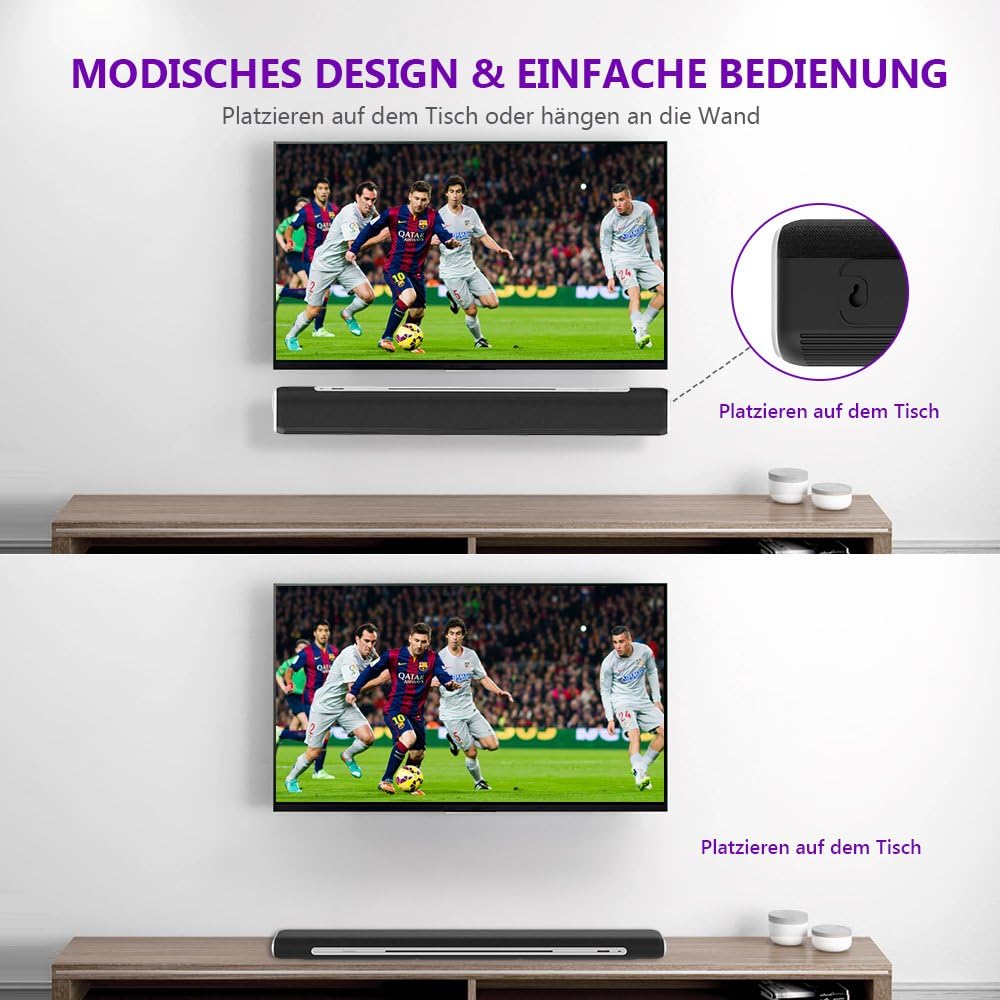
Image 4.1: The soundbar can be placed on a table or mounted on the wall for optimal sound projection.
4.2 Connecting to Your TV or Audio Source
Choose one of the following methods to connect your soundbar to your audio source:
4.2.1 Bluetooth Connection
- Ensure the soundbar is powered on.
- Press the 'BT' button on the remote control or the physical button on the soundbar to switch to Bluetooth mode. The LED indicator will flash.
- Enable Bluetooth on your device (e.g., smartphone, tablet, TV) and search for 'MindKoo Soundbar'.
- Select 'MindKoo Soundbar' from the list to pair. Once connected, the LED indicator will stop flashing and remain solid.
4.2.2 Optical Connection
- Connect one end of the optical cable to the 'Optical Out' port on your TV and the other end to the 'Optical Input' port on the soundbar.
- Press the 'OPT' button on the remote control to select Optical input.
- Ensure your TV's audio output settings are set to 'PCM' or 'Optical Out'.
4.2.3 AUX (3.5mm) Connection
- Connect one end of a 3.5mm audio cable (not included) to the headphone jack or AUX output of your device and the other end to the '3.5mm Aux-in Input' on the soundbar.
- Press the 'AUX' button on the remote control to select AUX input.
4.2.4 RCA Connection
- Connect the RCA audio cable (included) to the 'RCA (L,R) Input' ports on the soundbar, matching the red and white connectors.
- Connect the other end of the RCA cable to the corresponding 'Audio Out' ports on your TV or audio source.
- Press the 'AUX' button on the remote control to select RCA input (often shared with AUX).

Image 4.2: The soundbar positioned below a television, demonstrating its role in a home theater setup for improved audio quality.
5. Operating Instructions
5.1 Power On/Off
- To power on the soundbar, ensure the Main Power ON/OFF switch on the rear panel is in the 'ON' position, then press the Standby button on the remote control or the power button on the soundbar.
- To power off, press the Standby button again.
5.2 Selecting Input Mode
Press the corresponding input buttons on the remote control (e.g., BT for Bluetooth, OPT for Optical, COX for Coaxial, AUX for AUX/RCA) to switch between audio sources. The LED indicator on the soundbar will change color to indicate the selected mode.
5.3 Volume Control
- Use the Volume Up (+) and Volume Down (-) buttons on the remote control or the soundbar to adjust the volume.
- Press the Mute button to temporarily silence the sound. Press it again to restore audio.
5.4 Playback Control (Bluetooth Mode)
- Press Play/Pause to play or pause the current track.
- Press Previous Track to go to the beginning of the current track or the previous track.
- Press Next Track to skip to the next track.
6. Maintenance
Proper maintenance ensures the longevity and optimal performance of your soundbar.
6.1 Cleaning
- Always unplug the soundbar from the power outlet before cleaning.
- Use a soft, dry cloth to wipe the exterior surfaces.
- Do not use liquid cleaners, abrasive cleaners, or spray cleaners, as they may damage the finish or internal components.
6.2 Storage
- If storing the soundbar for an extended period, unplug it from the power source.
- Store it in a cool, dry place, away from direct sunlight and extreme temperatures.
7. Troubleshooting
If you encounter any issues with your MindKoo Soundbar, please refer to the following common problems and solutions:
| Problem | Possible Cause | Solution |
|---|---|---|
| No sound from the soundbar. |
|
|
| Bluetooth pairing fails. |
|
|
| Remote control not working. |
|
|
8. Specifications
Detailed technical specifications for the MindKoo Soundbar:
| Feature | Specification |
|---|---|
| Model Number | MK-BR01#DE |
| Color | Black |
| Product Dimensions | 84 x 11 x 5.5 cm (33 inches long) |
| Item Weight | 2.54 Kilograms |
| Speaker Maximum Output Power | 40 Watts |
| Audio Output Mode | Stereo (2.0 Channels) |
| Connectivity Technology | Bluetooth, AUX, RCA, Optical, Coaxial |
| Mounting Type | Tabletop, Wall Mount |
| Special Feature | Remote Control |
| Recommended Uses | For surround sound audio systems |
| Compatible Devices | TV, Computer, MP3/MP4 Players, Notebooks, Tablets, Smartphones, Game Consoles |

Image 8.1: The 33-inch soundbar is designed to complement TVs ranging from 42 to 55 inches.

Image 8.2: The soundbar offers broad compatibility with devices such as televisions, notebook computers, mobile phones, tablet PCs, desktop computers, MP3/MP4 players, and projectors.
9. Warranty and Support
MindKoo is committed to providing high-quality products and customer satisfaction. For warranty information, technical support, or to register your product, please visit the official MindKoo website.
You can also scan the QR code found in your package or visit the following link for more information:
Please retain your proof of purchase for any warranty claims.