Introduction
This manual provides comprehensive instructions for the setup, operation, and maintenance of your Hama RF Wireless Optical Mouse, model 00182699. Please read this manual carefully to ensure proper use and to maximize the lifespan of your device.

The Hama RF Wireless Optical Mouse, featuring a modern vertical design for ergonomic comfort.
Product Features
- Ergonomic Vertical Design: Engineered to promote a natural hand and wrist posture, reducing strain during extended use.
- Wireless Connectivity: Utilizes RF (Radio Frequency) technology for a reliable and clutter-free connection.
- Adjustable DPI: Switch between 1000, 1400, and 1800 DPI settings for precise control tailored to your needs.
- Optical Sensor: Provides accurate tracking on various surfaces.
- Six Buttons: Includes left click, right click, scroll wheel, DPI switch, and two side buttons (forward/back).
- Plug and Play: No drivers required for most operating systems.

Key features highlighted: vertical design, two side buttons, and ergonomic shape for enhanced comfort.
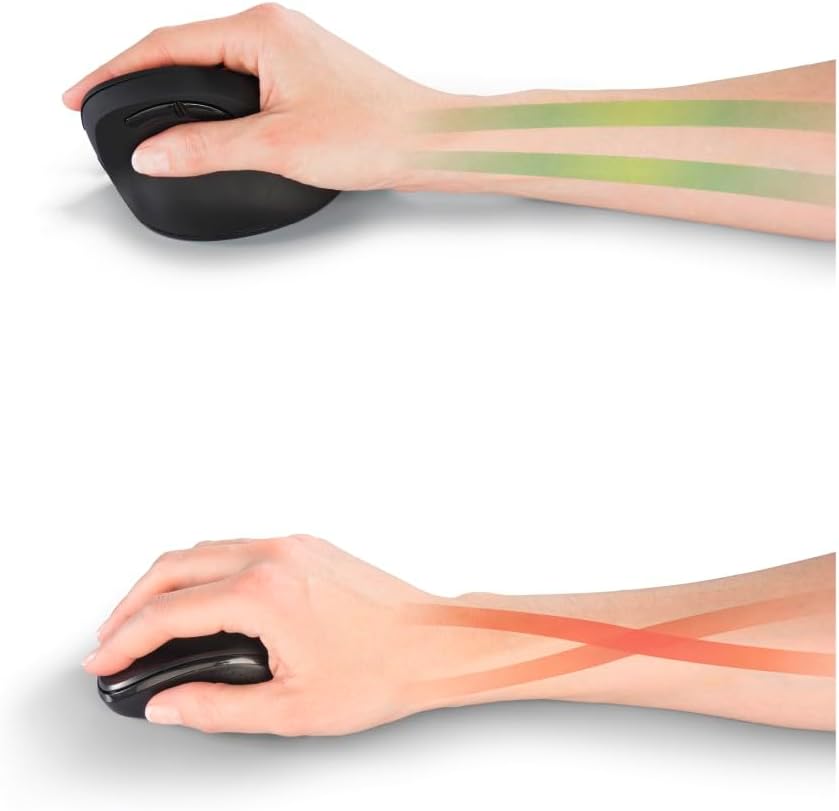
The vertical design of the Hama mouse promotes a more natural and comfortable hand position, reducing wrist pronation compared to traditional mice.
Setup
- Insert Battery: Locate the battery compartment on the underside of the mouse. Insert one AA battery, ensuring correct polarity. The mouse requires 1 AA battery, which is included.
- Retrieve USB Dongle: The USB dongle is typically stored within a small slot on the underside of the mouse for convenient transport. Gently pull it out.
- Connect Dongle: Plug the USB-A dongle into an available USB port on your computer.
- Power On: Locate the On/Off switch on the underside of the mouse and slide it to the "On" position.
- System Recognition: Your computer should automatically detect and install the necessary drivers. This is a plug-and-play device, so no manual driver installation is typically required.
System Requirements:
- Microsoft Windows 10, 8, 7, or Vista
- Minimum Mac OS 10.10
- Available USB-A port

The mouse is plug-and-play compatible with various operating systems and includes a storable USB-A dongle and an AA battery.
Operating Instructions
Button Functions

Overview of the six buttons and their functions for full control.
- Left Button: Standard primary click function.
- Right Button: Standard secondary click function (context menu).
- Scroll Wheel: Scroll up or down through documents and web pages. Can also be pressed for middle-click functionality.
- DPI Switch: Located near the scroll wheel, press this button to cycle through DPI settings (1000, 1400, 1800).
- "One Page Back" Button: Located on the side, navigates back in web browsers or file explorers.
- "One Page Ahead" Button: Located on the side, navigates forward in web browsers or file explorers.
Adjusting DPI Sensitivity
The Hama RF Wireless Optical Mouse offers three adjustable DPI (Dots Per Inch) settings to suit different tasks and preferences:
- 1000 DPI (Slow): Ideal for precise tasks, graphic design, or general private use where slower cursor movement is preferred.
- 1400 DPI (Medium): A balanced setting suitable for everyday office work and general computing.
- 1800 DPI (Fast): Recommended for gaming or tasks requiring rapid cursor movement across large screens.
To change the DPI setting, simply press the DPI switch button located on the top of the mouse, behind the scroll wheel. Each press will cycle to the next sensitivity level.

Choose your preferred cursor speed with the adjustable DPI settings: 1000 DPI for slow, 1400 DPI for medium, and 1800 DPI for fast.
Maintenance
- Cleaning: Use a soft, dry cloth to clean the surface of the mouse. For stubborn dirt, a slightly damp cloth can be used, but ensure no moisture enters the internal components. Avoid abrasive cleaners or solvents.
- Optical Sensor: Periodically check the optical sensor on the underside of the mouse for dust or debris. Clean gently with a cotton swab if necessary.
- Battery Replacement: When the mouse performance degrades or the battery indicator (if present) signals low power, replace the AA battery. Ensure the mouse is switched off before replacing the battery.
- Storage: When not in use for extended periods, switch off the mouse to conserve battery life. Store the USB dongle in its designated slot on the mouse to prevent loss.
Troubleshooting
| Problem | Possible Cause | Solution |
|---|---|---|
| Mouse not responding |
|
|
| Erratic cursor movement |
|
|
| Side buttons not working |
|
|
Specifications
| Feature | Detail |
|---|---|
| Model Number | 00182699 |
| Brand | Hama |
| Connectivity | RF Wireless (2.4 GHz) |
| Sensor Type | Optical |
| DPI Settings | 1000 / 1400 / 1800 DPI (Adjustable) |
| Number of Buttons | 6 (Left, Right, Scroll Wheel, DPI Switch, Forward, Back) |
| Dimensions (L x W x H) | 4.53 x 2.8 x 3.39 inches (11.5 x 7.1 x 8.6 cm) |
| Weight | 4 ounces |
| Battery Type | 1 x AA (included) |
| Operating System Compatibility | Microsoft Windows 10/8/7/Vista, min. Mac OS 10.10 |

Detailed dimensions of the Hama RF Wireless Optical Mouse.
Warranty and Support
Hama products are manufactured with care and undergo strict quality controls. This product comes with a standard manufacturer's warranty. For specific warranty terms and conditions, please refer to the warranty card included with your product or visit the official Hama website.
For technical support, troubleshooting assistance, or to inquire about replacement parts, please contact Hama customer service. Contact information can typically be found on the Hama website or on the product packaging.
Online Resources:
- Official Hama Website: www.hama.com (Please check for regional websites for localized support)