Introduction
The AbergBest 21 Mega Pixels HD Digital Camera is designed to capture every significant moment with ease. Featuring 21 megapixels and HD 720P resolution, it's ideal for recording memories. The camera includes face detection, smile capture, anti-shake technology, continuous shooting, a self-timer, and 8X digital zoom. Its compact and portable design makes it a great choice for teens, kids, and students looking to explore photography.

Front view of the AbergBest 21 Mega Pixels Digital Camera.
Setup
What's in the Box
- Camera Body
- Accessories (including charger and USB cable)
- Two rechargeable Lithium-Ion batteries
- Carrying case
- User Manual (this document)
- Digital Camera Driver Disk
Battery Installation
The camera comes with two rechargeable Lithium-Ion batteries. To install a battery, locate the battery compartment on the side of the camera. Slide the compartment cover open. Insert one of the provided batteries, ensuring the correct orientation as indicated inside the compartment. Close the cover securely.
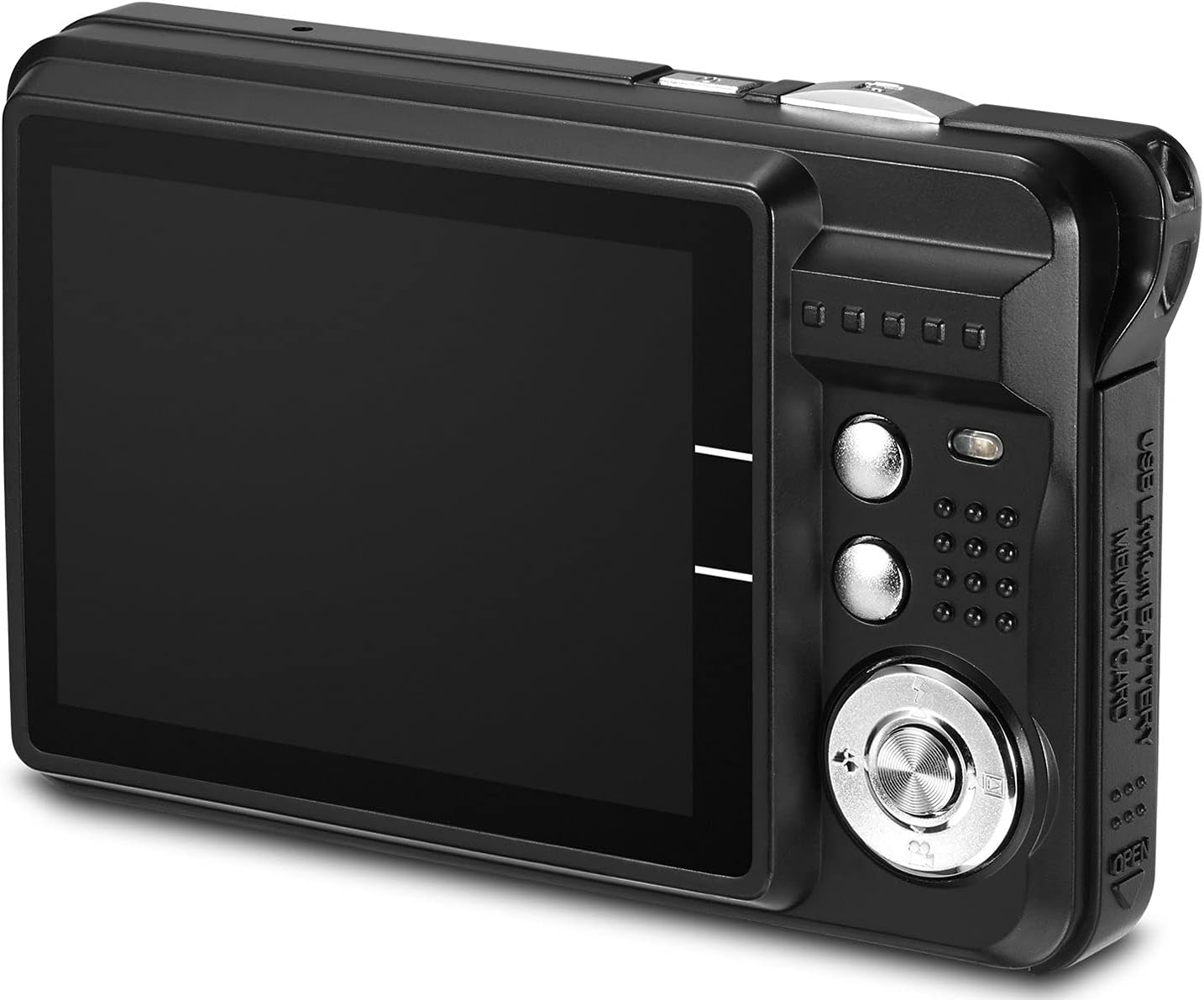
Back view of the camera, showing the LCD screen and control buttons.
SD Card Installation
An SD memory card (up to 64GB) is required for storing photos and videos and is not included with the camera. Locate the SD card slot, usually near the battery compartment. Insert the SD card with the metal contacts facing down until it clicks into place. To remove, gently press the card until it pops out.
Charging the Battery
Use the provided USB cable and charger to charge the camera's battery. Connect the small end of the USB cable to the camera's USB port and the larger end to the charger. Plug the charger into a power outlet. The battery indicator on the camera's screen will show charging status. A fully charged battery can support over 60 minutes of use.
Operating the Camera
Power On/Off
To turn the camera on, press and hold the power button located on the top or side of the camera until the screen illuminates. To turn it off, press and hold the same button until the screen shuts down.
Navigating Modes
The camera offers various shooting modes to adapt to different environments. Press the 'Mode' dial or button (often labeled with 'M' or a scene icon) to cycle through options such as:
- Auto: Standard mode for general use.
- Night Portrait: Optimized for portraits in low light.
- Night Scenery: Optimized for landscapes in low light.
- Sport: For capturing fast-moving subjects.
- Scenery: Enhances outdoor landscape shots.
- Portrait: Ideal for close-up shots of people.
- Party: Adjusts settings for indoor party lighting.
- Beach: Optimizes for bright, reflective environments.
- High Sensitivity: For very low light conditions.

The camera's LCD screen showing available scene modes for different shooting conditions.
Zoom Function
The camera features an 8X digital zoom. To zoom in, press the 'T' (Telephoto) button, usually located near the shutter button or on the directional pad. To zoom out, press the 'W' (Wide) button. Digital zoom magnifies the image electronically, which may affect image quality at higher magnifications.
Taking Photos & Recording Videos
To take a photo, frame your subject on the LCD screen and press the shutter button halfway down to focus, then press it fully to capture the image. To record a video, switch to video mode (if available, or press the dedicated video record button) and press the shutter/record button to start and stop recording.

The camera's digital lens and flash, capable of capturing detailed images.
Viewing Files
To view your captured photos and videos, switch the camera to playback mode (often indicated by a play icon). Use the directional buttons to navigate through your files. Press the 'OK' or 'Enter' button to view a file in full screen.
Maintenance
Cleaning
Use a soft, lint-free cloth to clean the camera body and LCD screen. For the lens, use a specialized lens cleaning cloth and solution. Avoid using abrasive materials or harsh chemicals, as they can damage the camera's surfaces.
Storage
When not in use, store the camera in its provided carrying case in a cool, dry place away from direct sunlight and extreme temperatures. Remove the battery if the camera will not be used for an extended period to prevent leakage.
Troubleshooting
| Issue | Possible Cause | Solution |
|---|---|---|
| Camera does not turn on | Low or uncharged battery; incorrectly inserted battery. | Charge the battery fully. Ensure the battery is inserted correctly. |
| "No File Exist" or "Memory Full" message | No SD card inserted; SD card is full or corrupted. | Insert a compatible SD card. Transfer files to a computer and format the SD card, or use a new SD card. |
| Poor image quality | Incorrect scene mode; low light; excessive digital zoom. | Select an appropriate scene mode. Ensure sufficient lighting. Avoid using maximum digital zoom if possible. |
| Camera freezes or is unresponsive | Software glitch; low battery. | Remove and reinsert the battery to reset the camera. Ensure battery is charged. |
Specifications
| Feature | Detail |
|---|---|
| Brand | AbergBest |
| Model Name | AbergBest 21 Mega Pixels 2.7" LCD Rechargeable HD Digital Camera Video Camera |
| Model Number | 20180112-BC |
| Photo Sensor Resolution | 21 MP |
| Video Resolution | HD 720p |
| Digital Zoom | 8 x |
| Screen Size | 2.7 inches |
| Display Type | LCD |
| Flash Memory Type | SD (supports up to 64 GB) |
| Battery Type | Lithium Ion |
| Connectivity Technology | USB |
| Special Feature | Face Detection |
| Color | Black |
| Item Weight | 309 Grams |
Warranty and Support
Warranty Information
This product comes with no stated warranty. Please refer to your purchase documentation for any specific return or exchange policies from your retailer.
Additional Support
For further assistance or detailed instructions, you may refer to the official User Guide PDF available online: AbergBest Digital Camera User Guide.
For product support, please contact the manufacturer, AbergBest, through their official channels or the retailer from whom the product was purchased.


