
1. Introduction
Thank you for purchasing the CONTEC SolarView Compact SV-CPT-MC310. This device is designed for efficient monitoring and data logging of solar power generation. It integrates essential functions such as power measurement, data display, and storage into a compact form factor. This manual provides detailed instructions for the proper setup, operation, and maintenance of your device.
Please read this manual thoroughly before using the product to ensure safe and optimal performance. Keep this manual for future reference.
2. Product Overview
The CONTEC SolarView Compact SV-CPT-MC310 is a versatile device for solar power monitoring. Its slim design houses comprehensive features including a screen display, network connectivity, RS-485 communication, and an SD card slot for data storage.
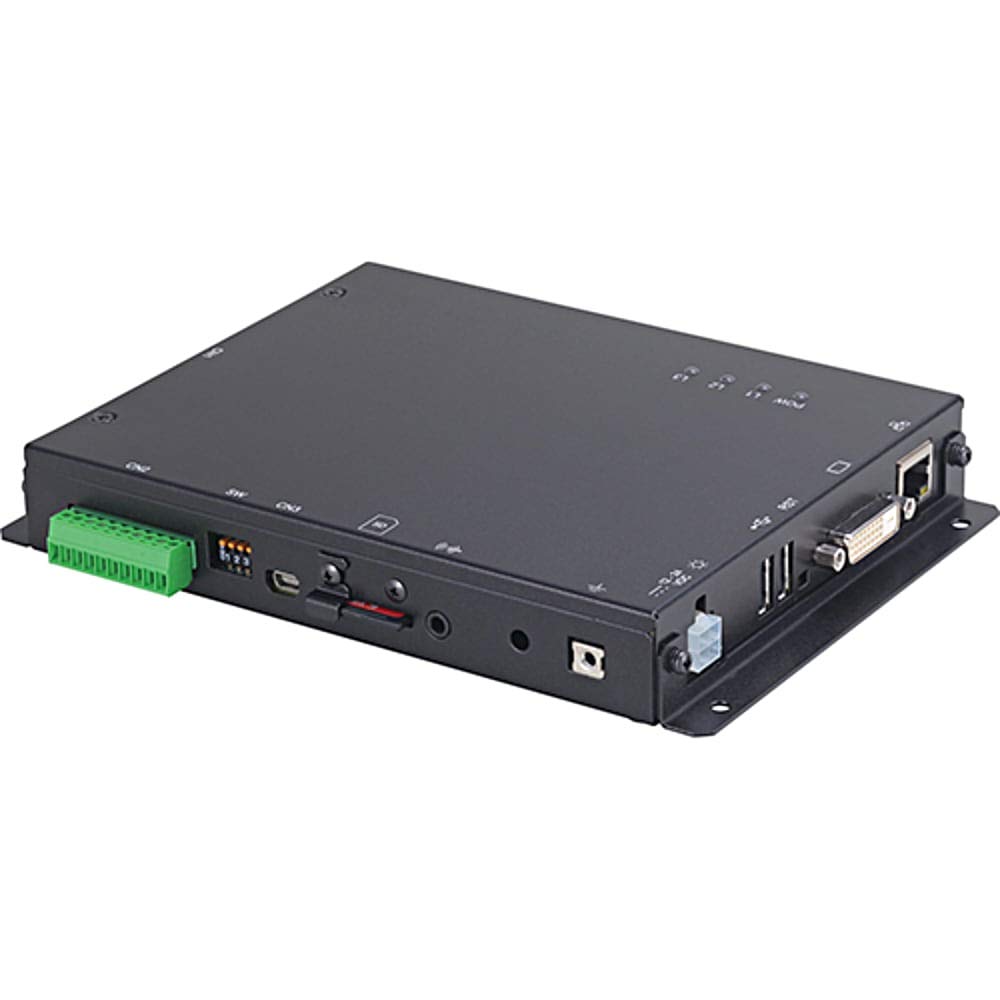
Figure 1: Front view of the CONTEC SolarView Compact SV-CPT-MC310. This image illustrates the compact size and the integrated display panel of the device, highlighting its user-friendly interface for monitoring solar power data.
3. Safety Information
Always observe the following safety precautions to prevent injury and damage to the device:
- Ensure the device is installed by qualified personnel.
- Do not expose the device to extreme temperatures, humidity, or direct sunlight.
- Disconnect power before performing any maintenance or installation procedures.
- Use only specified power adapters and cables.
- Do not attempt to open or repair the device yourself. Refer to authorized service personnel.
4. Setup
4.1 Unpacking and Inspection
Carefully remove the device from its packaging. Inspect for any signs of damage during transit. If any damage is found, contact your supplier immediately.
4.2 Mounting the Device
The SolarView Compact SV-CPT-MC310 is designed for indoor installation. Choose a location that is dry, well-ventilated, and free from direct sunlight or excessive heat sources. Ensure adequate space around the device for ventilation and cable connections.
- Identify a suitable mounting surface.
- Secure the device using appropriate screws or mounting brackets (not included).
4.3 Electrical Connections
Connect the power supply and communication cables as follows:
- Power Input: Connect the DC power adapter to the device's power input port. Ensure the power source matches the device's voltage requirements.
- RS-485 Communication: Connect the RS-485 cable to the designated port for communication with other devices or systems.
- Network (Ethernet): For network connectivity, plug an Ethernet cable into the RJ45 port.
- SD Card: Insert a compatible SD card into the SD card slot for data logging. Ensure the card is correctly oriented.
Warning: Ensure all connections are secure before applying power.
5. Operating Instructions
5.1 Powering On and Initial Boot
Once all connections are made, apply power to the device. The device will perform a self-test and the display will show the boot-up sequence. After successful boot, the main monitoring screen will appear.
5.2 Navigating the User Interface
The device features an integrated display and control buttons. Use the navigation buttons to scroll through menus and select options.
- Up/Down Buttons: Navigate through menu items or adjust values.
- Enter Button: Confirm selection or enter a submenu.
- Back/Exit Button: Return to the previous screen or exit a menu.
5.3 Monitoring Solar Power Data
The main screen typically displays real-time data such as:
- Current Power Generation (W)
- Daily Energy Yield (Wh)
- Total Energy Yield (kWh)
- System Status
Refer to the on-screen menu for detailed historical data and system settings.
5.4 Data Logging and Export
The device automatically logs data to the inserted SD card. To access or export data:
- Navigate to the "Data Management" or "Log" menu.
- Select the desired time range or data type.
- Choose the "Export" option (if available) to transfer data via network or remove the SD card and access data on a computer.
6. Maintenance
6.1 Cleaning
Keep the device clean and free from dust. Use a soft, dry cloth to wipe the exterior. Do not use liquid cleaners or abrasive materials.
6.2 Firmware Updates
Periodically check the CONTEC website for firmware updates. Follow the provided instructions carefully for any update procedures to ensure optimal performance and access to new features.
6.3 SD Card Management
Regularly back up data from the SD card. Consider replacing the SD card periodically, especially if it shows signs of wear or data corruption, to ensure reliable data logging.
7. Troubleshooting
| Problem | Possible Cause | Solution |
|---|---|---|
| Device does not power on. | No power supply; faulty power adapter; loose connection. | Check power cable connection. Ensure power adapter is functional. Verify power outlet. |
| No data displayed. | Sensor not connected; communication error; incorrect settings. | Verify sensor connections. Check RS-485 or network settings. Restart the device. |
| SD card error. | SD card not inserted correctly; incompatible card; corrupted card. | Reinsert SD card. Try a different compatible SD card. Format the SD card (data will be lost). |
| Network connection failure. | Ethernet cable disconnected; incorrect network settings; router issue. | Check Ethernet cable. Verify network settings on the device. Restart router/modem. |
If the problem persists after attempting these solutions, please contact CONTEC technical support.
8. Specifications
| Feature | Detail |
|---|---|
| Model Number | SV-CPT-MC310 |
| Dimensions (L x W x H) | 14 x 17 x 3 cm |
| Weight | 650 g |
| Communication Interfaces | Network (Ethernet), RS-485 |
| Data Storage | SD Card |
| Manufacturer | CONTEC |
9. Warranty and Support
9.1 Warranty Information
CONTEC warrants this product against defects in materials and workmanship for a period specified at the time of purchase. Please retain your proof of purchase. The warranty does not cover damage caused by improper installation, misuse, unauthorized repairs, or natural disasters.
For detailed warranty terms and conditions, please refer to the warranty card included with your product or visit the official CONTEC website.
9.2 Technical Support
If you require technical assistance or have questions regarding the operation of your SolarView Compact SV-CPT-MC310, please contact CONTEC technical support through their official website or the contact information provided in your product documentation.
When contacting support, please have your model number (SV-CPT-MC310) and a detailed description of the issue ready.
