
1. Introduction
Thank you for choosing the Car and Driver CDC-632 Dash Cam. This device is designed to record your journeys in high definition, providing security and peace of mind on the road. It features 2K Ultra HD video recording, built-in Wi-Fi, GPS tracking, and app connectivity for convenient operation and file management.
2. Package Contents
Please check the box for the following items:
- Car and Driver CDC-632 Dash Cam
- Windshield Suction Mount
- Car Adapter
- 8GB Micro-SD Card

Image: The retail packaging for the Car and Driver CDC-632 Dash Cam, highlighting key features like G-sensor, 1080P Full HD HDR, Wi-Fi, Loop Recording, and GPS Tracking. An 8GB memory card is also indicated as included.
3. Product Overview
Familiarize yourself with the components of your dash cam.

Image: The Car and Driver CDC-632 Dash Cam attached to its suction mount. The 2.4-inch LCD screen is visible, displaying a road view with recording indicators, resolution (1920x1080 P60), and current date/time.
Front View

Image: A close-up front view of the Car and Driver CDC-632 Dash Cam, highlighting the central camera lens and ventilation grilles on the sides.
Rear View (LCD Screen)

Image: The rear view of the Car and Driver CDC-632 Dash Cam, featuring the 2.4-inch LCD screen displaying a road scene with HDR indicator, exposure value, and battery status. Control buttons are visible below the screen.
4. Installation
4.1 Mounting the Dash Cam
- Clean the windshield area where you intend to mount the dash cam.
- Attach the suction mount to the dash cam.
- Press the suction cup firmly against the windshield and flip the lever to secure it.
- Adjust the angle of the dash cam to ensure a clear view of the road ahead.
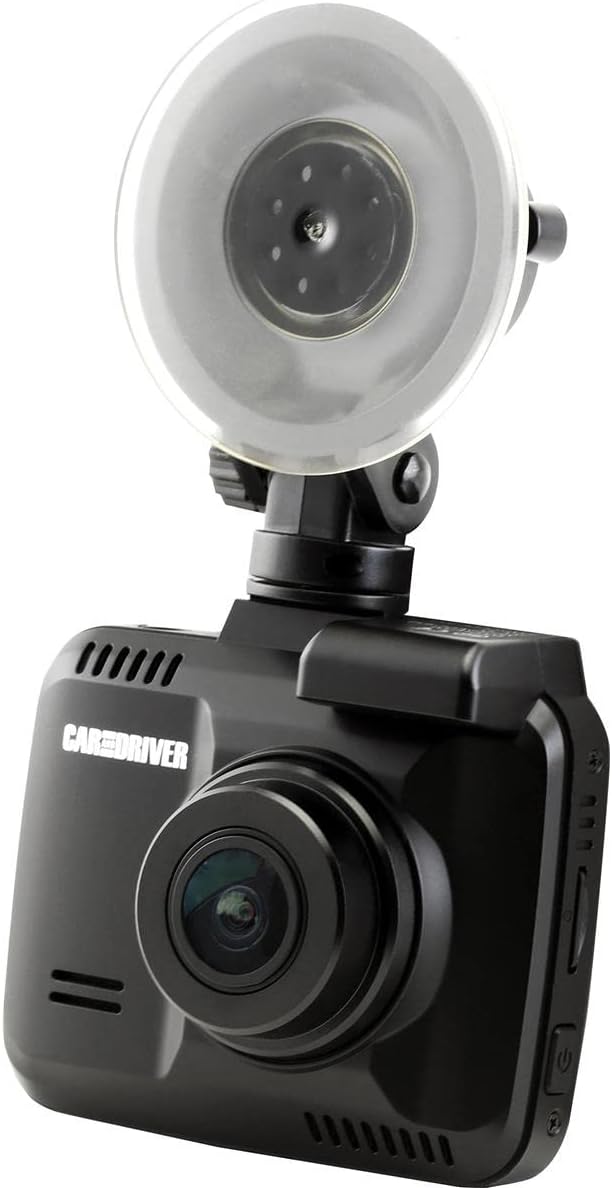
Image: The Car and Driver CDC-632 Dash Cam is shown mounted on a car's windshield using its suction cup. The camera is angled to capture the road ahead, with the power cable connected.
4.2 Powering the Device
- Connect the car adapter to the dash cam's power input port.
- Plug the car adapter into your vehicle's 12V power outlet (cigarette lighter socket).
- The dash cam will typically power on automatically when the vehicle's ignition is turned on and begin recording.
5. Initial Setup
5.1 Inserting the Micro-SD Card
The dash cam supports Micro-SD cards up to 64GB. An 8GB Micro-SD card is included.
- With the dash cam powered off, locate the Micro-SD card slot on the side of the device.
- Insert the Micro-SD card with the gold contacts facing the back of the dash cam until it clicks into place.
- To remove, gently push the card in until it springs out.
5.2 Formatting the Micro-SD Card
It is recommended to format the Micro-SD card before first use and periodically thereafter to ensure optimal performance and prevent data corruption.
- Power on the dash cam.
- Navigate to the 'Settings' menu using the control buttons.
- Select 'Format SD Card' and confirm the action. All data on the card will be erased.
5.3 Date and Time Settings
Ensure the correct date and time are set for accurate timestamping of recordings.
- Access the 'Settings' menu.
- Locate 'Date/Time' settings.
- Adjust the year, month, day, hour, and minute using the navigation buttons.
- Confirm your selections.
6. Basic Operation
6.1 Automatic Recording
Once powered on, the dash cam will automatically begin recording in a continuous loop. The recording indicator (usually a red dot or icon) will appear on the screen.
6.2 Loop Recording
The dash cam records video in segments (e.g., 1, 3, or 5 minutes). When the Micro-SD card is full, the oldest unlocked files will be overwritten by new recordings. This ensures continuous recording without manual intervention.
6.3 G-Sensor Protection
The built-in G-sensor detects sudden impacts or collisions. When triggered, the current video segment will be automatically locked and saved to a protected folder, preventing it from being overwritten by loop recording. The sensitivity of the G-sensor can usually be adjusted in the settings menu.
6.4 NiteVision Recording
The dash cam features NiteVision technology with intelligent IR for enhanced recording clarity in low-light conditions or at night.
7. Advanced Features
7.1 Wi-Fi Connectivity and App Control
The dash cam features 802.11 B/G/N 2.4GHZ Wi-Fi connectivity, allowing you to connect your smartphone via the Car and Driver App.
- Download the Car and Driver App from your smartphone's app store.
- Enable Wi-Fi on your dash cam through the settings menu.
- On your smartphone, connect to the dash cam's Wi-Fi network (SSID and password typically displayed on the dash cam screen).
- Open the Car and Driver App to access live view, playback recordings, download files, and adjust settings remotely.
7.2 GPS Tracking
The built-in GPS module accurately records your driving location and speed. This data can be viewed during video playback using the dedicated Car and Driver App or compatible desktop software, providing crucial information for incident analysis.
8. Playback and File Management
8.1 On-Device Playback
- Stop recording (if active).
- Enter playback mode via the menu buttons.
- Browse through recorded videos. Locked files are usually in a separate folder.
- Select a video to play it on the 2.4-inch LCD screen.
8.2 App Playback and Download
Using the Car and Driver App, you can wirelessly view, download, and manage recorded videos on your smartphone. This is the most convenient method for accessing files.
8.3 Computer Playback
You can also remove the Micro-SD card and insert it into a computer's card reader to access files directly. Dedicated player software may be required to view GPS data alongside the video.
9. Maintenance
9.1 Cleaning the Dash Cam
- Ensure the device is powered off and disconnected from power.
- Use a soft, dry cloth to wipe the dash cam body.
- For the lens, use a specialized lens cleaning cloth and solution to avoid scratches.
- Do not use harsh chemicals or abrasive cleaners.
9.2 Micro-SD Card Care
- Periodically format the Micro-SD card (monthly is recommended) to maintain optimal performance and prevent file errors.
- Use high-quality, reputable brand Micro-SD cards designed for dash cam use (Class 10 or higher).
10. Troubleshooting
- Dash Cam not powering on: Ensure the car adapter is securely plugged into both the dash cam and the vehicle's 12V power outlet. Check if the vehicle's power outlet is functional.
- Recording stops or freezes: Format the Micro-SD card. Ensure you are using a high-speed (Class 10 or higher) Micro-SD card. Try a different Micro-SD card.
- Poor video quality: Clean the camera lens. Ensure the protective film has been removed from the lens. Check video resolution settings.
- Wi-Fi connection issues: Ensure Wi-Fi is enabled on the dash cam. Restart both the dash cam and your smartphone. Make sure you are within close proximity to the dash cam.
- GPS not working: Ensure the dash cam has a clear view of the sky. It may take a few minutes for the GPS signal to be acquired after powering on.
- Buttons unresponsive: Try resetting the device (if a reset button is available, use a thin object to press it).
11. Specifications
| Feature | Detail |
|---|---|
| Model Name | Ultra HD Dash Cam |
| Model Number | CDC-632 |
| Video Capture Resolution | 2K |
| Field Of View | 130 Degrees |
| Screen Size | 2.4 Inches |
| Connectivity Technology | Wi-Fi (802.11 B/G/N 2.4GHZ) |
| Special Features | Built-In WiFi, Night Vision (NiteVision), Built-in G-sensor, GPS Tracking |
| Mounting Type | Suction Mount |
| Flash Memory Type | MicroSD (up to 64GB) |
| Frame Rate | 30 FPS |
| Control Method | Touch (via physical buttons) |
| Item Weight | 10.4 Ounces |
12. Warranty Information
This Car and Driver CDC-632 Dash Cam comes with a 1-year manufacturer warranty from the date of purchase. Please retain your proof of purchase for warranty claims. The warranty covers defects in materials and workmanship under normal use. It does not cover damage caused by misuse, accidents, unauthorized modifications, or natural disasters.
13. Customer Support
If you encounter any issues or have questions not covered in this manual, please contact Car and Driver customer support. Refer to the product packaging or the official Car and Driver website for contact details.


