
Introduction
Thank you for choosing the Bang & Olufsen Beoplay H9i headphones. This manual provides essential information on setting up, operating, and maintaining your new headphones to ensure optimal performance and longevity. Please read this manual carefully before using your Beoplay H9i.
Product Overview
The Beoplay H9i are premium wireless over-ear headphones designed for superior sound quality, comfort, and advanced features like Active Noise Cancellation (ANC) and Transparency Mode. They feature intuitive touch controls for easy management of music and calls.
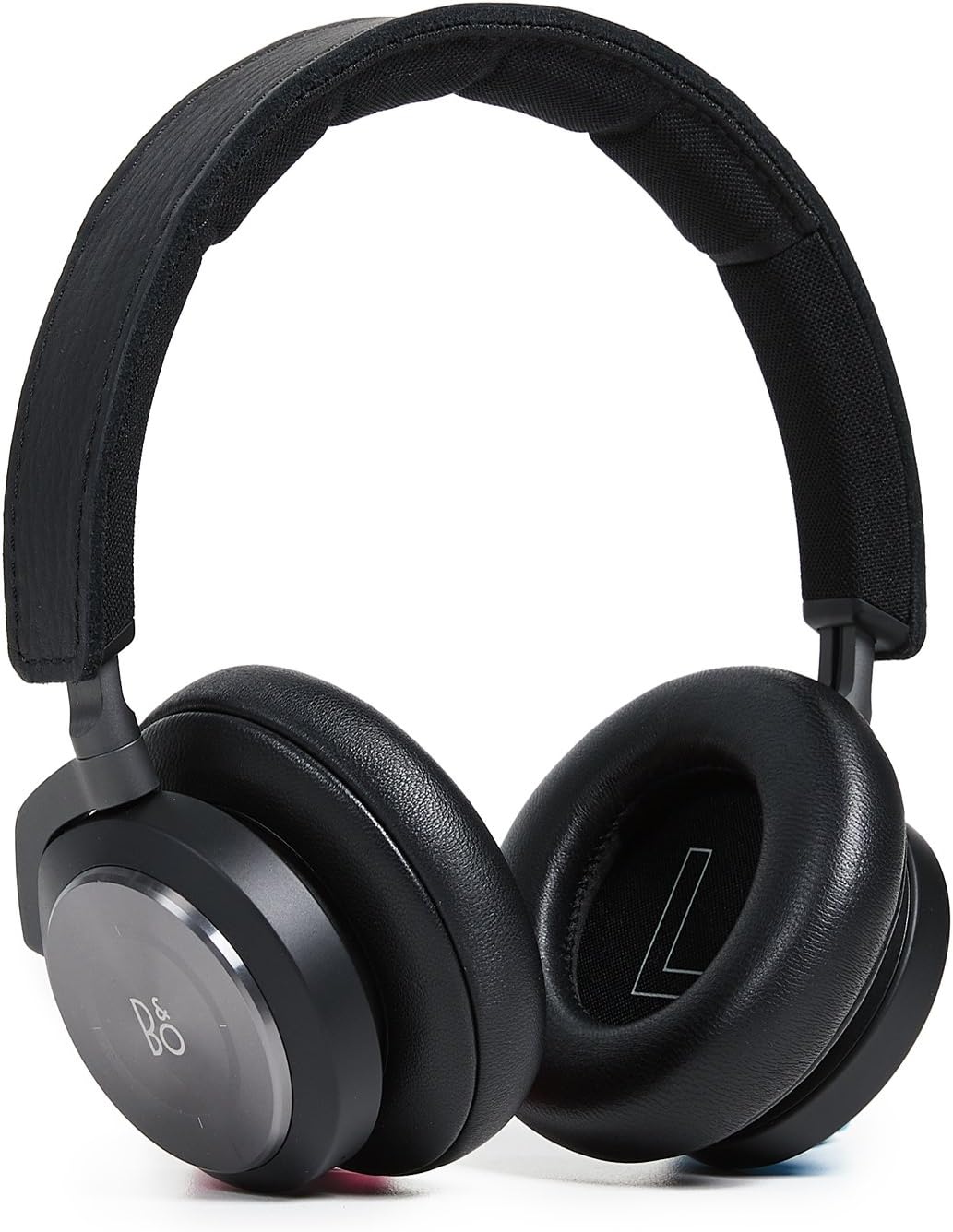
Image: Front view of the Bang & Olufsen Beoplay H9i headphones, showcasing the earcups and headband.

Image: Side view of the Beoplay H9i headphones, highlighting the design of the earcup and headband connection.

Image: Rear view of the Beoplay H9i headphones, showing the back of the earcups and the padded headband.
Key Components:
- Earcups: House the audio drivers and touch controls.
- Headband: Adjustable for comfortable fit.
- Microphone: For calls and voice commands.
- USB-C Port: For charging.
- 3.5mm Audio Jack: For wired connection.
Setup
Charging the Headphones:
Before first use, fully charge your Beoplay H9i headphones. Connect the supplied USB-C cable to the USB-C port on the headphones and to a USB power adapter or a computer's USB port. The LED indicator will show charging status.
- A full charge takes approximately 2.5 hours.
- The LED indicator will turn solid green when fully charged.
Bluetooth Pairing:
- Ensure the headphones are turned off.
- Press and hold the power button for 5 seconds until the LED indicator flashes blue, indicating pairing mode.
- On your device (smartphone, tablet, computer), enable Bluetooth and search for available devices.
- Select "Beoplay H9i" from the list of found devices.
- Once connected, the LED indicator will turn solid blue.
The Beoplay H9i can remember up to 8 paired devices. It will automatically connect to the last paired device when turned on, if that device is within range and Bluetooth is enabled.
Operating
Power On/Off:
- Power On: Slide the power switch to the 'ON' position. The LED indicator will turn white.
- Power Off: Slide the power switch to the 'OFF' position. The LED indicator will turn off.
Touch Controls (Right Earcup):
The Beoplay H9i features intuitive touch controls on the right earcup. Gently swipe or tap the aluminum disc.
- Volume Up: Swipe clockwise along the outer ring.
- Volume Down: Swipe counter-clockwise along the outer ring.
- Play/Pause: Tap the center of the earcup once.
- Next Track: Swipe forward (from back to front) across the earcup.
- Previous Track: Swipe backward (from front to back) across the earcup.
- Answer/End Call: Tap the center of the earcup once.
- Reject Call: Tap and hold the center of the earcup.
Active Noise Cancellation (ANC):
ANC reduces ambient noise, allowing for a more immersive listening experience.
- Activate/Deactivate ANC: Swipe down on the right earcup.
Transparency Mode:
Transparency Mode allows you to hear your surroundings without removing your headphones.
- Activate/Deactivate Transparency Mode: Swipe up on the right earcup.
Proximity Sensor:
The Beoplay H9i features a proximity sensor that automatically pauses playback when you remove the headphones and resumes when you put them back on.
Maintenance
Cleaning:
- Wipe the headphones with a soft, dry cloth.
- For stubborn dirt, slightly dampen the cloth with water. Do not use harsh chemicals or abrasive materials.
- Avoid getting moisture into the ports.
Storage:
- Store the headphones in the included carrying pouch when not in use to protect them from dust and scratches.
- Avoid storing in extreme temperatures or high humidity.
Troubleshooting
| Problem | Possible Solution |
|---|---|
| Headphones do not power on. | Ensure the battery is charged. Connect to a power source and try again. |
| Cannot pair with device. | Ensure headphones are in pairing mode (flashing blue LED). Turn off and on Bluetooth on your device. Move closer to the device. |
| No sound or low volume. | Check volume levels on both headphones and connected device. Ensure headphones are properly paired. Try restarting both devices. |
| ANC/Transparency Mode not working. | Ensure you are performing the correct swipe gesture on the right earcup. Check for firmware updates via the Bang & Olufsen app. |
| Touch controls unresponsive. | Ensure the earcup surface is clean and dry. Try restarting the headphones. |
Specifications
| Feature | Detail |
|---|---|
| Brand | Bang & Olufsen |
| Model | Beoplay H9i |
| Color | Black |
| Ear Placement | Over Ear |
| Form Factor | Over Ear |
| Impedance | 24 Ohm |
| Frequency Response | 20 - 20,000 Hz |
| Battery Capacity | 770 mAh Lithium-Ion |
| Connectivity | Bluetooth, 3.5mm Audio Jack |
| Features | Active Noise Cancellation, Transparency Mode, Proximity Sensor, Microphone |
Safety Information
- Do not expose the headphones to excessive heat, moisture, or corrosive materials.
- Avoid listening at high volume levels for extended periods to prevent hearing damage.
- Do not use the headphones while driving or cycling in situations where the inability to hear ambient sounds could be dangerous.
- Keep out of reach of children.
Warranty and Support
Your Bang & Olufsen Beoplay H9i headphones are covered by a limited warranty. For detailed warranty terms and conditions, please refer to the warranty card included with your product or visit the official Bang & Olufsen website.
For technical support, troubleshooting assistance, or service inquiries, please contact Bang & Olufsen customer support or visit their official support page. You may also find additional resources, FAQs, and firmware updates on their website.
Official Bang & Olufsen Website: www.bang-olufsen.com