
Introduction
The HP Wireless Mouse 200 provides a reliable and comfortable wireless experience for your computing needs. Designed for ease of use, this mouse features a 2.4 GHz wireless connection, a contoured shape for ambidextrous comfort, and a 1,000 DPI optical sensor for precise tracking. This manual provides instructions for setting up, operating, and maintaining your HP Wireless Mouse 200.
Package Contents

Figure 1: Package Contents. The image displays the HP Wireless Mouse 200, two AAA batteries, a 2.4GHz wireless receiver, a quick start poster, product notices, and a warranty card.
Verify that your package contains the following items:
- HP Wireless Mouse 200
- 2 AAA Batteries
- 2.4 GHz Wireless USB Receiver
- Quick Start Guide
- Product Notices
- Warranty Card
Setup
1. Battery Installation
- Locate the battery compartment on the underside of the mouse.
- Slide the battery compartment cover open.
- Insert the two AAA batteries (included) into the compartment. Ensure correct polarity (+ and - ends) as indicated inside the compartment. Note: Some users have reported that batteries may need to be inserted in opposite directions for proper function.
- Close the battery compartment cover.
2. Connect the USB Receiver
- Locate the 2.4 GHz wireless USB receiver. This is typically stored inside the battery compartment or packaged separately.
- Plug the USB receiver into an available USB port on your computer.
- Your computer should automatically detect the mouse.
3. Power On the Mouse
- On the underside of the mouse, locate the On/Off switch.
- Slide the switch to the "On" position. The optical sensor light (red LED) should illuminate.
- If the mouse does not connect automatically, press the "Connect" button located near the On/Off switch on the underside of the mouse.
Operating the Mouse

Figure 2: Key Features of the HP Wireless Mouse 200. This image illustrates the mouse's features such as battery life, wireless range, button layout, and operating system compatibility.
The HP Wireless Mouse 200 is designed for intuitive navigation and control.
- Left Click Button: Used for selecting items, opening files, and executing commands.
- Right Click Button: Used for accessing context menus and additional options.
- Scroll Wheel: Used for scrolling through documents and web pages. The scroll wheel also functions as a middle click button.
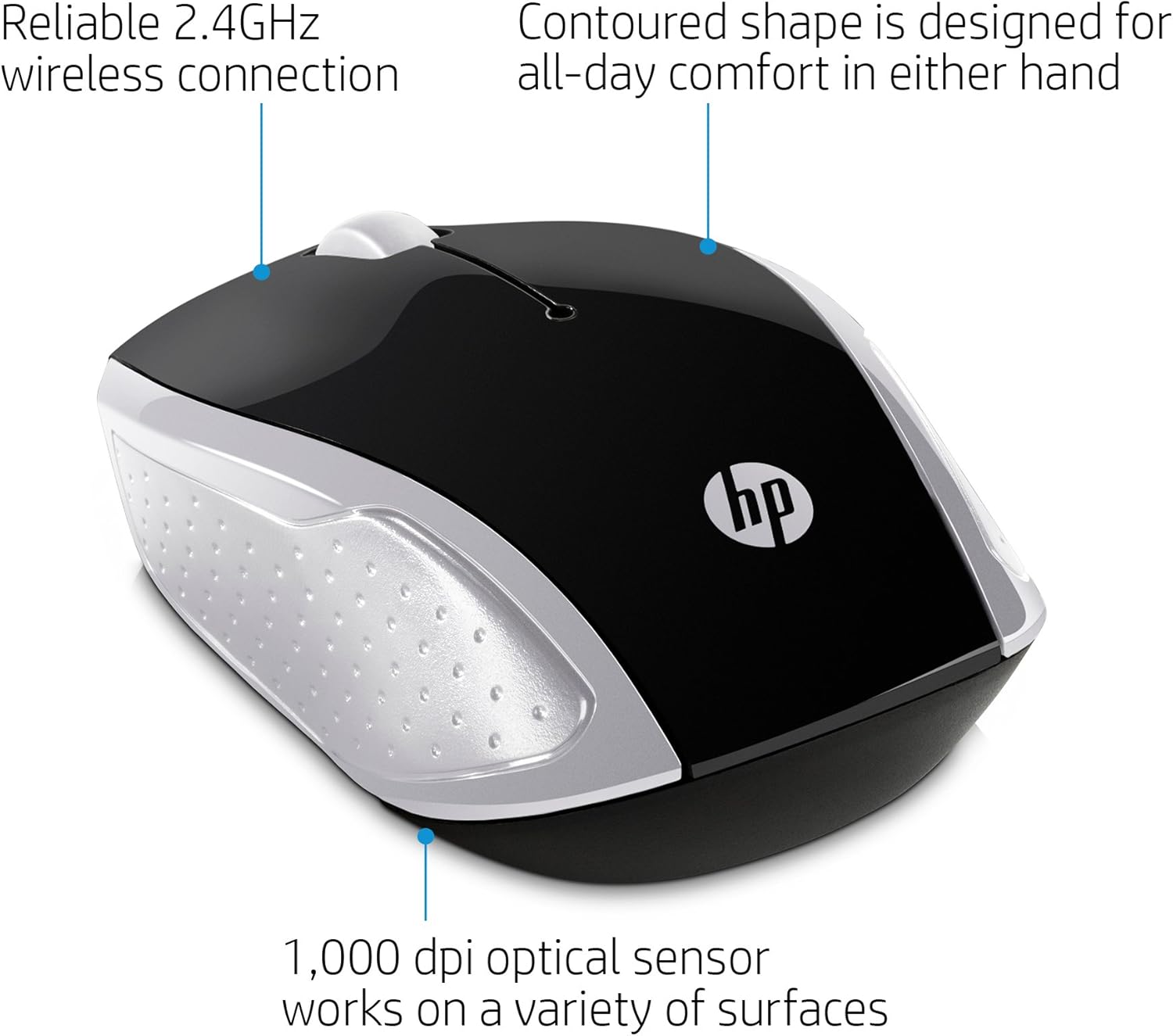
Figure 3: Ergonomic Design and Optical Sensor. This image emphasizes the comfortable, contoured shape suitable for both left and right-handed users, and the precision of the 1,000 DPI optical sensor.
The mouse features a contoured shape that fits comfortably in either hand, making it suitable for both left-handed and right-handed users. Its 1,000 DPI optical sensor provides accurate and responsive tracking on various surfaces.
Maintenance
Battery Replacement
When the mouse performance degrades or stops responding, it may be time to replace the batteries. Follow the battery installation steps in the Setup section to replace the two AAA batteries.
Cleaning
To clean your mouse, use a soft, dry cloth. For stubborn dirt, slightly dampen the cloth with water. Avoid using harsh chemicals or abrasive cleaners, as these can damage the mouse's surface.
Troubleshooting
- Mouse not responding:
- Ensure the mouse is powered on using the On/Off switch on the underside.
- Check if the batteries are correctly installed and have sufficient charge. Replace if necessary.
- Verify that the USB receiver is securely plugged into a working USB port on your computer.
- Try plugging the USB receiver into a different USB port.
- Press the "Connect" button on the underside of the mouse to re-establish the connection.
- Erratic cursor movement:
- Ensure the optical sensor on the underside of the mouse is clean and free of obstructions.
- Use the mouse on a clean, uniform surface. Avoid highly reflective or transparent surfaces.
- Short wireless range:
- Ensure there are no large metal objects or other electronic devices interfering with the 2.4 GHz signal between the mouse and the USB receiver.
- Move the mouse closer to the USB receiver. The effective range is up to 10 meters (30 feet).
Specifications

Figure 4: HP Wireless Mouse 200 Dimensions. The image provides a top-down view of the mouse with its length (3.74 inches) and width (2.3 inches) clearly marked.
| Feature | Detail |
|---|---|
| Brand | HP |
| Model Name | HP Wireless Mouse 200 |
| Model Number | 200 (2HU84AA) |
| Color | Black/Silver |
| Connectivity Technology | USB (2.4 GHz Wireless Receiver) |
| Movement Detection | Optical (Red LED) |
| DPI Sensitivity | 1000 DPI |
| Button Quantity | 3 (Left, Right, Scroll Wheel/Middle Click) |
| Hand Orientation | Ambidextrous |
| Wireless Range | Up to 10 meters (30 feet) |
| Power Source | Battery Powered |
| Batteries Required | 2 x AAA (included) |
| Compatible Operating Systems | Windows 7 and above, Mac OS 10.x and above, Chrome OS |
| Item Weight | 2.72 ounces |
| Item Dimensions (L x W) | 5" x 3" |
| Material | Plastic |
Warranty and Support
The HP Wireless Mouse 200 comes with a standard HP 1-year limited warranty. For warranty claims, technical support, or additional product information, please refer to the official HP support website or contact HP customer service. Details can be found on the warranty card included in your package.


