
Betolye SC-G04E
Betolye VR Headset with Remote Controller Instruction Manual
Model: SC-G04E | Brand: Betolye
Introduction
This manual provides detailed instructions for the setup, operation, and maintenance of your Betolye VR Headset with Remote Controller. Designed for an immersive virtual reality experience, this device allows you to enjoy VR games and 3D movies using your iPhone or Android smartphone. Please read this manual thoroughly before use to ensure proper functionality and to maximize your experience.
Product Features
- Immersive VR Experience: Transforms your smartphone into a virtual reality device for games and 3D movies.
- Eye Care Design: Engineered with features to minimize eye strain during extended use.
- Remote Controller Included: Provides convenient navigation and control for VR applications and media.
- Wide Compatibility: Supports both iPhone and Android smartphones.
- Adjustable Head Strap: Ensures a comfortable and secure fit for various head sizes.
Package Contents
Upon opening the package, verify that all items listed below are present and in good condition:
- Betolye VR Headset
- Remote Controller
- User Manual (this document)
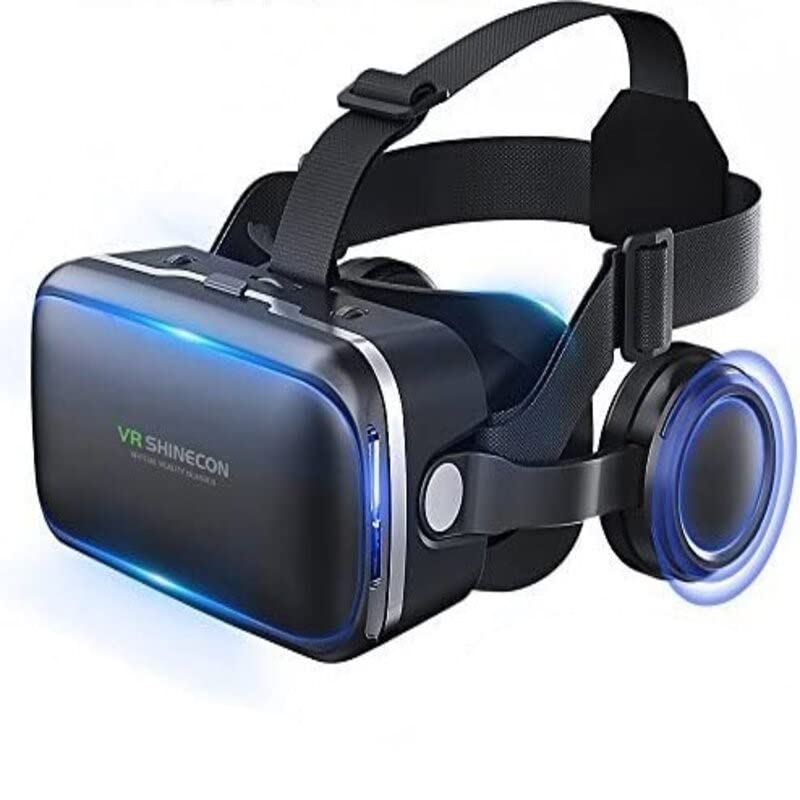
Image: The Betolye VR Headset, featuring its adjustable head strap and integrated headphones.
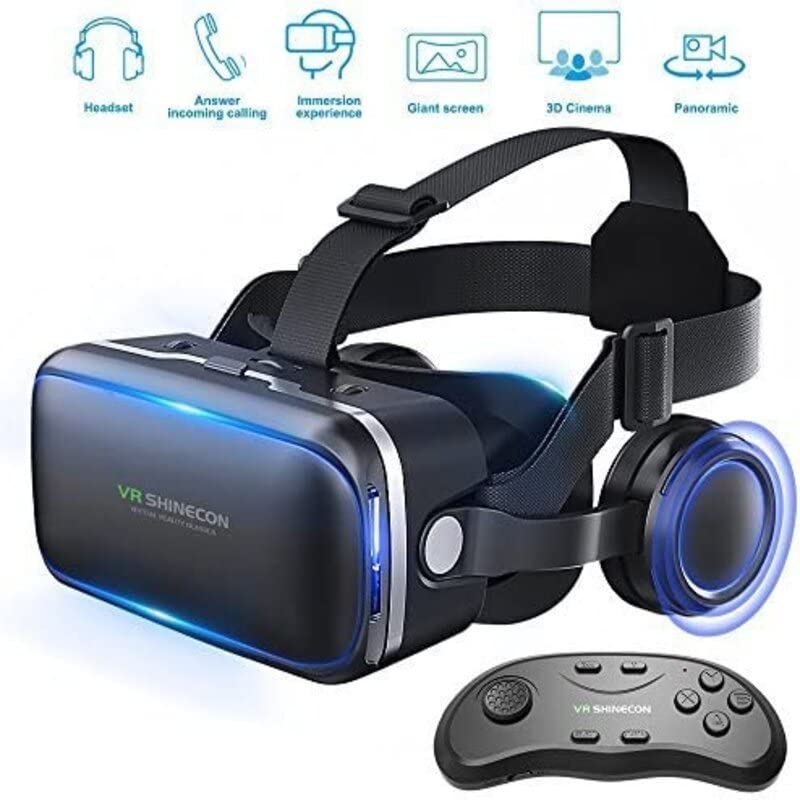
Image: The Betolye VR Headset shown alongside its accompanying remote controller, illustrating the complete package.
Setup Guide
1. Inserting Your Smartphone
- Open the front cover of the VR headset.
- Carefully place your smartphone into the designated slot, ensuring it is centered for optimal viewing. The headset supports smartphones with a screen diagonal of up to 6 inches.
- Close the front cover securely.
2. Adjusting the Headset
- Place the headset on your head.
- Adjust the elastic head straps to achieve a comfortable and secure fit. The straps should hold the headset firmly without causing discomfort.
- Use the interpupillary distance (IPD) adjustment knob (if present, typically on top of the headset) to align the lenses with your eyes for a clear image.
- Adjust the focal distance knob (if present, typically on the side of the headset) to sharpen the image to your vision.
3. Remote Controller Pairing
The remote controller requires 2 AAA batteries (not included).
- Insert 2 AAA batteries into the remote controller, observing polarity.
- Turn on the remote controller (usually by pressing a power button or holding a specific button).
- On your smartphone, enable Bluetooth.
- Search for available Bluetooth devices and select the remote controller (it may appear as "VR-Remote" or similar).
- Once paired, the remote controller is ready for use.
Operating Instructions
Using for VR Games and 3D Movies
- Download VR-compatible applications or 3D movie players from your smartphone's app store (e.g., Google Play Store for Android, Apple App Store for iOS).
- Launch the desired VR game or 3D movie application on your smartphone.
- Insert your smartphone into the VR headset as described in the Setup Guide.
- Wear the headset and adjust for clarity and comfort.
- Use the remote controller to navigate menus, select options, and control gameplay or media playback. Note that remote controller functionality may vary depending on the specific application and your smartphone's operating system (Android generally offers more comprehensive control than iOS for certain functions).
Eye Care Considerations
To ensure a comfortable and safe viewing experience, observe the following:
- Take regular breaks (e.g., 10-15 minutes every hour) to rest your eyes.
- If you experience eye strain, dizziness, or nausea, discontinue use immediately.
- Ensure proper lighting in your environment to reduce contrast and glare.
- Do not use the VR headset while walking or engaging in activities that require full awareness of your surroundings.
Maintenance
Cleaning
- Lenses: Use a soft, dry microfiber cloth specifically designed for optical lenses. Do not use abrasive cloths, paper towels, or chemical cleaners, as these can scratch or damage the lenses.
- Headset Body: Wipe the exterior of the headset with a slightly damp, soft cloth. Avoid getting moisture into any openings.
- Remote Controller: Clean with a dry, soft cloth.
Storage
- Store the VR headset and remote controller in a cool, dry place away from direct sunlight and extreme temperatures.
- Keep the lenses covered or protected to prevent dust accumulation and scratches.
- If storing for an extended period, remove batteries from the remote controller to prevent leakage.
Troubleshooting
| Problem | Possible Cause | Solution |
|---|---|---|
| Image is blurry or out of focus. | Incorrect lens adjustment; smartphone not centered; dirty lenses. | Adjust IPD and focal distance knobs. Ensure smartphone is centered. Clean lenses with a microfiber cloth. |
| Remote controller not connecting. | Batteries low or incorrectly inserted; Bluetooth not enabled on phone; remote not in pairing mode. | Replace batteries. Ensure Bluetooth is on. Put remote in pairing mode (refer to remote's specific instructions if different). Re-pair the device. |
| Smartphone does not fit. | Smartphone size exceeds maximum supported. | Verify your smartphone's screen size. The headset supports up to 6 inches. |
| Dizziness or discomfort during use. | Extended use; motion sickness; improper fit. | Take frequent breaks. Ensure headset is adjusted correctly. Discontinue use if symptoms persist. |
Specifications
| Model Number | SC-G04E |
| Brand | Betolye |
| Compatible Devices | Smartphones (iPhone, Android) |
| Max. Screen Diagonal Supported | 6 inches / 16 cm |
| Operating System Compatibility | Android, iOS |
| Item Weight | 422 g |
| Remote Controller Batteries | 2 AAA batteries (not included) |
| Connectivity (Remote) | Bluetooth |
| Display Type | LED (Smartphone dependent) |
| Field of View | 120 degrees |
Warranty and Support
For warranty information or technical support, please refer to the documentation provided with your purchase or contact the retailer/manufacturer directly. Keep your proof of purchase for any warranty claims.
For general inquiries or further assistance, you may visit the Betolye official website or contact their customer service department.
Ask a question about this manual
Ask about setup, troubleshooting, compatibility, parts, safety, or missing instructions. Manuals+ will review the question and use this page’s manual context to help answer it.