
UHURU 8541649271
UHURU Wireless Keyboard and Mouse Combo User Manual
Model: 8541649271
Introduction
This user manual provides comprehensive instructions for setting up, operating, and maintaining your UHURU Wireless Keyboard and Mouse Combo. Designed for seamless connectivity and ergonomic comfort, this combo enhances your productivity across various devices. Please read this manual thoroughly to ensure optimal performance and longevity of your product.
Product Overview
The UHURU Wireless Keyboard and Mouse Combo offers a reliable 2.4G wireless connection, ergonomic design, and convenient multimedia shortcuts. It is compatible with a wide range of operating systems and devices.

Image: The complete UHURU Wireless Keyboard and Mouse Combo, including the keyboard, mouse, USB receiver, and mouse pad.
Key Features:
- Reliable 2.4G Wireless Connection: Advanced chip provides 33 feet wireless automatic connection for fast data transmission without delays or dropouts.
- 2-in-1 Nano Receiver: Unifies keyboard and mouse connections into one USB port for quick plug-and-play setup.
- Ergonomic Design: Full-size keyboard with Crater-Switch keys for smooth typing and foldable stands for comfortable angle. Ergonomic optical mouse with frosted sides for better grip.
- 6-Button Mouse & 13 Multimedia Shortcuts: Mouse features two side buttons for navigation and adjustable DPI (800/1200/1600). Keyboard includes hotkeys for media control, internet, and more (Note: Multimedia shortcuts not compatible with Mac system).
- Long Battery Life & Auto Sleep Mode: Keyboard powered by 1 AAA battery, mouse by 1 AA battery. Automatically enters energy-saving sleep mode after 8 minutes of inactivity.
- Wide Compatibility: Compatible with Windows 10/11/8/7/Vista/XP, Mac, PC, Laptop, Smart TV, Surface Pro, and more.
Setup
1. Battery Installation:
The keyboard requires 1 AAA battery and the mouse requires 1 AA battery. Batteries are included with the combo. Ensure you remove the small sticker from the battery compartment before use.
- Open the battery compartment on the underside of the mouse.
- Insert one AA battery, ensuring correct polarity (+/-).
- Close the battery compartment.
- Open the battery compartment on the underside of the keyboard.
- Insert one AAA battery, ensuring correct polarity (+/-).
- Close the battery compartment.

Image: Detailed view of battery and USB receiver placement in both the keyboard and mouse.
2. Connecting the USB Receiver:
The 2-in-1 Nano USB receiver is typically stored inside the mouse's battery compartment for convenience.
- Locate and remove the Nano USB receiver from the mouse's battery compartment.
- Plug the USB receiver into an available USB port on your computer, laptop, Smart TV, or other compatible device.
- The keyboard and mouse are plug-and-play and should automatically connect within a few seconds.

Image: Illustration of the 2.4GHz wireless connection between the USB receiver and a laptop, indicating a range of up to 33 feet (10 meters).
Setup Video Guide:
Video: Official UHURU WKM-13, WKM-23 Wireless Keyboard and Mouse Combo Set setup and feature overview. This video demonstrates the initial setup and key functionalities of the product.
Video: Full-Size Wireless Keyboard and Mouse Set demonstration. This video provides a visual guide to the product's features and how to get started.
Operating Instructions
Keyboard Usage:
- Typing: The full-size keyboard features Crater-Switch keys designed for a smooth and comfortable typing experience.
- Foldable Stands: Adjust the keyboard's angle using the foldable stands on the underside for optimal ergonomic comfort.
- Multimedia Shortcuts: Use the 13 hotkeys (F1-F12, Esc) in combination with the Fn key to instantly access functions like media playback, volume control, internet, and email. Note: These multimedia shortcuts are not compatible with Mac systems.
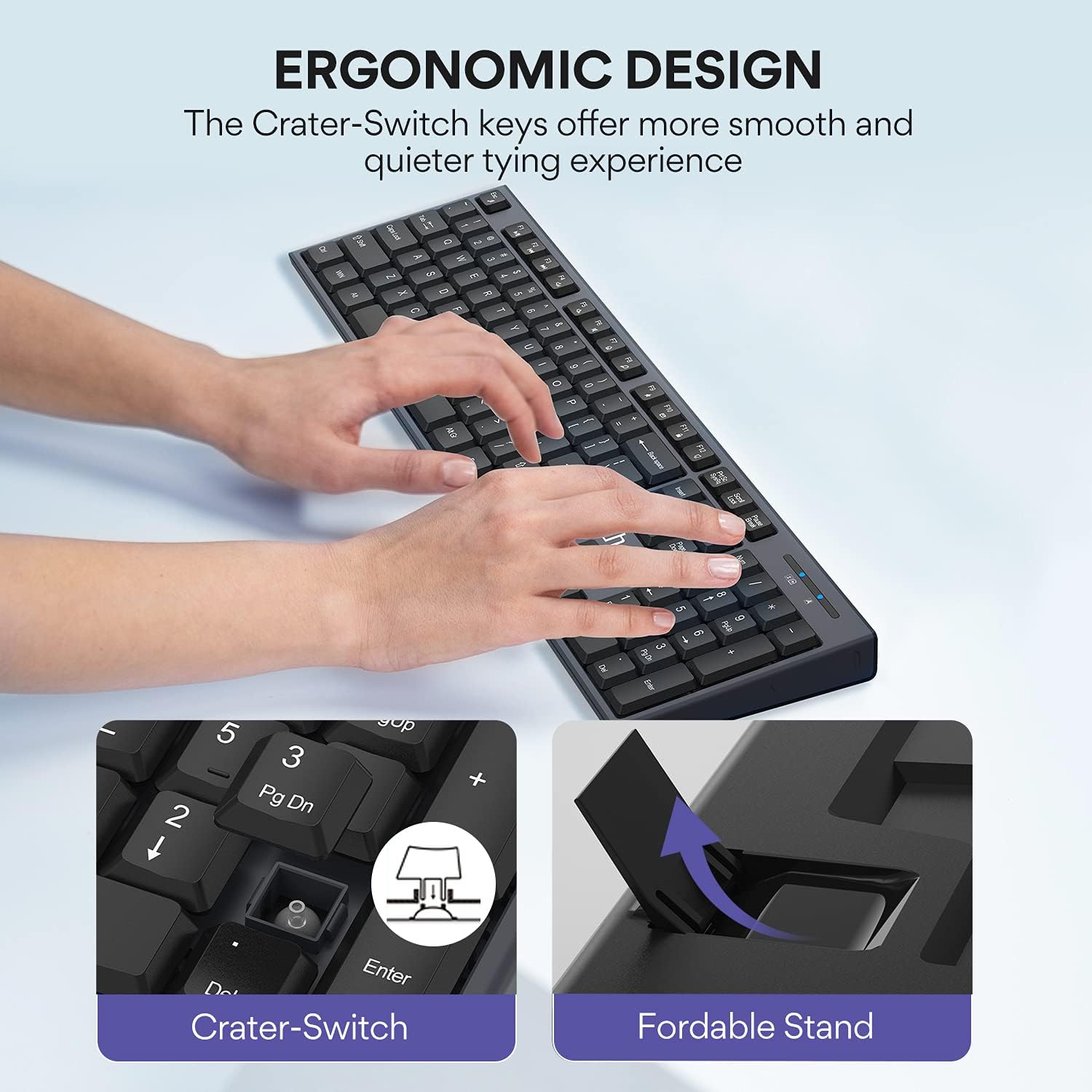
Image: Close-up view highlighting the Crater-Switch keys for smooth typing and the foldable stand for adjustable keyboard angle.

Image: Visual guide to the keyboard's 13 multimedia shortcuts and the mouse's 3 adjustable DPI settings (800/1200/1600).
Mouse Usage:
- 6 Buttons: The mouse features standard left/right click, scroll wheel, DPI button, and two convenient side buttons for "Previous Page" and "Next Page" navigation.
- Adjustable DPI: Cycle through 3 DPI settings (800, 1200, 1600) by pressing the DPI button located below the scroll wheel. This allows you to adjust cursor sensitivity to your preference.
Auto Sleep Mode:
To conserve battery life, both the keyboard and mouse will automatically enter an energy-saving sleep mode after 8 minutes of no operation. To wake them up, simply click any key on the keyboard or move/click the mouse. They will reconnect in several seconds.
Maintenance
Proper maintenance ensures the longevity and optimal performance of your UHURU Wireless Keyboard and Mouse Combo.
- Cleaning: Use a soft, dry cloth to wipe down the surfaces of the keyboard and mouse. For stubborn dirt, a slightly damp cloth with mild soap can be used, but ensure no liquid enters the device. Avoid abrasive cleaners or solvents.
- Battery Replacement: Replace batteries when the low battery indicator light on the keyboard illuminates or when performance degrades. Refer to the "Battery Installation" section under Setup for instructions.
- Storage: When not in use for extended periods, remove the batteries to prevent leakage and store the devices in a cool, dry place.
Troubleshooting
If you encounter any issues with your UHURU Wireless Keyboard and Mouse Combo, please refer to the following common troubleshooting steps:
| Problem | Possible Cause | Solution |
|---|---|---|
| Keyboard/Mouse not responding | Low or dead batteries. | Replace batteries in both keyboard (1 AAA) and mouse (1 AA). |
| Keyboard/Mouse not responding | USB receiver not properly connected or recognized. | Ensure the USB receiver is firmly plugged into a working USB port. Try a different USB port. |
| Keyboard/Mouse not responding | Interference from other wireless devices. | Move the keyboard and mouse closer to the USB receiver. Remove other wireless devices that might be causing interference. |
| Lag or delayed response | Distance from receiver or interference. | Reduce the distance between the devices and the USB receiver. Ensure no large metal objects are between them. |
| Multimedia shortcuts not working on Mac | Incompatibility with Mac OS. | This is a known limitation. The 13 multimedia shortcuts are not compatible with Mac systems. Basic typing and mouse functions will still work. |
Specifications
| Feature | Detail |
|---|---|
| Product Dimensions | 17.3 x 4.9 x 0.9 inches |
| Item Weight | 1.43 pounds |
| Item Model Number | 8541649271 |
| Keyboard Battery | 1 AAA battery (included) |
| Mouse Battery | 1 AA battery (included) |
| Connectivity Technology | 2.4G Wireless (USB Receiver) |
| Wireless Range | Up to 33 feet (10 meters) |
| Mouse DPI Settings | 800 / 1200 / 1600 |
| Color | Grey |
| Compatible Devices | Laptop, Television, Personal Computer (Windows 10/11/8/7/Vista/XP, Mac, Surface Pro) |

Image: Detailed dimensions of the keyboard (17.2in x 5.0in) and mouse (2.81in x 4.12in).
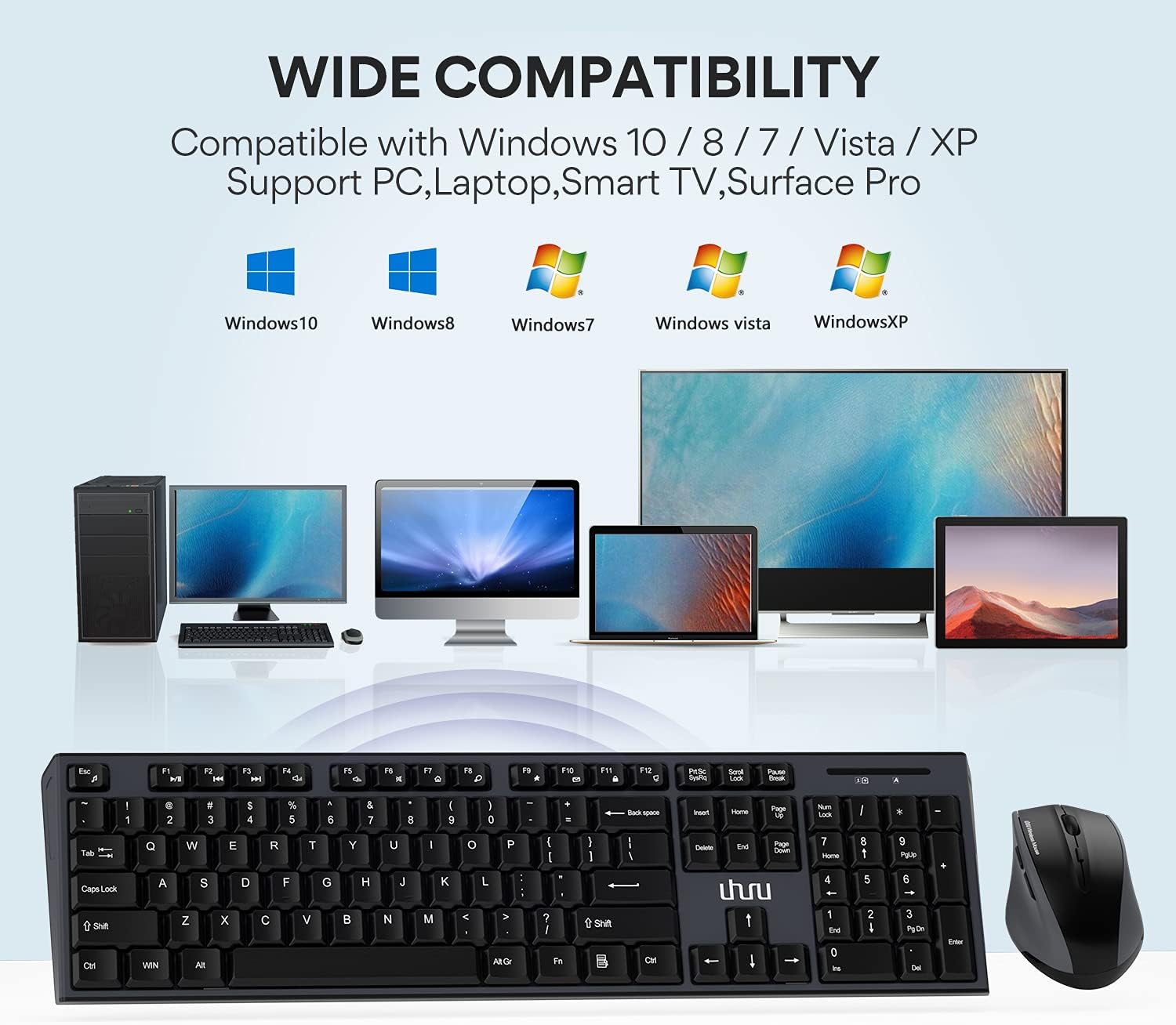
Image: Visual representation of the wide compatibility with Windows 10, 8, 7, Vista, XP, and devices like PC, Laptop, Smart TV, and Surface Pro.
Warranty and Support
UHURU provides a 12-month warranty for this product, ensuring peace of mind regarding manufacturing defects or performance issues. We are committed to friendly and responsive customer service.
For any inquiries, technical support, or warranty claims, please contact our customer service team through the following channels:
- Online Contact Form: Visit the official UHURU website and navigate to the contact section. http://www.uhurumobility.com/Home/About/contact
- Email Support: Refer to the contact information provided on the product packaging or official website for direct email support.
Our team is dedicated to solving your problems within 12 hours and offers lifetime support for major damages. We also provide 24-hour online quick fix support as part of our RU Care Program.
Ask a question about this manual
Ask about setup, troubleshooting, compatibility, parts, safety, or missing instructions. Manuals+ will review the question and use this page’s manual context to help answer it.