
iHome iBT297BC
iHome iBT297 Bluetooth Speaker and Dual Alarm Clock Radio User Manual
Model: iBT297BC
Introduction
The iHome iBT297 is a versatile Bluetooth speaker and dual alarm clock radio designed to enhance your daily routine. It features Bluetooth audio streaming, FM radio, hands-free calling, and unique color-changing light modes. This manual provides detailed instructions for setting up, operating, and maintaining your iBT297.

Figure 1: Front view of the iHome iBT297 showing the display and controls.
Package Contents
- iHome iBT297 Bluetooth Speaker and Dual Alarm Clock Radio
- AC Power Adapter
- CR2450 Button Cell Battery (pre-installed for backup)
- User Manual (this document)
Setup
Power Connection
- Connect the included AC power adapter to the DC power jack on the back of the iBT297.
- Plug the other end of the adapter into a working wall outlet.
- The unit will power on and the display will illuminate.
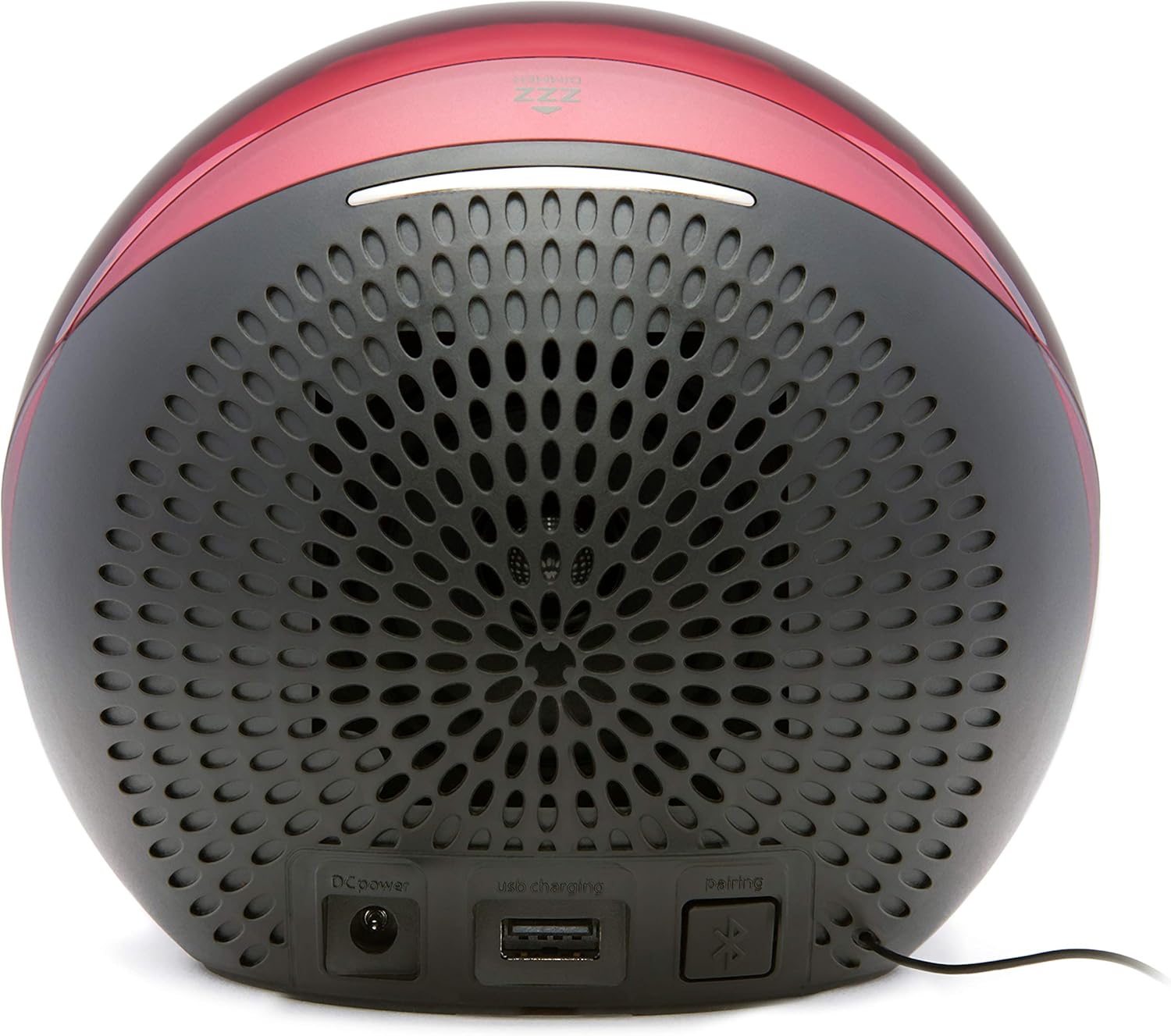
Figure 2: Rear panel connections of the iBT297.
Battery Backup
The iBT297 includes a pre-installed CR2450 button cell battery to maintain time and alarm settings during a power outage. This battery is for backup purposes only and does not power the unit for normal operation.
Operating Instructions
Setting the Time
Refer to the detailed instructions in the included quick start guide or the full manual for precise time setting procedures. Generally, this involves pressing and holding a Time Set or Clock button, then using +/- buttons to adjust hours and minutes.
Bluetooth Pairing
- Press the Power button to turn on the unit.
- Press the Mode button until "BT" appears on the display, indicating Bluetooth mode.
- The unit will automatically enter pairing mode, indicated by a flashing Bluetooth icon on the display.
- On your mobile device, enable Bluetooth and select "iHome iBT297" from the list of available devices.
- Once paired, the Bluetooth icon will become solid, and a confirmation tone will sound.
You can now stream audio from your device to the iBT297. Use the + and - buttons on the unit to adjust volume.
FM Radio Operation
- Press the Mode button until the FM frequency appears on the display.
- Press the Tune +/- buttons to manually tune to a station, or press and hold to auto-scan for the next available station.
- To save a station as a preset, press and hold the Presets button, then use the Tune +/- buttons to select a preset number (1-6). Press Presets again to confirm.
- To recall a preset, short press the Presets button repeatedly to cycle through saved stations.
Dual Alarm Clock Function
The iBT297 features two independent alarms (Alarm 1 and Alarm 2) with 7-5-2 alarm settings, allowing for different wake times for weekdays, weekends, or all 7 days.
- Press and hold the Alarm 1 or Alarm 2 button to enter alarm setting mode.
- Use the + and - buttons to adjust the alarm time. Press the Alarm button again to confirm.
- Select the alarm source (Bluetooth, FM radio, or built-in tones).
- Select the alarm schedule (7 days, 5 weekdays, or 2 weekend days).
- Adjust the alarm volume.
- Press the Alarm button one last time to save and exit.
To snooze, press the Snooze/Dimmer bar on top of the unit. To turn off the alarm, press the corresponding Alarm 1 or Alarm 2 button.
Color Changing Light Modes
The iBT297 offers 6 different color modes and 7 alarm options that incorporate light. Press the Color button to cycle through the available light modes.

Figure 3: Multiple iBT297 units demonstrating various color modes.
These modes can be used as a night light or to enhance your wake-up experience with simulated sunrise effects or light pulsed to music.
Smart Home Button and IFTTT Integration
The iBT297 features a programmable Smart Home button. Download the free iHome Enhance app to configure this button to control compatible smart home devices (e.g., lights, thermostats) or trigger IFTTT (If This Then That) applets. This allows for customized automation with a single press.
USB Charging Port
A USB charging port is located on the back of the unit. Connect your smartphone or other USB-powered device to this port using a compatible USB cable (not included) to charge it overnight.
Maintenance
Cleaning
- Unplug the unit from the power outlet before cleaning.
- Use a soft, dry cloth to wipe the exterior surfaces.
- Do not use liquid cleaners, abrasive cleaners, or sprays, as these may damage the finish or internal components.
Battery Replacement
The CR2450 button cell backup battery typically lasts for several years. If the time and alarm settings are lost during a power outage, the battery may need replacement. Refer to the full manual for instructions on how to safely replace the battery.
Troubleshooting
| Problem | Possible Cause / Solution |
|---|---|
| Unit does not power on. | Ensure the AC power adapter is securely connected to both the unit and a working wall outlet. Try a different outlet. |
| Bluetooth device cannot pair. |
|
| Poor FM radio reception. | Extend the FM antenna fully. Reposition the unit to improve reception. Avoid placing near other electronic devices that may cause interference. |
| Alarm does not sound. |
|
| Time/Alarm settings lost after power outage. | The backup battery may be depleted. Replace the CR2450 button cell battery. |
Specifications
| Feature | Detail |
|---|---|
| Brand | iHome |
| Model Number | iBT297BC |
| Product Dimensions (L x W x H) | 17.78 x 7.62 x 12.7 cm (7 x 3 x 5 inches) |
| Item Weight | 907 g (2 lbs) |
| Power Source | AC Power Adapter |
| Backup Battery | 1 x CR2450 Button Cell (included) |
| Connectivity | Bluetooth, FM Radio, Audio Input (AUX), USB Charging Port |
| Special Features | Dual Alarm, Color Changing Light Modes, Smart Home Button (IFTTT compatible), Hands-Free Speakerphone |
Warranty and Support
For warranty information and technical support, please refer to the warranty card included with your product or visit the official iHome website. Keep your purchase receipt as proof of purchase for warranty claims.
Online Support: www.ihomeaudio.com/support/
Ask a question about this manual
Ask about setup, troubleshooting, compatibility, parts, safety, or missing instructions. Manuals+ will review the question and use this page’s manual context to help answer it.