
1. Introduction
This manual provides detailed instructions for the installation, operation, and maintenance of the PoE Texas GPOE-8B 8-Port Gigabit Passive Mode B Power Over Ethernet Injector. This device is designed to add Power over Ethernet (PoE) capabilities to a non-PoE network switch or router, enabling power delivery to compatible devices such as IP cameras, VoIP phones, and wireless access points over standard Ethernet cables.
The GPOE-8B supports passive PoE, meaning it delivers the same voltage as its connected power supply. It is compatible with 24V, 48V, or 56V power supplies (sold separately) and is suitable for use with Ubiquiti and Mikrotik devices that utilize Passive Mode B PoE.
2. Safety Information
- Read all instructions carefully before installation and operation.
- Ensure the power supply used with this injector matches the voltage requirements of your powered devices. Using an incorrect voltage can damage connected equipment.
- The power supply is sold separately. Verify its specifications before connecting.
- Do not expose the device to water or excessive humidity.
- Do not open the device casing. Refer all servicing to qualified personnel.
- Ensure proper ventilation around the device to prevent overheating.
3. Package Contents
The PoE Texas GPOE-8B package includes:
- 1x PoE Texas GPOE-8B 8-Port Gigabit Passive PoE Injector
- Note: A power supply is not included and must be purchased separately.
4. Product Overview
The GPOE-8B is an 8-port Gigabit passive PoE injector. It features two rows of RJ45 ports: one for data input (LAN) and one for data and power output (PoE). A DC input terminal block is provided for connecting the external power supply.
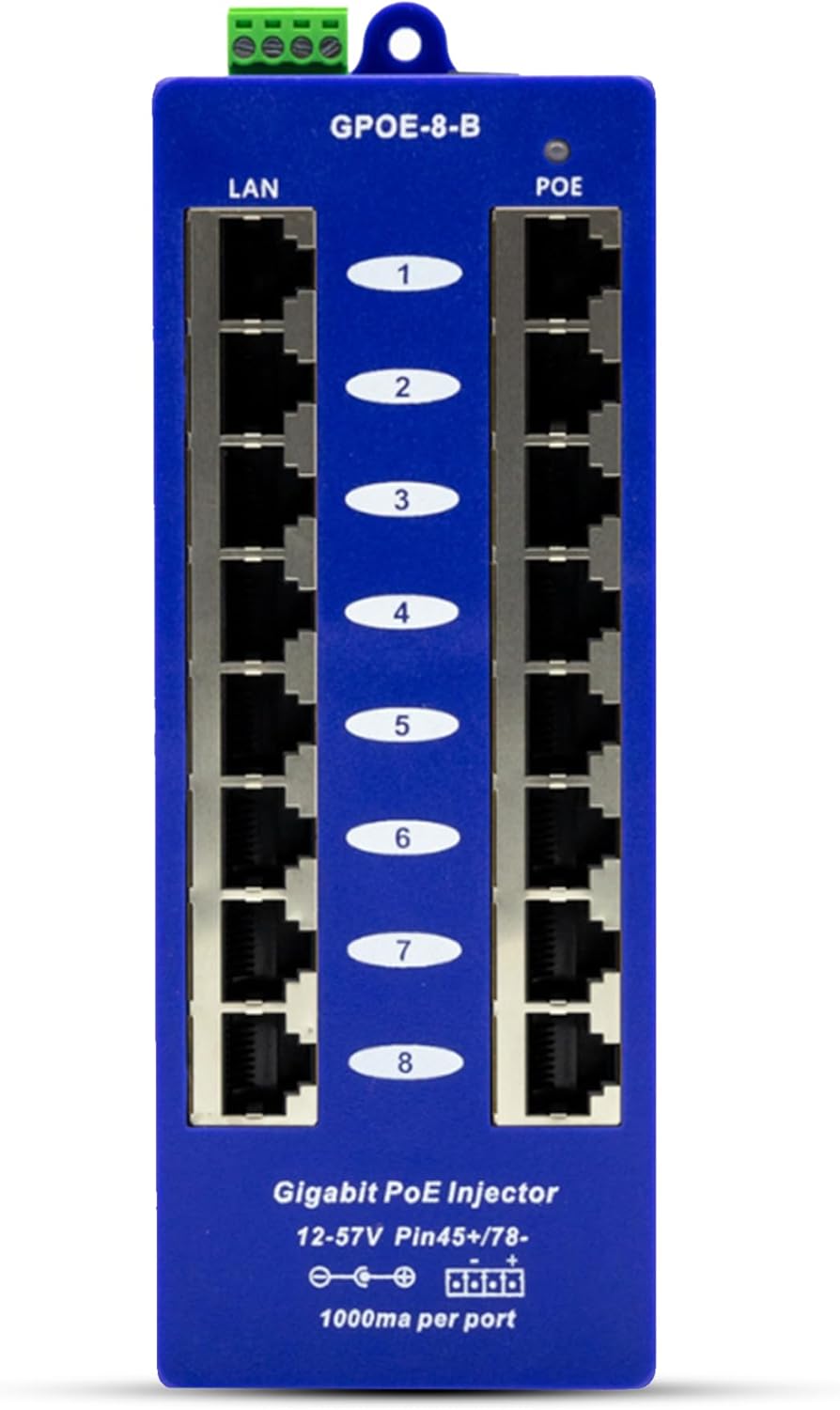
Figure 1: Front view of the PoE Texas GPOE-8B injector, showing LAN and PoE ports, and DC input terminal.
4.1 Port Layout and Indicators
- LAN Ports (8 ports): These are the data input ports. Connect your non-PoE network switch or router to these ports using standard Ethernet cables.
- PoE Ports (8 ports): These are the data and power output ports. Connect your PoE-compatible devices (e.g., IP cameras, access points) to these ports.
- DC Input Terminal: Located at the top, this green screw terminal is for connecting your external DC power supply. It supports 12-57V DC input.
- Power LED: A small LED indicator on the top right of the unit illuminates when power is supplied.

Figure 2: Top-down view of the GPOE-8B, highlighting the numbered LAN and PoE ports for easy identification during connection.
5. Setup and Installation
5.1 Power Supply Connection
- Select a Compatible Power Supply: The GPOE-8B requires an external DC power supply (12-57V, up to 8 Amps total, 1000mA per port). Ensure the power supply voltage matches the requirements of your PoE-powered devices. The power supply is sold separately.
- Connect Power: Loosen the screws on the green DC input terminal block. Insert the positive (+) wire of your DC power supply into the terminal marked '+' and the negative (-) wire into the terminal marked '-'. Tighten the screws securely.
- Verify Power: Once the power supply is connected and plugged into an AC outlet, the power LED on the GPOE-8B should illuminate.
Important Note on Pinout: The GPOE-8B uses Passive Mode B PoE, which typically utilizes pins 4,5 (+) and 7,8 (-). Ensure your powered devices are compatible with this pinout. Some devices may use a different pinout or require active PoE. Refer to your device's documentation for compatibility.

Figure 3: The GPOE-8B providing passive "always on" PoE power to a network camera. The injector delivers the same voltage as its power source.
5.2 Network Device Connection
- Connect Data Source: Using standard Ethernet cables, connect the LAN ports of your non-PoE network switch or router to the LAN ports (numbered 1-8) on the GPOE-8B.
- Connect Powered Devices: Connect your PoE-compatible devices (e.g., Ubiquiti AirMax Antennas, Mikrotik hEX Routers, IP cameras, VoIP phones) to the corresponding PoE ports (numbered 1-8) on the GPOE-8B.
- Cable Length: The GPOE-8B can extend power and data up to 328 feet (100 meters) over a single Ethernet cable.

Figure 4: Illustration of the GPOE-8B's plug-and-play setup, showing connections between a network switch, the injector, and a powered device.
5.3 Compatibility
The GPOE-8B is designed for use with passive PoE devices that accept power on Mode B (pins 4,5 positive; 7,8 negative). It is commonly used with:
- Ubiquiti Devices: AirMax Antennas (e.g., NanoStation, PowerBeam), ToughSwitch PoE Switches, PowerBeam Series, and other compatible devices.
- Mikrotik Devices: hEX Routers, cAP Access Points, SXT Series, LHG Series, select RouterBOARD Devices, and other compatible devices.
Always verify the PoE requirements of your specific devices before connecting.

Figure 5: A visual guide to the GPOE-8B's compatibility with various Ubiquiti and Mikrotik network devices.
6. Operating Instructions
Once the GPOE-8B is properly connected to a power supply and your network devices, it operates automatically. The injector continuously delivers power to connected PoE devices as long as the external power supply is active.
- Passive PoE: The GPOE-8B is a passive injector. This means it does not negotiate power with the connected device. It simply applies the full voltage of the external power supply to the PoE ports. Ensure your devices are designed to accept this voltage directly.
- Gigabit Data: The injector supports Gigabit (10/100/1000 Mbps) data transfer rates, ensuring high-speed network connectivity for your devices.
7. Maintenance
- Keep the device clean and free from dust. Use a soft, dry cloth for cleaning.
- Ensure the device is placed in a well-ventilated area to prevent heat buildup.
- Regularly check cable connections for security and integrity.
- Avoid exposing the device to extreme temperatures or direct sunlight.
8. Troubleshooting
- No Power LED:
- Verify the external power supply is correctly connected to the DC input terminal and plugged into a working AC outlet.
- Check the polarity of the DC input wires (+ and -). Incorrect polarity will prevent the unit from powering on.
- Ensure the power supply is functional.
- Device Not Receiving Power:
- Confirm the power LED on the GPOE-8B is illuminated.
- Ensure the connected device is PoE-compatible and supports Passive Mode B PoE.
- Verify the voltage of your power supply matches the voltage required by your powered device.
- Check the Ethernet cable connecting the GPOE-8B PoE port to your device for damage or improper connection.
- Ensure the device is not drawing more than 1000mA (1 Amp) per port.
- No Network Connectivity:
- Check all Ethernet cable connections between your network switch/router, the GPOE-8B LAN ports, and the GPOE-8B PoE ports to your devices.
- Ensure your network switch/router is functioning correctly.
- Verify the connected device's network settings.
9. Specifications
| Feature | Specification |
|---|---|
| Model | GPOE-8B |
| Number of Ports | 8 (LAN), 8 (PoE) |
| Data Transfer Rate | 10/100/1000 Mbps (Gigabit) |
| PoE Method | Passive PoE |
| PoE Mode/Pinout | Mode B (+4,5 -7,8) |
| Input Voltage Range | 12 - 57 Volts DC |
| Maximum Current per Port | 1000mA (1 Amp) |
| Total Current Rating | 8 Amps |
| Maximum Power | 60 Watts (Note: Depends on power supply capacity) |
| Interface Type | PoE, RJ45 |
| Case Material | Metal |
| Product Dimensions | 8 x 3 x 1 inches (20.3 x 7.6 x 2.5 cm) |
| Item Weight | 1 pound (0.45 kg) |
| Operating Temperature | Up to 60°C (140°F) |
10. Warranty and Support
All PoE Texas products, including the GPOE-8B, are backed by a 1-year manufacturer’s warranty. For technical assistance, troubleshooting, or warranty claims, please contact PoE Texas support.
- Phone Support: 512-479-0317
- Return Policy: 30-day no questions asked return policy.
Our expert team is available to assist with any questions or issues you may encounter during the installation or operation of your device.