
1. Introduction
Thank you for choosing the PrimeCables 31.5-inch Standing Desk Converter. This product is designed to transform your existing desk into an ergonomic sit-stand workstation, promoting better posture and reducing the strain of prolonged sitting. This manual provides essential information for the safe and efficient use of your desk converter, including setup, operation, maintenance, and troubleshooting.
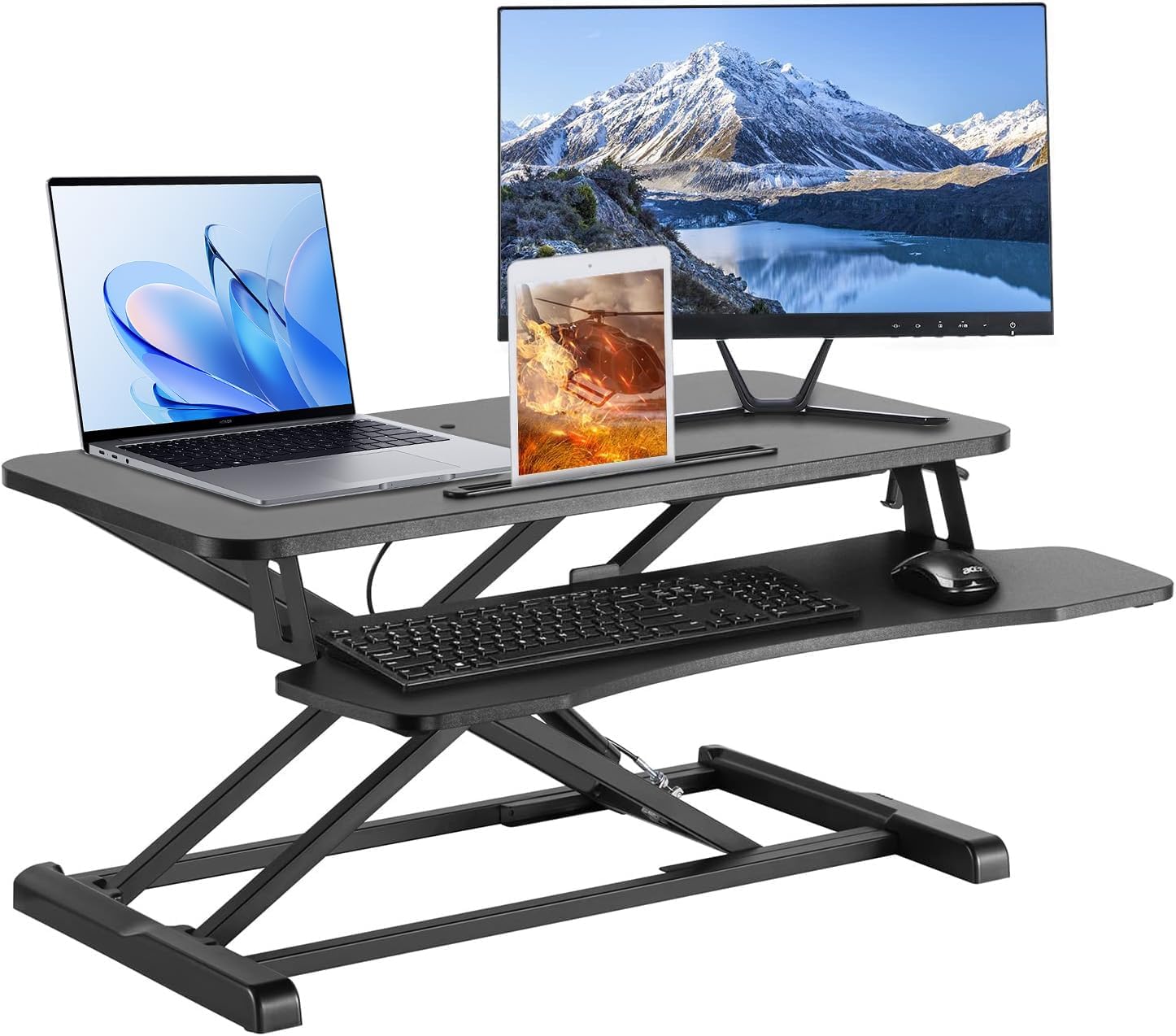
Image 1.1: The PrimeCables 31.5-inch Standing Desk Converter in a typical office setup, featuring a laptop, external monitor, and tablet.
2. Safety Information
Please read all safety instructions before assembly and use. Failure to follow these instructions may result in product damage or personal injury.
- Weight Capacity: Do not exceed the maximum weight recommendation of 33 pounds (15 kg). Overloading can cause instability and damage.
- Stability: Ensure the desk converter is placed on a stable, flat surface. Verify that the desk converter is properly anchored to your existing desk to prevent tipping, if applicable.
- Clearance: Keep the work surface clear of obstructions, especially during height adjustments, to maintain stability and prevent items from falling.
- Movement: Exercise caution when raising or lowering the desk converter. Keep hands and fingers clear of moving parts to avoid pinching.
- Children and Pets: Keep children and pets away from the desk converter during operation and adjustment.
3. Package Contents
Verify that all components are present before beginning assembly. If any parts are missing or damaged, please contact customer support.
- Main Desk Converter Unit (pre-assembled frame and top surface)
- Removable Keyboard Tray
- Assembly Hardware (screws, Allen wrench)
- Instruction Manual (this document)
4. Setup Instructions
The PrimeCables Standing Desk Converter comes largely pre-assembled. The primary setup involves attaching the keyboard tray.
- Unpack Components: Carefully remove all items from the packaging. Place the main desk converter unit on a stable, flat surface.
- Attach Keyboard Tray: Align the keyboard tray with the designated attachment points on the underside of the main desk unit. Secure it using the provided screws and Allen wrench. Ensure the tray is firmly attached and level.
- Position the Converter: Place the assembled desk converter on your existing desk. Ensure it is centered and stable.
- Arrange Equipment: Place your monitor(s), laptop, and other peripherals on the top surface. Utilize the monitor arm hole if you plan to install a compatible monitor arm (see Image 4.1). Place your keyboard and mouse on the keyboard tray.

Image 4.1: The desk converter supporting two monitors via a monitor arm, highlighting the integrated monitor arm hole for accessory attachment.
5. Operating Instructions
The desk converter features a gas-spring assisted lifting mechanism for smooth and effortless height adjustments.
- Adjusting Height: Locate the adjustment lever, typically on the right-hand side of the desk converter.
- To Raise: Gently squeeze the lever and apply slight upward pressure. The gas spring will assist in raising the workstation. Release the lever at your desired height.
- To Lower: Gently squeeze the lever and apply slight downward pressure on the top surface. The workstation will smoothly descend. Release the lever at your desired height.

Image 5.1: Detail of the gas-spring mechanism and the lever used for smooth height adjustments.
The desk converter offers 12 height settings within a range of 4.2 inches to 19.7 inches (10.6 cm to 50 cm) for optimal ergonomic positioning.
6. Maintenance
Regular maintenance ensures the longevity and proper function of your desk converter.
- Cleaning: Wipe surfaces with a soft, damp cloth. Avoid abrasive cleaners or solvents that could damage the finish.
- Inspection: Periodically check all screws and connections to ensure they are tight. Retighten if necessary.
- Moving Parts: Keep the gas spring mechanism and other moving parts free from dust and debris. Do not lubricate unless specifically instructed by PrimeCables support.
7. Troubleshooting
Refer to the table below for common issues and their solutions.
| Problem | Possible Cause | Solution |
|---|---|---|
| Desk converter is unstable or wobbly. | Uneven surface; overloaded; loose connections. | Ensure placement on a flat, stable desk. Reduce weight if exceeding 33 lbs. Check and tighten all assembly screws. |
| Difficulty adjusting height. | Mechanism obstructed; excessive weight; lever not fully engaged. | Clear any obstructions around the gas spring. Ensure weight is within limits. Fully squeeze the adjustment lever. |
| Keyboard tray has slight movement. | Normal for removable tray; loose attachment. | A slight movement is normal for the removable tray. Ensure the tray is securely attached with all screws tightened. Avoid leaning heavily on the tray. |
| Cables do not fit through the monitor arm hole. | Hole diameter too small for multiple large cables. | Route cables externally or use cable management solutions. The hole is primarily for monitor arm poles. |
8. Specifications
Detailed specifications for the PrimeCables 31.5-inch Standing Desk Converter.
| Feature | Detail |
|---|---|
| Model Number | Cab-DWS06-01 |
| Brand | PrimeCables |
| Work Surface Dimensions | 31.5" x 24.2" (80 cm x 61.5 cm) |
| Height Adjustment Range | 4.2" - 19.7" (10.6 cm - 50 cm) |
| Number of Height Settings | 12 |
| Weight Capacity | 33 lbs (15 kg) |
| Base Material | Engineered Wood |
| Top Material Type | Metal |
| Finish Type | Steel |
| Color | Black |
| Special Features | Adjustable Height, Removable Keyboard Tray, Monitor Arm Hole, Notebook Slot |
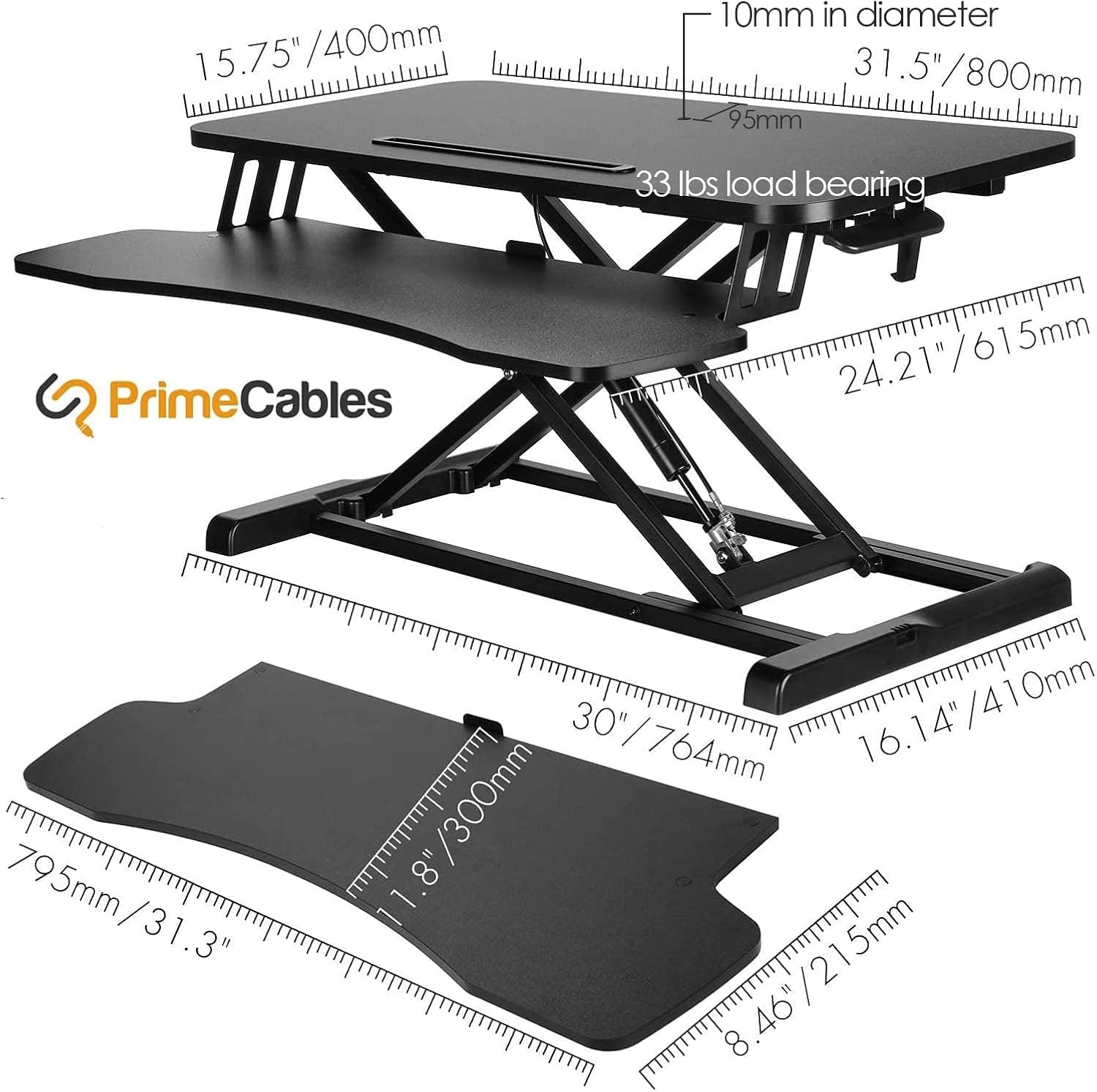
Image 8.1: Detailed dimensions and load bearing capacity of the desk converter.
9. Warranty and Support
PrimeCables products are manufactured to high-quality standards. For specific warranty details, please refer to the warranty card included with your purchase or visit the official PrimeCables website. If you encounter any issues or require assistance, please contact PrimeCables customer support.
Contact Information: Please refer to your purchase documentation or the PrimeCables official website for the most current customer support contact details.


