1. Introduction
The Isonic FHD1000 is a compact and portable projector designed for versatile use. Its small form factor allows it to be easily carried, making it suitable for presentations, entertainment, and on-the-go viewing. This projector supports a maximum input resolution of 1080p and features a mega-bright LED lamp capable of projecting up to 100 lumens for up to 2 hours on a single charge. It offers multiple connectivity options including HDMI, USB, and Wi-Fi, allowing connection to most smartphones, tablets, computers, video players, and cameras. Additionally, its 3800 mAh rechargeable battery can function as a USB backup power bank for your smartphone devices (iPad not supported).
2. Product Overview
Familiarize yourself with the components and ports of your Isonic FHD1000 Portable Projector.
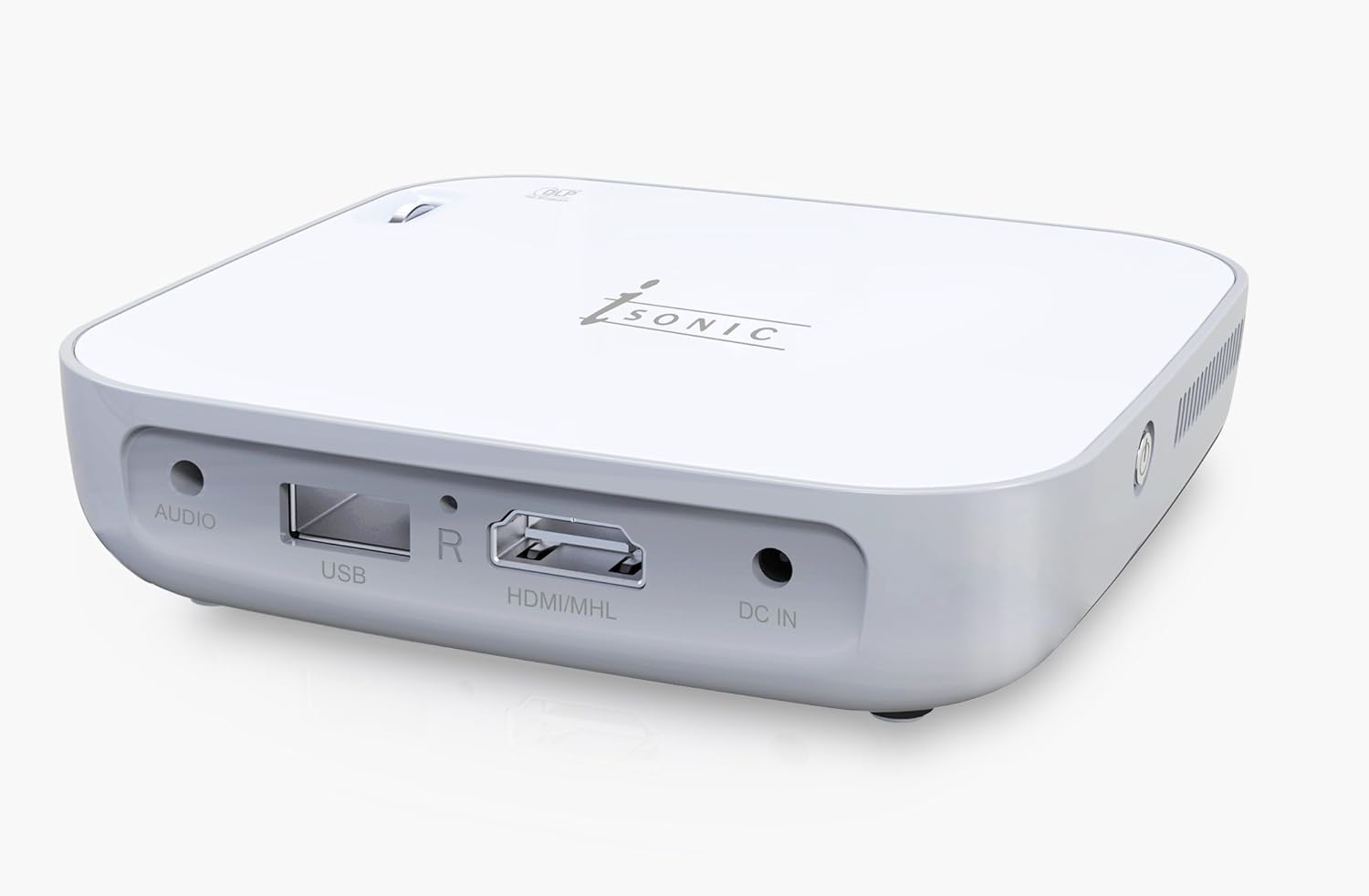
Figure 2.1: Front View. This image shows the front of the Isonic FHD1000 Portable Projector, highlighting the projection lens and the focus adjustment wheel located on the side.

Figure 2.2: Rear View. This image displays the rear panel of the projector, featuring the Audio Out port, USB port, HDMI/MHL input, and DC IN power input.

Figure 2.3: Side View. This image provides a side perspective of the projector, showing the ventilation grilles and overall compact design.
3. Setup
3.1 Charging the Projector
Before initial use, fully charge the projector's internal 3800 mAh battery. Connect the provided power adapter to the DC IN port on the projector and plug it into a power outlet. The charging indicator will illuminate.
3.2 Placement
Place the projector on a stable, flat surface, such as a table, for optimal projection. Ensure there are no obstructions in front of the lens or around the ventilation grilles.
3.3 Focus Adjustment
Once powered on and projecting an image, use the focus adjustment wheel (typically located near the lens) to achieve a clear and sharp image on your projection surface.
4. Operating Instructions
4.1 Powering On/Off
Press and hold the power button (location varies, refer to product overview) for a few seconds to turn the projector on or off.
4.2 Connecting Devices
- HDMI/MHL: Connect your smartphone, tablet, computer, video player, or camera using an HDMI cable to the HDMI/MHL port.
- USB: Insert a USB drive into the USB port to access compatible media files.
- Wi-Fi: Follow the on-screen instructions to connect the projector to a Wi-Fi network for wireless content streaming (if applicable to your model's firmware).
4.3 Using as a Power Bank
The projector's 3800 mAh battery can be used to charge other devices. Connect your smartphone (excluding iPad) to the USB port using a compatible charging cable. The projector will provide power to your device.
5. Maintenance
5.1 Cleaning the Lens
Gently wipe the projector lens with a soft, lint-free cloth specifically designed for optical surfaces. Avoid using abrasive materials or harsh chemicals.
5.2 Battery Care
To prolong battery life, avoid fully discharging the battery frequently. Store the projector in a cool, dry place when not in use for extended periods.
5.3 General Cleaning
Wipe the exterior of the projector with a soft, dry cloth. Do not use liquid cleaners directly on the device.
6. Troubleshooting
- No Image: Ensure the projector is powered on, the input source is correctly selected, and the connected device is outputting a signal. Check all cable connections.
- Blurry Image: Adjust the focus wheel until the image is sharp. Ensure the projection surface is flat and the projector is at an appropriate distance.
- No Sound: Verify that the audio output from the source device is enabled and the projector's volume is turned up. If using external speakers, ensure they are properly connected.
- Projector Not Turning On: Check if the power adapter is securely connected and the power outlet is functional. If running on battery, ensure the battery is charged.
- Overheating: Ensure the ventilation grilles are not blocked. Operate the projector in a well-ventilated area.
7. Specifications
| Feature | Specification |
|---|---|
| Brand | iSonic |
| Manufacturer | ISONIC |
| Part Number | FHD1000 |
| Hardware Interface | USB |
| Compatible Devices | Smartphone |
| Special Features | Portable |
| Display Type | LED |
| Image Brightness | 100.0 Lumens |
| Resolution | 1080 Pixels (Max Input) |
| Batteries Included | Yes |
| Batteries Required | Yes |
| Connector Type | HDMI, USB, Wifi |
| Form Factor | Portable |
| Mount Type | Table Mount |
| Package Dimensions | 10.16 x 5.08 x 5.08 cm; 200 g |
| Batteries | 1 Lithium Polymer battery required, included |
| ASIN | B077BKBBGP |
| First Available Date | November 15, 2017 |
8. Warranty Information
For detailed warranty information regarding your Isonic FHD1000 Portable Projector, please refer to the warranty card included with your purchase or consult your retailer's terms and conditions. Warranty periods and coverage may vary by region and point of purchase.
9. Support
If you encounter any issues or require technical assistance with your Isonic FHD1000 Portable Projector, please contact your authorized retailer or visit the official iSonic website for support resources and contact information.