
1. Introduction
This manual provides comprehensive instructions for the installation, operation, and maintenance of your GeoVision GV-EFD4700-2F 4MP H.265 3.8MM IP Camera. This device is designed for advanced surveillance applications, offering high-resolution video capture and efficient H.265 compression for optimal storage and bandwidth usage. Please read this manual thoroughly before using the product to ensure proper setup and functionality.
2. Safety Information
- Ensure the power supply voltage matches the camera's requirements to prevent damage.
- Do not expose the camera to extreme temperatures, humidity, or direct water contact.
- Avoid placing the camera in areas with strong electromagnetic interference.
- Handle the camera with care. Do not drop or subject it to strong impacts.
- Only use accessories specified by the manufacturer.
- Installation should be performed by qualified personnel if you are unsure about the process.
3. Package Contents
Verify that all items are present in the package:
- GeoVision GV-EFD4700-2F IP Camera Unit
- Mounting Kit (screws, wall anchors)
- Quick Start Guide
- Software CD (or download link)
- Power Adapter (may be sold separately depending on region)
4. Product Overview
The GeoVision GV-EFD4700-2F is a compact dome-style IP camera designed for discreet surveillance. Key components include:
- Lens: 3.8mm fixed lens for a wide field of view.
- IR LEDs: Infrared illuminators for night vision capabilities.
- Microphone: For audio monitoring (if equipped).
- Network Port: RJ-45 Ethernet port for wired network connection and Power over Ethernet (PoE) if supported.
- Power Input: DC power jack for external power adapter.
- Reset Button: Used to restore factory default settings.
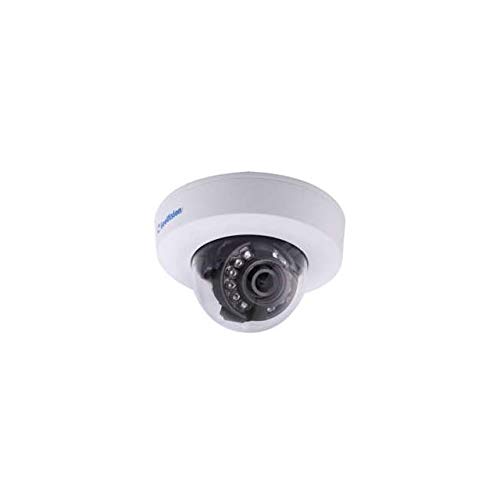
Figure 1: GeoVision GV-EFD4700-2F IP Camera. This image shows the compact dome design of the camera, typically featuring a lens, IR illuminators, and a durable casing suitable for various mounting environments.
5. Setup
5.1 Physical Installation
- Choose a Location: Select a suitable location for surveillance, considering the camera's field of view and power/network access. This camera supports both ceiling mount and wall mount installations.
- Mounting:
- Use the provided mounting template (if available) to mark drill holes on the ceiling or wall.
- Drill holes and insert wall anchors if necessary.
- Secure the camera's mounting base to the surface using the screws.
- Attach the camera body to the mounting base and adjust its angle for optimal coverage.
5.2 Power and Network Connection
- Power: Connect the power adapter to the camera's power input and then to a power outlet. If using Power over Ethernet (PoE), connect an Ethernet cable from a PoE-enabled switch or injector to the camera's network port.
- Network (Wi-Fi): This camera supports Wi-Fi connectivity. After powering on, the camera will broadcast a temporary Wi-Fi signal or can be configured via a wired connection first. Refer to the Quick Start Guide for initial Wi-Fi setup steps, which typically involve using a mobile app or web interface to connect to your local Wi-Fi network.
- Network (Wired): Connect an Ethernet cable from your router or network switch to the camera's network port.
5.3 Initial Configuration
- Software Installation: Install the GeoVision surveillance software (e.g., GV-NVR, GV-VMS) on your computer or download the GeoVision mobile app from your device's app store.
- Device Discovery: Use the software or app to discover the camera on your network. The camera will typically obtain an IP address automatically via DHCP.
- Password Setup: For security, change the default password immediately upon first access. Create a strong, unique password.
- Basic Settings: Configure essential settings such as date/time, video resolution, and recording schedules.
6. Operating
6.1 Live View
Access the live video feed through the GeoVision software or mobile app. You can view multiple cameras simultaneously and switch between different views.
6.2 Recording
- Continuous Recording: Records video constantly.
- Motion Detection Recording: Records only when motion is detected in the camera's field of view. Configure motion detection zones and sensitivity in the camera settings.
- Scheduled Recording: Records during specific times of the day or week.
6.3 Playback
Use the playback function in the software or app to review recorded footage. You can search by date, time, or event (e.g., motion detection).
6.4 Remote Access
Configure port forwarding on your router or use GeoVision's cloud services (if available) to access your camera remotely from outside your local network.
7. Maintenance
- Cleaning: Gently wipe the camera lens and casing with a soft, dry cloth. Do not use harsh chemicals or abrasive cleaners.
- Firmware Updates: Regularly check the GeoVision website for firmware updates. Keeping your camera's firmware up-to-date ensures optimal performance, security, and access to new features.
- Cable Inspection: Periodically inspect power and network cables for any signs of wear or damage.
- Storage Management: Monitor your recording storage. Ensure there is sufficient space or that old footage is being overwritten according to your settings.
8. Troubleshooting
| Problem | Possible Cause | Solution |
|---|---|---|
| No power indicator light | Power adapter not connected; power outlet faulty; camera fault. | Check power connections; try a different outlet; contact support. |
| Cannot connect to camera (wired) | Ethernet cable faulty; network settings incorrect; camera not powered on. | Check cable; verify network settings (DHCP/static IP); ensure camera is powered. |
| Cannot connect to camera (Wi-Fi) | Incorrect Wi-Fi password; camera out of range; Wi-Fi interference. | Re-enter Wi-Fi password; move camera closer to router; reduce interference. |
| Poor image quality | Dirty lens; low light conditions; incorrect resolution settings. | Clean lens; ensure adequate lighting; adjust resolution settings. |
| Forgot password | Password lost or forgotten. | Use the reset button to restore factory defaults (note: this will erase all settings). |
9. Specifications
| Feature | Detail |
|---|---|
| Brand | GeoVision |
| Model | GV-EFD4700-2F |
| Video Capture Resolution | 4 MP |
| Effective Still Resolution | 4 MP |
| Connectivity Protocol | Wi-Fi |
| Mounting Type | Ceiling Mount, Wall Mount |
| Video Capture Format | MP4 |
| Manufacturer | GeoVision |
10. Warranty Information
GeoVision products typically come with a limited warranty. For detailed information regarding the warranty period, terms, and conditions for your GV-EFD4700-2F IP Camera, please refer to the warranty card included with your product or visit the official GeoVision website. Keep your proof of purchase for warranty claims.
11. Support
If you encounter any issues that cannot be resolved using the troubleshooting guide, or if you require further assistance, please contact GeoVision technical support. You can find contact information, FAQs, and additional resources on the official GeoVision website:
Website: www.geovision.com.tw
Please have your product model number (GV-EFD4700-2F) and serial number ready when contacting support.


