
Introduction
The AXAGON ADSA-ST USB 3.0 Dual SATA 6G Docking Station provides a simple and fast way to connect any SATA hard drive or even two hard drives simultaneously to a computer. This device supports both 2.5" and 3.5" SATA HDDs and SSDs. Additionally, it features a standalone cloning function, allowing you to duplicate disk content without requiring a PC connection.
Package Contents
- USB 3.0 - Dual SATA 6G HDD Dock
- 70 cm USB 3.0 cable
- 100-240 V / 12 V-2.5 A power adapter
- Multilingual user manual
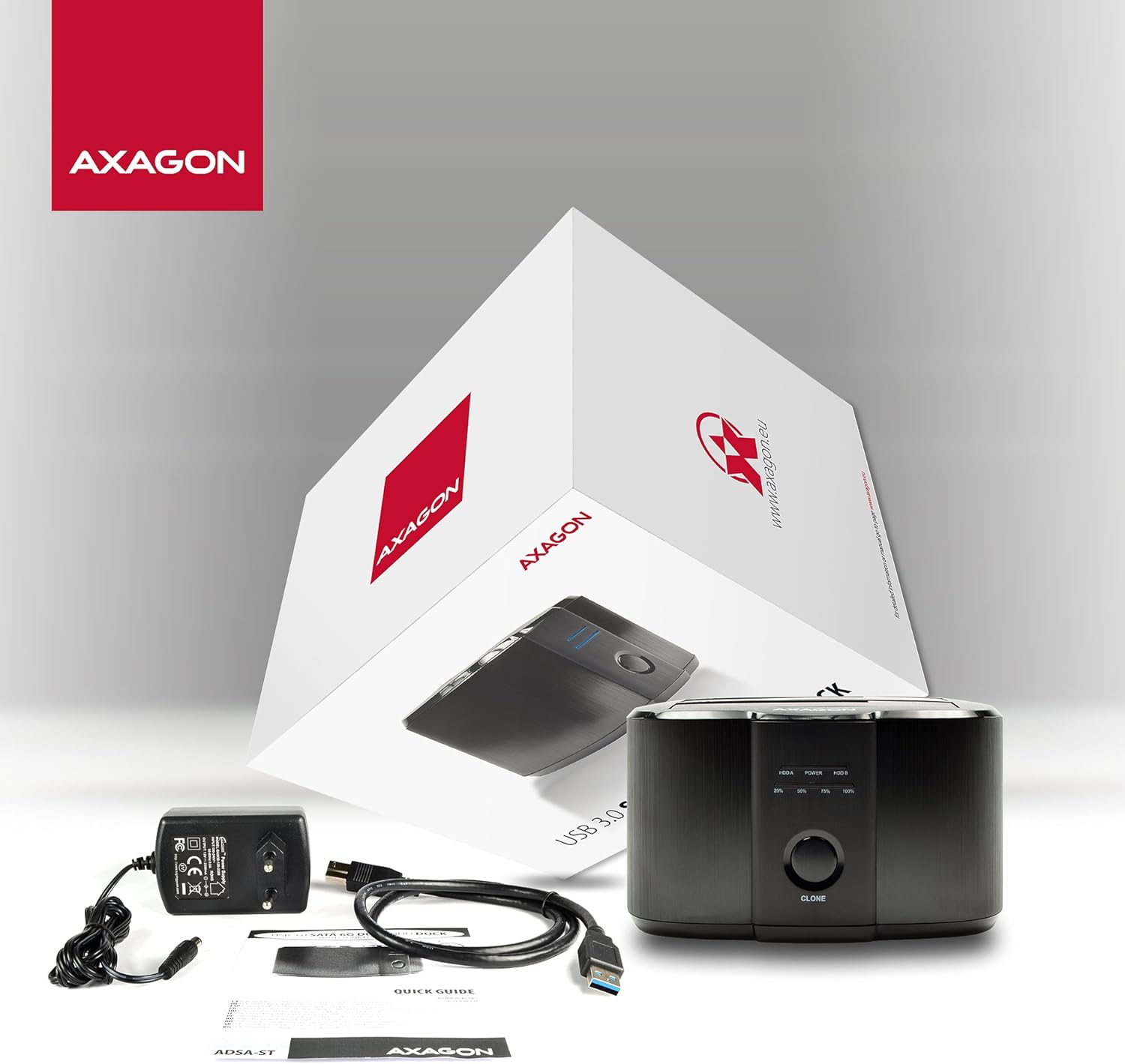
Image: The AXAGON ADSA-ST docking station, USB cable, power adapter, and user manual are neatly arranged within the product packaging.
Features
- USB 3.0 Connectivity: Compatible with USB 3.0 and backward compatible with USB 2.0.
- High Transfer Speeds: Supports 12/480/5000 Mbit/s (full / high / super speed).
- SATA Drive Support: Compatible with 2.5" and 3.5" SATA III/II/I HDDs and SSDs of all capacities.
- SATA 6G Compliance: Conforms to Serial ATA 3.1 (SATA/600) specifications, with transfer speeds up to 6 Gb/s.
- UASP Support: Utilizes USB Attached SCSI Protocol for enhanced performance with modern SSDs.
- Boot Support: Allows booting from SSD/HDD connected in the docking station.
- Hot Plug & Plug and Play: Enables connecting and disconnecting devices during operation without system restart.
- Automatic Spindown: Hard drives automatically enter sleep mode after 10 minutes of inactivity.
- HDD Turn Off: Drives power down when the device is removed or the computer enters sleep mode.
- LED Indicators: Three LEDs indicate power status and activity for both HDD A and HDD B.
- Power Switch: Integrated power switch for convenient control.
- Robust Design: Features a sturdy construction with rubber feet to prevent vibrations and an elegant brushed aluminum casing.
- S.M.A.R.T. Information: Reads S.M.A.R.T. information to monitor the health of connected drives.

Image: The AXAGON ADSA-ST docking station, featuring two top-loading bays for SATA drives and a front-facing clone button with LED indicators.
Setup
1. Connect Power Adapter
Connect the provided 12V - 2.5A power adapter to the DC 12V port on the back of the docking station and then plug it into a power outlet. Ensure the power switch on the back is in the OFF position before connecting.
2. Connect to Computer (Optional for Cloning)
If you intend to use the docking station with a computer, connect the included USB 3.0 cable from the USB 3.0 Type-B port on the docking station to an available USB 3.0 (or 2.0) port on your computer. The device is Plug and Play, so no additional drivers are required for supported operating systems.
3. Insert Drives
With the docking station powered off, carefully insert your 2.5" or 3.5" SATA hard drives or SSDs into the HDD A and/or HDD B slots. Ensure they are firmly seated in the SATA connectors. For 2.5" drives, they will sit lower in the bay.

Image: A 3.5-inch hard drive is shown inserted into the AXAGON ADSA-ST docking station, highlighting its compatibility with SATA 6G and UASP.
Operating
Using with a Computer
- Ensure the docking station is connected to power and your computer via the USB cable.
- Insert the desired SATA HDD/SSD into the HDD A or HDD B slot.
- Flip the power switch on the back of the docking station to the ON position. The Power LED will illuminate.
- The operating system will detect the drive(s) automatically. You can then access them through your file explorer.
- To safely remove a drive, first eject it from your operating system, then power off the docking station, and finally remove the drive.
Standalone Cloning Function
The cloning function allows you to duplicate the content of a source disk (HDD A) to a target disk (HDD B) without connecting to a computer.
- Ensure the docking station is not connected to a computer via USB.
- Insert the source disk (the disk you want to copy from) into the HDD A slot.
- Insert the target disk (the disk you want to copy to) into the HDD B slot.
- Important: The target disk (HDD B) must have a capacity equal to or greater than the source disk (HDD A). If the target disk is smaller, the cloning process will not start. All data on the target disk will be overwritten.
- Flip the power switch on the back of the docking station to the ON position.
- Press and hold the CLONE button on the front of the docking station for at least 3 seconds.
- The cloning process will begin. The progress LEDs (25%, 50%, 75%, 100%) will illuminate sequentially to indicate the cloning status.
- Once all four progress LEDs are steadily lit, the cloning process is complete.
- Turn off the docking station and remove the drives.
Note: The cloning speed for SSDs can reach up to 300 MB/s. The total time required for cloning depends on the capacity of the source disk, not the amount of data on it.

Image: A close-up view of the AXAGON ADSA-ST's front panel, showing the 'CLONE' button and the progress indicator LEDs (25%, 50%, 75%, 100%).

Image: The AXAGON ADSA-ST docking station with two hard drives inserted, illustrating its capability for HDD/SSD duplication.
Maintenance
To ensure optimal performance and longevity of your AXAGON ADSA-ST docking station, follow these simple maintenance guidelines:
- Cleaning: Use a soft, dry cloth to clean the exterior of the docking station. Avoid using liquid cleaners or solvents, as they may damage the finish or internal components.
- Ventilation: Ensure the docking station is placed in a well-ventilated area to prevent overheating, especially during prolonged operation or cloning tasks.
- Storage: When not in use, store the docking station in a cool, dry place away from direct sunlight and extreme temperatures.
- Safe Handling: Always handle the docking station and connected drives with care to avoid physical damage.
Troubleshooting
If you encounter issues with your AXAGON ADSA-ST docking station, please refer to the following common troubleshooting steps:
- Drive Not Detected:
- Ensure the docking station is powered on and the power adapter is securely connected.
- Verify that the USB cable is properly connected to both the docking station and your computer.
- Make sure the SATA drive is fully seated in its slot.
- Test with a different USB port on your computer.
- Try a different SATA drive to rule out a drive issue.
- Slow Transfer Speeds:
- Ensure you are connected to a USB 3.0 port on your computer for optimal performance. USB 2.0 ports will result in significantly lower speeds.
- Verify that your operating system and drivers support UASP.
- Check the health of your hard drive using S.M.A.R.T. tools.
- Cloning Fails to Start:
- Confirm that the docking station is not connected to a computer via USB during cloning.
- Ensure the target disk (HDD B) has a capacity equal to or greater than the source disk (HDD A).
- Make sure both drives are properly inserted.
- Press and hold the CLONE button for at least 3 seconds.
- LED Indicators:
- Power LED: Indicates the docking station is powered on.
- HDD A/B LEDs: Indicate drive activity.
- Cloning Progress LEDs (25%, 50%, 75%, 100%): Show the progress of the standalone cloning operation.
Specifications
| Feature | Detail |
|---|---|
| Model Number | ADSA-ST |
| Connectivity Technology | SATA, USB |
| Hardware Interface | USB 3.0 |
| Compatible Drives | 2.5" and 3.5" SATA I/II/III HDDs/SSDs |
| Maximum Supported Devices | 2 |
| Data Transfer Rate | Up to 6 gigabits per second (SATA III) |
| Cloning Speed (SSD) | Up to 300 MB/s |
| Power Adapter | 12V - 2.5A (30W) |
| Material | Aluminum |
| Color | Black |
| Item Weight | 330 Grams |
| Dimensions | 142 x 102 x 80 mm |

Image: Various angles of the AXAGON ADSA-ST docking station, showcasing its front, back, top, and bottom views with ports and indicators.
Supported Operating Systems
The AXAGON ADSA-ST docking station is compatible with a wide range of operating systems, offering automatic driver installation:
- MS Windows XP / Vista / 7 / 8 / 8.1 / 10 and later (all 32-bit and 64-bit versions)
- Windows Server 2003 / 2008 / 2012 / 2016 and later
- Mac OS X 10.x and higher
- Linux with kernel 2.x and higher
Note: Drivers are part of the supported operating systems and install automatically. No additional drivers are required or available for manual installation.
Warranty and Support
For detailed warranty information, technical support, and frequently asked questions, please visit the official AXAGON website or contact their customer service department. Keep your purchase receipt for warranty claims.