
1. Introduction
This manual provides essential information for the safe and efficient use of your Alienware AW3418DW 34.1-inch Curved Gaming Monitor. This monitor features a WQHD (3440x1440) resolution, a 120Hz refresh rate (overclocked), and NVIDIA G-SYNC technology for an immersive gaming experience. Please read this manual thoroughly before operating the device.
2. Safety Information
- Always disconnect the power cable from the wall outlet before cleaning the monitor.
- Do not expose the monitor to rain or moisture to avoid fire or shock hazards.
- Do not open the monitor casing. There are no user-serviceable parts inside. Refer all servicing to qualified service personnel.
- Place the monitor on a stable, flat surface to prevent it from falling.
- Ensure proper ventilation around the monitor. Do not block ventilation openings.
- Use only the power adapter and cables supplied with the monitor.
3. Package Contents
Verify that all components are present in the package:
- Alienware AW3418DW Monitor
- Monitor Stand (Base and Riser)
- Power Cable
- DisplayPort Cable
- HDMI Cable
- USB 3.0 Upstream Cable
- Documentation (Quick Setup Guide, Safety Information)
4. Setup
4.1 Physical Setup
Carefully remove the monitor and its components from the packaging. Place the monitor face down on a soft cloth or cushion to prevent scratches.
Attaching the Stand
- Attach the stand riser to the monitor panel until it clicks into place.
- Attach the stand base to the stand riser and tighten the captive screw.

Figure 4.1: Front view of the Alienware AW3418DW monitor with its stand attached.

Figure 4.2: Side view of the Alienware AW3418DW monitor with its stand.
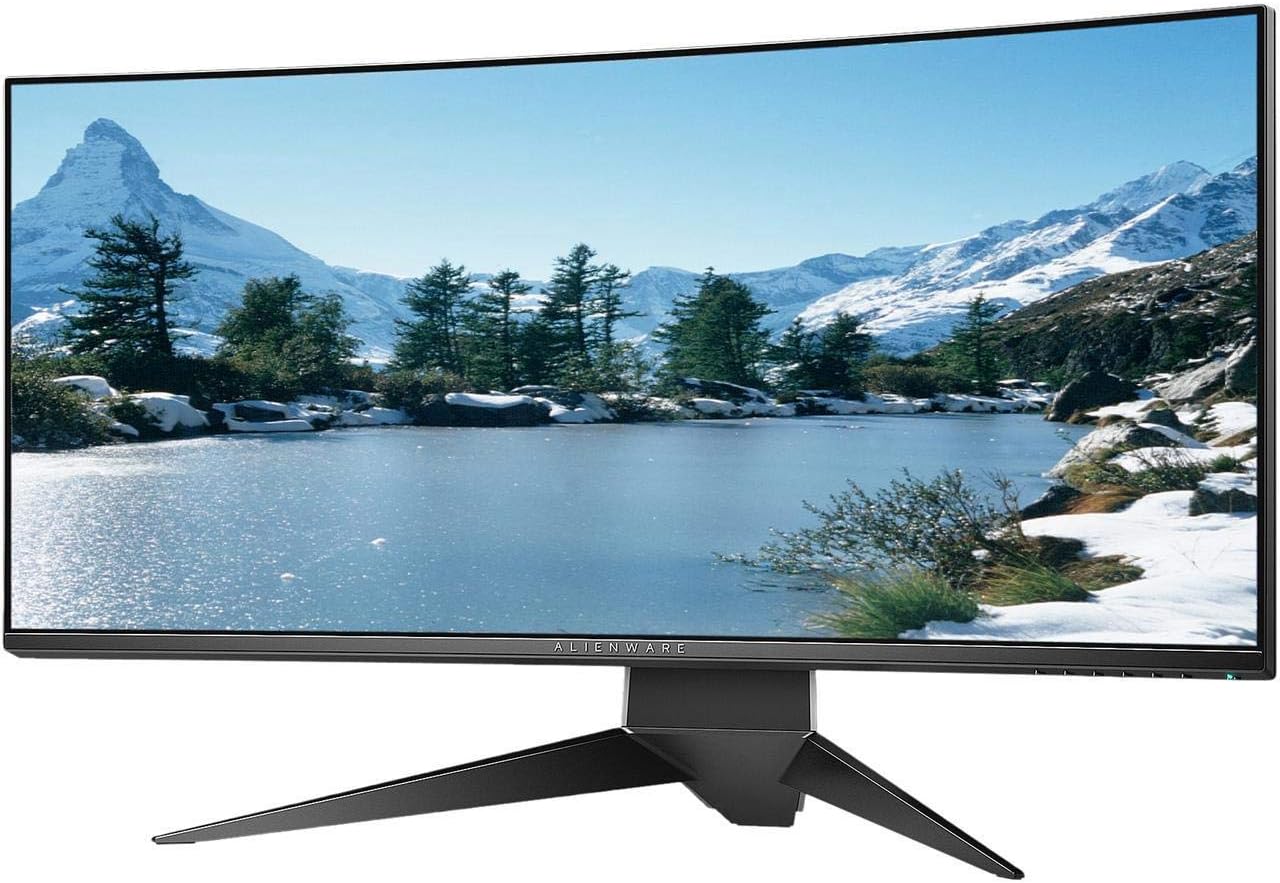
Figure 4.3: Rear view of the Alienware AW3418DW monitor showing the stand and AlienFX lighting.
VESA Mounting
The monitor supports VESA mounting (100 x 100 mm). Remove the stand riser by pressing the release button and then attach the VESA-compatible mount to the monitor using appropriate screws. Ensure the mount can support the monitor's weight of 26.1 pounds (without stand).

Figure 4.4: Monitor dimensions for VESA mount compatibility.
4.2 Connecting Cables
Connect the necessary cables to your monitor and computer.
- Power Cable: Connect the power cable to the monitor's power port and then to a wall outlet.
- Video Cable: Connect either the DisplayPort cable or the HDMI cable from your computer's graphics card to the corresponding port on the monitor. For optimal performance, especially for 120Hz refresh rate and G-SYNC, use the DisplayPort connection.
- USB Upstream Cable: Connect the USB 3.0 upstream cable from your computer to the monitor's upstream USB port to enable the monitor's USB hub functionality.
- USB Downstream Ports: Connect your USB devices (e.g., keyboard, mouse, webcam) to the four USB 3.0 downstream ports on the monitor.
5. Operating Instructions
5.1 Power On/Off
Press the power button located on the monitor to turn it on or off. The power LED will indicate the monitor's status.
5.2 On-Screen Display (OSD) Navigation
The On-Screen Display (OSD) menu allows you to adjust various monitor settings. Use the control buttons, typically located on the bottom right or rear of the monitor, to navigate the OSD.
- Press a control button to activate the OSD menu.
- Use the navigation buttons (up/down/left/right) to move through menu options.
- Press the select button to confirm a selection or enter a sub-menu.
- Use the back/exit button to return to the previous menu or exit the OSD.
5.3 Display Settings
Adjust display settings for optimal viewing and gaming performance.
- Resolution: Set your computer's display resolution to 3440x1440 for the native WQHD experience.
- Refresh Rate: The monitor supports up to 120Hz refresh rate (overclocked). Ensure your graphics card drivers are updated and the refresh rate is set in your operating system's display settings or graphics control panel.
- NVIDIA G-SYNC: For tear-free and smooth gameplay, enable G-SYNC in your NVIDIA Control Panel. This feature synchronizes the monitor's refresh rate with your GPU's frame rate.
- Brightness/Contrast: Adjust these settings in the OSD menu to suit your environment and preference.
5.4 AlienFX Lighting
Customize the AlienFX lighting zones on your monitor through the OSD menu or Alienware Command Center software (if installed on your PC). You can select colors, effects, and synchronize lighting with other Alienware devices.
5.5 USB Hub Usage
The monitor acts as a USB 3.0 hub, providing convenient access to four downstream USB ports for connecting peripherals. Ensure the USB upstream cable is connected to your computer for this feature to function.
6. Maintenance
6.1 Cleaning the Monitor
- Always unplug the monitor from the electrical outlet before cleaning.
- Use a soft, lint-free cloth lightly dampened with water or a non-abrasive screen cleaner.
- Do not spray cleaner directly onto the screen.
- Wipe the screen gently to remove dust and smudges.
- Clean the exterior casing with a soft, dry cloth.
6.2 Storage
If storing the monitor for an extended period, disconnect all cables, carefully disassemble the stand (if applicable), and store it in its original packaging in a cool, dry place.
7. Troubleshooting
If you encounter issues with your monitor, refer to the following common troubleshooting steps:
- No Display: Ensure all power and video cables are securely connected. Check if the monitor is powered on and the correct input source is selected in the OSD.
- Flickering/Stuttering: Verify that your graphics drivers are up to date. Ensure G-SYNC is properly configured in the NVIDIA Control Panel. Check for interference from other electronic devices.
- Incorrect Resolution/Refresh Rate: Adjust the display settings in your operating system or graphics control panel to the native resolution (3440x1440) and desired refresh rate (up to 120Hz).
- Dead Pixels: The Alienware AW3418DW comes with a Premium Panel Guarantee. Refer to the warranty information for details on pixel policy.
- USB Ports Not Working: Ensure the USB 3.0 upstream cable is connected from the monitor to your computer.
8. Specifications
| Feature | Specification |
|---|---|
| Brand | Alienware |
| Model Number | AW3418DW |
| Screen Size | 34.1 Inches |
| Resolution | WQHD (3440 x 1440 Pixels) |
| Aspect Ratio | 21:9 |
| Refresh Rate | 120 Hz (Overclocked) |
| Response Time | 4 Milliseconds |
| Adaptive Sync Technology | NVIDIA G-SYNC |
| Display Type | LED IPS |
| Curvature | 1900R |
| Brightness | 300 cd/m² |
| Contrast Ratio | 1000:1 |
| Viewing Angle | 178 Degrees |
| Connectivity | 1x DisplayPort (1.2), 1x HDMI (1.4), 4x USB 3.0 Downstream, 1x USB 3.0 Upstream |
| Item Weight | 26.1 Pounds (without stand) |
| Mounting Type | VESA Compatible (100 x 100 mm) |
9. Warranty and Support
Your Alienware AW3418DW monitor is covered by a 3 Years Limited Hardware Warranty and 3 Years Advance Exchange Service, including a Premium Panel Guarantee. The Premium Panel Guarantee ensures a free panel replacement during the limited hardware warranty period even if only one bright pixel is found.
For technical support, warranty claims, or additional information, please visit the official Alienware or Dell support website. You may also find updated drivers and firmware there.
Online Support: www.dell.com/support


