
Dynavin N7-MBR
Dynavin N7-MBR Radio Navigation System
Model: N7-MBR
Brand: Dynavin
Product Overview
The Dynavin N7-MBR is an OEM-look factory replacement radio navigation system designed specifically for the Mercedes R Class (W251) models from 2006 to 2013. This system integrates seamlessly with your vehicle's existing factory components, including steering wheel controls and Digital Sound Processor (DSP) if equipped. It offers enhanced functionality and modern features within a single touchscreen unit.
Key features include:
- 7-inch capacitive, anti-glare LCD touch screen display with 1024 x 600 resolution.
- Integrated GPS Navigation for North America, Europe, or Australia.
- Bluetooth for hands-free calling and audio streaming.
- USB connectivity, micro SD card reader, and AUX-in.
- CD/DVD player.
- Android Link screen-mirroring and Apple CarPlay compatibility (with Dynavin iLink add-on module, sold separately).
- Backup camera readiness.
- SiriusXM compatibility (with SXV300 Tuner, sold separately).

Figure 1: Front view of the Dynavin N7-MBR Radio Navigation System, showing the 7-inch touchscreen display and control buttons.
Setup and Installation
The Dynavin N7-MBR is designed for plug-and-play installation. However, professional installation is highly recommended to ensure proper functionality and to avoid damage to the unit or vehicle.
Important Safety Information:
Ensure the installation is carried out only by a trained specialist. Installation should only be performed when the vehicle is de-energized. In certain installations, the battery must be disconnected from the electrical system. Be sure to check the provisions of the vehicle manufacturer as changing the vehicle electronics may result in loss of warranty.
Initial Power On:
- After installation, ensure all connections are secure.
- Reconnect the vehicle's battery (if disconnected).
- Turn on the vehicle's ignition. The unit should power on automatically.
- Follow any on-screen prompts for initial setup, such as language selection or time zone.

Figure 2: The Dynavin N7-MBR unit seamlessly integrated into a Mercedes R Class dashboard, demonstrating its OEM-like fit.
Operating Instructions
Control Panel Overview:
The unit features both physical buttons and a capacitive touchscreen for control. Familiarize yourself with the button layout:
- SRC: Source selection (Radio, CD/DVD, USB, SD, Bluetooth, AUX, Navigation).
- MUT: Mute/Unmute audio.
- USB: Access USB media.
- NAVI: Launch navigation application.
- TV/AUX: Switch to TV or Auxiliary input (if connected).
- ON/Volume Knob: Power On/Off (press and hold), Adjust Volume (rotate).
- FM/BND: Switch between FM bands or AM.
- Preset Buttons (1-6): Store and recall radio stations.
- TEL: Access Bluetooth phone functions.
Touchscreen Interface:
The 7-inch capacitive touchscreen provides intuitive control over all functions.
Main Menu:
From the main menu, you can access various functions by tapping the corresponding icon.
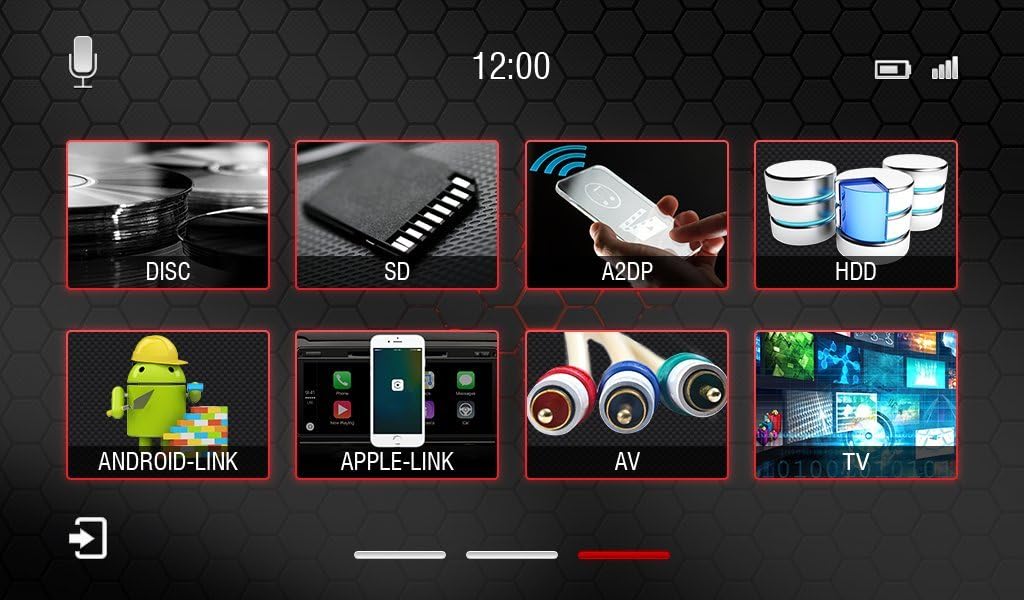
Figure 3: Main menu screen displaying icons for various functions such as Disc, SD, A2DP (Bluetooth Audio), HDD, Android-Link, Apple-Link, AV, and TV.
Radio Operation:
Tap the "Radio" icon from the main menu or press the "FM/BND" button. You can tune stations manually, scan, or use preset buttons. The screen displays station information and frequency.
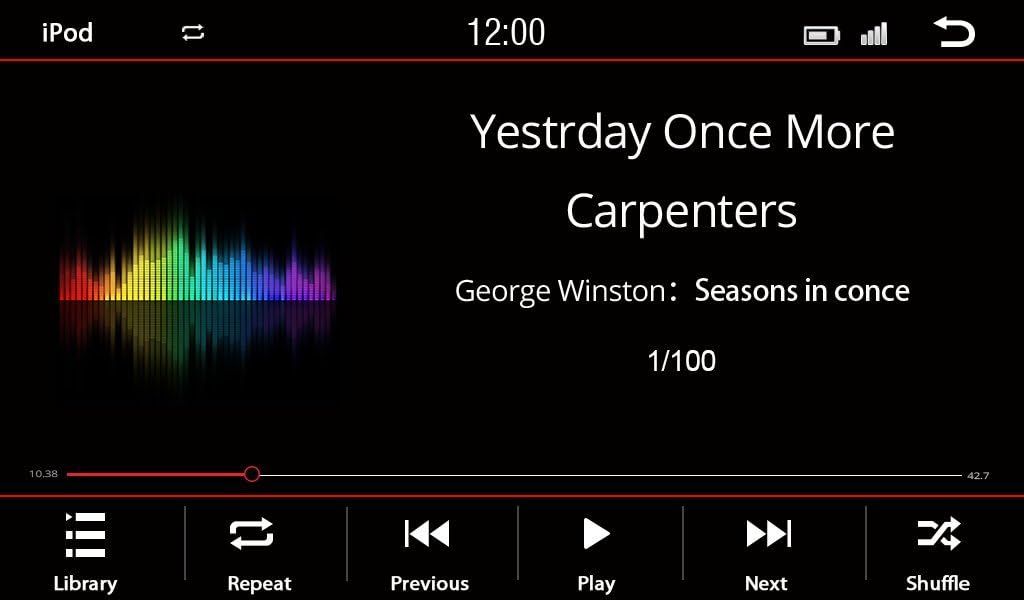
Figure 4: Radio interface showing station presets and current tuning information.
For SiriusXM, an optional SXV300 Tuner is required. Once installed, access SiriusXM via the main menu or source selection. The interface will allow channel browsing and selection similar to the FM radio.
Figure 5: SiriusXM interface, displaying channel names and presets.
Media Playback (USB, SD, iPod, CD/DVD):
Insert a USB drive, SD card, or CD/DVD. Select the corresponding source from the main menu or by pressing the "SRC" button. The unit supports various audio and video formats.

Figure 6: iPod playback screen showing song title, artist, and playback controls.
Bluetooth Connectivity:
Pair your smartphone via Bluetooth for hands-free calling and audio streaming (A2DP). Access Bluetooth functions via the main menu or the "TEL" button.
- Go to the Bluetooth settings on the Dynavin unit.
- Enable Bluetooth on your smartphone and search for available devices.
- Select "Dynavin N7-MBR" (or similar name) from your phone's list and confirm pairing.
System Settings:
Adjust various system parameters such as region, display brightness, and time zone. Access these settings from the main menu.

Figure 7: System settings menu, allowing adjustments for region, color, brightness, time zone, and reverse camera options.
Maintenance
Cleaning the Unit:
To clean the touchscreen and surrounding surfaces, use a soft, lint-free cloth. For stubborn marks, slightly dampen the cloth with water or a screen-safe cleaning solution. Avoid abrasive cleaners or solvents.
Software Updates:
Periodically check the official Dynavin website or contact J&T Distributing for information on available software updates. Updates can provide performance improvements, new features, or bug fixes. Follow the provided instructions carefully when performing any software update.
Troubleshooting
| Problem | Possible Cause | Solution |
|---|---|---|
| Unit does not power on. | Loose power connection, blown fuse, vehicle battery low. | Check power cables and fuses. Ensure vehicle battery is charged. Consult a professional installer. |
| No sound. | Volume too low, unit muted, speaker connections loose, incorrect audio source. | Increase volume. Check if unit is muted. Verify speaker wiring. Select correct audio source. |
| GPS signal lost or inaccurate. | Antenna obstruction, poor satellite visibility, software issue. | Ensure GPS antenna has clear view of sky. Drive to an open area. Check for navigation software updates. |
| Bluetooth connection issues. | Phone not in pairing mode, incorrect pairing code, interference. | Ensure phone's Bluetooth is on and discoverable. Delete previous pairings and re-pair. Move phone closer to unit. |
| Touchscreen unresponsive. | Temporary software glitch, screen damage. | Perform a soft reset (refer to manual for specific reset procedure, usually a small reset button or power cycle). If issue persists, contact support. |
Specifications
| Feature | Detail |
|---|---|
| Model Number | N7-MBR |
| Display Size | 7 Inches |
| Display Resolution | 1024 x 600 |
| Item Weight | 8 pounds |
| Package Dimensions | 13 x 11 x 9 inches |
| Connectivity Technology | Auxiliary, Bluetooth, USB |
| Control Method | Touch |
| Special Feature | Capacitive, Anti-glare Touchscreen |
| Supported Internet Services | SiriusXM (with optional tuner) |
Warranty and Support
J&T Distributing is the official distributor of Dynavin in North America. For warranty claims, technical support, or inquiries regarding accessories and software updates, please contact J&T Distributing directly.
Keep your purchase receipt and product serial number handy when contacting support.
Related documentsN7-MBR

Ask a question about this manual
Ask about setup, troubleshooting, compatibility, parts, safety, or missing instructions. Manuals+ will review the question and use this page’s manual context to help answer it.