
1. Introduction
The ART USBMix4 is a compact and versatile four-channel mixer and USB audio interface designed for home studio recording, podcasting, songwriting, and adding music to projects. It provides a simple solution for recording voiceovers, capturing audio, and integrating various sound sources with your Mac or PC.
2. Key Features
- High Performance Low Noise Design for clear audio.
- Switchable +48V Phantom Power on Channel 1 for condenser microphones.
- Assignable USB Record Source for flexible recording options.
- Independent Level Controls for Main and Headphone/Monitor Outputs.
- Operates on USB Power or 5VDC External Power Supply (Included).
3. Product Overview: Controls and Connections
Familiarize yourself with the various inputs, outputs, and controls on your USBMix4.
3.1 Front Panel Controls and Inputs
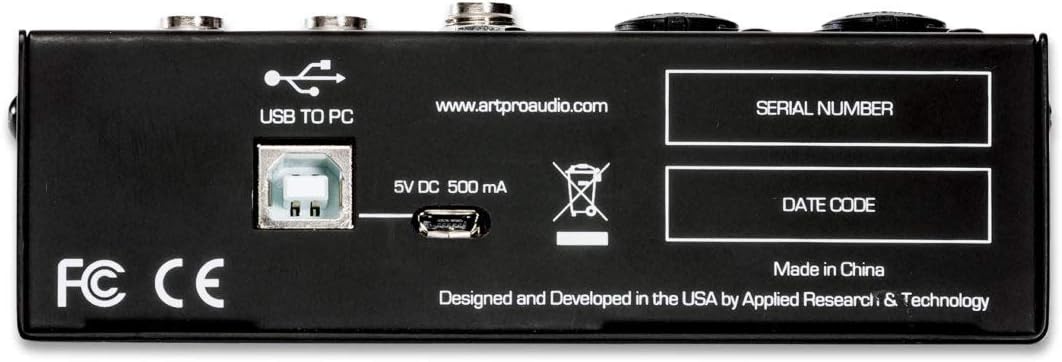
Figure 1: Front panel of the ART USBMix4. This image displays the input jacks for channels 1-4, gain controls, EQ knobs, pan controls, level faders, main mix output, stereo out, and headphone output, along with phantom power and pad switches.
- CH1 Input (XLR/TRS Combo Jack): Connect microphones (XLR) or line-level instruments (TRS).
- Phantom PWR +48V: Activates +48V phantom power for condenser microphones connected to CH1.
- PAD (CH1/CH2): Attenuates input signal by a fixed amount for high-level sources.
- INST HI-Z (CH2): Optimizes input for high-impedance instruments like electric guitars.
- CH2 Input (XLR/TRS Combo Jack): Connect microphones or line-level instruments.
- CH3-CH4 Input (Stereo TRS): Connect stereo line-level sources.
- GAIN: Adjusts the input sensitivity for each channel.
- EQ LOW/HIGH: Tone controls for adjusting bass and treble frequencies.
- PAN: Positions the channel's signal in the stereo field (left to right).
- LEVEL: Adjusts the output level of each channel to the main mix.
- MAIN MIX OUTPUT (TRS): Stereo output for connecting to monitors or recording devices.
- STEREO OUT (RCA): Additional stereo output.
- PHONES (Stereo TRS): Headphone output with independent level control.
- POWER Switch: Turns the unit on/off.
- CLIP Indicators: Lights up when the input signal is too high, indicating potential distortion.
- MONITOR MUTE: Mutes the monitor output.
- DRY CH1-2 / INPUT MIX / LOOPBACK: Selects the source for USB recording and monitoring.
3.2 Rear Panel Connections

Figure 2: Rear panel of the ART USBMix4. This image shows the USB Type-B port for connection to a PC, the 5V DC power input, and labels for serial number and date code.
- USB TO PC (Type-B): Connects the mixer to your computer for audio interface functionality and USB power.
- 5V DC 500 mA: Input for the included external power supply.
- SERIAL NUMBER / DATE CODE: Product identification labels.
4. Setup Guide
Follow these steps for initial setup of your ART USBMix4.
4.1 Connecting to a Computer
- Ensure the USBMix4 is powered off.
- Connect the included USB cable from the USB TO PC port on the rear of the USBMix4 to an available USB port on your computer.
- The USBMix4 is a class-compliant device, meaning no special drivers are typically required for Windows, macOS, or Linux. Your operating system should automatically recognize it.
4.2 Powering the Device
- The USBMix4 can be powered via the USB connection to your computer.
- Alternatively, you can use the included 5V DC external power supply by connecting it to the 5V DC 500 mA input on the rear panel. This is recommended if your computer's USB port cannot provide sufficient power or for standalone operation.
4.3 Connecting Audio Sources and Outputs

Figure 3: Example setup showing the ART USBMix4 connected to a laptop, with headphones and a microphone. This illustrates a typical home recording configuration.
- Microphones: Connect XLR microphones to CH1 or CH2. If using a condenser microphone on CH1, activate the +48V Phantom Power switch.
- Instruments: Connect line-level instruments to CH1 or CH2 (TRS). For high-impedance instruments like guitars, use CH2 and engage the INST HI-Z switch.
- Stereo Sources: Connect devices like media players or keyboards to the CH3-CH4 stereo TRS input.
- Monitoring: Connect headphones to the PHONES jack. Connect studio monitors to the MAIN MIX OUTPUT (TRS) or STEREO OUT (RCA).
5. Operation
This section details how to use the USBMix4 for mixing and recording.
5.1 Adjusting Input Levels
- Turn the GAIN knob for each active channel to an appropriate level. Monitor the CLIP indicator; it should only flash occasionally on the loudest peaks.
- Use the PAD switch if the input signal is too strong even with the GAIN turned down.
5.2 Equalization and Panning
- Use the EQ LOW and EQ HIGH knobs to shape the tone of each channel.
- Adjust the PAN knob to position the sound source within the stereo image.
5.3 Main Mix and Monitoring
- Adjust individual channel LEVEL knobs to create your desired mix.
- Use the MAIN MIX knob to control the overall output level to your monitors and recording software.
- The PHONES/MONITOR knob controls the volume for your headphones and monitor outputs independently.
- The MONITOR MUTE switch allows you to temporarily silence the monitor output without affecting the main mix.
5.4 USB Recording Source Selection
The USBMix4 offers flexible options for what audio is sent to your computer via USB:
- DRY CH1-2: Sends only the unprocessed signals from Channel 1 and Channel 2 to your computer. This is useful for recording individual tracks for later mixing.
- INPUT MIX: Sends the combined mix of all active input channels (1-4) to your computer.
- LOOPBACK: Sends the main mix output, including audio playing back from your computer, back to the computer. This is useful for streaming or recording computer audio along with live inputs.
6. Maintenance
Proper care ensures the longevity and optimal performance of your USBMix4.
- Cleaning: Use a soft, dry cloth to clean the exterior. Avoid abrasive cleaners or solvents.
- Storage: Store the unit in a cool, dry place away from direct sunlight and extreme temperatures.
- Handling: Avoid dropping the unit or subjecting it to strong impacts.
- Ventilation: Ensure proper airflow around the unit to prevent overheating.
7. Troubleshooting
If you encounter issues with your USBMix4, refer to the following common problems and solutions.
- No Sound Output:
- Check all cable connections (inputs, outputs, USB).
- Ensure the USBMix4 is powered on.
- Verify that all GAIN, LEVEL, and MAIN MIX knobs are turned up.
- Check your computer's sound settings to ensure the USBMix4 is selected as the input/output device.
- If using headphones, ensure the PHONES/MONITOR knob is up and the MONITOR MUTE is not engaged.
- Distorted Sound / Clipping:
- Reduce the GAIN for the offending channel.
- Engage the PAD switch for high-level input sources.
- Ensure the MAIN MIX level is not too high.
- Hum or Hiss:
- Check for ground loops. Try connecting all audio equipment to the same power strip.
- Ensure all cables are in good condition and properly shielded.
- Keep audio cables away from power cables.
- If using a microphone, ensure phantom power is only engaged if required by the microphone.
- Latency (Delay in Audio):
- Latency is often related to your computer's audio buffer settings. Reduce the buffer size in your Digital Audio Workstation (DAW) or audio software settings.
- Ensure your computer meets the minimum system requirements for your audio software.
- For Linux users, installing and configuring a low-latency audio server like JACK (Jack Audio Connection Kit) can significantly reduce latency.
- Computer Not Recognizing USBMix4:
- Try a different USB port on your computer.
- Try a different USB cable.
- Restart your computer.
- Ensure the USBMix4 is powered on.
8. Specifications
| Brand | ART |
| Number of Channels | 4 |
| Item Weight | 1.05 Kilograms |
| Connectivity Technology | Interface (USB) |
| Power Source | Corded Electric / USB Power |
| Output Connector Type | 3.5mm headphone jack, TRS Main Mix, RCA Stereo Out |
| Audio Input | USB, XLR/TRS Combo, Stereo TRS |
| UPC | 840402042983 |
| ASIN | B076ML792Q |
9. Warranty Information
The ART USBMix4 comes with a 3-year manufacturer’s defect warranty. This warranty covers defects in materials and workmanship under normal use. Please retain your proof of purchase for warranty claims. For specific terms and conditions, refer to the documentation included with your product or contact ART customer support.
10. Customer Support
If you require further assistance or have questions not covered in this manual, please contact ART customer support. You can typically find contact information on the manufacturer's official website or through your product retailer.
Online Resources: For additional information, FAQs, and potential driver updates (though typically not needed for this class-compliant device), visit the official ART website: www.artproaudio.com