
BRAVIEW TCO-801
BRAVIEW TCO-801 Gaming Keyboard User Manual
Model: TCO-801 | Brand: BRAVIEW
Introduction
Thank you for choosing the BRAVIEW TCO-801 Gaming Keyboard. This manual provides detailed instructions for setting up, operating, maintaining, and troubleshooting your new keyboard. Please read this manual carefully before using the product to ensure optimal performance and longevity.

Figure 1: The BRAVIEW TCO-801 Gaming Keyboard shown with its retail packaging. This image highlights the keyboard's design and the key features advertised on the box, including LED backlighting and multimedia functions.
Setup Guide
Follow these steps to set up your BRAVIEW TCO-801 Gaming Keyboard:
- Unpack the Keyboard: Carefully remove the keyboard from its packaging. Ensure all components are present.
- Connect to Computer: Locate an available USB port on your computer. Insert the USB connector of the keyboard firmly into the USB port. The keyboard features a 2-meter braided cable with a gold-plated USB contact for enhanced durability and signal integrity.
- Driver Installation: The BRAVIEW TCO-801 is a plug-and-play device. Your operating system (Windows, macOS, Linux) should automatically detect and install the necessary drivers. No manual driver installation is typically required.
- Verify Connection: Once connected, the keyboard's backlight should illuminate, indicating a successful connection. You can now begin using your keyboard.
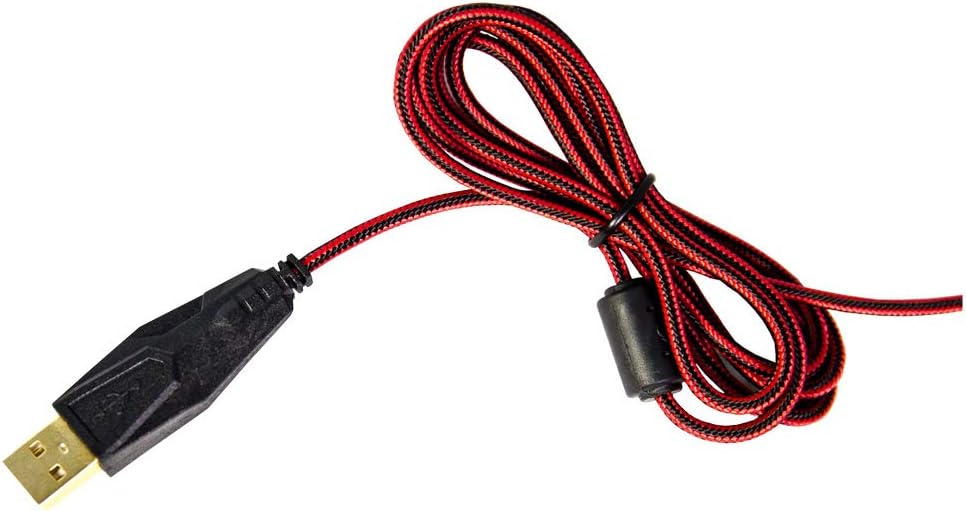
Figure 2: Close-up view of the braided USB cable and gold-plated connector of the BRAVIEW TCO-801 Gaming Keyboard. This cable design enhances durability and ensures a stable connection.
Operating Instructions
The BRAVIEW TCO-801 Gaming Keyboard is designed for intuitive use with several features to enhance your gaming and multimedia experience.
Standard Key Functions
The keyboard features a standard ABNT2 layout with 104 keys, providing all essential alphanumeric, function, and navigation keys. It also includes 19 conflict-free keys (anti-ghosting) to ensure accurate input during intense gaming sessions.
Multimedia Keys
The keyboard is equipped with 7 dedicated multimedia keys for quick access to common functions:
- Volume Control: Adjust audio volume up or down.
- Play/Pause: Control media playback.
- Previous/Next Track: Navigate through your media playlist.
- Stop: Halt media playback.
- Mute: Instantly mute or unmute audio.
Backlight Control
The keyboard features LED backlighting with 3 adjustable levels of intensity. This allows you to customize the brightness to your preference or turn it off completely.
- Locate the backlight control key (often marked with a sun or light bulb icon, or combined with a function key).
- Press this key repeatedly to cycle through the 3 brightness levels (Low, Medium, High) and Off.
Macro Keys
The keyboard includes 3 dedicated macro keys. While specific programming instructions are not provided in this manual, these keys are typically programmable via software or a combination of key presses to execute complex commands or sequences with a single press. Refer to the manufacturer's website or additional software documentation for detailed macro programming guides if available.

Figure 3: A detailed top-down view of the BRAVIEW TCO-801 Gaming Keyboard, showcasing its ABNT2 layout and the vibrant red LED backlighting. This view highlights the keycap design and the placement of multimedia and macro keys.
Maintenance
Proper maintenance will extend the life of your BRAVIEW TCO-801 Gaming Keyboard.
- Cleaning:
- Disconnect the keyboard from your computer before cleaning.
- Use a soft, lint-free cloth slightly dampened with water or a mild cleaning solution to wipe the surface of the keyboard.
- For dust and debris between keys, use compressed air.
- Do not use harsh chemicals, abrasive cleaners, or immerse the keyboard in water.
- Storage: Store the keyboard in a cool, dry place away from direct sunlight and extreme temperatures when not in use for extended periods.
- Handling: Avoid dropping the keyboard or exposing it to excessive force, which can damage internal components.
Troubleshooting
If you encounter issues with your BRAVIEW TCO-801 Gaming Keyboard, try the following solutions:
| Problem | Possible Cause | Solution |
|---|---|---|
| Keyboard not responding. | Loose USB connection, faulty USB port, driver issue. |
|
| Backlight not working. | Backlight turned off, low brightness setting. |
|
| Keys are sticky or unresponsive. | Dirt or debris under the keycaps. |
|
If the problem persists after trying these solutions, please contact BRAVIEW customer support for further assistance.
Specifications
| Feature | Detail |
|---|---|
| Model | TCO-801 (Ref: K103) |
| Brand | BRAVIEW |
| Manufacturer | MITSUSHIBA DO BRASIL LTDA |
| Keyboard Type | Membrane Gaming Keyboard |
| Layout Standard | ABNT2 (Portuguese - Brazil) |
| Total Keys | 104 |
| Conflict-Free Keys (Anti-Ghosting) | 19 |
| Multimedia Keys | 7 |
| Macro Keys | 3 |
| Backlight | LED Retroillumination, 3 levels of intensity |
| Connection Type | USB (Gold-plated contact) |
| Cable Length | 2 meters (braided fabric finish) |
| Internal Plate | 1.2 mm metal internal plate |
| Durability | 100 million clicks |
| Product Dimensions (L x W x H) | 30 x 50 x 10 cm |
| Product Weight | 3 Kilograms |
| Manufacturer Reference | 20TECX801UB92 |
| EAN | 7898516265081 |
| ASIN | B076HZSWMW |
| Available since | March 27, 2019 |
Warranty and Support
Warranty Information
The BRAVIEW TCO-801 Gaming Keyboard comes with a 12-month warranty from the date of purchase. This warranty covers manufacturing defects and malfunctions under normal use. It does not cover damage caused by misuse, accidents, unauthorized modifications, or natural disasters.
Please retain your proof of purchase for warranty claims.
Customer Support
For technical support, warranty claims, or any questions regarding your BRAVIEW TCO-801 Gaming Keyboard, please contact BRAVIEW customer service. You can typically find contact information on the official BRAVIEW website or through your retailer.
For more information, visit the official BRAVIEW website: www.braview.com.br (Note: This is a placeholder URL as no official website was provided in the input. Users should refer to their product packaging or official brand channels for accurate support contact information.)
Ask a question about this manual
Ask about setup, troubleshooting, compatibility, parts, safety, or missing instructions. Manuals+ will review the question and use this page’s manual context to help answer it.