
1. Introduction
This manual provides detailed instructions for the installation, operation, and maintenance of your GW Security VD5071IP 5 Megapixel H.265 HD 1920P Outdoor Indoor PoE Security IP Camera. Please read this manual thoroughly before using the product to ensure proper setup and functionality. Keep this manual for future reference.
2. Safety Information
- Power Supply: Use only the specified power adapter or Power over Ethernet (PoE) compliant devices. Incorrect power supply may damage the camera or pose a fire hazard.
- Installation: Ensure the camera is securely mounted to prevent it from falling. For outdoor installations, ensure all connections are waterproofed to prevent water ingress.
- Operating Environment: Do not expose the camera to extreme temperatures, humidity, or corrosive environments. Avoid direct sunlight exposure for extended periods.
- Cleaning: Disconnect power before cleaning. Use a soft, dry cloth. Do not use strong detergents or abrasive cleaners.
- Servicing: Do not attempt to disassemble or repair the camera yourself. Refer all servicing to qualified personnel.
3. Package Contents
Verify that all items are present in your package:
- GW Security VD5071IP 5MP IP Camera
- Mounting Screws and Anchors
- Waterproof Connector Kit
- Quick Start Guide (if applicable)
Note: Power adapter is typically not included as this is a Power over Ethernet (PoE) camera.
4. Product Overview
The GW Security VD5071IP is a 5-megapixel IP camera designed for both indoor and outdoor surveillance. It features a varifocal lens, infrared night vision, and Power over Ethernet (PoE) for simplified installation.
4.1 Camera Components

Figure 4.1: Internal view of the GW Security VD5071IP camera with its dome cover removed, revealing the lens, IR LEDs, and internal wiring. This image illustrates the camera's robust construction and key components.

Figure 4.2: A close-up view of the camera's front, showing the varifocal lens and the surrounding infrared (IR) LEDs. These LEDs provide night vision capabilities for surveillance in low-light conditions.

Figure 4.3: The bottom of the GW Security VD5071IP camera, displaying the model number (GW-5071IP), IP address, power requirements, and serial number. Mounting holes are also visible.
- Lens: 2.8-12mm Manual Zoom Varifocal Megapixel HD lens with IR-CUT.
- Infrared LEDs: 42Pcs Infrared LED illumination for night vision up to 120Ft.
- Ethernet Port: RJ45 port for network connection and Power over Ethernet (PoE).
- Power Input: DC 12V (if not using PoE).
- Mounting Base: For secure installation on walls or ceilings.
5. Setup
5.1 Physical Installation
- Choose a Location: Select a suitable indoor or outdoor location that provides the desired viewing angle and is within range of your network infrastructure. Ensure the mounting surface is strong enough to support the camera.
- Mounting:
- Remove the camera's dome cover by unscrewing the retaining screws.
- Use the mounting base as a template to mark the drill holes on the wall or ceiling.
- Drill pilot holes and insert the provided anchors if mounting on drywall or masonry.
- Secure the camera base to the mounting surface using the provided screws.
- Route the Ethernet cable through the designated cable entry point.
- Waterproofing (Outdoor Installation): For outdoor use, ensure all cable connections, especially the Ethernet connector, are properly sealed using the waterproof connector kit to prevent moisture damage.
5.2 Connectivity

Figure 5.1: A detailed view of the camera's Power over Ethernet (PoE) connector. This connector allows both power and data to be transmitted over a single Ethernet cable, simplifying installation.
- Power over Ethernet (PoE): Connect an Ethernet cable from a PoE switch or PoE injector to the camera's Ethernet port. This will provide both power and network connectivity.
- Alternative Power (Optional): If PoE is not available, connect a DC 12V power adapter (not included) to the camera's power input port and an Ethernet cable to a standard network switch or router.
- Network Connection: Ensure the camera is connected to your local network. The camera will obtain an IP address automatically via DHCP by default.
5.3 Initial Configuration
After physical installation and connection, you will need to access the camera's web interface or use GW Security's client software for initial configuration.
- Discover Camera: Use the GW Security IP Camera Search Tool (available on the GW Security website) to find the camera's IP address on your network.
- Access Web Interface: Open a web browser and enter the camera's IP address. Log in using the default username and password (refer to your Quick Start Guide or GW Security documentation for default credentials).
- Change Default Password: For security, immediately change the default password to a strong, unique password.
- Network Settings: Configure network settings as needed, such as assigning a static IP address if preferred.
- Time Settings: Set the correct date and time for accurate recording timestamps.
6. Operation
6.1 Adjusting the Varifocal Lens
The VD5071IP features a 2.8-12mm manual varifocal lens, allowing you to adjust the field of view and focus. This adjustment is done physically on the camera.
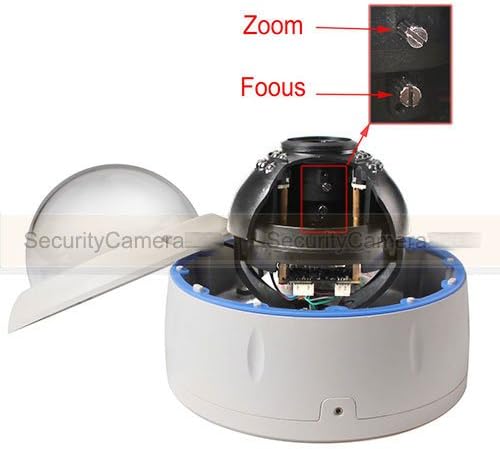
Figure 6.1: This image highlights the zoom and focus adjustment screws located on the camera's lens module. These screws allow for manual adjustment of the camera's field of view and image clarity.

Figure 6.2: A visual comparison demonstrating the effect of adjusting the varifocal lens from 2.8mm (wide angle) to 12mm (narrower, zoomed-in view). This illustrates how the field of view changes with different focal lengths.
- Access Lens: Carefully remove the camera's dome cover.
- Adjust Zoom: Locate the "Zoom" screw on the lens module. Rotate it to adjust the focal length (2.8mm for wide view, 12mm for narrow/zoomed view).
- Adjust Focus: After setting the desired zoom, locate the "Focus" screw. Rotate it until the image on your monitoring screen is clear and sharp.
- Secure Cover: Once adjustments are complete, carefully replace and secure the dome cover.
6.2 Motion Detection and Alerts
The camera supports configurable motion detection and can send email alerts upon detection.
- Access Settings: Log into the camera's web interface.
- Configure Motion Detection: Navigate to the "Event" or "Alarm" settings. Define motion detection areas, sensitivity, and thresholds.
- Email Alerts: Set up email server details and recipient addresses in the "Network" or "Email" settings to receive alerts.
6.3 Remote Viewing
You can view your camera feed remotely via a mobile app or PC client software.
- Mobile App: Download the official GW Security mobile app from your device's app store. Add your camera using its P2P ID or IP address.
- PC Client: Install the GW Security client software on your computer. Add the camera to the software for live viewing and playback.
6.4 Night Vision
The camera automatically switches to infrared night vision in low-light conditions, providing clear black and white video up to 120 feet.
- The built-in IR-CUT filter ensures accurate color reproduction during the day.
- The 42 IR LEDs activate automatically when ambient light levels drop.
7. Maintenance
- Cleaning the Lens and Dome: Regularly clean the camera lens and dome cover with a soft, lint-free cloth. For stubborn dirt, use a mild lens cleaning solution. Avoid abrasive materials that could scratch the surface.
- Checking Connections: Periodically inspect all cable connections, especially for outdoor installations, to ensure they are secure and waterproof.
- Firmware Updates: Check the GW Security website for available firmware updates. Keeping your camera's firmware updated ensures optimal performance, security, and access to new features. Follow the provided instructions carefully when performing updates.
- Environmental Inspection: Ensure the camera's environment remains suitable. Clear any obstructions that might block the field of view or interfere with IR illumination.
8. Troubleshooting
| Problem | Possible Cause | Solution |
|---|---|---|
| No image/video feed | No power; Network connection issue; Incorrect IP address | Check PoE connection or DC 12V power supply. Verify Ethernet cable is connected. Use IP Search Tool to find camera IP. Ensure camera and viewing device are on the same network. |
| Image is blurry/out of focus | Lens focus not adjusted correctly | Adjust the manual focus screw on the lens (refer to Section 6.1). |
| Night vision not working | IR LEDs not activating; Insufficient power | Ensure sufficient power supply. Check camera settings for IR mode. Ensure no physical obstruction is blocking the IR sensor. |
| Motion detection not triggering | Incorrect sensitivity settings; Detection area not configured | Adjust motion detection sensitivity and define detection zones in the camera's web interface. |
| Cannot access camera remotely | Network configuration issue; Firewall blocking access; P2P not enabled | Verify port forwarding settings on your router if not using P2P. Check firewall rules. Ensure P2P is enabled in camera settings and the P2P ID is correct. |
9. Specifications

Figure 9.1: A visual comparison of different video resolutions, illustrating the superior detail provided by 5 Megapixel (2592x1920) compared to lower resolutions like 1080P (1920x1080) and 720P (1280x720).
| Feature | Detail |
|---|---|
| Model Number | VD5071IP |
| Image Sensor | 5.0MP 1/3" Megapixel CMOS Sensor |
| Effective Still Resolution | 5 MP (2592x1920) |
| Video Capture Resolution | 2592x1920 (5MP) @ 15 FPS; 1536p (3MP) @ 30 FPS; 1080p (2MP) @ 30 FPS |
| Lens | 2.8-12mm Manual Zoom Varifocal Megapixel HD lens with IR-CUT |
| Night Vision Range | Up to 120 Feet (42Pcs Infrared LED illumination) |
| Indoor/Outdoor Usage | Indoor, Outdoor |
| Water Resistance Level | Waterproof (IP67 Rated) |
| Connectivity Technology | Wired (Power over Ethernet - PoE) |
| Power Source | PoE (Power over Ethernet) or AC/DC 12V |
| Special Features | Image Sensor, Motion Sensor, Night Vision, Remote Mobile/PC View, ONVIF 2.4, P2P |
| Dimensions | 5 x 5 x 5 inches |
| Weight | 1.22 Kilograms |
10. Warranty Information
The GW Security VD5071IP camera comes with a 2-year manufacturer's warranty. This warranty covers defects in materials and workmanship under normal use. Please retain your proof of purchase for warranty claims.
The warranty does not cover damage caused by improper installation, misuse, unauthorized modification, natural disasters, or external factors such as power surges.
For detailed warranty terms and conditions, please visit the official GW Security website or contact customer support.
11. Technical Support
Should you encounter any issues or require assistance with your GW Security VD5071IP camera, please contact our technical support team.

Figure 11.1: An image depicting the GW Security technical support team, ready to assist customers with product inquiries and troubleshooting. This team provides domestic technical support.
- Support Hours: Monday - Friday, 9:00 AM - 5:30 PM PST
- Contact Information: Refer to the GW Security official website for the most current contact methods (phone, email, live chat).
- Online Resources: Visit the GW Security support page for FAQs, firmware downloads, and additional guides.
When contacting support, please have your camera's model number (VD5071IP) and serial number ready.