
Merkury Innovations MI-VRH07-101
Merkury Innovations MI-VRH07-101 Evo VR Virtual Reality Starter Kit User Manual
Comprehensive instructions for setup, operation, and maintenance.
Introduction
Thank you for choosing the Merkury Innovations MI-VRH07-101 Evo VR Virtual Reality Starter Kit. This manual provides essential information for the safe and effective use of your VR headset. Please read these instructions thoroughly before use and retain them for future reference.
Package Contents
Ensure all items listed below are present in your package:
- Evo VR Headset (MI-VRH07-101)
- Controller (basic VR controller)
- Connection Cables
- User Manual (this document)
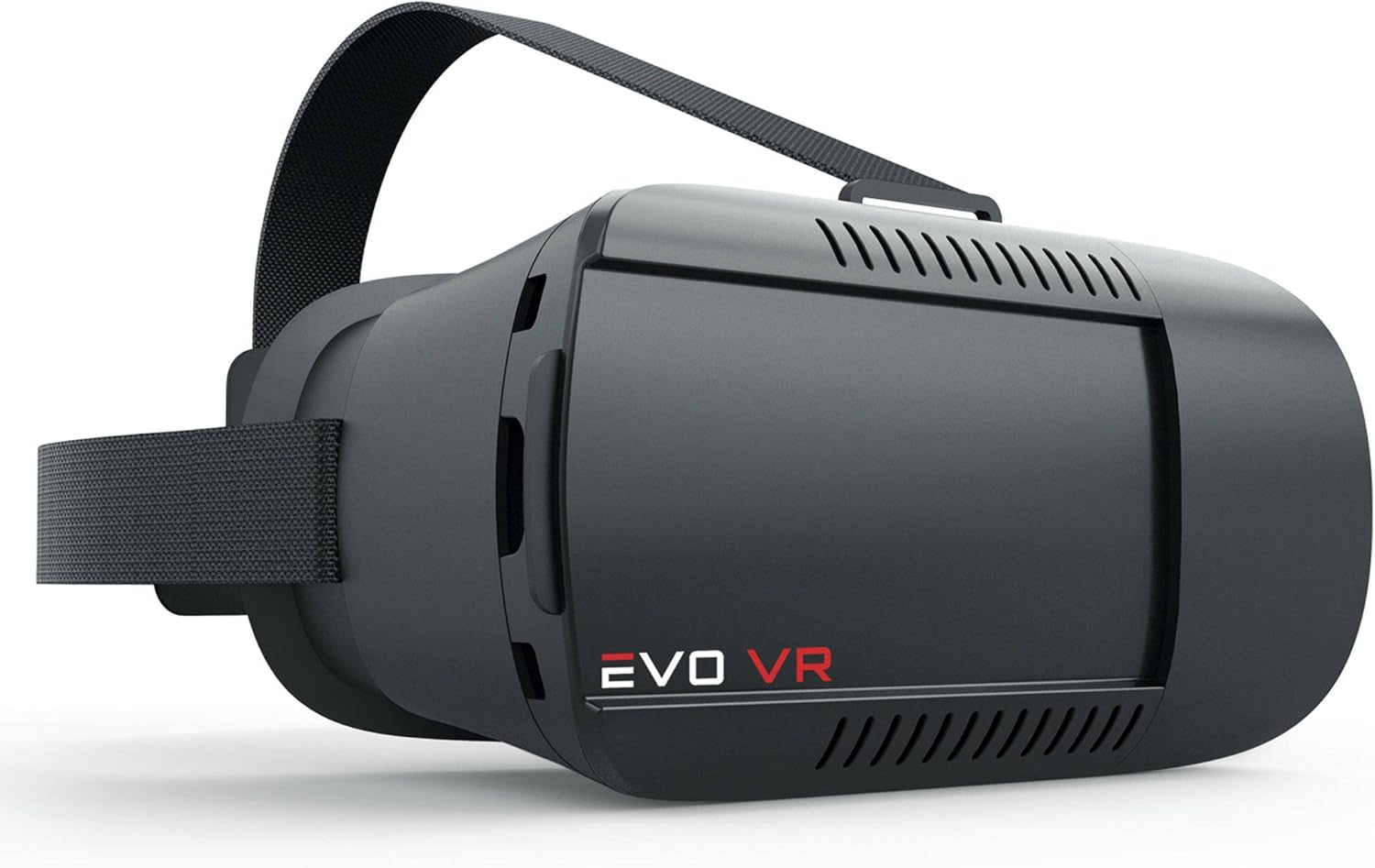
Image: Front view of the Merkury Innovations Evo VR Headset, showing the main body and head strap.
Important Safety Information
- Do not use the VR headset while operating a vehicle or heavy machinery.
- Ensure you have adequate clear space around you to prevent injury during use.
- Take regular breaks to avoid eye strain and discomfort.
- If you experience dizziness, nausea, or disorientation, discontinue use immediately.
- Keep the device away from direct sunlight, heat sources, and moisture.
- Not suitable for children under 13 years of age without adult supervision.
Setup Guide
1. Inserting Your Smartphone
- Open the front cover of the VR headset. This usually slides out or flips open.
- Ensure your smartphone's screen is clean and free of smudges.
- Launch a VR-compatible application or video on your smartphone.
- Carefully place your smartphone into the designated tray or holder within the headset, ensuring it is centered and secure.
- Close the front cover securely.

Image: The Evo VR Headset with a smartphone securely placed in its compartment, ready for use.
2. Adjusting the Headset
- Place the headset over your head, ensuring the straps are comfortable.
- Adjust the head straps to achieve a snug but not overly tight fit. The headset should feel secure without causing pressure.
- Use the focus adjustment dials (if present, typically on the top or sides) to sharpen the image until it is clear for both eyes.
- Adjust the interpupillary distance (IPD) slider (if present) to align the lenses with your eyes for optimal viewing comfort.
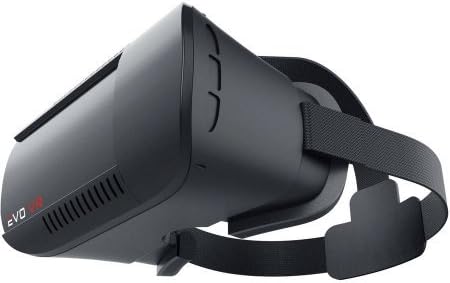
Image: Side view of the Evo VR Headset, highlighting the adjustable head straps and ventilation.
Operation
Using VR Applications
The Evo VR headset is designed to work with a wide range of virtual reality applications and 360-degree videos available on smartphone app stores. Search for "VR" or "Virtual Reality" in your device's app store to find compatible content.
- Download and install your desired VR application or content on your smartphone.
- Launch the application before inserting your phone into the headset.
- Some applications may require a Bluetooth controller for interaction.
Controller Usage
If your kit includes a Bluetooth controller, follow these steps to pair and use it:
- Ensure the controller has fresh batteries (if applicable).
- Turn on the controller and put it into pairing mode (refer to the controller's specific instructions if provided separately).
- On your smartphone, go to Bluetooth settings and search for available devices.
- Select the controller from the list to pair.
- Once paired, the controller can be used to navigate menus and interact within compatible VR applications.
Maintenance and Care
- Cleaning Lenses: Use a soft, dry microfiber cloth specifically designed for optical lenses. Do not use abrasive cleaners or paper towels.
- Cleaning Headset Body: Wipe the exterior with a slightly damp, soft cloth. Avoid getting moisture into any openings.
- Storage: Store the headset in a cool, dry place away from direct sunlight and dust.
- Avoid Drops: Handle the headset with care to prevent damage from drops or impacts.
Troubleshooting
- Image is blurry:
- Ensure your smartphone is centered and securely placed in the headset.
- Adjust the focus dials on the headset until the image is clear.
- Adjust the IPD (interpupillary distance) slider to match your eye spacing.
- Clean the headset lenses and your smartphone screen.
- No VR effect / Image not split:
- Verify that the application you are using is a dedicated VR app or a 360-degree video designed for VR headsets.
- Some apps require specific settings to enable VR mode. Check the app's internal settings.
- Controller not connecting:
- Ensure the controller has power (check batteries).
- Make sure Bluetooth is enabled on your smartphone.
- Put the controller into pairing mode and re-attempt pairing via your smartphone's Bluetooth settings.
- Ensure the controller is compatible with your smartphone's operating system.
Specifications
| Model Name: | MI-VRH07-101 |
| Brand: | Merkury Innovations |
| Product Dimensions: | 8.5 x 4.5 x 6 inches |
| Item Weight: | 12 ounces |
| Compatible Devices: | Smartphones (various sizes), Game Consoles (with appropriate adapters/software) |
| Connectivity Technology: | USB (for some accessories), Bluetooth (for controller) |
| Color: | Black |
Warranty and Support
For warranty information, technical support, or customer service inquiries, please refer to the warranty card included with your product or visit the official Merkury Innovations website. You may also contact their customer support directly through the contact information provided on their website.
Merkury Innovations Official Website: www.merkuryinnovations.com
Ask a question about this manual
Ask about setup, troubleshooting, compatibility, parts, safety, or missing instructions. Manuals+ will review the question and use this page’s manual context to help answer it.