
1. Introduction
This manual provides detailed instructions for the installation, operation, and maintenance of your GIGABYTE Z370XP SLI motherboard. Designed for 8th Generation Intel Core processors, this ATX motherboard offers robust performance and features for various computing needs. Please read this manual thoroughly before beginning installation.
2. Key Features
- Supports 8th Generation Intel Core Processors.
- Dual Channel DDR4 memory support with 4 DIMM slots.
- USB 3.1 Gen 2 with USB Type-C for high-speed connectivity.
- 2-Way Graphics Support (SLI/CrossFire) for enhanced visual performance.
- Intel Gigabit LAN for stable and fast network connections.
- GIGABYTE UEFI Dual BIOS for system protection and easy configuration.
- APP Center including Easy Tune and Cloud Station Utilities for system management.
- Realtek ALC1220 Codec for high-definition audio.
- ATX Form Factor (305mm x 225mm).
3. Package Contents
Verify that all items are present in the package. If any item is missing or damaged, contact your retailer.
- GIGABYTE Z370XP SLI Motherboard
- (Additional accessories such as SATA cables, I/O shield, and manual may be included depending on the region and retailer.)
4. Setup and Installation
Before installing the motherboard, ensure your system components are compatible and that you have a static-free environment.
4.1 Motherboard Overview

Image 1: Top-down view of the GIGABYTE Z370XP SLI Motherboard. This image displays the CPU socket, DIMM slots, PCIe slots, and various headers.

Image 2: Angled view of the GIGABYTE Z370XP SLI Motherboard, highlighting the heatsinks and overall layout.
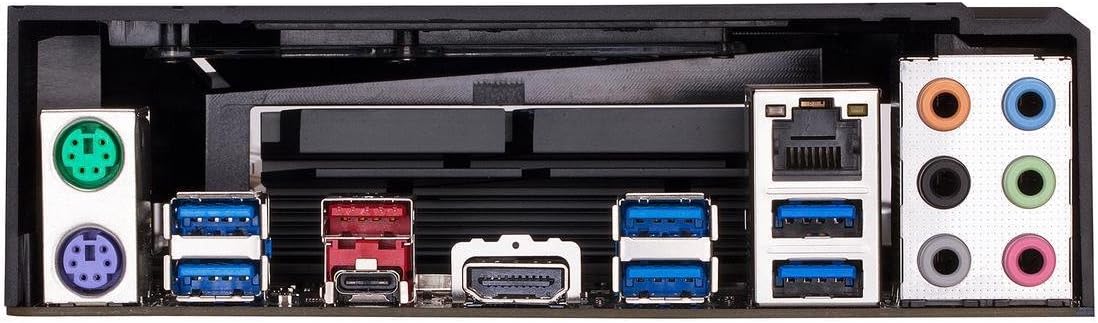
Image 3: Rear I/O panel of the GIGABYTE Z370XP SLI Motherboard, showing the various ports including USB, HDMI, Ethernet, and audio jacks.
4.2 CPU Installation
- Locate the LGA 1151 CPU socket on the motherboard.
- Open the CPU socket lever and remove the protective cap.
- Carefully align the CPU with the socket, ensuring the gold triangle on the CPU matches the triangle on the socket.
- Gently place the CPU into the socket without forcing it.
- Close the socket lever to secure the CPU.
- Install the CPU cooler according to its manufacturer's instructions.
4.3 Memory (RAM) Installation
- Open the clips at both ends of the DIMM slots.
- Align the notch on the DDR4 memory module with the notch in the DIMM slot.
- Insert the memory module firmly into the slot until the clips snap into place.
- For dual-channel operation, refer to the motherboard manual for recommended slot configurations.
4.4 Storage Device Installation
- SATA Drives: Connect SATA data cables from your storage devices (HDDs/SSDs) to the SATA 3 ports on the motherboard. Connect SATA power cables from your power supply to the drives.
- M.2 Drives: Locate the M.2 slots. Insert the M.2 drive at an angle and secure it with the provided screw.
4.5 Graphics Card and Expansion Card Installation
- Open the latch on the desired PCI Express x16 slot.
- Align your graphics card or expansion card with the slot and press down firmly until it is seated.
- Secure the card with a screw to your PC case.
- Connect any necessary PCIe power cables from your power supply to the graphics card.
4.6 Power Connections
- Connect the 24-pin ATX main power connector from your power supply to the corresponding port on the motherboard.
- Connect the 8-pin (or 4+4-pin) ATX 12V CPU power connector to the motherboard.
4.7 Front Panel Connections
Connect the front panel cables (power button, reset button, HDD LED, power LED, USB ports, audio jacks) to their respective headers on the motherboard. Refer to the motherboard's silkscreen labels for correct orientation.
5. Operating Instructions
5.1 Initial System Boot
- After all components are installed and connected, close your PC case.
- Connect your monitor, keyboard, and mouse.
- Connect the power cord to your power supply and turn on the power switch.
- Press the power button on your PC case.
- The system should power on and display the GIGABYTE splash screen.
5.2 BIOS/UEFI Setup
To enter the BIOS/UEFI setup utility, press the DEL key repeatedly during the initial boot process. The BIOS allows you to configure system settings such as boot order, CPU/memory frequencies, and peripheral settings. Save changes before exiting.
5.3 Driver Installation
After installing your operating system, install the necessary drivers for the motherboard chipset, LAN, audio, and other integrated components. These drivers are typically provided on a support DVD or can be downloaded from the GIGABYTE official website.
6. Maintenance
- Dust Removal: Regularly clean dust from inside your PC case, especially from fans and heatsinks, to prevent overheating. Use compressed air for best results.
- BIOS Updates: Periodically check the GIGABYTE website for BIOS updates. BIOS updates can improve system stability, compatibility, and performance. Follow the instructions provided by GIGABYTE carefully when updating the BIOS.
- Driver Updates: Keep your system drivers updated to ensure optimal performance and compatibility with new software and hardware.
7. Troubleshooting
If you encounter issues, refer to the following common troubleshooting steps:
- No Power/No Boot:
- Ensure all power cables (24-pin ATX, 8-pin CPU, GPU) are securely connected.
- Check if the power supply is switched on.
- Verify front panel power button connection.
- No Display:
- Ensure the monitor is connected to the graphics card (or motherboard if using integrated graphics) and powered on.
- Reseat the graphics card and memory modules.
- Test with a single RAM stick in different slots.
- System Instability/Crashes:
- Check CPU and GPU temperatures.
- Ensure all drivers are correctly installed and up to date.
- Run memory diagnostic tools to check for RAM errors.
- Reset BIOS settings to default.
- On-board Readout/Debug LED: The motherboard may feature an on-board debug LED or POST code display. Consult the full GIGABYTE manual for specific code meanings to diagnose boot issues.
8. Specifications
| Feature | Detail |
|---|---|
| Brand | GIGABYTE |
| Model Name | Z370XP SLI |
| CPU Socket | LGA 1151 |
| Compatible Processors | 8th Generation Intel Core |
| Chipset Type | Intel Z370 |
| RAM Memory Technology | DDR4 |
| Memory Clock Speed | 2666 MHz (Supports higher via OC) |
| Memory Slots Available | 4 |
| Ram Memory Maximum Size | 64 GB |
| Graphics Card Interface | PCI Express |
| Total PCIe Ports | 4 |
| Total SATA Ports | 6 |
| M.2 Slots | 2 |
| Total USB Ports | 8 (Rear I/O) + Internal Headers |
| USB 3.1 Gen 2 Type-C | 1 (Rear I/O) |
| Number of Ethernet Ports | 1 (Intel Gigabit LAN) |
| Total Number of HDMI Ports | 1 |
| S/PDIF Connector Type | Optical |
| Main Power Connector Type | 24-Pin ATX |
| Form Factor | ATX (305mm X 225mm) |
| Item Weight | 16 ounces |
| UPC | 889523011324 |
9. Warranty Information
The GIGABYTE Z370XP SLI motherboard typically comes with a 3-year limited warranty. Warranty terms and conditions may vary by region and retailer. Please retain your proof of purchase for warranty claims. For detailed warranty information, visit the official GIGABYTE website.
10. Technical Support
For further assistance, driver downloads, BIOS updates, or troubleshooting not covered in this manual, please visit the official GIGABYTE support website: www.gigabyte.com/support. You may also contact GIGABYTE customer service directly.
