1. Introduction
Thank you for choosing the Gzunelic 9500 Lumens Android WiFi Projector. This projector is designed for home entertainment, offering a bright, high-definition viewing experience with versatile connectivity options. Featuring a native 1080p resolution, Android operating system, and wireless mirroring capabilities, it provides a comprehensive solution for your multimedia needs. This manual will guide you through the setup, operation, and maintenance of your new projector.
2. Safety Information
- Ensure proper ventilation around the projector to prevent overheating. Do not block ventilation openings.
- Use only the power adapter supplied with the projector.
- Avoid looking directly into the projector lens when the lamp is on, as the bright light can cause eye damage.
- Do not place the projector on unstable surfaces.
- Keep the projector away from water or other liquids.
- Unplug the projector during lightning storms or when unused for long periods.
- Do not attempt to repair the projector yourself. Refer all servicing to qualified personnel.
3. What's in the Box
- Gzunelic 9500 Lumens Android WiFi Projector
- Power Cable
- Remote Control
- HDMI Cable
- VGA Cable
- User Manual (this document)
4. Product Overview
4.1 Physical Components

Figure 4.1: Front view of the Gzunelic Projector, highlighting the lens and ventilation.

Figure 4.2: Various views of the projector, including top, front, left, right, and back, showing its compact design.
The Gzunelic projector features a sleek design with a prominent lens at the front. It includes a robust cooling system with ventilation grilles on the sides and back to ensure stable operation.
4.2 Control Panel

Figure 4.3: Top-mounted control panel with navigation and function buttons.
The control panel is located on the top of the projector, providing easy access to essential functions. It includes directional buttons for navigation, an OK button for selection, a power button, and menu/return buttons.
4.3 Input/Output Ports

Figure 4.4: Rear view showing the comprehensive array of input and output ports.
The projector offers a wide range of connectivity options on its rear panel, including:
- VGA Port: For connecting to older computers or laptops.
- 2 x USB Ports: For connecting USB drives, external hard drives, mouse, or keyboard.
- 2 x HDMI Ports: For connecting modern devices like PCs, laptops, set-top boxes, gaming consoles (PS3/PS4/Xbox), and DVD players.
- Ethernet Port: For wired internet connection.
- AV Port: For connecting older video sources.
- 3.5mm Audio Port: For connecting headphones or external speakers.
The projector also supports Wi-Fi for direct signal connection and Bluetooth for wireless audio output.
4.4 Height Adjustment

Figure 4.5: Adjustable foot for precise height and projection angle alignment.
An adjustable foot is located on the underside of the projector, allowing you to fine-tune the projection angle and height for optimal image alignment on your screen or wall.
5. Setup
- Placement: Position the projector on a stable, flat surface. Ensure there is adequate space around the projector for ventilation. For ceiling mounting, use the four holes on the bottom of the unit.
- Power Connection: Connect the power cable to the projector's power input and then to a power outlet.
- Power On: Press the power button on the projector or the remote control to turn on the device.
- Adjust Height: Use the adjustable foot at the front of the projector to raise or lower the front of the unit, aligning the projected image with your screen.
- Focus Adjustment: Rotate the focus ring around the lens until the projected image appears sharp and clear.
- Keystone Correction: Adjust the keystone correction dial (if available) to correct any trapezoidal distortion in the image, ensuring a rectangular projection.
6. Operating Instructions
6.1 Basic Operation
- Power On/Off: Press the power button once to turn on. Press and hold the power button for a few seconds to initiate shutdown.
- Navigation: Use the directional buttons on the control panel or remote to navigate through menus. Press 'OK' to select.
- Source Selection: From the main menu, select "Signal Source" to choose your input (HDMI, VGA, AV, etc.).
6.2 Connecting Devices
The projector supports various wired and wireless connections:
- HDMI/VGA/AV: Connect your PC, laptop, gaming console, or DVD player using the respective cables to the corresponding ports on the projector.
- USB: Insert a USB flash drive or external hard disk into a USB port to play media files directly. You can also connect a USB mouse or keyboard for easier navigation within the Android OS.
- Ethernet: Connect an Ethernet cable to the port for a stable wired internet connection.
- Wi-Fi: Navigate to the projector's settings menu to connect to your wireless network.
- Bluetooth: To connect a Bluetooth speaker, go to the settings menu, enable Bluetooth, and pair with your speaker. If using a wired external speaker, connect it via the 3.5mm audio port and set the sound output to "line out" in the Android settings.
6.3 Android OS and Wireless Mirroring
Figure 6.1: The Android OS home screen displaying available applications.
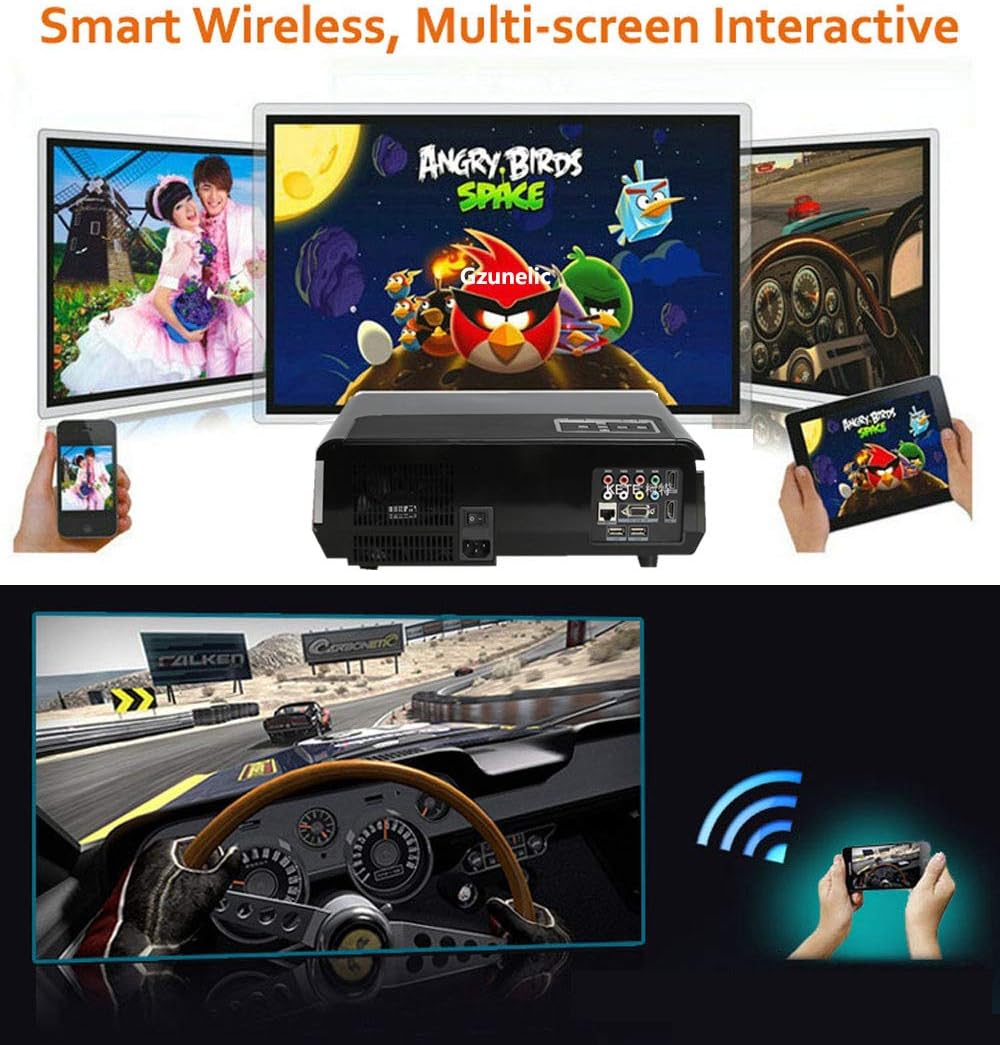
Figure 6.2: Illustration of wireless mirroring from smartphones and tablets to the projector.
The projector runs on an Android operating system, allowing direct access to online content, shopping, and games. You can navigate using the remote control or by connecting a USB mouse/keyboard.
- Screen Mirroring (Airplay/Miracast): On the projector's Android home page, locate and click the "Screening Assistant" app. Follow the on-screen instructions to connect your phone via Airplay (for iOS devices) or Miracast (for Android devices). Ensure both your phone and the projector are connected to the same Wi-Fi network.
- Pre-installed Apps: Access apps like YouTube, Aptoide TV, and WPS Office directly from the home screen for various entertainment and productivity functions.
6.4 Product Demonstration Video
Video 6.3: A brief demonstration video showcasing the Gzunelic projector in operation. This video provides a visual overview of the projector's capabilities and image quality.
7. Maintenance
- Cleaning the Lens: Use a soft, lint-free cloth specifically designed for optical lenses to gently wipe the projector lens. Avoid using abrasive cleaners or cloths that could scratch the lens.
- Cleaning the Exterior: Wipe the projector's exterior with a soft, dry cloth. For stubborn dirt, a slightly damp cloth can be used, but ensure no moisture enters the device.
- Ventilation: Regularly check and clean the ventilation openings to prevent dust buildup, which can impede airflow and cause overheating. Use a soft brush or compressed air to clear dust.
- Storage: When not in use for extended periods, store the projector in a cool, dry place, ideally in its original packaging or a protective case, to prevent dust accumulation and physical damage.
8. Troubleshooting
| Problem | Possible Cause | Solution |
|---|---|---|
| No image projected | Power not connected; Incorrect input source; Device not powered on. | Check power cable and outlet; Select correct input source (HDMI, VGA, AV); Ensure connected device is on. |
| Blurry image | Out of focus; Incorrect keystone adjustment; Projector too close/far from screen. | Adjust focus ring; Adjust keystone correction; Reposition projector for optimal distance. |
| No sound | Volume too low/muted; Incorrect audio output setting; External speaker not connected/paired. | Increase volume, unmute; Check audio settings (e.g., set to "line out" for wired external speakers); Ensure Bluetooth speaker is paired. |
| Wireless mirroring not working | Not on same Wi-Fi network; "Screening Assistant" not active. | Ensure both devices are on the same Wi-Fi network; Open "Screening Assistant" app on projector and follow instructions. |
| Projector turns on by itself | Possible software glitch or power issue. | Unplug the projector from the wall to fully power cycle it. If the issue persists, contact customer support. |
9. Specifications
| Brand | Gzunelic |
| Model Number | led86+W |
| Brightness | 9500 lumens LED light utilization efficiency |
| Native Resolution | 1920 x 1080 (Full HD), supports 2K/4K (limited to 100Mbps, 60Hz) |
| Contrast Ratio | 10000:1 |
| Operating System | Android OS |
| Connectivity Technology | Ethernet, Wireless (Wi-Fi), Bluetooth, 2x HDMI, 2x USB, AV, VGA, 3.5mm Audio |
| Product Dimensions | 13.77 x 10.82 x 5.51 inches |
| Item Weight | 8.5 pounds |
| Visible Screen Diagonal | Up to 300 inches / 762 cm |
10. Warranty and Support
Gzunelic offers comprehensive support for your projector:
- Return Policy: 6 Months Return for Full Payment Refund.
- Replacement Policy: 1 Year Free Replacement.
- Repair Service: 3 Years Repair service available at our repair center in LA, United States.
- Technical Support: Lifetime professional technical support.
For any problems or questions, please feel free to contact us. We aim to reply within 24 hours.


