
1. Introduction
This manual provides essential instructions for the installation, operation, maintenance, and troubleshooting of your KENWOOD MDV-M705 Car Navigation System. Please read this manual thoroughly before using the product to ensure safe and optimal performance.
The MDV-M705 offers a responsive interface, high-quality visuals, and supports high-resolution audio. It features a multi-information window for customized data display and smart integration with compatible front and rear drive recorders for enhanced safety and convenience.
2. Setup and Installation
Proper installation is crucial for the performance and safety of your navigation system. It is highly recommended that installation be performed by a qualified professional.
2.1 Package Contents
Verify that all components are present in the package:
- KENWOOD MDV-M705 Main Unit
- GPS Antenna
- Power Harness
- USB Cable
- Microphone
- User Manual (this document)
- Other accessories (check packaging for full list)
2.2 Wiring and Connections
Connect the power harness, GPS antenna, and other peripheral devices (such as drive recorders or external amplifiers) according to the wiring diagram provided in the separate installation guide. Ensure all connections are secure to prevent malfunctions.
2.3 Initial Power On and Basic Settings
After installation, turn on your vehicle's ignition. The system will power on. Follow the on-screen prompts to configure initial settings:
- Language Selection: Choose your preferred display language.
- Time Zone Setting: Set the correct time zone for accurate time display.
- GPS Signal Acquisition: Ensure the vehicle is in an open area to allow the GPS antenna to acquire satellite signals.
3. Operating Instructions
This section details the primary functions and operations of your MDV-M705 system.
3.1 Navigation Functions
The MDV-M705 provides precise navigation with a clear map display and voice guidance.
- Map Display: The main screen shows your current location and surrounding roads. You can zoom in/out and pan the map using touch gestures.
- Route Search: Enter a destination using the touchscreen keyboard, address search, or point-of-interest (POI) search. The system will calculate the optimal route.
- Guidance: Follow the voice prompts and on-screen directions for turn-by-turn guidance. The system provides clear indications for complex intersections and lane guidance.

Image: Detailed navigation display with lane guidance and 3D intersection view.
3.2 Audio and Media Playback
Enjoy various audio sources, including radio, USB, and Bluetooth streaming, with support for high-resolution audio.
- Radio (AM/FM): Tune into your favorite radio stations. The system supports Wide FM.
- USB/SD Playback: Connect a USB device or insert an SD card to play audio and video files. The system supports various formats, including high-resolution audio.
- Bluetooth Connectivity: Pair your smartphone via Bluetooth for hands-free calling and audio streaming. The system supports LDAC for high-quality wireless audio transmission.
- DVD/CD Playback: Insert DVDs or CDs for entertainment.

Image: Examples of the multi-information window displaying various data like clock, ECO mode, weather, and USB audio.
3.3 Multi-Information Window
The new multi-information window allows you to customize the display of various data relevant to your driving, such as time, destination information, ECO drive status, and weather forecasts.
3.4 Smart Linkage with Drive Recorder
The MDV-M705 can integrate with compatible KENWOOD drive recorders (front and rear) for enhanced safety features. This allows for dual recording and viewing of recorded footage directly on the navigation screen.

Image: Smart linkage feature showing the navigation unit connected to front and rear drive recorders.
3.5 Route Adjuster
The route adjuster feature allows you to customize route preferences based on factors like toll roads, road width, and traffic light consideration. The system can also learn your driving habits to suggest more personalized routes.
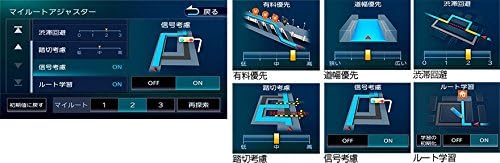
Image: Route adjuster interface for customizing navigation preferences.
4. Maintenance
Regular maintenance ensures the longevity and optimal performance of your MDV-M705 system.
4.1 Screen Cleaning
To clean the touchscreen, gently wipe it with a soft, dry cloth. For stubborn smudges, use a cloth lightly dampened with a screen cleaner specifically designed for electronic displays. Avoid abrasive materials or harsh chemicals.
4.2 Software and Map Updates
Periodically check the KENWOOD official website for software and map updates. Keeping your system updated ensures you have the latest features and most accurate map data. Follow the instructions provided with the update files carefully.
5. Troubleshooting
If you encounter issues with your MDV-M705, refer to the following common problems and solutions.
| Problem | Possible Cause | Solution |
|---|---|---|
| No power | Loose power connection, blown fuse. | Check power harness connections. Inspect and replace fuses if necessary. |
| No GPS signal | Vehicle in an area with poor satellite reception (e.g., tunnel, underground parking), faulty GPS antenna. | Move to an open area. Check GPS antenna connection. |
| Touchscreen unresponsive | System error, temporary software glitch. | Perform a system reset (refer to the full manual for reset procedure). |
| No audio output | Volume too low, mute activated, incorrect audio source selected, loose speaker connections. | Increase volume. Check mute status. Select correct audio source. Verify speaker wiring. |
If the problem persists after attempting these solutions, please contact KENWOOD customer support or a qualified service center.
6. Specifications
Key technical specifications for the KENWOOD MDV-M705 Car Navigation System:
- Brand: KENWOOD
- Model Name: MDV-M705
- Screen Size: 7 inches
- Display Type: WVGA LED Backlight
- Resolution: 720 x 1280
- Features: Hi-Res Audio compatible, Digital TV Tuner, AM/FM Tuner (Wide FM compatible), Bluetooth (LDAC support)
- Connectivity: Bluetooth, USB, SD Card
- Media Playback: DVD, CD, USB, SD
- Map Type: Street
- Mounting Type: Dashboard Mount (180mm Standard Size)
- Supported Satellite System: GPS
- Item Weight: Approximately 3150 grams
- Compatible Vehicle Type: Passenger Car
7. Warranty Information
Your KENWOOD MDV-M705 Car Navigation System is covered by a manufacturer's warranty. The specific terms and duration of the warranty may vary by region and retailer. Please refer to the warranty card included with your product or visit the official KENWOOD website for detailed warranty information.
Keep your proof of purchase (receipt) in a safe place, as it will be required for any warranty claims.
8. Customer Support
For further assistance, technical support, or service inquiries regarding your KENWOOD MDV-M705, please contact KENWOOD customer support.
- Online Support: Visit the official KENWOOD website for FAQs, software downloads, and contact forms.
- Telephone Support: Refer to your product documentation or the KENWOOD website for regional contact numbers.
When contacting support, please have your product model number (MDV-M705) and serial number ready.