
Introduction
This manual provides essential information for setting up, operating, maintaining, and troubleshooting your HP Z210 Workstation Tower. The HP Z210 is a powerful and reliable computing solution designed for demanding tasks, featuring an Intel Core i7 processor, 16GB of RAM, and a 2TB HDD, running Windows 11. Please read this manual thoroughly before using your workstation to ensure optimal performance and longevity.
Setup
Unpacking and Inspection
Carefully remove all components from the packaging. Inspect the workstation and accessories for any signs of damage. Retain the original packaging for future transport or service needs.
What's in the Box
- HP Z210 Workstation Tower
- Keyboard
- Mouse
- Power Cord
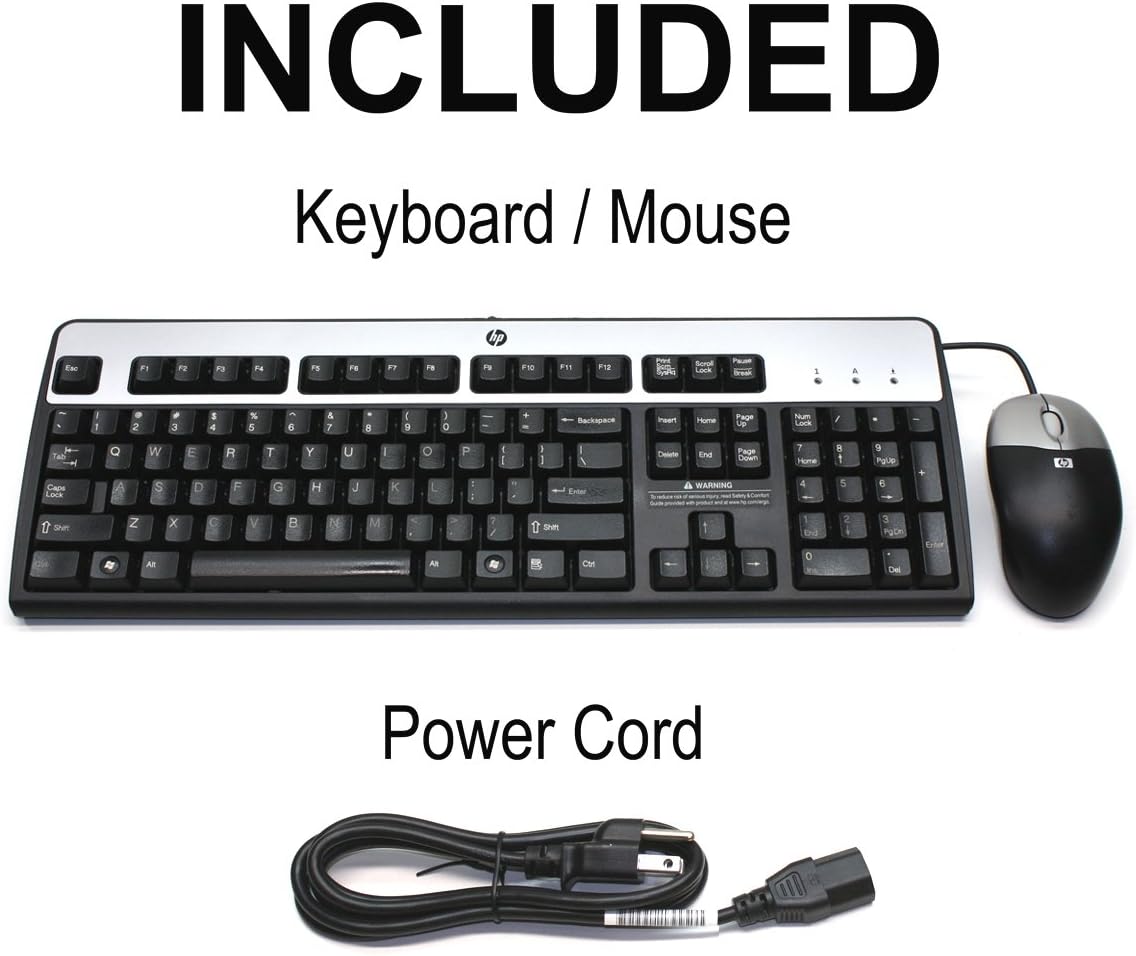
Image: Included accessories, showing a standard black keyboard, a black and silver mouse, and a power cord.
Connecting Your Workstation
- Placement: Place the HP Z210 Workstation Tower on a stable, flat surface with adequate ventilation. Ensure no vents are blocked.
- Connect Peripherals:
- Connect the keyboard and mouse to the available USB ports.
- Connect your monitor(s) to the appropriate video output ports (e.g., DisplayPort, DVI, VGA) on the rear of the workstation.
- If using wired internet, connect an Ethernet cable to the LAN port.
- Power Connection: Connect the power cord to the workstation's power input and then to a grounded electrical outlet.
- Initial Power On: Press the power button located on the front of the workstation. The system will boot up and load the Windows 11 operating system. Follow any on-screen prompts for initial setup.
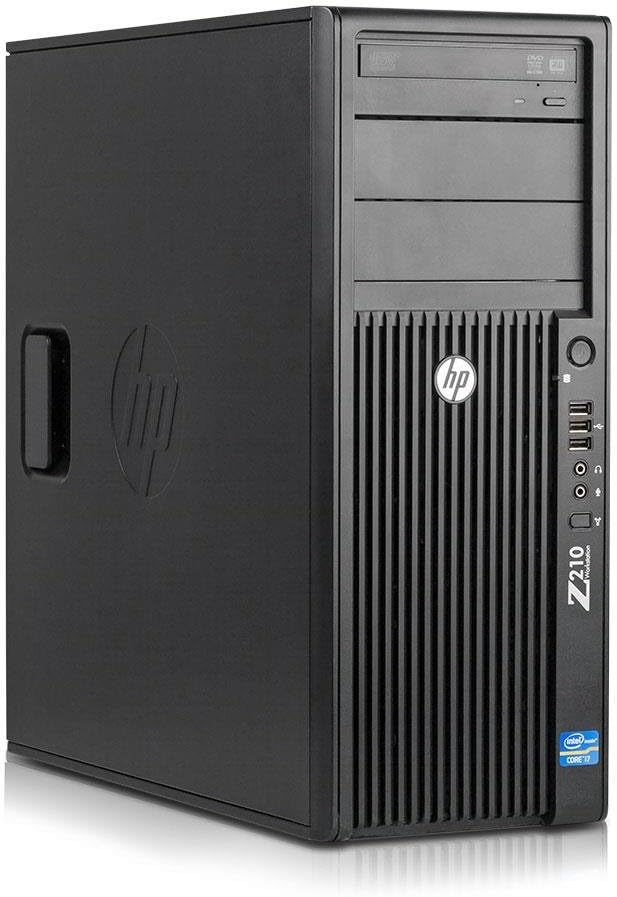
Image: Front view of the HP Z210 Workstation Tower, showing the optical drive bays, front USB ports, and power button.
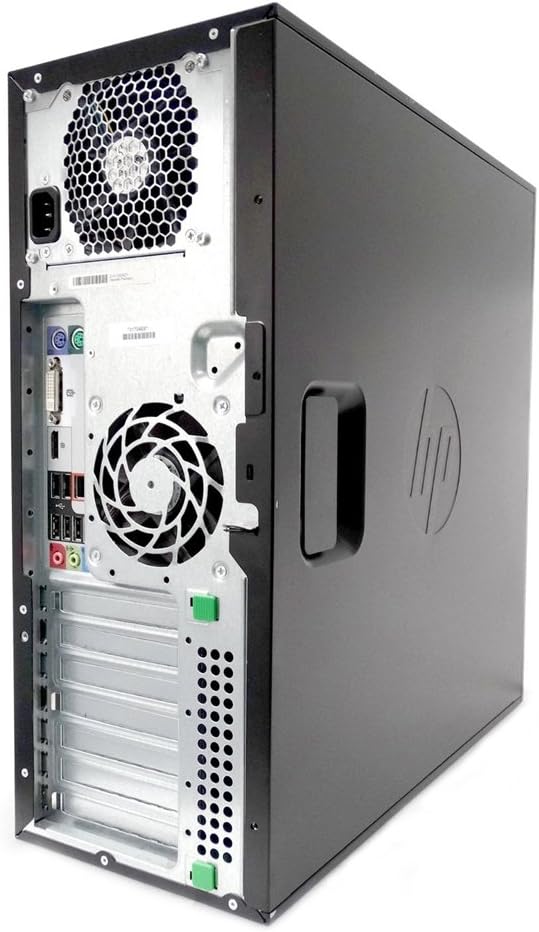
Image: Rear view of the HP Z210 Workstation Tower, displaying various ports including USB, audio, Ethernet, and video outputs.
Operating Your Workstation
Basic Operation
- Power On/Off: Press the power button to turn the workstation on. To shut down, click the Start button in Windows, then select Power > Shut down.
- Restart: To restart the system, click the Start button, then select Power > Restart.
- Sleep Mode: To put the system into sleep mode, click the Start button, then select Power > Sleep.
Windows 11 Overview
Your HP Z210 Workstation comes with Windows 11 pre-installed. Familiarize yourself with the Windows 11 interface, including the Start Menu, Taskbar, and File Explorer. For detailed information on Windows 11 features, refer to Microsoft's official documentation or support website.
Connecting to the Internet
- Wired Connection: If you connected an Ethernet cable during setup, your workstation should automatically connect to the internet.
- Wireless Connection (if applicable): If your model includes a wireless adapter, click the network icon in the system tray, select your Wi-Fi network, enter the password, and connect.
Maintenance
General Care
- Cleaning: Use a soft, dry cloth to clean the exterior of the workstation. For stubborn marks, slightly dampen the cloth with water. Avoid abrasive cleaners or solvents. Regularly clean dust from vents using compressed air to ensure proper airflow.
- Ventilation: Ensure the workstation has adequate space around it for proper ventilation. Do not block air vents.
Software Maintenance
- Operating System Updates: Regularly check for and install Windows 11 updates to ensure system stability, security, and performance. Go to Settings > Windows Update.
- Driver Updates: Keep your device drivers updated. You can usually find the latest drivers on the HP support website.
- Antivirus Software: Ensure you have up-to-date antivirus software installed and running to protect against malware and viruses.
- Data Backup: Regularly back up your important data to an external drive or cloud storage to prevent data loss.
Troubleshooting
This section provides solutions to common issues you might encounter with your HP Z210 Workstation.
No Power
- Ensure the power cord is securely connected to both the workstation and the electrical outlet.
- Verify the electrical outlet is functional by plugging in another device.
- Check the power supply unit (PSU) fan for operation.
No Display on Monitor
- Confirm the monitor is powered on and its video cable is securely connected to the workstation's video output port.
- Try connecting the monitor to a different video output port on the workstation, if available.
- Test the monitor with another device to rule out monitor issues.
System Freezes or Crashes
- Perform a hard reboot by holding the power button until the system shuts down, then restart.
- Check for overheating. Ensure vents are clear and fans are operating.
- Run a system diagnostic tool (available through Windows or HP support tools) to check for hardware issues.
- Ensure all drivers and Windows updates are current.
Slow Performance
- Close unnecessary applications running in the background.
- Check disk space and free up storage if the hard drive is nearly full.
- Run a disk defragmenter (for HDD) or optimize drives (for SSD) through Windows tools.
- Scan for malware or viruses.
If these steps do not resolve your issue, please refer to the Support section for further assistance.
Specifications
| Feature | Detail |
|---|---|
| Brand | HP |
| Series | Z210 Workstation Tower |
| Model Number | Z210 |
| Operating System | Windows 11 |
| Processor | 3.4 GHz core_i7 |
| RAM | 16 GB DDR3 |
| Hard Drive | 2 TB HDD |
| Graphics Coprocessor | Intel Integrated Graphics |
| Max Screen Resolution | 3840x2160 |
| Optical Drive Type | DVD±RW |
| Item Weight | 29.8 pounds |
| Package Dimensions | 24.5 x 24.5 x 11 inches |
| Color | Black |
| Date First Available | September 27, 2017 |
Warranty and Support
Product Condition and Warranty
This HP Z210 Workstation Tower is a renewed product. Renewed products typically come with a limited warranty provided by the seller or refurbisher. According to the product listing, it includes a 90-day return policy for refund or replacement.
For specific warranty details and terms, please refer to the documentation provided by the seller, TekRefurbs, or contact them directly.
Technical Support
For technical assistance, troubleshooting beyond the scope of this manual, or warranty claims, please contact the seller, TekRefurbs. Their contact information can typically be found on your purchase invoice or through the Amazon order details page.
You may also find useful resources and drivers on the official HP Support website, though support for renewed products may vary.