1. Product Overview
The HP Z210 Workstation Tower is a robust desktop computer designed for demanding tasks. This particular unit is a renewed product, meaning it has been professionally inspected and tested by Amazon-qualified suppliers to ensure it functions and appears like new. It features an Intel Core i7 processor, 16GB of RAM, and a 1TB HDD, providing ample performance and storage for various applications.
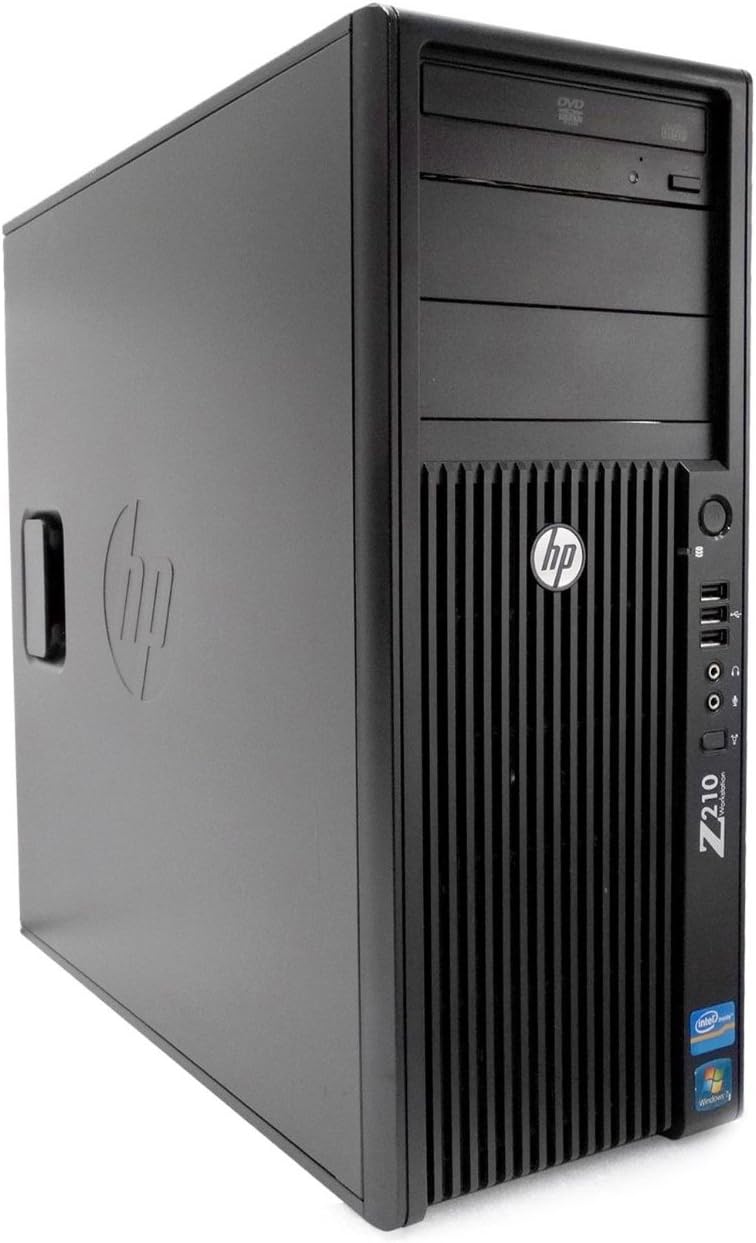
Figure 1.1: Front view of the HP Z210 Workstation Tower, showcasing its compact tower design and front panel ports.
2. Package Contents
Upon unboxing your HP Z210 Workstation Tower, verify that all the following items are included:
- HP Z210 Workstation Tower
- Power Cord
- Keyboard
- Mouse
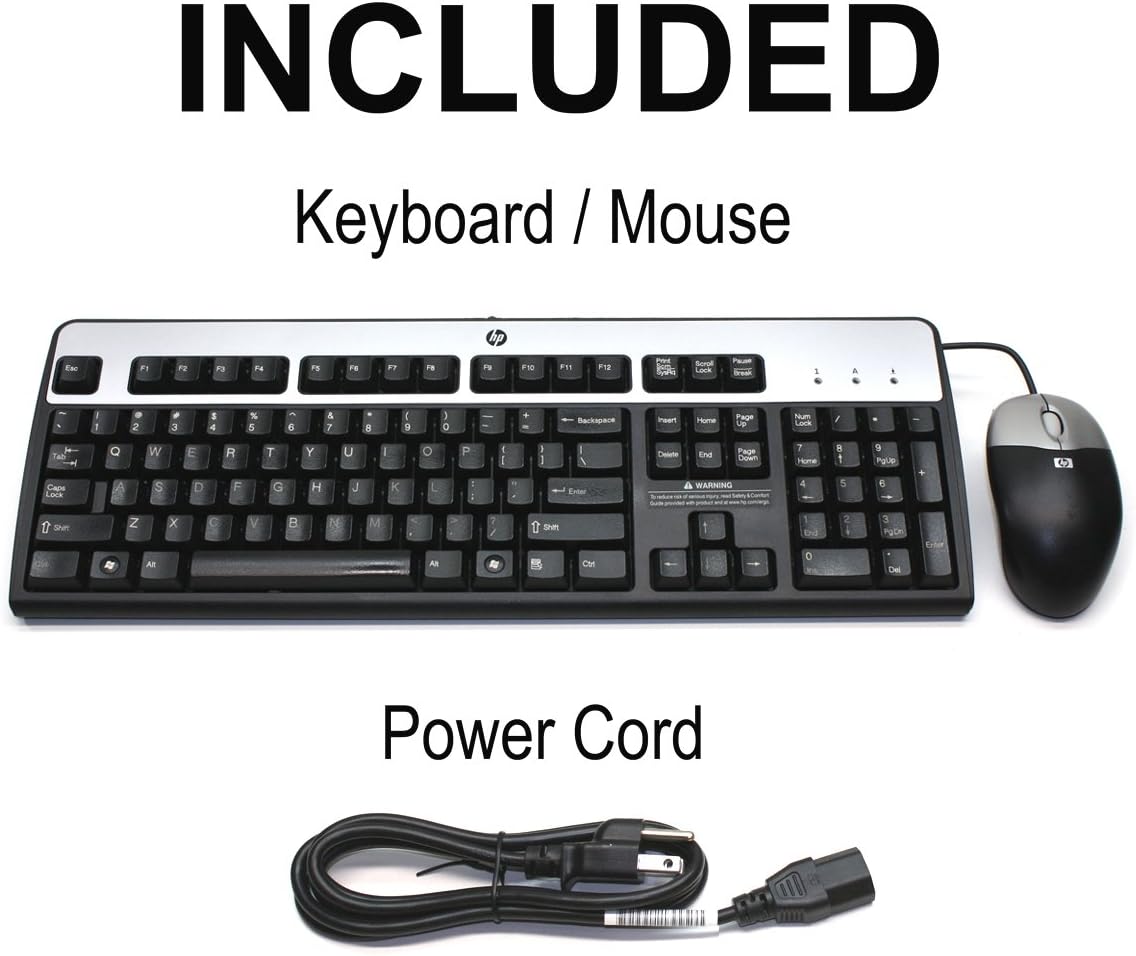
Figure 2.1: Standard accessories included with the HP Z210 Workstation Tower, typically a keyboard, mouse, and power cord.
3. Setup Guide
Follow these steps to set up your HP Z210 Workstation Tower:
- Unpack the Workstation: Carefully remove the workstation and all accessories from the packaging. Retain the packaging for future transport or storage.
- Connect Peripherals:
- Connect your monitor to the appropriate video output port (e.g., DisplayPort, DVI, VGA) on the rear of the workstation.
- Connect the keyboard and mouse to the available USB ports.
- Connect any other peripherals such as speakers, printers, or external drives.
- Connect to Network (Optional): If using a wired connection, connect an Ethernet cable from your router or modem to the Ethernet port on the rear of the workstation.
- Connect Power: Insert the power cord into the power supply port on the rear of the workstation, then plug the other end into a grounded electrical outlet.
- Initial Boot: Press the power button on the front of the workstation. The system will begin to boot. Follow any on-screen instructions for initial Windows setup.
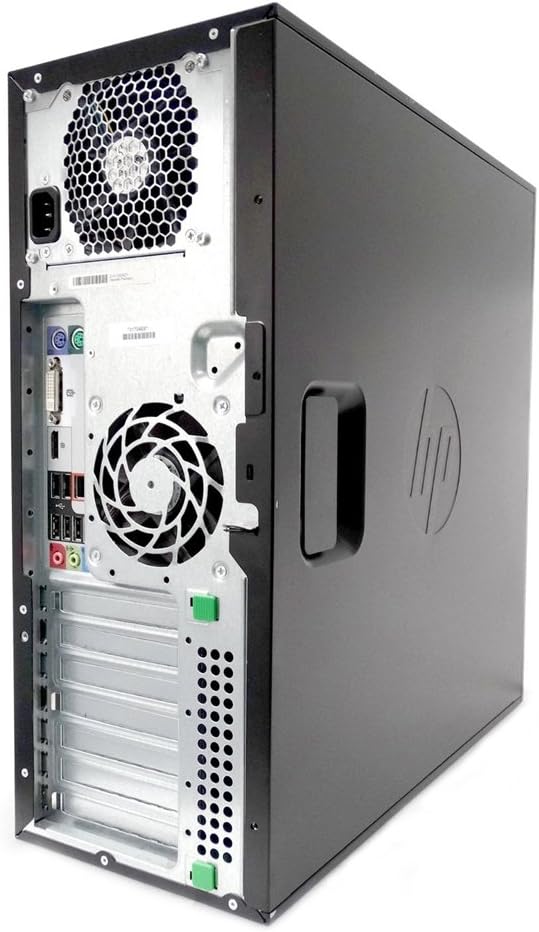
Figure 3.1: Rear view of the HP Z210 Workstation Tower, illustrating the various input/output ports for connecting peripherals and power.
4. Operating Instructions
This section provides basic instructions for operating your HP Z210 Workstation Tower.
4.1 Powering On/Off
- Power On: Press the power button located on the front panel.
- Shut Down:
- Windows 10: Click the Start button, then Power > Shut down.
- Windows 11: Click the Start button, then Power > Shut down.
- Restart: Use the Restart option in the Power menu to reboot the system.
- Sleep: Use the Sleep option in the Power menu to put the system into a low-power state.
4.2 Basic Navigation (Windows 10/11)
Your workstation comes with either Windows 10 Pro or Windows 11 pre-installed. Familiarize yourself with the operating system's interface for optimal use.
- Start Menu: Access applications, settings, and power options.
- Taskbar: Pin frequently used applications and view open programs.
- File Explorer: Manage files and folders.
- Settings: Configure system preferences, network connections, and device settings.
5. Maintenance
Regular maintenance helps ensure the longevity and optimal performance of your workstation.
- Cleaning:
- Gently wipe the exterior of the tower with a soft, damp cloth.
- Use compressed air to clear dust from vents and fan openings periodically. Ensure the system is powered off before cleaning.
- Software Updates: Regularly check for and install operating system updates (Windows Update) and driver updates for your hardware.
- Data Backup: Periodically back up important data to an external drive or cloud storage to prevent data loss.
- Antivirus Protection: Ensure your antivirus software is up-to-date and performing regular scans.
6. Troubleshooting
This section addresses common issues you might encounter and provides basic troubleshooting steps.
6.1 No Power
- Ensure the power cord is securely connected to both the workstation and the electrical outlet.
- Verify the electrical outlet is functional by plugging in another device.
- Check the power supply unit (PSU) switch on the rear of the workstation, if present, to ensure it is in the 'On' position.
6.2 No Display on Monitor
- Confirm the monitor is powered on and its power indicator light is active.
- Check that the video cable is securely connected to both the workstation and the monitor.
- Ensure the monitor's input source is set correctly (e.g., HDMI, DisplayPort, DVI).
- If using a dedicated graphics card, ensure the monitor is connected to the graphics card's output, not the motherboard's integrated graphics ports.
6.3 Slow Performance
- Close unnecessary applications running in the background.
- Check Task Manager (Ctrl+Shift+Esc) for high CPU, RAM, or disk usage by specific processes.
- Ensure the operating system and drivers are up-to-date.
- Run a disk cleanup and defragmentation (for HDD) or TRIM (for SSD) utility.
- Scan for malware or viruses.
7. Technical Specifications
| Feature | Specification |
|---|---|
| Brand | HP |
| Series | Z210 |
| Model Name | Z210 |
| Hardware Platform | PC |
| Operating System | Windows 11 (or Windows 10 Pro as per title) |
| Processor | Intel Core i7 |
| Number of Processors | 4 |
| RAM | 16 GB DDR4 (or DDR3 SDRAM as per specs) |
| Hard Drive | 1 TB HDD (Serial ATA) |
| Graphics Coprocessor | Intel HD Graphics 2000 |
| Card Description | Integrated |
| Optical Drive Type | DVD±RW |
| Screen Resolution (Typical) | 1920 x 1080 |
Note: Specifications may vary slightly based on specific renewed configuration. The operating system may be Windows 10 Pro or Windows 11 as per product listing details. RAM type is listed as both DDR4 and DDR3 SDRAM in provided data; please refer to your specific unit's documentation for exact details.
8. Warranty and Support
As an Amazon Renewed product, your HP Z210 Workstation Tower is backed by the Amazon Renewed Guarantee. This guarantee ensures that if you are not satisfied with your purchase, renewed products are eligible for replacement or refund within 90 days of receipt.
For further assistance or to inquire about specific issues, please refer to the Amazon Renewed program details or contact Amazon customer support.