
Gigaset C570HX
Gigaset C570HX Cordless IP Phone
User Manual
1. Introduction
The Gigaset C570HX is a universal cordless IP handset designed for comfortable and elegant communication. It offers crystal-clear voice quality and can be connected directly to your router with an integrated DECT base or other DECT/GAP compatible bases and routers.
Key features include a large color display for easy readability, illuminated keys for comfortable operation, and high-definition audio quality, especially useful for hands-free mode. The device is manufactured in Germany, ensuring stable conversation quality and featuring ECO-DECT mode for reduced radiation and energy consumption.
2. Package Contents
Please check that all items are included in your package:
- 1 x Gigaset C570HX Handset
- 1 x Charging Cradle
- 1 x Plug-in Power Supply
- 2 x AAA Batteries (pre-installed or separate)
- 1 x Battery Cover
- 1 x User Instructions (this manual)
3. Setup
3.1. Battery Installation
- Remove the battery cover on the back of the handset.
- Insert the two AAA rechargeable batteries, ensuring correct polarity (+/-).
- Replace the battery cover until it clicks into place.
3.2. Connecting the Charging Cradle
- Connect the plug-in power supply to the charging cradle.
- Plug the power supply into a suitable electrical outlet.
3.3. Initial Charging
Place the handset in the charging cradle. The display will indicate charging. For optimal battery performance, allow the handset to charge for at least 6 hours before its first use, even if the display shows a full charge earlier.
3.4. Registering the Handset to a Base/Router
The Gigaset C570HX is designed to be an extension to an existing DECT/GAP compatible base station or router. The registration process may vary slightly depending on your base unit.
For Gigaset DECT Base Stations:
- On your Gigaset base station, press and hold the registration/paging button (usually marked with a symbol of three circles or a phone icon) for approximately 3 seconds. The base will enter registration mode.
- On the C570HX handset, navigate to the 'Settings' menu, then 'Registration' or 'Handset Registration'.
- Select 'Register Handset' and enter the system PIN (default is 0000).
- The handset will search for the base and register. Once successful, the handset will display its internal number (e.g., 'HS 1').
For DECT/GAP Routers (e.g., AVM FRITZ!Box, Telekom Speedport, TP-LINK Archer):
- Refer to your router's manual for instructions on how to put it into DECT registration mode. This often involves pressing a DECT button on the router or initiating registration via its web interface.
- On the C570HX handset, navigate to the 'Settings' menu, then 'Registration' or 'Handset Registration'.
- Select 'Register Handset' and enter the system PIN (default is 0000).
- The handset will search for the router and register. Follow any on-screen prompts on the handset or router interface.
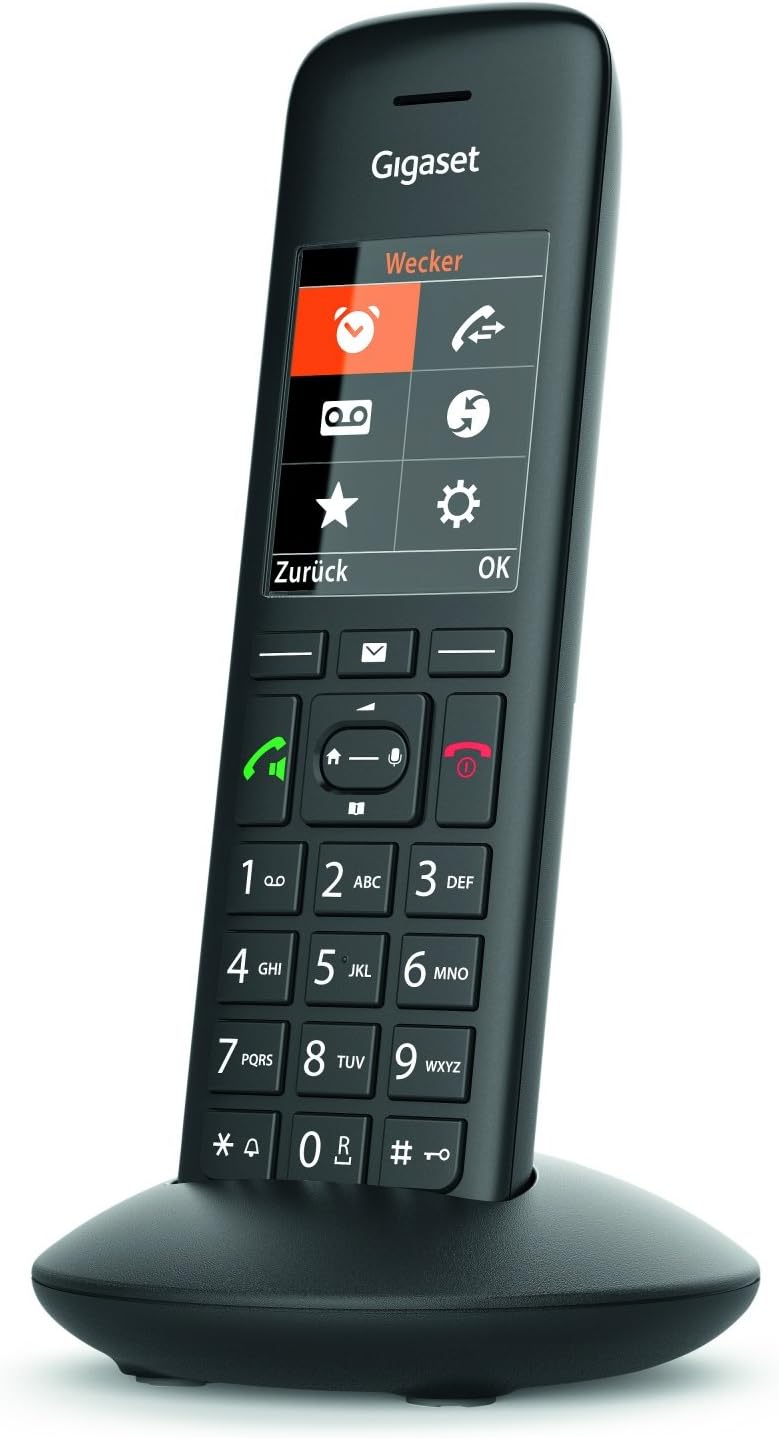
A black Gigaset C570HX cordless IP phone standing upright in its charging cradle. The phone features a color display showing menu icons for alarm, call history, answering machine, and settings. Below the screen are navigation keys, call answer/end buttons, and a standard numeric keypad with alphanumeric characters.
4. Operating the Handset
4.1. Basic Call Functions
- Making a Call: Enter the phone number using the keypad and press the green call button (Call icon).
- Answering a Call: When the phone rings, press the green call button (Call icon).
- Ending a Call: Press the red end call button (End Call icon).
- Hands-Free Calling: During a call, press the hands-free button (speaker icon) to activate the speakerphone.
4.2. Menu Navigation
The C570HX features an intuitive menu system accessed via the color display and navigation keys.
- Use the navigation keys (up/down/left/right) to scroll through menu options.
- Press the 'OK' soft key (below the display) to confirm a selection.
- Press the 'Back' soft key (below the display) to return to the previous menu level or exit the menu.
- The display shows context-sensitive soft keys for quick actions.
4.3. Phonebook
Store frequently called numbers in the phonebook for quick access.
- Navigate to the 'Phonebook' menu.
- Select 'New Entry' to add a contact.
- Enter the name and number, then save.
4.4. Alarm Function
The handset includes an alarm clock feature.
- From the main menu, select the 'Alarm' icon (often depicted as a clock).
- Set the desired alarm time and activate the alarm.
5. Maintenance
5.1. Cleaning
Wipe the handset and charging cradle with a soft, damp cloth. Do not use abrasive cleaners or solvents. Ensure no liquid enters the device.
5.2. Battery Care
- Only use the recommended AAA rechargeable batteries.
- Avoid exposing the batteries to extreme temperatures.
- If the handset will not be used for an extended period, remove the batteries to prevent leakage.
6. Troubleshooting
If you encounter issues with your Gigaset C570HX, try the following solutions:
- No Dial Tone: Ensure the handset is properly registered to the base/router and the base is connected to the phone line/network. Check the power supply to the base.
- Handset Not Charging: Verify the power supply is connected to the charging cradle and the outlet. Ensure the handset is correctly seated in the cradle. Clean the charging contacts on both the handset and cradle.
- Poor Sound Quality: Move closer to the base station. Check for interference from other electronic devices.
- Cannot Register Handset: Ensure the base station is in registration mode. Check the system PIN. Try restarting both the base and the handset.
- Display is Blank: Check battery charge. If batteries are low, place the handset in the charging cradle. If the issue persists, try replacing the batteries.
For more complex issues, consult the Gigaset support website or contact customer service.
7. Specifications
| Feature | Detail |
|---|---|
| Brand | Gigaset |
| Model Number | S30852-H2861-B101 |
| Color | Black |
| Screen Size | 2.2 Inches |
| Special Features | Volume control, Backlight |
| Battery Composition | Alkaline |
| Batteries Included | 2 AAA |
| Material | Metal |
| Power Source | Electric Cable |
| Dimensions (LxWxH) | 22 x 48 x 168 millimeters |
| Weight | 118 Grams |
| Talk Time | 17 hours |
| Multi-line Operation | Single-line Operation |
8. Warranty and Support
For detailed warranty information, please refer to the documentation provided with your purchase or visit the official Gigaset website. Gigaset products are manufactured to high-quality standards, and support is available for any technical assistance you may require.
You can find further information, FAQs, and contact details for customer support on the official Gigaset website: www.gigaset.com