
1. Introduction and Overview
This manual provides essential information for the setup, operation, maintenance, and troubleshooting of your TREKSTOR PRIMEBOOK C13 convertible laptop. The PRIMEBOOK C13 is a versatile 2-in-1 device featuring a 13.3-inch Full HD IPS touchscreen, powered by an Intel Celeron N3350 processor, with 4GB RAM and 64GB of internal storage, running Windows 10 Home. Its 360-degree hinge allows it to transform between laptop, tablet, stand, and tent modes, adapting to various usage scenarios.
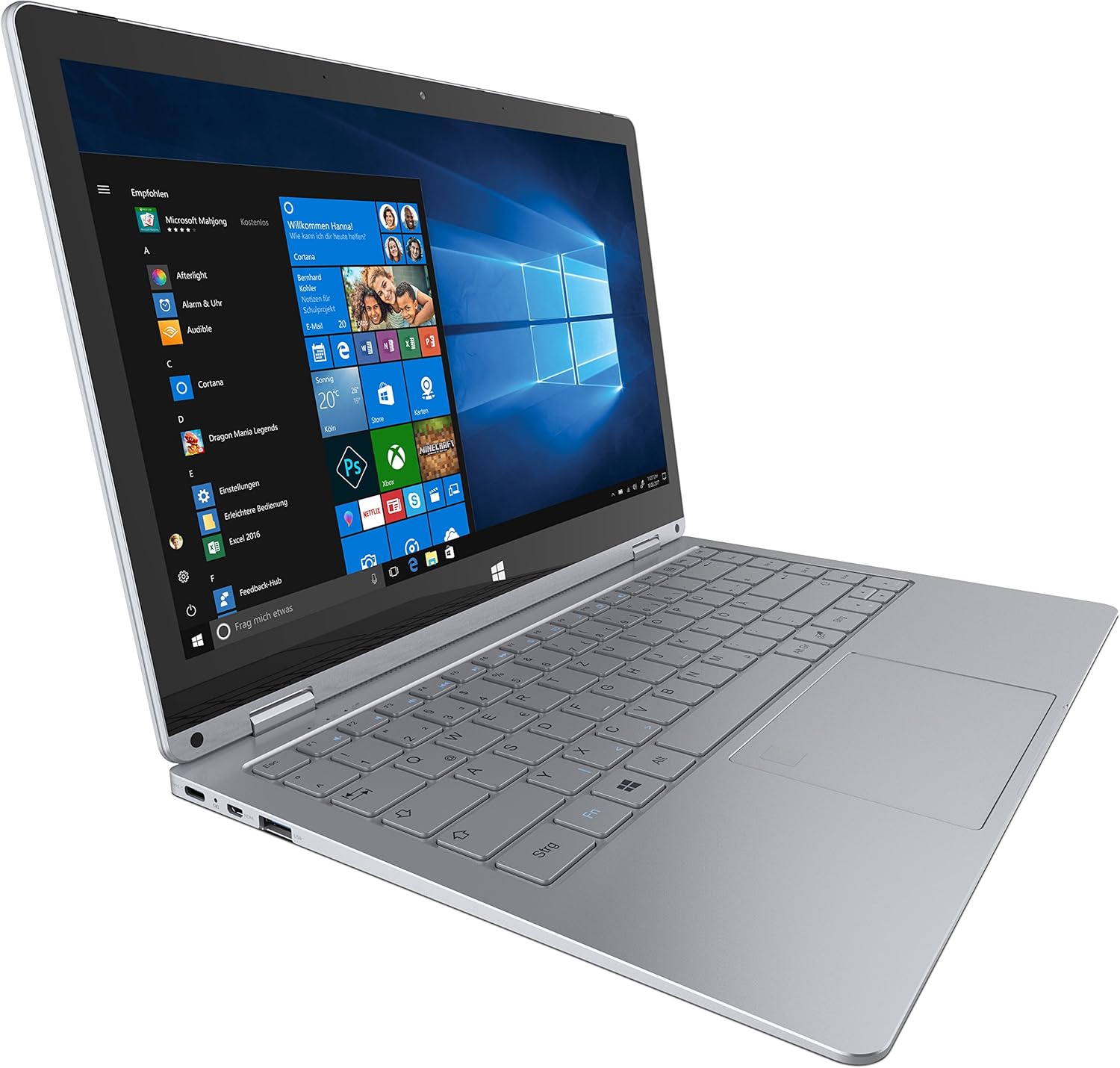
Image: The TREKSTOR PRIMEBOOK C13 in its traditional laptop configuration, showcasing the Windows 10 operating system interface.
2. Setup
2.1 Unpacking
Carefully remove all components from the packaging. Ensure the following items are present:
- TREKSTOR PRIMEBOOK C13 device
- Power adapter (100V - 240V)
- Cleaning cloth
- Quick Start Guide
- Product safety and legal notices
2.2 Charging the Battery
Before initial use, fully charge the device. Connect the power adapter to the charging port on the PRIMEBOOK C13 and then to a power outlet. The charging indicator light will illuminate. A full charge typically takes several hours.
2.3 Initial Power-On and Windows Setup
Press and hold the power button until the screen turns on. Follow the on-screen instructions to complete the Windows 10 Home setup process. This includes selecting your language, region, accepting terms, and creating a user account.
2.4 Connecting to Wi-Fi
During the Windows setup or afterwards, you will be prompted to connect to a Wi-Fi network. Select your desired network from the list and enter the password if required. This will enable internet access for updates and online services.
3. Operating Instructions
3.1 Power On/Off and Sleep Mode
- Power On: Press and hold the power button for a few seconds.
- Power Off: Click the Start button, then Power > Shut down.
- Sleep Mode: Briefly press the power button or close the lid. To wake, press the power button or open the lid.
3.2 Using the Touchscreen, Keyboard, and Touchpad
The PRIMEBOOK C13 features a responsive touchscreen for direct interaction. The QWERTZ keyboard and touchpad provide traditional input methods for typing and navigation.

Image: A top-down perspective of the TREKSTOR PRIMEBOOK C13, highlighting the QWERTZ keyboard layout and integrated touchpad.
3.3 Convertible Modes
The 360-degree hinge allows for four primary modes:
- Laptop Mode: Traditional laptop use with keyboard and touchpad.
- Stand Mode: Fold the keyboard back to create a stand, ideal for media consumption.
- Tent Mode: Position the device like a tent, suitable for presentations or small spaces.
- Tablet Mode: Fold the keyboard completely back against the screen for full touchscreen tablet functionality.
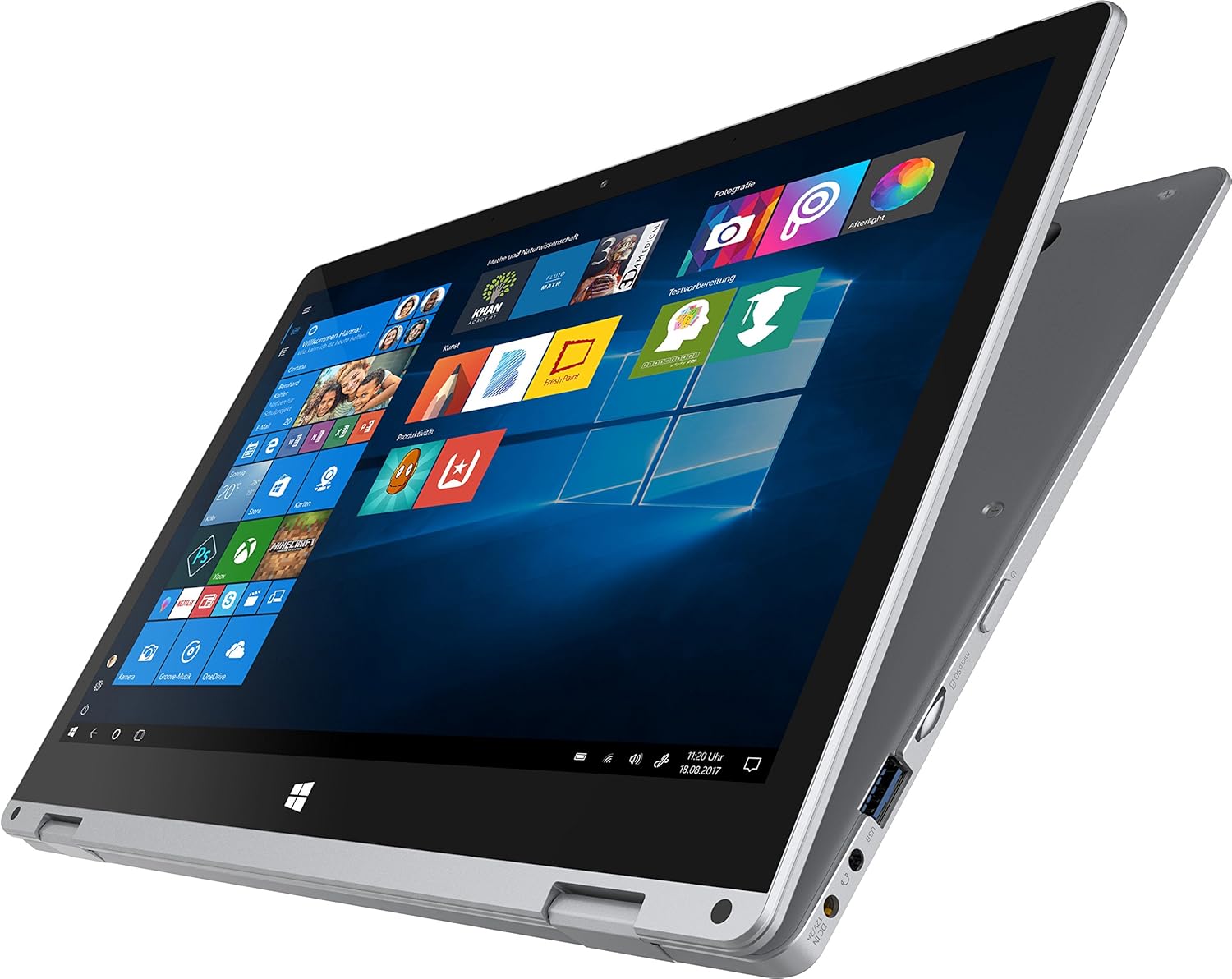
Image: The TREKSTOR PRIMEBOOK C13 configured in stand mode, demonstrating its versatility for viewing content on the touchscreen.

Image: A rear perspective of the TREKSTOR PRIMEBOOK C13 when fully folded into tablet mode, showing the sleek design.
3.4 Connecting Peripherals
The device includes various ports:
- USB Type-C 3.1 Gen 1: For data transfer and charging compatible devices.
- 2 x USB 3.1 Gen 1: For connecting USB devices like mice, keyboards, or external drives.
- Micro-HDMI: For connecting to external displays or projectors.
- Memory Card Reader: For expanding storage or transferring data from memory cards.
- Audio Output/Microphone Input (3.5 mm): For headphones or external microphones.
3.5 M.2 SSD Extension
The PRIMEBOOK C13 supports M.2 SSD expansion for additional storage. Refer to the detailed technical specifications or a qualified technician for installation instructions.
4. Maintenance
4.1 Cleaning
- Screen: Use the provided cleaning cloth or a soft, lint-free cloth slightly dampened with water or a screen cleaner. Avoid harsh chemicals.
- Chassis: Wipe with a soft, dry cloth. Do not use abrasive materials.
4.2 Battery Care
To prolong battery life:
- Avoid extreme temperatures.
- Do not fully discharge the battery frequently.
- If storing the device for an extended period, ensure the battery is charged to approximately 50-70%.
4.3 Software Updates
Regularly check for and install Windows updates to ensure optimal performance, security, and compatibility. Go to Settings > Update & Security > Windows Update.
4.4 Storage Management
Periodically review and manage your storage to maintain performance. Uninstall unused applications, delete unnecessary files, and consider using cloud storage or the M.2 SSD extension for larger files.
5. Troubleshooting
5.1 Device Not Powering On
- Ensure the power adapter is securely connected to both the device and a working power outlet.
- Allow the device to charge for at least 30 minutes before attempting to power on again.
- Try a different power outlet.
5.2 Wi-Fi Connectivity Issues
- Check if Wi-Fi is enabled in Windows settings.
- Restart your router and the PRIMEBOOK C13.
- Ensure you are within range of the Wi-Fi network and have the correct password.
- Update network drivers via Device Manager.
5.3 Slow Performance
- Close unnecessary applications running in the background.
- Check for and install any pending Windows updates.
- Run a disk cleanup and defragmentation (for HDD, though this is SSD). For SSD, ensure TRIM is enabled (usually automatic).
- Scan for malware or viruses.
5.4 Touchscreen Unresponsive
- Restart the device.
- Ensure the screen is clean and free of debris.
- Check for updated touchscreen drivers in Device Manager.
6. Specifications
| Feature | Detail |
|---|---|
| Brand | Trekstor |
| Model Name | PRIMEBOOK C13 |
| Product Dimensions | 32 x 21 x 1.5 cm |
| Item Weight | 1.4 Kilograms |
| Color | Silver |
| Form Factor | Convertible |
| Display Size | 13.3 Inches |
| Display Resolution | 1920 x 1080 pixels (Full HD) |
| Processor Brand | Intel |
| Processor Type | Celeron N3350 (up to 2.4 GHz) |
| Processor Count | 2 |
| RAM Size | 4 GB |
| Computer Memory Type | DDR3 SDRAM |
| Hard Drive Size | 64 GB |
| Hard Drive Description | SSD |
| Graphics Coprocessor | Intel HD Graphics 500 |
| Connectivity Type | WLAN (802.11a/b/g/n/ac) |
| HDMI Ports | 1 (Micro-HDMI) |
| Operating System | Windows 10 Home |
| Average Battery Life | 6 Hours |
| Battery Type | 1 Lithium Polymer battery (included) |
| M.2 SSD Extension | Supported |
7. Warranty and Support
7.1 Warranty Information
Your TREKSTOR PRIMEBOOK C13 comes with a manufacturer's warranty. Please refer to the warranty card included in your product packaging for specific terms, conditions, and duration. Retain your proof of purchase for warranty claims.
7.2 Technical Support
For further assistance, technical support, or to download updated drivers and manuals, please visit the official TREKSTOR website. You may also find FAQs and additional troubleshooting resources there.
Online Support: www.trekstor.de/en/support.html