
1. Introduction and Overview
The ARCTIC BioniX F120 is a 120mm PC case fan designed for efficient cooling and quiet operation. It features Pulse Width Modulation (PWM) Sharing Technology (PST) for synchronized fan speed control and an optimized fan blade design for enhanced airflow. This manual provides instructions for installation, operation, maintenance, and troubleshooting.
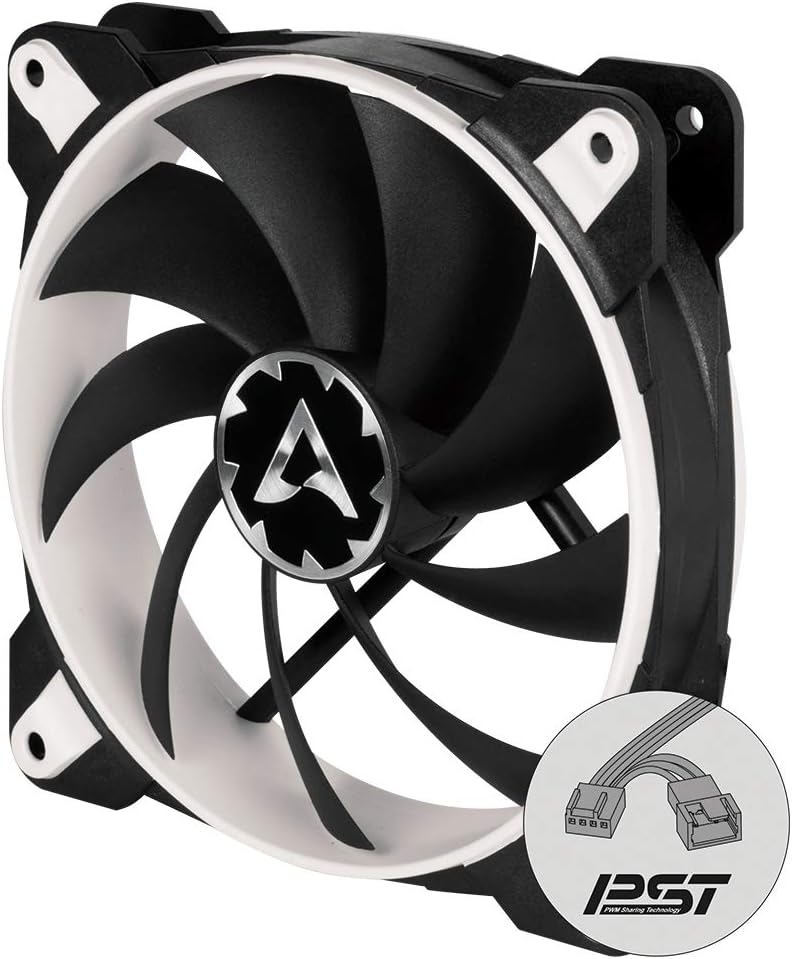
Image 1.1: Front view of the ARCTIC BioniX F120 PC fan, showcasing its black blades and white frame.
Key Features:
- PWM Sharing Technology (PST): Allows synchronous control of multiple fans from a single PWM signal, enabling fans to stop at low loads and activate when necessary.
- Optimized Fan Design: Enhanced fan blade geometry for increased airflow and reduced noise levels.
- Low Motor Temperature: Designed for extended lifespan due to reduced coil temperatures.
- Wide RPM Range: Operates between 200 and 1800 RPM for flexible cooling performance.
2. Package Contents
Verify that all components are present in the package before proceeding with installation.
- 1x ARCTIC BioniX F120 PC Fan
- 4x Mounting Screws

Image 2.1: Retail packaging of the ARCTIC BioniX F120, indicating the product and its 10-year limited warranty.

Image 2.2: Detailed view of the product box, showing box contents (fan and screws) and key specifications.
3. Setup and Installation
Follow these steps to properly install your ARCTIC BioniX F120 fan into your computer case. Ensure your computer is powered off and unplugged before beginning installation.
- Identify Mounting Location: Determine the desired location for the fan within your PC case (e.g., front intake, rear exhaust, top exhaust). Ensure it aligns with your cooling strategy.
- Secure the Fan: Position the fan against the mounting holes in your case. Use the four included mounting screws to firmly attach the fan. Ensure the fan's airflow direction (usually indicated by an arrow on the fan frame) is correct for your cooling setup.
- Connect Power: Locate an available 4-pin PWM fan header on your motherboard. Connect the BioniX F120's 4-pin connector to this header. If you are using multiple fans with PWM Sharing Technology (PST), connect the additional fans to the PST output connector on the first fan.
- Cable Management: Route the fan cable neatly to avoid interference with other components or airflow.
- Power On and Verify: Reconnect your computer's power, turn it on, and verify that the fan is spinning and operating correctly. You may need to adjust fan settings in your motherboard's BIOS/UEFI or operating system software.

Image 3.1: The ARCTIC BioniX F120 fan, highlighting its 4-pin PWM connector and the additional PST connector for daisy-chaining multiple fans.

Image 3.2: Close-up of the PWM plug set, illustrating the input and output connectors for PWM Sharing Technology (PST).
4. Operating Instructions
The ARCTIC BioniX F120 fan operates using Pulse Width Modulation (PWM) for dynamic speed control.
- Automatic Speed Control: When connected to a 4-pin PWM header, the fan speed will automatically adjust between 200 and 1800 RPM based on your system's temperature, as controlled by the motherboard.
- PWM Sharing Technology (PST): If multiple PST-enabled fans are connected in a daisy chain, they will all respond to the same PWM signal from the motherboard, ensuring synchronized cooling performance. This allows for efficient cooling and reduced noise by only spinning fans up when needed.
- BIOS/Software Configuration: You can fine-tune fan curves and minimum/maximum speeds through your motherboard's BIOS/UEFI settings or dedicated fan control software provided by your motherboard manufacturer.
5. Maintenance
Regular maintenance helps ensure optimal performance and extends the lifespan of your ARCTIC BioniX F120 fan.
- Dust Removal: Periodically clean dust from the fan blades and frame using compressed air or a soft brush. Accumulation of dust can reduce airflow and increase noise. Ensure the fan is powered off and unplugged before cleaning.
- Bearing System: The BioniX F120 utilizes a Fluid Dynamic Bearing (FDB) system, which is designed for long-term, quiet operation and does not require lubrication or maintenance.

Image 5.1: Diagram illustrating the Fluid Dynamic Bearing (FDB) structure, which contributes to the fan's quiet operation and extended lifespan.
6. Troubleshooting
If you encounter issues with your BioniX F120 fan, refer to the following common troubleshooting steps:
- Fan Not Spinning:
- Ensure the 4-pin PWM connector is securely plugged into the motherboard fan header.
- Check your motherboard's BIOS/UEFI settings to ensure the fan header is enabled and configured correctly. Some motherboards may have a "Fan Stop" feature that prevents fans from spinning at very low temperatures.
- Test the fan on a different fan header or with a fan controller if available, to rule out a faulty header.
- Unusual Noise:
- Verify that the fan is securely mounted and not vibrating against the case or other components.
- Inspect the fan blades for any obstructions (e.g., loose cables) or damage.
- Clean any dust accumulation on the fan blades.
- If the noise persists and is a grinding or clicking sound, the fan bearing may be faulty. Contact support if the fan is still under warranty.
- Fan Not Reaching Max RPM:
- Check your motherboard's BIOS/UEFI settings for fan speed curves. Ensure the fan is set to respond to temperature increases.
- Monitor system temperatures to confirm if the fan speed should be higher based on your configured fan curve.
7. Specifications
Detailed technical specifications for the ARCTIC BioniX F120 PC Fan.
| Feature | Specification |
|---|---|
| Model Number | ACFAN00093A |
| Fan Size | 120mm |
| Dimensions (L x W x H) | 4.72" x 4.72" x 1.06" (120mm x 120mm x 27mm) |
| Fan Speed | 200 - 1800 RPM (controlled by PWM) |
| Airflow | 69 CFM | 117 m³/h |
| Static Pressure | 2.10 mmH₂O |
| Noise Level | 0.5 Sone |
| Power Connector | 4-Pin PWM |
| Voltage | 12 Volts |
| Wattage | 2.5 watts |
| Bearing Type | Fluid Dynamic Bearing |
| Material | Polycarbonate |
| Weight | 4.6 ounces (129g) |
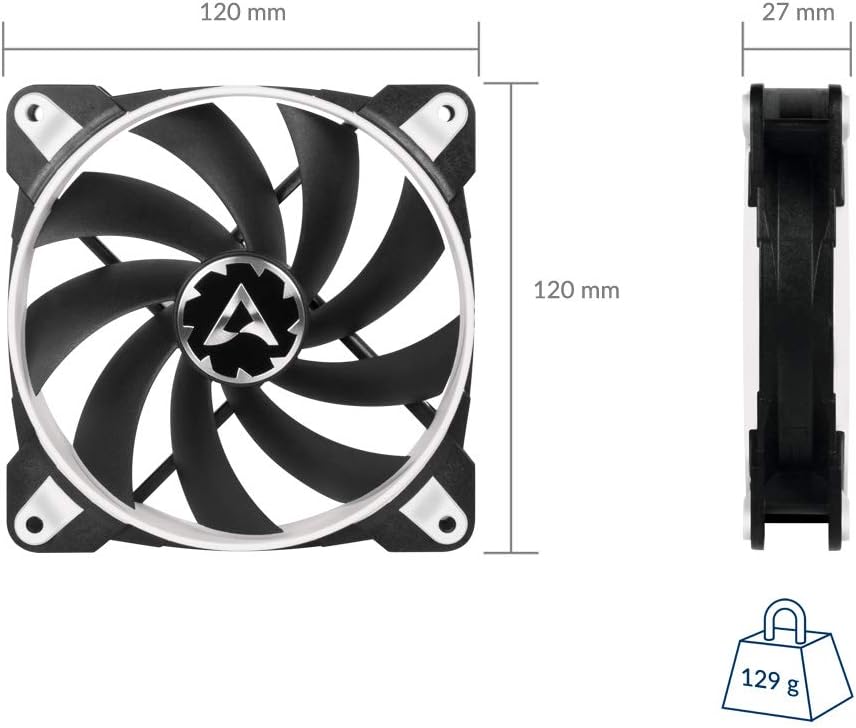
Image 7.1: Dimensional drawing of the ARCTIC BioniX F120 fan, showing its 120mm x 120mm x 27mm size and 129g weight.
8. Warranty and Support
The ARCTIC BioniX F120 PC Fan comes with a 10-year limited warranty. For warranty claims or technical assistance, please visit the official ARCTIC support page.
Official Support Link: http://support.arctic.ac/bionix-f120


