
1. Product Overview
The DigitaLinx DL-AR2140 is an HDMI to Mobile Content Adapter Ring designed to provide a versatile solution for connecting various mobile devices to an HDMI display. This system secures a collection of essential adapters to an existing HDMI cable, ensuring they are readily available for presentations or content sharing.
The adapter ring includes a security clamp system that attaches to an HDMI cable (sold separately), keeping all adapters organized and preventing loss.
2. Package Contents
The DL-AR2140 adapter ring system includes the following components:
- ARMDHD1: Micro HDMI "D" male to HDMI "A" female interseries adapter.
- ARMCHD1: Mini HDMI "C" male to HDMI "A" female interseries adapter.
- ARMDPHD1: Mini-DisplayPort male to HDMI female interseries adapter.
- MD826ZM/A1: Apple Certified Adapter Lightning (M) to HDMI (F) and Lightning (F) for power.
- AR-UCM-HDF1: USB "C" male to HDMI female adapter cable (9 inches long).
- DL-AP1: Security clamp for attaching Apple Adapters to the DL-AR system.
- DL-CL1: Base security clamp, cable, and hardware for the DL-AR system.
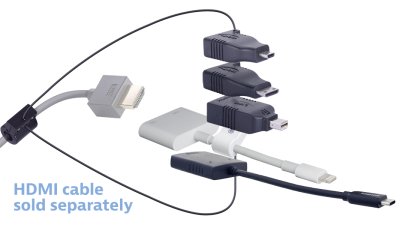
Image: The DigitaLinx DL-AR2140 adapter ring system showing the main clamp attached to an HDMI cable (not included) and various mobile device adapters secured to the ring. Adapters include Micro HDMI, Mini HDMI, Mini-DisplayPort, Apple Lightning, and USB-C to HDMI.
3. Setup Instructions
- Attach the Base Security Clamp (DL-CL1):
Secure the DL-CL1 base clamp to your existing HDMI cable (sold separately). Ensure the clamp is firmly attached to prevent movement along the cable. The included cable and hardware are used to secure the clamp.
- Attach Adapters to the Ring:
Connect each adapter (ARMDHD1, ARMCHD1, ARMDPHD1, AR-UCM-HDF1) to the security ring attached to the DL-CL1 clamp. The adapters are designed to loop onto the ring for easy access and secure storage.
- Attach Apple Adapter (MD826ZM/A1) with DL-AP1:
If using the Apple Lightning to HDMI adapter (MD826ZM/A1), use the DL-AP1 security clamp to attach it to the main adapter ring system. This clamp is specifically designed for Apple adapters.
- Connect HDMI Cable:
Connect the HDMI cable (with the adapter ring system attached) to the HDMI input of your display device (e.g., TV, projector, monitor).
4. Operating Instructions
- Select the Appropriate Adapter:
Identify the correct adapter from the ring that matches the output port of your mobile device (e.g., Micro HDMI, Mini HDMI, Mini-DisplayPort, USB-C, or Lightning).
- Connect Mobile Device:
Plug the selected adapter into your mobile device's output port. For the Apple Lightning adapter, ensure the Lightning power input is connected to a power source if required by your device or content.
- Verify Display Output:
Ensure your display device is set to the correct HDMI input source. Your mobile device's screen content should now be mirrored or extended to the display.
- Disconnecting:
To disconnect, safely remove the adapter from your mobile device, then unplug the HDMI cable from the display. Store all adapters securely on the ring.
5. Maintenance and Care
- Cleaning: Use a soft, dry cloth to clean the adapters and clamps. Avoid using liquid cleaners or abrasive materials, which may damage the connectors or surfaces.
- Storage: Store the adapter ring system in a cool, dry place away from direct sunlight and extreme temperatures. Keep all adapters attached to the ring to prevent loss.
- Handling: Handle the adapters and connectors with care. Avoid bending or forcing connections, as this can cause damage to the pins or internal wiring.
6. Troubleshooting
- No Signal on Display:
- Ensure all connections (mobile device to adapter, adapter to HDMI cable, HDMI cable to display) are secure.
- Verify the display is set to the correct HDMI input source.
- Check if your mobile device requires external power for video output, especially for the Apple Lightning adapter.
- Test with a different HDMI cable or display if possible to rule out other equipment issues.
- Intermittent Signal:
- Ensure cables and adapters are not loose.
- Check for any physical damage to the adapters or cables.
- Incorrect Resolution/Aspect Ratio:
- Adjust the display settings on your mobile device or the connected display.
7. Specifications
| Feature | Detail |
|---|---|
| Model Number | DL-AR2140 |
| Brand | DigitaLinx |
| Compatible Devices | Cellular Phones (with compatible ports: Micro HDMI, Mini HDMI, Mini-DisplayPort, USB Type C, Lightning) |
| Connector Types | HDMI, Lightning, Mini HDMI, USB Type C, Mini-DisplayPort |
| Item Weight | 4 ounces |
| Package Dimensions | 8.05 x 4.8 x 2.1 inches |
| Date First Available | September 4, 2017 |
8. Warranty and Support
For warranty information or technical support regarding your DigitaLinx DL-AR2140 HDMI to Mobile Content Adapter Ring, please contact DigitaLinx customer service directly. Refer to the product packaging or the official DigitaLinx website for the most current contact details and warranty terms.
Note: Keep your purchase receipt as proof of purchase for warranty claims.