
1. Introduction
The iKKEGOL USB Double Foot Switch Control Pedal is a versatile device designed to enhance productivity and control across various computer applications. It functions as a customizable keyboard, mouse, multimedia, or game controller, allowing users to assign single keys, key combinations, hotkeys, or shortcut keys to its pedals. This manual provides detailed instructions for setup, operation, maintenance, and troubleshooting to ensure optimal performance.
The device features a robust aluminum alloy base plate, capable of supporting over 100 KG, ensuring durability and stability during use. It is compatible with a wide range of operating systems, including Dos/Windows 2000/XP/Vista/Win 7/Win 8/Win 10, MAC, and Linux. Initial configuration is required on a Windows machine before use on other systems.
2. Product Overview
The iKKEGOL USB Double Foot Switch features two distinct pedals, each capable of being programmed for various functions. Its design prioritizes ease of use and durability, making it suitable for diverse applications from office work to gaming and specialized equipment control.

Figure 1: Top-down view of the iKKEGOL USB Double Foot Switch Control Pedal.

Figure 2: Close-up view of one of the foot pedals, highlighting the foot-shaped design.

Figure 3: Visual representation of the foot switch's multi-functionality, including keyboard, mouse, game controller, multimedia, and medical equipment applications.
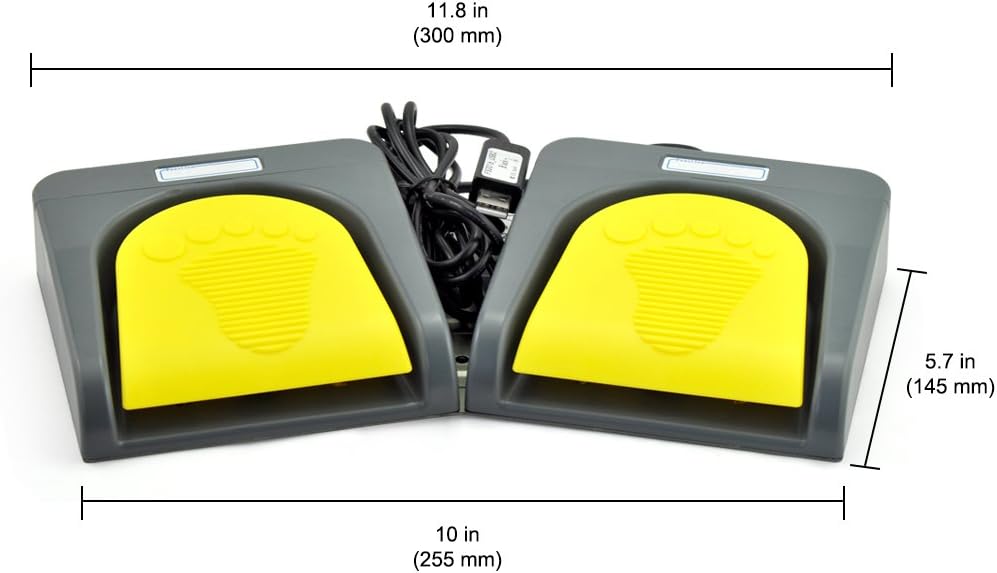
Figure 4: The underside of the foot switch, revealing the sturdy aluminum alloy base plate and non-slip feet.
3. Setup Instructions
3.1 Connecting the Device
- Connect the USB cable from the iKKEGOL Double Foot Switch to an available USB port on your computer.
- The operating system should automatically detect the new hardware.

Figure 5: The USB connector of the foot switch, ready for connection to a computer.
3.2 Software Installation and Configuration
- Download the latest FootSwitch configuration software from the official website: software.pcsensor.com.
- Install the software on a Windows operating system. This is crucial for initial programming, even if you intend to use the device on Mac or Linux.
- Launch the FootSwitch program. The software should detect the connected device.
- Assign desired key functions (single key, key combinations, hotkeys, or shortcut keys) to each pedal within the software interface.
- Save the configuration to the device. The settings will be stored on the foot switch's internal memory and will function on other compatible operating systems without the software running.
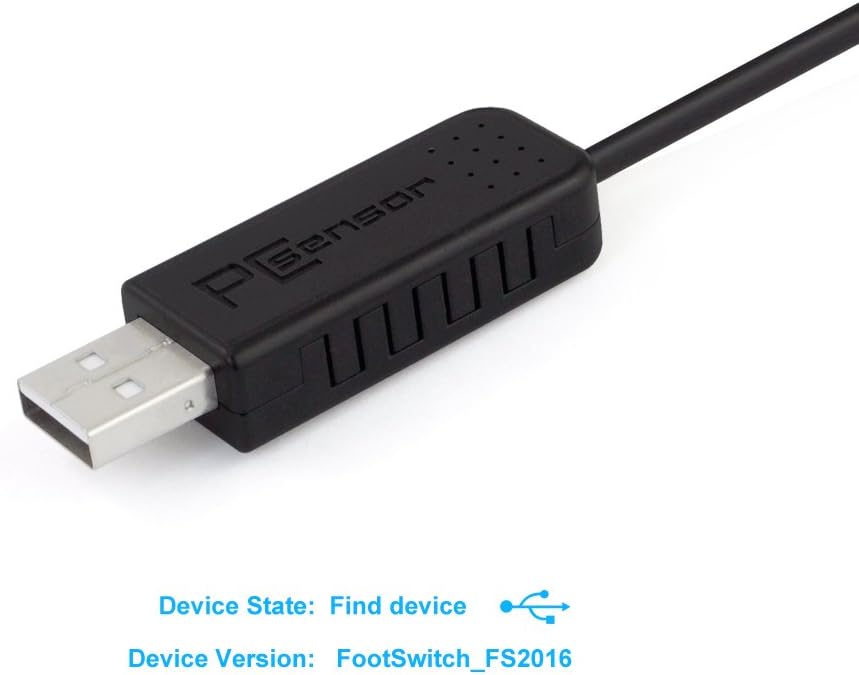
Figure 6: The FootSwitch software interface, displaying options for assigning key functions to the pedals.
Video 1: A user demonstrating the ease of setting up custom keys for the foot switch, highlighting the software interface and functionality.
4. Operating Instructions
Once configured, the foot switch operates by simply pressing the assigned pedals. The mechanical design provides tactile feedback, indicating successful actuation.
4.1 General Use Cases
- Gaming: Assign common in-game actions like 'sprint' or 'push-to-talk' to the pedals for hands-free control, improving reaction time and comfort.
- Multimedia: Control media playback, adjust volume, or mute/unmute audio without taking your hands off the keyboard or mouse.
- Office & Productivity: Automate repetitive tasks, trigger macros, or navigate documents (e.g., scrolling up/down) for increased efficiency.
- Specialized Applications: Utilize in fields like medical equipment control, sewing machines, or dispensing machines where hands-free operation is beneficial.

Figure 7: A hand demonstrating the action of pressing one of the foot pedals.
Video 2: A demonstration of how the USB foot pedals can be used to add hands-free productivity, showcasing practical applications.
Video 3: A user demonstrating the foot switch's functionality for scrolling musical scores on a PC, allowing for continuous play without manual intervention.
5. Maintenance
- Cleaning: Use a soft, dry cloth to wipe down the pedals and casing. Avoid using harsh chemicals or abrasive materials.
- Cable Care: Ensure the USB cable is not kinked or strained. Store it neatly when not in use to prevent damage.
- Storage: Store the device in a clean, dry environment away from extreme temperatures.
6. Troubleshooting
- Device Not Detected: Ensure the USB cable is securely connected to both the foot switch and the computer. Try a different USB port or restart your computer.
- Pedal Not Actuating: Verify that the key bindings are correctly saved to the device using the FootSwitch software. Ensure the software is not conflicting with other input devices or programs.
- Configuration on Non-Windows OS: Remember that the device must be configured on a Windows machine first. Once configured, it can be used on Mac or Linux systems without additional software.
- Intermittent Functionality: If the pedals occasionally fail to register a press, ensure the device is on a stable surface and that the pedals are fully depressed. Check for any physical obstructions.
7. Specifications
| Brand | iKKEGOL |
| Model Number | 10668 |
| Item Weight | 1.53 pounds |
| Product Dimensions | 13 x 7.1 x 2 inches |
| Operating System Compatibility | Dos/Windows 2000/XP/Vista/Win 7/Win 8/Win 10, MAC, Linux (configuration on Windows required) |
| Power Source | USB |

Figure 8: Diagram illustrating the physical dimensions of the iKKEGOL USB Double Foot Switch.
8. What's in the Box
- 1 x iKKEGOL USB Double Foot Switch Control Pedal
- 1 x USB Cable
9. Warranty and Support
The iKKEGOL USB Double Foot Switch Control Pedal comes with a one-year warranty from the date of purchase. For technical support, troubleshooting assistance, or warranty claims, please contact iKKEGOL customer service through their official website or the retailer where the product was purchased.


