Introduction
The Logicool G POWERPLAY Wireless Charging System provides continuous wireless power to compatible Logicool G gaming mice. This system eliminates the need for traditional charging, ensuring your mouse is always ready for use. It integrates LIGHTSPEED wireless technology for high-performance, lag-free gaming and features LIGHTSYNC RGB lighting for an immersive experience. The package includes both cloth and hard mouse pads to suit various gaming preferences.
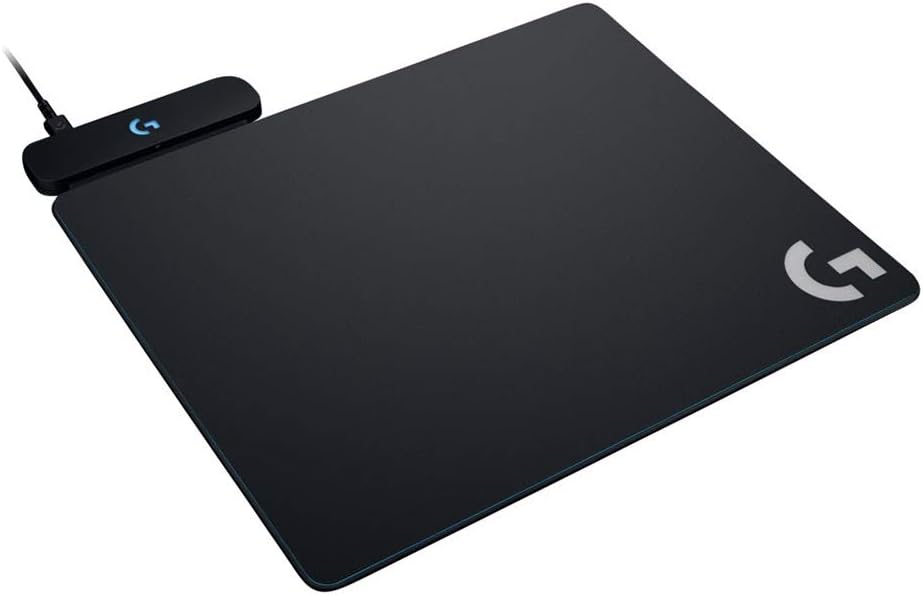
Image: The Logicool G POWERPLAY Wireless Charging Gaming Mouse Pad with a compatible wireless mouse placed on it, demonstrating the charging area.
Package Contents
- POWERPLAY Base
- Hard Gaming Mouse Pad (G440t)
- Cloth Gaming Mouse Pad (G240t)
- POWERCORE Module (for compatible wireless mice)
- USB Data/Charging Cable
- Quick Start Guide
- Troubleshooting Information
- 2-Year Manufacturer's Warranty Information
Setup Instructions
- Connect the POWERPLAY Base: Place the POWERPLAY base on your desk. Connect the USB data/charging cable from the POWERPLAY base to an available USB port on your computer.
- Install the POWERCORE Module: For your compatible Logicool G wireless mouse, remove the existing weight door or magnetic cover on the underside of the mouse. Insert the POWERCORE module into this slot. The module will magnetically attach.

Image: Illustration showing the POWERCORE module being inserted into the underside of a Logicool G wireless mouse, with examples of compatible mice (G703, G903, Pro Wireless).
- Choose Your Mouse Pad: Select either the hard (G440t) or cloth (G240t) mouse pad and place it on top of the POWERPLAY base. The system is designed to work with either pad without additional configuration.
- Software Installation (Optional but Recommended): Download and install the Logicool G HUB software from the official Logicool G website. This software allows for customization of LIGHTSYNC RGB lighting and other mouse settings.
Operating Instructions
Continuous Wireless Charging
Once set up, your compatible Logicool G wireless mouse will continuously charge while placed anywhere on the POWERPLAY mouse pad. This eliminates battery concerns during gameplay.

Image: A user's hands operating a Logicool G wireless mouse on the POWERPLAY mouse pad, highlighting the seamless charging experience.
LIGHTSPEED Wireless Technology
The POWERPLAY system utilizes LIGHTSPEED wireless technology, providing a professional-grade wireless connection with a 1ms report rate, comparable to wired gaming mice. This ensures minimal input lag and reliable performance.
LIGHTSYNC RGB Lighting
The G logo on the POWERPLAY base features LIGHTSYNC RGB lighting, which can synchronize with in-game actions and other Logicool G LIGHTSYNC-enabled devices. Use the Logicool G HUB software to customize lighting colors and animations from 16.8 million colors.

Image: A Logicool G wireless mouse resting on the POWERPLAY mouse pad, showcasing its customizable RGB lighting.
Interchangeable Mouse Pads
The POWERPLAY system comes with two types of mouse pads: a hard surface (G440t) and a cloth surface (G240t). You can easily switch between these pads to match your preferred gaming style without needing to reconfigure the POWERPLAY base.

Image: An overview diagram of the POWERPLAY system, highlighting its key features such as wireless charging, LIGHTSPEED technology, customizable RGB lighting, and the inclusion of both hard and cloth mouse pads.
Maintenance
To ensure optimal performance and longevity of your POWERPLAY system:
- Keep the mouse pad surfaces clean. Use a soft, damp cloth to gently wipe away dust and debris. Avoid harsh chemicals.
- Ensure the POWERPLAY base is free from obstructions.
- Store the mouse pads flat when not in use to prevent warping.
Troubleshooting
If you encounter issues with your POWERPLAY system, consider the following:
- Mouse not charging:
- Ensure the POWERCORE module is correctly installed in your compatible mouse.
- Verify the POWERPLAY base is properly connected to your computer via the USB cable.
- Confirm your mouse is a compatible Logicool G wireless model.
- Wireless connectivity issues:
- Ensure the POWERPLAY base is not obstructed by metal objects.
- Try connecting the USB cable to a different USB port on your computer.
- Update your mouse and POWERPLAY firmware via Logicool G HUB.
- RGB lighting not working:
- Check Logicool G HUB software for lighting settings and ensure LIGHTSYNC is enabled.
- Ensure the POWERPLAY base is powered on.
For further assistance, please refer to the support section below.
Specifications
| Feature | Detail |
|---|---|
| Model Number | G-PMP-001 |
| Dimensions (Base) | Length: 321mm, Width: 344mm, Depth: 43mm |
| Cable Length | 1.83m |
| Control Module Height | 10mm |
| Charging Sheet Thickness | 2mm |
| Cloth Mouse Pad Thickness | 2mm |
| Hard Mouse Pad Thickness | 2mm |
| Weight | 600g |
| Compatible Gaming Mice | G502WL, G703h, G903h, G-PPD-002WLr, G-PPD-003WL-BK, G-PPD-003WL-WH, PRO X SUPERLIGHT 2, PRO X SUPERLIGHT, G502 X PLUS, G502 X |
| PC Requirements | Windows 7 or later, macOS 10.10 or later |
| Color | Black |
| Material | Rubber |

Image: Technical diagram displaying the physical dimensions of the POWERPLAY base and mouse pad.
Warranty and Support
Warranty Information
This Logicool G product comes with a 2-year manufacturer's warranty for domestic genuine products. Please note that products with the "Logitech G" logo are parallel imports and are not covered by this warranty.
Customer Support
In case of product malfunction, please contact Logicool Customer Service.
- Phone Number: 050-3196-5644
- Operating Hours: Monday - Friday (excluding holidays and December 30 - January 3), 9:00 AM - 6:00 PM JST
- Web Inquiry: https://support.logi.com/hc/ja/requests/new?ticket_form_id=360000621393