

Introduction
The TruVoice HD-700 Monaural NC Headset is designed for professional communication environments, offering clear audio and effective noise cancellation. This headset provides a versatile solution for both desk phone and computer/softphone applications, ensuring comfort for extended use.
Key features include an ultra noise-canceling microphone, lightweight aluminum design, and compatibility with various phone systems via included USB and RJ11 cables.
Package Contents
Verify that all items are present in your package:
- TruVoice HD-700 Headset
- USB Connection Cable
- RJ11 U10P-S Quick Disconnect (QD) Adapter Bottom Cable
- Quick Disconnect Cord
- Leatherette Ear Cushion(s) (pre-installed or spare)
- Clothing Clip

Image: Quick Start Guide illustrating the headset, quick disconnect cable, and connection to a handset, along with a list of package contents for HD-700 and HD-750 models.
Setup
Connecting to a Desk Phone
To connect the headset to a compatible desk phone:
- Locate the handset cord on your desk phone.
- Disconnect the handset cord from the phone's handset port.
- Connect the RJ11 U10P-S Quick Disconnect (QD) Adapter Bottom Cable (coiled cable) into the handset port on your desk phone.
- Connect the headset's Quick Disconnect (QD) end to the QD end of the RJ11 adapter cable. Ensure a secure connection.
- Connect the desk phone's original handset into the RJ11 adapter cable's handset port (if available, or follow specific phone instructions).
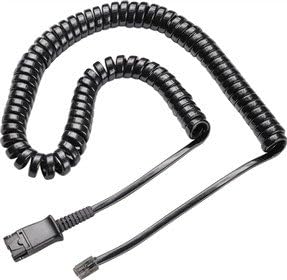
Image: Black coiled RJ11 cable, used for connecting the headset to a desk phone's handset port.
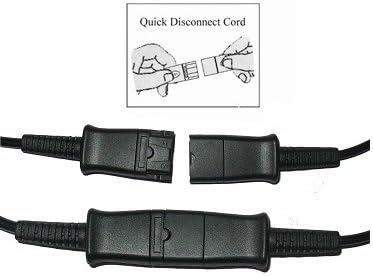
Image: Illustration demonstrating the connection and disconnection of the Quick Disconnect (QD) cord, showing two parts clicking together and separating.
Connecting to a Computer or Softphone
To connect the headset to a computer for softphone applications:
- Connect the headset's Quick Disconnect (QD) end to the QD end of the USB connection cable.
- Plug the USB connector of the USB cable into an available USB port on your computer.
- The computer should automatically detect and install the necessary drivers.
- Verify audio input/output settings in your computer's sound control panel or softphone application.
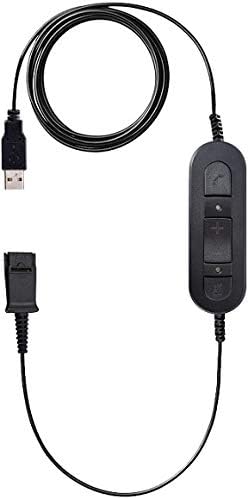
Image: Black USB cable with an inline control unit featuring buttons for volume up, volume down, and mute, and a Quick Disconnect (QD) port.
Adjusting the Headset
For optimal comfort and microphone performance:
- Headband Adjustment: Adjust the headband to fit comfortably over your head. The headset should feel secure without excessive pressure.
- Microphone Boom Adjustment: Rotate the microphone boom 270 degrees to position the microphone on either your left or right side.
- Microphone Positioning: Position the microphone approximately two fingers' width away from your mouth for clear voice transmission.

Image: Side view of the TruVoice HD-700 Monaural Headset, highlighting the adjustable headband and the flexible microphone boom.
Operating Instructions
Call Management (USB Cable)
When connected via the USB cable, use the inline control unit for call management:
- Volume Up/Down: Press the '+' or '-' buttons to adjust the listening volume.
- Mute Microphone: Press the mute button (often indicated by a microphone icon) to temporarily disable the microphone. Press again to unmute.
- Answer/End Call: (If supported by your softphone application) Press the call button (often indicated by a phone icon) to answer or end a call.
Call Management (Desk Phone)
When connected to a desk phone, call management is typically handled directly on the phone:
- Answering/Ending Calls: Use the dedicated headset button or speaker button on your desk phone, or lift/replace the handset.
- Volume Adjustment: Adjust the volume using the controls on your desk phone.
Maintenance
- Cleaning: Wipe the headset and cables with a soft, dry cloth. Do not use harsh chemicals or abrasive cleaners.
- Ear Cushions: Replace ear cushions periodically for hygiene and comfort.
- Storage: Store the headset in a clean, dry place away from extreme temperatures. Avoid tangling cables.
Troubleshooting
| Issue | Possible Cause | Solution |
|---|---|---|
| No audio from headset (desk phone) | Incorrect cable connection; phone not configured for headset. | Ensure RJ11 cable is securely connected to the handset port. Check phone's headset settings. |
| No audio from headset (computer) | USB cable not fully plugged in; incorrect sound settings. | Verify USB connection. Check computer's sound output settings to ensure the headset is selected. |
| Microphone not working | Microphone muted; incorrect input device selected. | Check if the microphone is muted via the inline control or softphone application. Verify computer's sound input settings. |
| Poor sound quality / static | Loose connection; interference. | Ensure all connections are secure. Move away from other electronic devices that may cause interference. |
Specifications
- Model: HD-700
- Connectivity: Wired (USB, RJ11 Quick Disconnect)
- Ear Placement: On Ear (Monaural)
- Microphone: Ultra Noise-Canceling, 270-degree rotation
- Material: Aluminum (Die-cast design)
- Impedance: 150 Ohm
- Special Features: Acoustic Shock Protection, Lightweight design, Adjustable headband
- Item Weight: 12.8 ounces
- UPC: 757347366657
Warranty and Support
Warranty: The TruVoice HD-700 Headset comes with a Lifetime Warranty from TruVoice, covering manufacturing defects and performance issues. Please retain your proof of purchase.
Support: For technical assistance, troubleshooting, or warranty claims, please contact TruVoice customer support. Refer to the official TruVoice website or product packaging for current contact information.
For additional information, visit the TruVoice Store on Amazon.


