
1. Introduction
This manual provides essential instructions for the setup, operation, maintenance, and troubleshooting of your HP P1V18A PAGEWIDE MGD 3X550-SHEET PAPERTRAY Stand. Please read this manual thoroughly before using the product to ensure proper function and longevity.
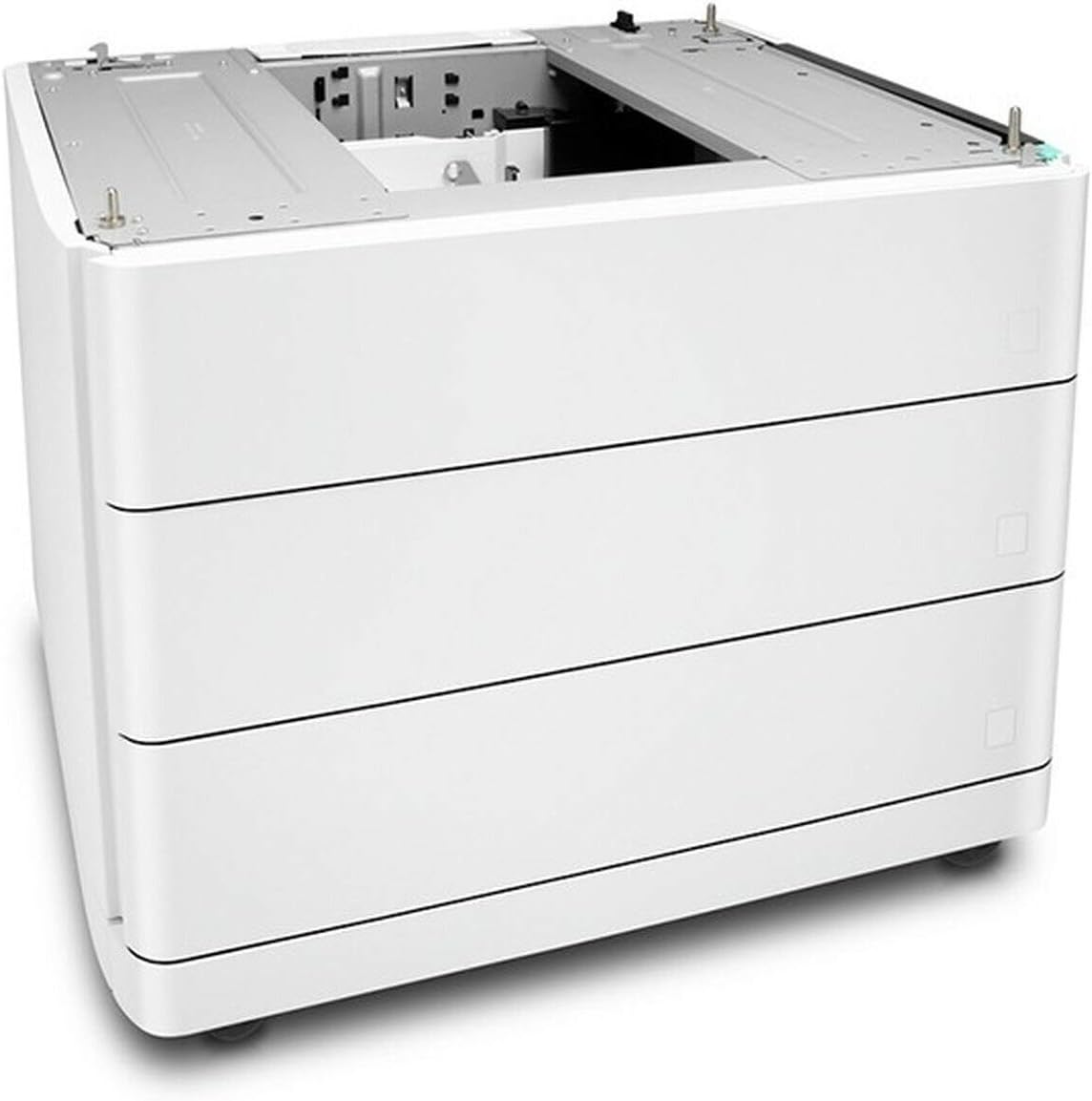
Figure 1: HP P1V18A PAGEWIDE MGD 3X550-SHEET PAPERTRAY Stand. This image displays the HP P1V18A PAGEWIDE MGD 3X550-SHEET PAPERTRAY Stand, a white, rectangular unit designed to sit beneath a compatible HP printer, providing additional paper capacity through its multiple trays. The top surface shows the interface for connecting to the printer.
2. Setup
Follow these steps to properly set up your HP P1V18A PAGEWIDE MGD 3X550-SHEET PAPERTRAY Stand.
- Unpacking: Carefully remove the paper tray stand from its packaging. Retain all packaging materials for future transport or storage.
- Placement: Position the stand on a stable, level surface where the printer will be located. Ensure adequate space around the unit for ventilation and access.
- Printer Installation: Carefully lift your compatible HP PageWide Managed printer and align it with the top of the P1V18A stand. Lower the printer onto the stand, ensuring that the connection points align and secure properly. Refer to your printer's manual for specific instructions on attaching accessories.
- Power and Connectivity: Once the printer is securely seated on the stand, connect the printer's power cord and any necessary network cables. The paper tray stand typically draws power and communicates through the printer's main unit.
3. Operating the Paper Tray Stand
The HP P1V18A stand provides additional paper input capacity for your compatible HP PageWide Managed printer. Its operation is integrated with the printer's functions.
- Loading Paper:
- Pull out the desired paper tray from the stand.
- Adjust the paper guides to match the size of the paper you are loading.
- Load the paper stack into the tray, ensuring it is flat and below the maximum fill line.
- Gently push the tray back into the stand until it clicks into place.
- Confirm the paper type and size settings on your printer's control panel if prompted.
- Selecting a Tray: When printing, you can typically select which paper tray to draw from via your computer's print settings or the printer's control panel. The additional trays provided by the P1V18A stand will appear as available options.
- Capacity: Each tray in the P1V18A stand holds up to 550 sheets, significantly extending your printer's paper capacity.
4. Maintenance
Regular maintenance helps ensure the optimal performance and longevity of your paper tray stand.
- Cleaning:
- Periodically wipe the exterior surfaces of the stand with a soft, damp, lint-free cloth.
- Do not use abrasive cleaners or solvents, as these can damage the finish.
- Ensure no dust or debris accumulates inside the paper trays, which could lead to paper jams.
- Paper Handling: Always use high-quality paper that meets your printer's specifications. Store paper in a cool, dry place to prevent curling or moisture absorption.
- Roller Cleaning (if applicable): If you experience frequent paper feeding issues, consult your printer's manual for instructions on cleaning paper pickup rollers. While the stand itself may not have user-serviceable rollers, the printer's rollers are crucial for feeding from the stand's trays.
5. Troubleshooting
This section addresses common issues you might encounter with the paper tray stand.
- Paper Jams:
- If a paper jam occurs, first check the printer's control panel for specific instructions.
- Carefully pull out the affected paper tray from the stand.
- Gently remove any jammed paper, pulling in the direction of the paper path if possible. Avoid tearing the paper.
- Ensure paper guides are correctly set for the paper size.
- If jams persist, ensure the paper is not overloaded or damaged.
- Printer Not Recognizing Trays:
- Ensure the printer is correctly seated and securely connected to the paper tray stand.
- Restart both the printer and the computer.
- Verify that the printer's firmware is up to date.
- Consult your printer's user manual or HP support for specific diagnostic steps related to accessory recognition.
- Paper Not Feeding:
- Check that the paper trays are not empty and are properly loaded.
- Ensure the paper guides are snug against the paper stack.
- Verify that the paper type and size settings on the printer match the paper loaded in the tray.
- Clean the paper pickup rollers within the printer if recommended by the printer's manual.
6. Specifications
| Feature | Detail |
|---|---|
| Model Number | P1V18A |
| Brand | HP |
| Type | 3x550-Sheet Paper Tray Stand |
| Compatibility | Compatible HP PageWide Managed Printers (refer to printer documentation for specific models) |
| Paper Capacity | 1650 sheets (3 trays x 550 sheets each) |
| Manufacturer | HP |
| First Available Date | February 26, 2018 |
7. Warranty and Support
For warranty information, please refer to the documentation included with your HP PageWide Managed printer or visit the official HP website. HP provides various support resources, including drivers, software, and troubleshooting guides.
HP Support Website: https://support.hp.com
When contacting support, please have your product model number (P1V18A) and your printer's model number readily available.