
1. Introduction and Overview
The Samsung Gear Fit2 Pro is a fitness band designed to help users track their health and fitness activities. It features a durable, swim-ready design, music storage, and integration with various fitness applications. This manual provides essential information for setting up, operating, maintaining, and troubleshooting your device.

Figure 1: Front view of the Samsung Gear Fit2 Pro displaying time and fitness data.
2. Setup
2.1 Initial Device Pairing
To begin using your Gear Fit2 Pro, you must pair it with a compatible smartphone. The device is compatible with select Bluetooth-capable devices running Android OS 4.4 or later with at least 1.5GB RAM, as well as iPhone 5 and above with iOS 9.0 and above. Note that not all features are available with iOS paired devices.
- Ensure your Gear Fit2 Pro is charged and powered on.
- On your smartphone, download and install the Samsung Gear app from your device's app store.
- Open the Samsung Gear app and follow the on-screen instructions to connect your Gear Fit2 Pro. This typically involves selecting your device from a list and confirming a passkey.
- Review and agree to the Terms and Conditions and End User License Agreement.
- Configure notification settings as desired.

Figure 2: The Gear Fit2 Pro shown alongside a smartphone, indicating the pairing process.
2.2 Setup Video Guide
Video 1: Official Samsung Gear Fit2 Pro tutorial demonstrating device pairing and initial setup.
3. Operating Instructions
3.1 Activity Tracking
The Gear Fit2 Pro automatically tracks various activities including steps, calories burned, and sleep. You can also manually start specific workouts.
- Steps and Calories: View your daily step count and estimated calorie burn directly on the device's display.
- Workout Modes: Select from a variety of activity types such as running, walking, cycling, hiking, elliptical trainer, exercise bike, step machine, treadmill, and swimming to track your performance.
3.2 Swim Tracking
The Gear Fit2 Pro is water-resistant up to 50 meters (5 ATM), making it suitable for swimming. It is not intended for scuba diving. To track your swim:
- Navigate to the workout selection screen on your device.
- Select 'Swimming' as the activity type.
- Adjust the pool length setting if necessary (e.g., 25m, 50m).
- Activate 'Water lock mode' to disable the touchscreen and prevent accidental inputs during your swim.
- Start your swim. The device will track your laps, distance, and other metrics.
- After your swim, turn off 'Water lock mode' and review your workout data.

Figure 3: The Gear Fit2 Pro is designed for water activities like swimming.
3.3 Continuous Heart Rate Monitoring
The device features continuous heart rate monitoring to provide a more accurate view of your performance and all-day calorie burn. To enable continuous monitoring:
- Access the heart rate settings on your Gear Fit2 Pro.
- Set 'Auto HR' to 'Always'. This will measure your heart rate continuously, even during workouts.
- You can view your current heart rate, as well as historical data showing minimum, maximum, and average heart rates over time.

Figure 4: The rear of the Gear Fit2 Pro, featuring the optical heart rate sensor.
3.4 GPS Tracking
The built-in GPS allows for accurate tracking of outdoor activities without needing your phone. You can view your route and distance directly on the device.

Figure 5: The Gear Fit2 Pro screen showing a tracked route on a map, utilizing its built-in GPS.
3.5 Music Playback
Store your favorite tracks directly on your Gear Fit2 Pro and listen to music during workouts without carrying your phone.
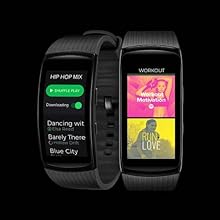
Figure 6: The Gear Fit2 Pro displaying its music playback interface.
3.6 Notifications
Receive notifications for incoming calls, messages, and emails directly on your wrist when paired with your smartphone.

Figure 7: The Gear Fit2 Pro screen showing an incoming message notification.
4. Maintenance
4.1 Charging
The Gear Fit2 Pro comes with a wireless charging cradle. Place the device on the cradle to charge. A full charge typically provides up to 3 days of typical use or up to 5 days with low usage.

Figure 8: The Gear Fit2 Pro charging on its wireless cradle.
4.2 Water Resistance
The device is water-resistant up to 50 meters (5 ATM) and meets MIL-STD-810G durability standards. However, avoid excessive, sudden temperature changes and high-velocity activities in water. It is not suitable for scuba diving.
4.3 Cleaning
Regularly clean your Gear Fit2 Pro and the band with a soft, dry cloth to prevent skin irritation and maintain device performance. Avoid using harsh chemicals.
5. Troubleshooting
If you encounter issues with your Samsung Gear Fit2 Pro, consider the following general troubleshooting steps:
- Device Not Responding: Try restarting the device. If unresponsive, ensure it is charged.
- Pairing Issues: Ensure Bluetooth is enabled on your smartphone and the Samsung Gear app is updated. Try unpairing and re-pairing the device.
- Inaccurate Readings: Ensure the device is worn snugly on your wrist. Clean the heart rate sensor if necessary.
- Battery Drain: Review settings for features like continuous heart rate monitoring or always-on display, which can impact battery life.
For more detailed troubleshooting or persistent issues, refer to the official Samsung support website or contact customer service.
6. Specifications
| Feature | Specification |
|---|---|
| Model Number | SM-R365NZKAXAR |
| Display | 1.5 Inches AMOLED, 360 x 484 resolution |
| Operating System | Compatible with Android OS 4.4+ (1.5GB RAM+) and iOS 9.0+ (iPhone 5+) |
| Connectivity | Wi-Fi (802.11b/g/n 2.4 GHz), Bluetooth |
| GPS | Built-in GPS |
| Sensors | Heart Rate Monitor |
| Water Resistance | 5 ATM (up to 50 meters), MIL-STD-810G |
| Memory Storage | 4 GB |
| Battery | 200 mAh Li-ion, up to 3-5 days usage |
| Dimensions | 0.98 x 0.49 x 2.06 inches |
| Weight | 1.12 ounces |
7. What's in the Box
Upon opening your Samsung Gear Fit2 Pro package, you should find the following items:
- Samsung Gear Fit2 Pro Smart Fitness Band
- Wireless Charging Cradle
8. Warranty and Support
This product is a US Version and comes with a manufacturer's warranty. For specific warranty details, registration, or technical support, please visit the official Samsung support website or contact their customer service directly. Keep your proof of purchase for warranty claims.