
Introduction
Thank you for choosing the EagleTec KG040 Mechanical Gaming Keyboard. This compact, tenkeyless keyboard is designed for durability and responsiveness, featuring dustproof blue mechanical switches and vibrant blue LED backlighting. This manual provides essential information for setting up, operating, maintaining, and troubleshooting your new keyboard to ensure optimal performance.

Image: Top-down view of the EagleTec KG040 Mechanical Gaming Keyboard, showcasing its compact 87-key layout and illuminated blue backlighting.
What's in the Box
- EagleTec KG040 Mechanical Gaming Keyboard (Black)
- USB Cable
- User Guide (this document)
- Warranty Card
Setup
- Unpack: Carefully remove the keyboard and all accessories from the packaging.
- Connect: Plug the USB cable from the keyboard into an available USB port on your computer. The keyboard is plug-and-play and should be recognized automatically by your operating system.
- Position: Place the keyboard on a stable, flat surface. Adjust the rear feet for your preferred typing angle.
Operating Instructions
Keyboard Functions
- Anti-Ghosting: All 87 mechanical keys feature N-Key Rollover, ensuring every keystroke is registered accurately, even during intense gaming sessions.
- WIN Key Lock: The Windows key can be disabled to prevent accidental interruptions during gameplay. Refer to the function key combinations below for activation.
- WASD/Arrow Key Exchange: For certain gaming preferences, the functionality of the WASD keys and arrow keys can be swapped. Refer to the function key combinations below.
Blue LED Backlighting
The EagleTec KG040 features crisp and bright single blue LED backlighting with multiple customization options:
- Backlight Modes: Choose from 9 different backlighting modes to suit your preference.
- Brightness Levels: Adjust between 6 brightness levels. The backlighting can also be turned off completely.
- Breathing Speed: Customize the speed of breathing light effects.
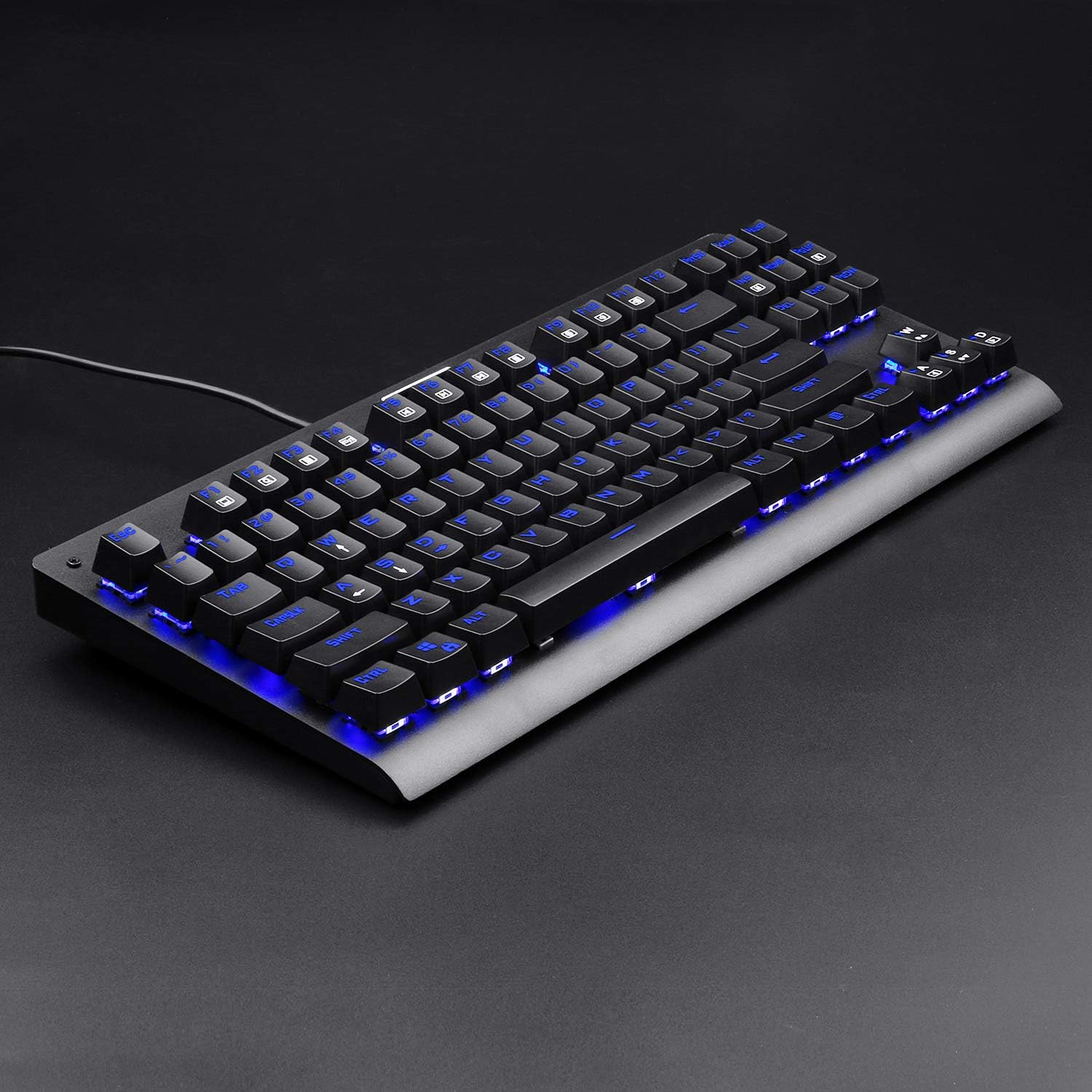
Image: Angled view of the EagleTec KG040 Mechanical Gaming Keyboard, highlighting the vibrant blue LED backlighting of the keys.
Function Key Combinations (FN)
Utilize the FN key in combination with other keys to access multimedia controls and special functions:
- FN + F1-F12: Access 12 dedicated multimedia keys for volume control, media playback, and more.
- FN + WIN: Lock/Unlock the Windows key.
- FN + W: Exchange WASD keys with arrow keys.
- FN + INS: Cycle through backlighting modes.
- FN + Arrow Up/Down: Adjust backlight brightness.
- FN + Arrow Left/Right: Adjust breathing speed (for applicable modes).
Maintenance
To ensure the longevity and optimal performance of your EagleTec KG040 keyboard, follow these maintenance guidelines:
- Regular Cleaning: Use a soft, dry cloth to wipe down the keycaps and keyboard surface. For deeper cleaning, use compressed air to remove dust and debris from between the keys.
- Keycap Cleaning: The double-shot injection molded keycaps are durable. If necessary, keycaps can be carefully removed (using a keycap puller, not included) for thorough cleaning. Ensure the keyboard is unplugged before removing keycaps.
- Avoid Liquids: While the keyboard features a spill-proof design, it is best to avoid direct exposure to liquids to prevent potential damage.

Image: Close-up view of the mechanical blue switches on the EagleTec KG040 keyboard, with some keycaps removed to show the switch mechanism.
Troubleshooting
- Keyboard Not Responding: Ensure the USB cable is securely plugged into both the keyboard and the computer. Try a different USB port or restart your computer.
- Backlighting Not Working: Check if the backlighting is turned off or set to the lowest brightness level using the FN + Arrow Up/Down keys.
- Keys Not Registering: Due to N-Key Rollover, all keys should register. If a specific key is not working, ensure no debris is lodged beneath it. If the issue persists, contact customer support.
- WASD/Arrow Keys Swapped Accidentally: Press FN + W to toggle the functionality back to default.
Specifications
| Model Name | KG040 |
| Product Dimensions | 14.33 x 1.46 x 6.02 inches |
| Item Weight | 1.56 pounds |
| Manufacturer | EagleTec |
| ASIN | B074F2J37K |
| Compatible Devices | PC (Windows 10, 8, 7, Vista, XP), Limited Mac OS support |
| Connectivity Technology | USB |
| Keyboard Description | Ergonomic, Mechanical |
| Special Feature | Non-slip, Spill-proof design |
| Color | Black with Blue LED Backlit |
| Material | Acrylonitrile Butadiene Styrene (ABS) |
Warranty and Support
Your EagleTec KG040 Mechanical Gaming Keyboard comes with a warranty. Please refer to the included Warranty Card for detailed information regarding warranty coverage, terms, and conditions. For technical support, product inquiries, or assistance with troubleshooting, please visit the official EagleTec website or contact their customer service department.