
1. Introduction
The BIFANS G64 is a versatile 4-in-1 wireless device combining an air fly mouse, a wireless keyboard, a somatic handle, and an Android remote control. It features a built-in gyroscope and gravity acceleration sensor for motion sensing. This device is designed for plug-and-play use with various systems including Google/Android OS, Mac OS, Linux OS, and Windows. It is compatible with PCs, Android TV Boxes, set-top boxes, network media players, tablets, and game players.
The package includes one G64 Air Mouse, one USB Wireless Receiver, one User Manual, and one Charging Cable.
2. Setup
- Charge the Remote: Before first use, ensure the remote control is fully charged using the provided charging cable. Connect the micro USB port on the remote to a standard USB power source.
- Insert USB Receiver: Locate the USB wireless receiver included in the package. Plug this receiver into an available USB port on your compatible device (e.g., PC, Android TV Box, Smart TV). The device is plug-and-play, so no additional drivers are typically required.
- Power On: The remote should automatically connect to the receiver. If not, press the power button on the remote. The LED indicator will illuminate to confirm connection.
Video demonstrating the process of plugging the USB receiver into a TV's USB port.
3. Operating Instructions
The BIFANS G64 offers multiple modes of operation:
- Air Mouse Function: Hold the remote in your hand and move it in the air. The cursor on your screen will follow your hand movements. This function utilizes a 6-axis inertial sensor for precise control. Press the 'Mouse R/' button to toggle the air mouse function on or off.
- Wireless Keyboard: The reverse side of the remote features a full QWERTY keyboard. Use this for text input, searching, and other typing tasks.
- Remote Control Buttons: The front side of the remote provides standard remote control buttons for navigation and media control.

Image: Front side of the BIFANS G64 remote control, illustrating the function of each button including Power ON/OFF, Volume Up/Down, Left/Right/Up/Down navigation, OK, Mouse R/ (Mouse toggle), Home back, Menu, and Turn off the mouse. The Micro USB port is also indicated.

Image: A diagram highlighting the BIFANS G64's 4-in-1 functionality, showing it can replace a traditional mouse, keyboard, remote control, and game handle. The image also displays the full QWERTY keyboard layout on one side of the remote.

Image: A detailed close-up of the BIFANS G64 remote's keyboard side, showing the QWERTY key layout and function keys.

Image: Various angles of the BIFANS G64 Smart Remote Control, showcasing its ergonomic design and dual-sided functionality with both remote buttons and a full QWERTY keyboard.
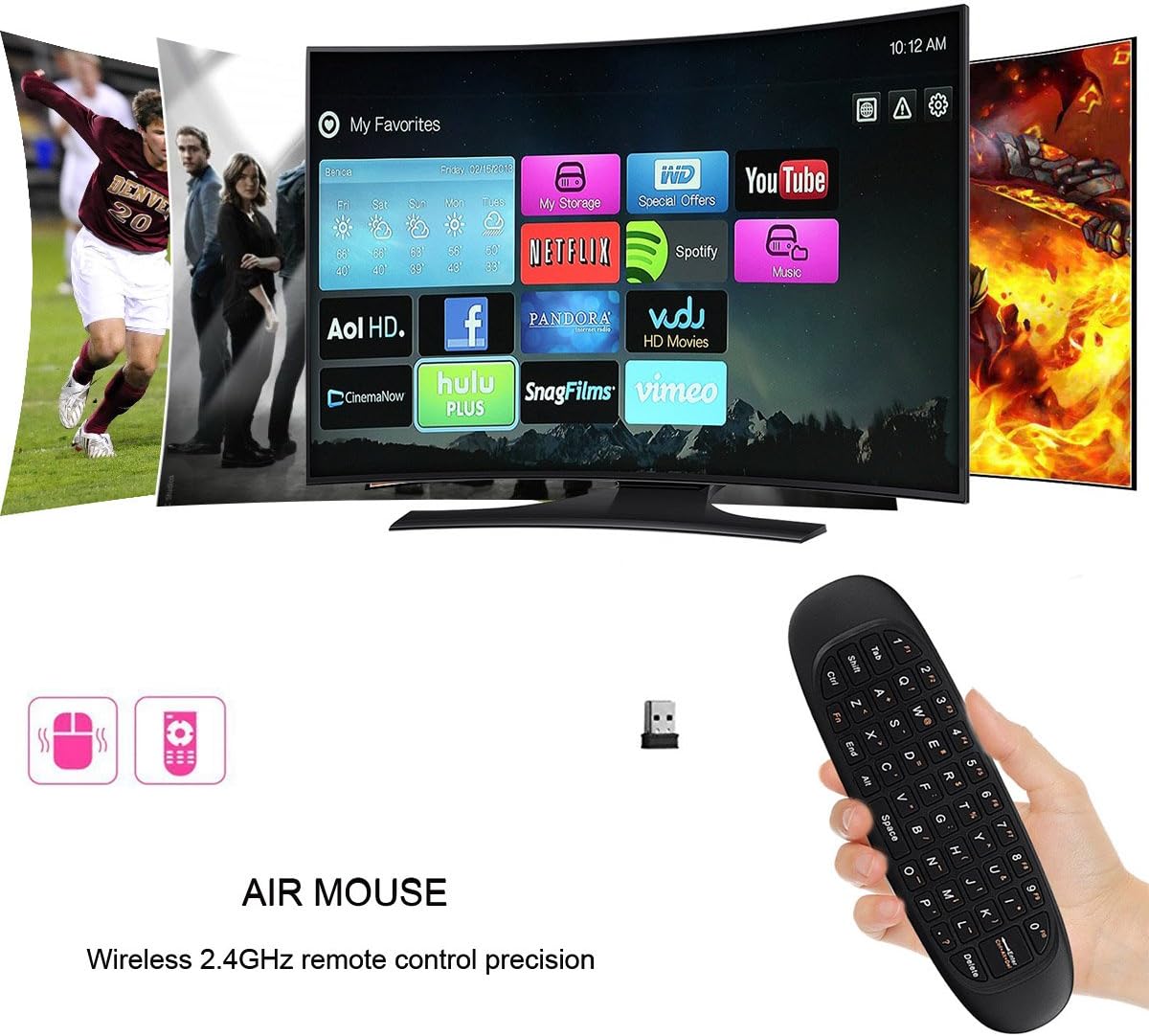
Image: A hand holding the BIFANS G64 remote, pointing it towards a smart TV displaying a media interface with various app icons like Netflix, Hulu, and YouTube, demonstrating its use as an air mouse.

Image: A visual representation of the BIFANS G64 remote's compatibility with various devices, including Smart TVs, PCs, Projectors, TV Boxes, and HTPCs. The 2.4GHz wireless USB receiver is also shown.
Video demonstrating the air mouse functionality and navigation on a TV interface. The user switches between the traditional remote and the air mouse, showing how to select applications and interact with the screen.
4. Maintenance
- Charging: The G64 remote uses a rechargeable Li-ion battery. When the battery is low, the LED indicator may flash or the remote's performance may degrade. Connect the remote to a USB power source using the provided Micro USB cable for charging.
- Cleaning: Use a soft, dry cloth to clean the remote. Avoid using liquid cleaners or abrasive materials.
- Storage: Store the remote in a cool, dry place away from direct sunlight and extreme temperatures.
5. Troubleshooting
- Remote Not Responding:
- Ensure the remote is charged.
- Verify the USB receiver is securely plugged into your device.
- Try plugging the USB receiver into a different USB port.
- If the LED indicator is not lighting up, the battery might be completely drained or there might be an issue with the remote.
- Cursor Movement Issues (Inaccurate/Lagging):
- Ensure there are no obstructions between the remote and the USB receiver.
- Check the battery level; low battery can affect performance.
- Recalibrate the air mouse by placing it on a flat surface for a few seconds.
- Ensure you are within the 10m operating range.
- Keyboard Not Working:
- Ensure the remote is not in air mouse mode (toggle with 'Mouse R/' button if applicable).
- Check for battery issues as described above.
6. Specifications
| Transmission: | 2.4G RF wireless |
| Sensor: | 3-Gyro + 3-Gsensor (6-axis inertial sensor) |
| Number of Keys: | 81 |
| Operating Range: | Up to 10 meters |
| Battery Type: | Rechargeable Lithium Polymer Battery |
| Material: | Plastic and Silicone |
| Item Weight: | 2.12 ounces |
| Product Dimensions: | 5.91 x 1.57 x 0.39 inches |
| Compatible Devices: | PC, Android TV Box, HTPC, IPTV, Raspberry Pi 3, Pad, and More |
7. Warranty and Support
For warranty information and technical support, please refer to the documentation provided with your purchase or contact BIFANS customer service. Keep your proof of purchase for any warranty claims.