
Introduction
Thank you for choosing the JOWAY H21 Bluetooth Earphone. This manual provides detailed instructions on how to set up, operate, and maintain your earphone to ensure optimal performance and longevity. Please read this manual carefully before using the product.
Package Contents
- 1 x JOWAY H21 Bluetooth Earphone
- 1 x USB Charging Cable
- 1 x User Manual
Product Overview
The JOWAY H21 is a compact and lightweight Bluetooth earphone designed for convenience and clear audio. It features advanced noise reduction technology and the ability to connect to two devices simultaneously.

Image: Front and back view of the JOWAY H21 Bluetooth Earphone, showing the JOWAY logo on the front and "Bluetooth Model: H-21" on the back.
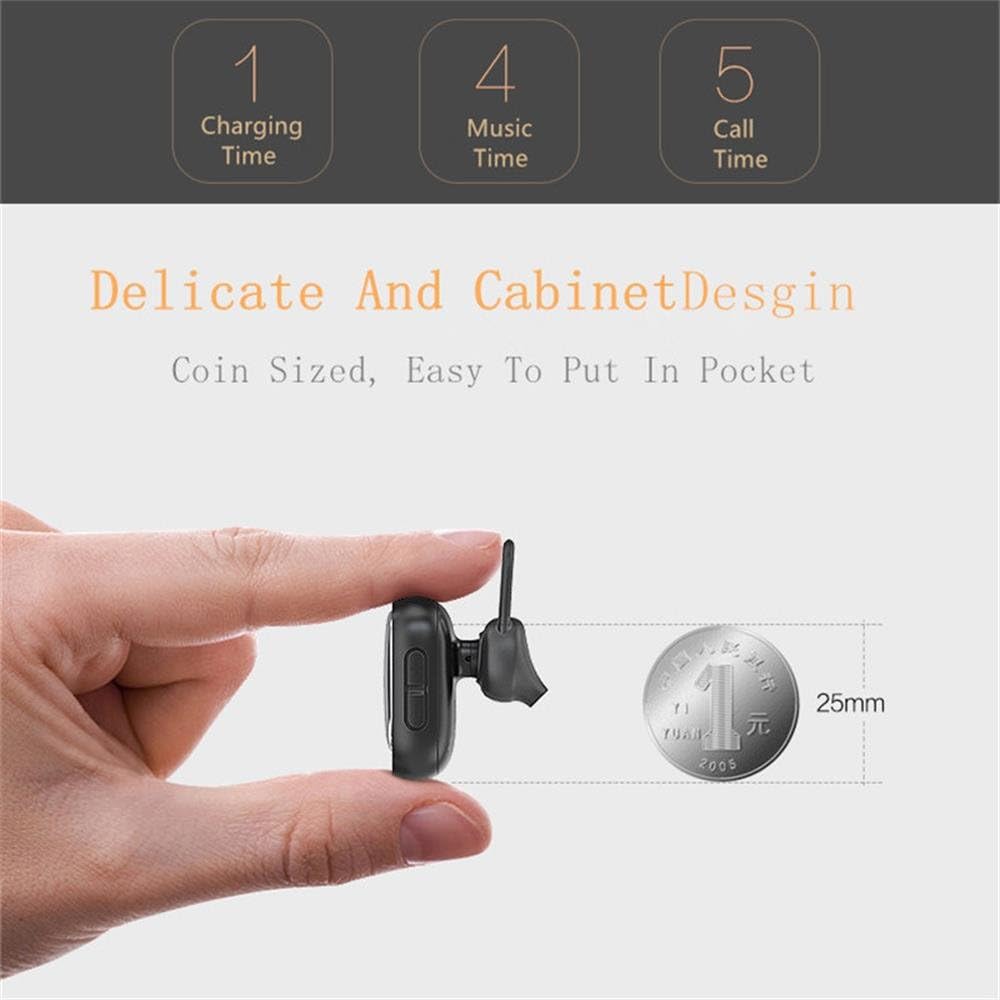
Image: The JOWAY H21 Bluetooth Earphone held between fingers, demonstrating its compact, coin-sized design next to a 25mm coin for scale.

Image: An exploded diagram showing the internal components of the JOWAY H21 earphone, including the casing, mainboard, voice coil, diaphragm, aluminum alloy clamp ring, and silicone ear cap.
Features
- Bluetooth V4.1 Connectivity: Ensures stable and efficient wireless connection.
- CVC6.0 Noise Reduction: Advanced technology for clear audio and call quality.
- Multi-point Connection: Connects to two Bluetooth devices simultaneously.
- Compact and Lightweight Design: Mini size for comfortable wear and portability.
- Voice Prompts: English and Chinese voice announcements for status updates.
- Intuitive Controls: Easy management of music playback, calls, and volume.
- Comfortable Silicone Ear Cap: Designed for extended wear.

Image: Diagram illustrating the CVC6.0 Noise Reduction technology of the JOWAY H21 earphone, showing how it rejects distortion and voice changes for clearer sound.
Specifications
| Bluetooth Version | V4.1 |
| Battery Capacity | 50 mAh |
| Charging Time | Approximately 1 hour |
| Talk Time | Approximately 5 hours (at 90% volume) |
| Music Playback Time | Approximately 4 hours (at 80% volume) |
| Operating Frequency | 2.402 GHz - 2.480 GHz |
| Supported Protocols | A2DP, AVRCP, HSP, HFP |
| Charging Standard | Micro USB |
| Product Dimensions | 11.99 x 8.99 x 3 cm |
| Product Weight | 99.79 g |
| Material | Silicone |
Setup
1. Charging the Earphone
- Connect the provided USB charging cable to the Micro USB port on the earphone.
- Connect the other end of the USB cable to a USB power source (e.g., computer USB port, wall adapter).
- The indicator light will show the charging status. Once fully charged (approximately 1 hour), the light will change or turn off.
- Disconnect the earphone from the charging cable.
2. Bluetooth Pairing
- Power On: Press and hold the Multi-function button (usually the main button) on the earphone until you hear a voice prompt indicating "Power On" and the indicator light starts flashing (often blue and red alternately), signifying pairing mode.
- Activate Bluetooth: On your mobile device (smartphone, tablet, etc.), go to the Bluetooth settings and ensure Bluetooth is turned on.
- Search for Devices: Your device will scan for available Bluetooth devices. Look for "JOWAY H21" or a similar name in the list.
- Connect: Select "JOWAY H21" from the list to initiate pairing. If prompted for a password, enter "0000" (four zeros).
- Confirmation: Once successfully paired, you will hear a voice prompt like "Connected" and the indicator light will typically flash blue slowly.
Note: The earphone will automatically attempt to reconnect to the last paired device when powered on, if that device's Bluetooth is active and within range.
Operating Instructions
Power On/Off
- Power On: Press and hold the Multi-function button for approximately 3 seconds until the indicator light flashes and you hear "Power On".
- Power Off: Press and hold the Multi-function button for approximately 5 seconds until the indicator light turns off and you hear "Power Off".
Music Playback Control
- Play/Pause: Short press the Multi-function button.
- Next Song: Long press the Volume Up (+) button.
- Previous Song: Long press the Volume Down (-) button.
- Volume Up: Short press the Volume Up (+) button.
- Volume Down: Short press the Volume Down (-) button.
Call Management
- Answer Call: Short press the Multi-function button when an incoming call rings.
- End Call: Short press the Multi-function button during a call.
- Reject Call: Long press the Multi-function button when an incoming call rings.
- Redial Last Number: Double-press the Multi-function button when not on a call.
Connecting Two Devices Simultaneously (Multi-point)
- Pair the earphone with the first device as described in the "Bluetooth Pairing" section.
- Once connected to the first device, turn off the earphone.
- Turn on the earphone again and enter pairing mode (indicator light flashes blue and red).
- Pair the earphone with the second device.
- After successfully pairing with the second device, go back to the Bluetooth settings of the first device and manually connect to "JOWAY H21" if it doesn't reconnect automatically.
- The earphone is now connected to both devices. You can switch between them for calls or music.

Image: A person wearing the JOWAY H21 Bluetooth Earphone in their right ear, demonstrating its discreet and comfortable fit.
Maintenance
- Cleaning: Use a soft, dry cloth to clean the earphone. Do not use abrasive cleaners or solvents.
- Storage: Store the earphone in a cool, dry place away from direct sunlight and extreme temperatures.
- Water Exposure: This earphone is not waterproof. Avoid exposure to water, moisture, or rain.
- Charging: Use only the provided charging cable or a certified equivalent. Do not overcharge the battery.
Troubleshooting
| Problem | Solution |
|---|---|
| Earphone does not power on. | Ensure the earphone is fully charged. Connect it to a power source and charge for at least 1 hour. |
| Cannot pair with device. |
|
| No sound or poor sound quality. |
|
| Calls are unclear. |
|
Warranty and Support
For warranty information and customer support, please refer to the documentation provided at the time of purchase or contact your retailer. Keep your proof of purchase for any warranty claims.