
1. Introduction
Thank you for choosing the COVVY 8GB Digital Voice Recorder. This device is designed for high-quality audio recording and playback, featuring an 8GB internal memory, MP3 player functionality, and voice activation. This manual provides detailed instructions to help you operate your device effectively.

Image 1.1: The COVVY 8GB Digital Voice Recorder shown with its accompanying earphones.
2. Package Contents
Please check the box for the following items:
- 1 x COVVY 8GB Digital Voice Recorder (Model BL-033)
- 1 x 3.5 mm Mini Jack Audio Cable
- 1 x Telephone Recording Adapter with RJ11 Cable
- 1 x USB Cable
- 1 x Headphones
- 1 x External Microphone
- 1 x User Manual
3. Product Overview
Familiarize yourself with the buttons, ports, and display of your digital voice recorder.
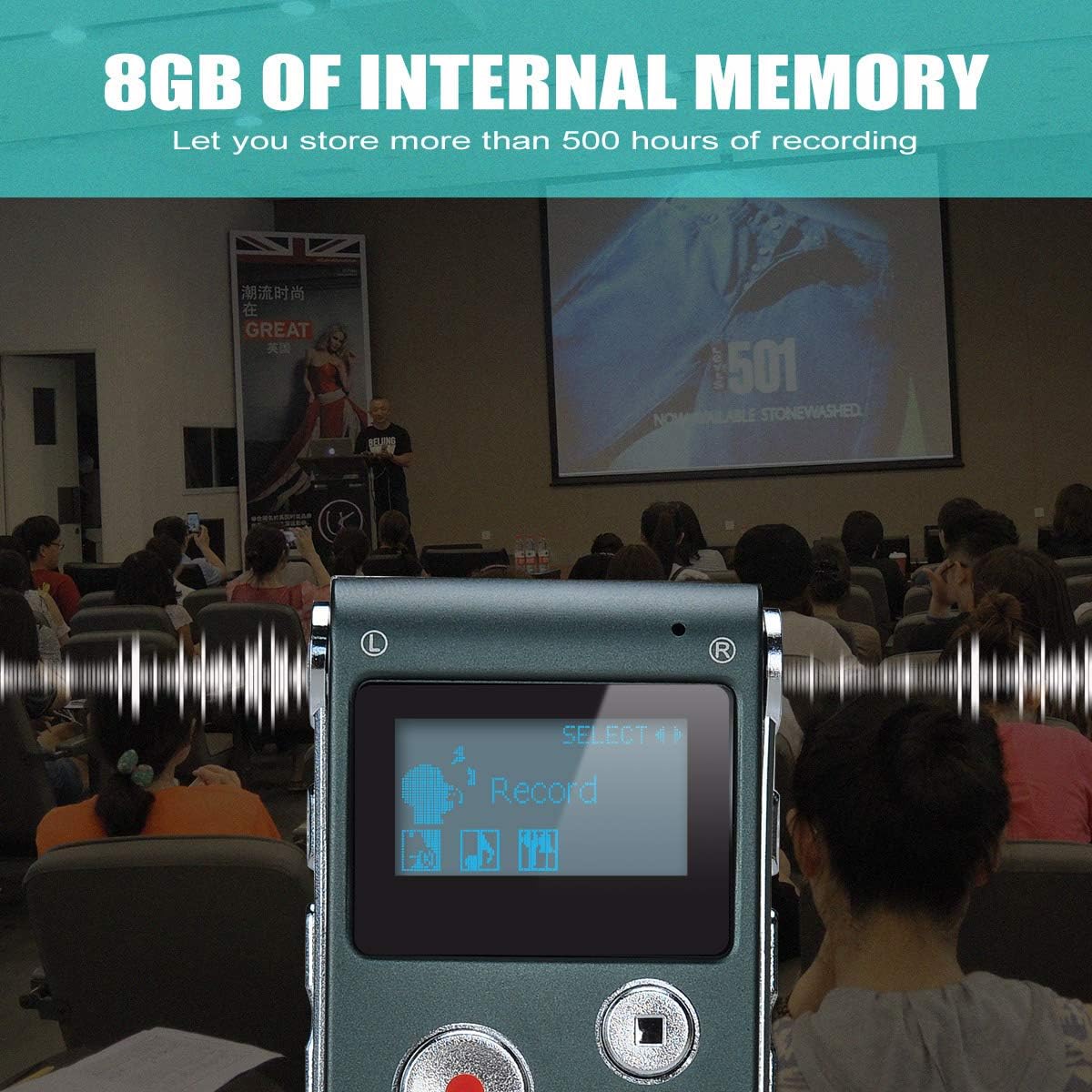
Image 3.1: Front and side views of the recorder with all controls and ports clearly labeled.
- Left Mic: Internal microphone for left channel audio input.
- Right Mic: Internal microphone for right channel audio input.
- Line-in: Audio input port for external devices.
- Headset Jack: 3.5mm port for headphones.
- Menu Key: Accesses device settings and options.
- Previous: Navigates to the previous track or menu item.
- Next: Navigates to the next track or menu item.
- Power Switch: Slides to turn the device ON or OFF.
- A-B Repeat: Sets and repeats a specific segment of audio.
- VOL UP: Increases volume.
- VOL DN: Decreases volume.
- USB Port: Connects to a computer for data transfer and charging.
- Screen: LCD display showing status, menu, and file information.
- Record Lamp: Indicator light for recording status.
- Record Key (REC): Starts recording.
- Stop Key (STOP): Stops recording or playback.
- Play/Pause Key: Starts or pauses playback.
- Speaker: Built-in speaker for audio playback.
4. Setup
4.1. Charging the Device
The device has a built-in rechargeable battery. To charge:
- Connect the recorder to a computer's USB port or a USB wall adapter (not included) using the provided USB cable.
- The screen will indicate charging status.
- A full charge typically takes approximately 2 hours and provides up to 30 hours of recording time.
4.2. Power On/Off
- To turn ON: Slide the Power Switch to the 'ON' position.
- To turn OFF: Slide the Power Switch to the 'OFF' position.
5. Basic Operation
5.1. Recording Audio
- Ensure the device is powered ON.
- Press the REC button to start recording. The Record Lamp will illuminate.
- To pause recording, press the PLAY/PAUSE button. Press again to resume.
- To stop recording and save the file, press the STOP button.
5.2. Playing Back Recordings
- Navigate through your saved files using the Previous and Next buttons.
- Press the PLAY/PAUSE button to start playback of the selected file.
- Adjust the volume using the VOL UP and VOL DN buttons.
- To stop playback, press the STOP button.
5.3. Voice Activated Recording (VOR)
The device supports voice-activated recording, which starts recording only when sound is detected, saving memory and battery life.
- Access the menu by pressing the Menu Key.
- Navigate to the VOR (Voice Operated Recording) setting.
- Select your desired sensitivity level (e.g., high, medium, low) or enable/disable the function.
- Exit the menu. When VOR is enabled, recording will automatically start and stop based on sound detection.
6. Advanced Features
6.1. MP3 Player Functionality
The recorder can also function as an MP3 player, supporting WMA, ASF, and WAV audio formats.
- Transfer music files to the device via USB connection.
- Access the music playback mode through the menu.
- Use the Previous, Next, and PLAY/PAUSE buttons to control music playback.
6.2. A-B Repeat
This feature allows you to repeat a specific segment of an audio file.
- During playback, press the A-B Repeat button once to set point 'A'.
- Press the A-B Repeat button a second time to set point 'B'.
- The device will continuously loop the audio between points 'A' and 'B'.
- Press the A-B Repeat button a third time or the STOP button to exit A-B repeat mode.
6.3. Telephone Recording
The included telephone recording adapter allows you to record phone conversations.
- Connect the telephone recording adapter to your phone line and the recorder as per the adapter's instructions.
- Ensure the recorder is in recording mode.
- Start your phone call. The recorder will capture the conversation.
7. Connecting to a Personal Computer
To transfer files to or from your COVVY Digital Voice Recorder:
- Ensure the recorder is powered ON.
- Connect the recorder to your computer using the provided USB cable.
- The computer should recognize the device as a removable disk.
- You can now drag and drop audio files (recordings or music) between your computer and the recorder.
- Always safely eject the device from your computer before disconnecting the USB cable to prevent data corruption.
8. Specifications
| Feature | Specification |
|---|---|
| Model | BL-033 |
| Memory Storage Capacity | 8 GB |
| Recording Format | WAV |
| Supported Playback Formats | WMA, ASF, WAV |
| Display | 128 x 64 grid screen |
| Frequency Response | 20Hz-20kHz |
| Signal-to-Noise Ratio (SN) | 80 dB |
| Battery Life (Recording) | Up to 30 hours (full charge) |
| Charging Time | Approx. 2 hours via USB |
| External Input | Headphone (3.5mm), Microphone (3.5mm) |
| USB Interface | USB 1.1 / USB 2.0 |
| Dimensions | 8 x 3.5 x 1.1 cm (approx. 1.3D x 8W x 8H centimetres) |
| Weight | 35g (approx. 0.14 Kilograms) |
9. Troubleshooting
If you encounter issues with your device, please refer to the following common problems and solutions:
- Device does not power on:
- Ensure the battery is charged. Connect to a USB power source for at least 30 minutes.
- Verify the Power Switch is firmly in the 'ON' position.
- Cannot record:
- Check if there is sufficient memory available. Delete old files if necessary.
- Ensure the microphone is not obstructed.
- Verify the device is not in a paused state.
- Poor recording quality:
- Record in a quiet environment.
- Ensure the microphone is close enough to the sound source.
- Check microphone settings in the device menu (if applicable).
- Device not recognized by computer:
- Try a different USB port on your computer.
- Use the original USB cable provided.
- Restart both the recorder and your computer.
10. Maintenance
- Keep the device dry and away from extreme temperatures.
- Clean the device with a soft, dry cloth. Avoid using liquid cleaners.
- Avoid dropping the device or subjecting it to strong impacts.
- Charge the battery regularly, even if not in use, to maintain battery health.
11. Warranty and Support
For warranty information or technical support, please refer to the documentation provided with your purchase or contact COVVY customer service through the retailer where the product was purchased. Please have your model number (BL-033) and purchase details ready when contacting support.