
Introduction
This manual provides detailed instructions for the operation and maintenance of your JR A50 DSD128 HiFi Mini Music Player. Please read this manual thoroughly before using the device to ensure proper functionality and to maximize your listening experience.
Important Safety Information
- Do not expose the device to extreme temperatures, direct sunlight, or high humidity.
- Avoid dropping or subjecting the device to strong impacts.
- Do not attempt to disassemble or repair the device yourself. Refer all servicing to qualified personnel.
- Use only the specified charging accessories.
- Prolonged listening at high volume levels may cause hearing damage. Adjust volume to a safe level.
Package Contents
Please verify that all items listed below are included in your package:
- JR A50 Host Device
- USB Data Cable
- User Manual
- Warranty Card

Image: The package contents including the JR A50 player, USB cable, user manual, and warranty card.
Product Overview
The JR A50 is a compact, high-fidelity music player designed for portable use. It features a 2.5-inch ISP glass screen, a multi-function rotary knob, and supports various lossless audio formats.

Image: Front view of the JR A50 music player, showcasing its screen and compact design.

Image: The JR A50 music player displaying its screen interface and the rear panel with product information.
Key Features:
- DSD128/256 Support: High-resolution audio playback.
- 24-bit/192kHz Playback: Studio-quality sound reproduction.
- Full Format Decoding: Supports APE, FLAC, ALAC, WAV, WMA, OGG, MP3, AIFF, DSD256.
- MIPS + DSP Architecture: Advanced audio processing.
- DAC Decoding: Dedicated Digital-to-Analog Converter for superior sound.
- 2.5D Glass Screen: Clear and durable display.
- Multi-function Rotary Knob: Intuitive navigation and control.
- OTG Functionality: Direct file transfer from Android phones.
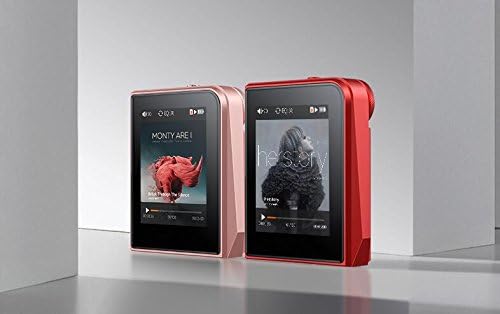
Image: Icons representing key features of the JR A50, including DSD256 support, 24-bit audio, full format decoding, MIPS+DSP, DAC, 2.5D screen, rotary knob, smart fast charge, and OTG.
Setup
1. Charging the Device
Before first use, fully charge the JR A50. Connect the provided USB data cable to the MICRO 5PIN port on the device and the other end to a 5V/1000mA USB charger or a computer's USB port. The charging indicator will show the charging status. A full charge takes approximately 1 hour.
2. Inserting a MicroSD Card
The JR A50 does not have internal memory and requires a MicroSD (TF) card for music storage. It supports cards up to 128GB.
- Locate the MicroSD card slot on the side of the device.
- Gently insert the MicroSD card into the slot until it clicks into place. Ensure the card is oriented correctly.
- To remove, gently push the card inward until it clicks, then release, and it will eject.
3. Transferring Music Files
You can transfer music files to the MicroSD card using two methods:
Method A: Via Computer
- Connect the JR A50 to your computer using the provided USB cable.
- The device will appear as a removable disk on your computer.
- Drag and drop your music files (MP3, FLAC, WAV, etc.) into the MicroSD card folder.
- Safely eject the device from your computer before disconnecting the USB cable.
Method B: Via OTG (On-The-Go) Function (Android Only)
The JR A50 supports direct file transfer from Android smartphones using its OTG function.
- Ensure your Android phone supports OTG functionality.
- Connect your Android phone to the JR A50 using an appropriate OTG cable (not included).
- Your phone will recognize the JR A50's MicroSD card as external storage.
- Copy desired music files from your phone to the player's MicroSD card.

Image: Diagram illustrating the OTG connection between the JR A50 music player and an Android smartphone for direct file transfer.
Operating Instructions
1. Power On/Off
- Power On: Press and hold the Power button (usually located on the side) for a few seconds until the screen lights up.
- Power Off: Press and hold the Power button for a few seconds until the device shuts down.
2. Basic Navigation
The JR A50 features a multi-function rotary knob for navigation and selection.

Image: The JR A50's screen displaying the music playback interface with album art and track information.
- Rotate Knob: Scroll through menus, lists, or adjust volume during playback.
- Press Knob: Select an item, confirm an action, or play/pause during music playback.
- Back Button: (If present, usually a separate button) Returns to the previous menu or screen.
3. Music Playback
- From the main menu, navigate to "Music" or "Browser" to access your stored audio files.
- Use the rotary knob to scroll through folders and tracks.
- Press the knob to select a track and begin playback.
- During playback, rotate the knob to adjust the volume. Press the knob to play/pause.
- The device supports breakpoint playback, resuming from where you left off. It also displays album covers (up to 640x640) and synchronizes lyrics if available.
4. System Settings
Access the "Settings" menu to customize various device parameters:
- Language: Select your preferred system language.
- Display: Adjust brightness, backlight timer, etc.
- Sound Settings: Equalizer (EQ) adjustments.
- Firmware Update: Check for and install firmware updates (refer to manufacturer's website for latest firmware).
- About: View device information and storage status.
Maintenance
- Cleaning: Use a soft, dry, lint-free cloth to clean the device. Do not use liquid cleaners or aerosols.
- Storage: Store the device in a cool, dry place away from direct sunlight and extreme temperatures.
- Battery Care: To prolong battery life, avoid fully discharging the battery frequently. Charge the device regularly, even if not in use for extended periods.
Troubleshooting
- Device does not power on:
- Ensure the battery is charged. Connect the device to a charger and try again. If the issue persists, perform a hard reset (if a reset button is available, or hold power button for an extended period).
- No sound during playback:
- Check headphone connection. Ensure volume is not set to zero. Verify the audio file is not corrupted and is in a supported format.
- Cannot transfer files to MicroSD card:
- Ensure the MicroSD card is properly inserted and not full. Try connecting to a different USB port or computer. For OTG, ensure your Android phone supports the function and the cable is working.
- Device freezes or becomes unresponsive:
- Press and hold the Power button for about 10-15 seconds to force a restart. If the issue is frequent, consider updating the firmware or formatting the MicroSD card.
Specifications
| Feature | Detail |
|---|---|
| Brand | JR |
| Model | A50 |
| Screen Size | 2.5 inches (240*320 ISP glass screen) |
| Memory Capacity | No internal memory; supports MicroSD (TF) card up to 128GB |
| Supported Audio Formats | MP3, WMA, WAV, APE, FLAC, ACC, OGG, AIFF, DSD256 |
| DSD Support | DSD128 (upgradable to DSD256 via firmware) |
| Bit Rate / Sample Rate | 24bit/192kHz |
| Headphone Output Power | ≥ 80mW |
| Transmission Interface | MICRO 5PIN, USB2.0 |
| Battery | 800 mA polymer battery |
| Charging Time | Approx. 1 hour (with 5V/1000mA charger) |
| Play Time | Approx. 15 hours (headset volume 30, screensaver, lossless music) |
| Item Weight | 7 ounces (0.2 Kilograms) |
| Dimensions | 5.51 x 3.78 x 1.65 inches (Package Dimensions) |
Warranty and Support
The JR A50 DSD128 HiFi Mini Music Player comes with a standard manufacturer's warranty. Please refer to the included warranty card for specific terms and conditions. For technical support, firmware updates, or further assistance, please visit the official JR product support website or contact their customer service.