
1. Product Overview
The Arteck 2.4G Wireless Keyboard is a stainless steel, ultra-slim keyboard designed for various computing devices. It offers a comfortable and quiet typing experience with its low-profile keys and durable construction. This keyboard is built for convenience and long-lasting performance, featuring a built-in rechargeable battery.
Its compact size and lightweight design make it suitable for use with computers, desktops, PCs, laptops, Surface devices, and Smart TVs running Windows 11/10/8/7/Vista/XP.

Figure 1: Arteck 2.4G Wireless Keyboard (Front View)
2. Package Contents
Upon opening the package, ensure all the following items are present:
- Arteck Stainless 2.4G Wireless Keyboard
- Nano USB receiver
- USB charging cable
- Welcome guide
3. Setup Instructions
Setting up your Arteck 2.4G Wireless Keyboard is a straightforward process:
- Locate the Nano USB Receiver: The small USB receiver is typically found in the keyboard's packaging or sometimes stored in a compartment on the keyboard itself for safekeeping.
- Insert the Receiver: Plug the nano USB receiver into an available USB port on your computer, desktop, PC, laptop, Surface device, or Smart TV.
- Power On the Keyboard: Locate the power switch on the keyboard (usually on the back or side) and slide it to the "ON" position.
- Automatic Connection: The keyboard should automatically connect to your device within a few seconds. No additional drivers are typically required.

Figure 2: Easy Setup - Plug the wireless nano USB receiver.

Figure 3: Power switch and silicone non-slip pads on the back of the keyboard.
4. Operating the Keyboard
The Arteck 2.4G Wireless Keyboard provides a standard QWERTY layout with additional function keys for enhanced productivity.
4.1. Key Features
- Low-Profile Keys: Designed for quiet and comfortable typing. The scissor-kick key construction ensures durability, rated for over 3 million continuous uses.
- Function Keys (Fn): Utilize the 'Fn' key in combination with other keys to access multimedia controls and system functions. These include volume control, playback control, copy/paste, web navigation, and more.
- Compact Design: Despite its full-size keys, the keyboard maintains an ultra-thin and light profile, making it highly portable.
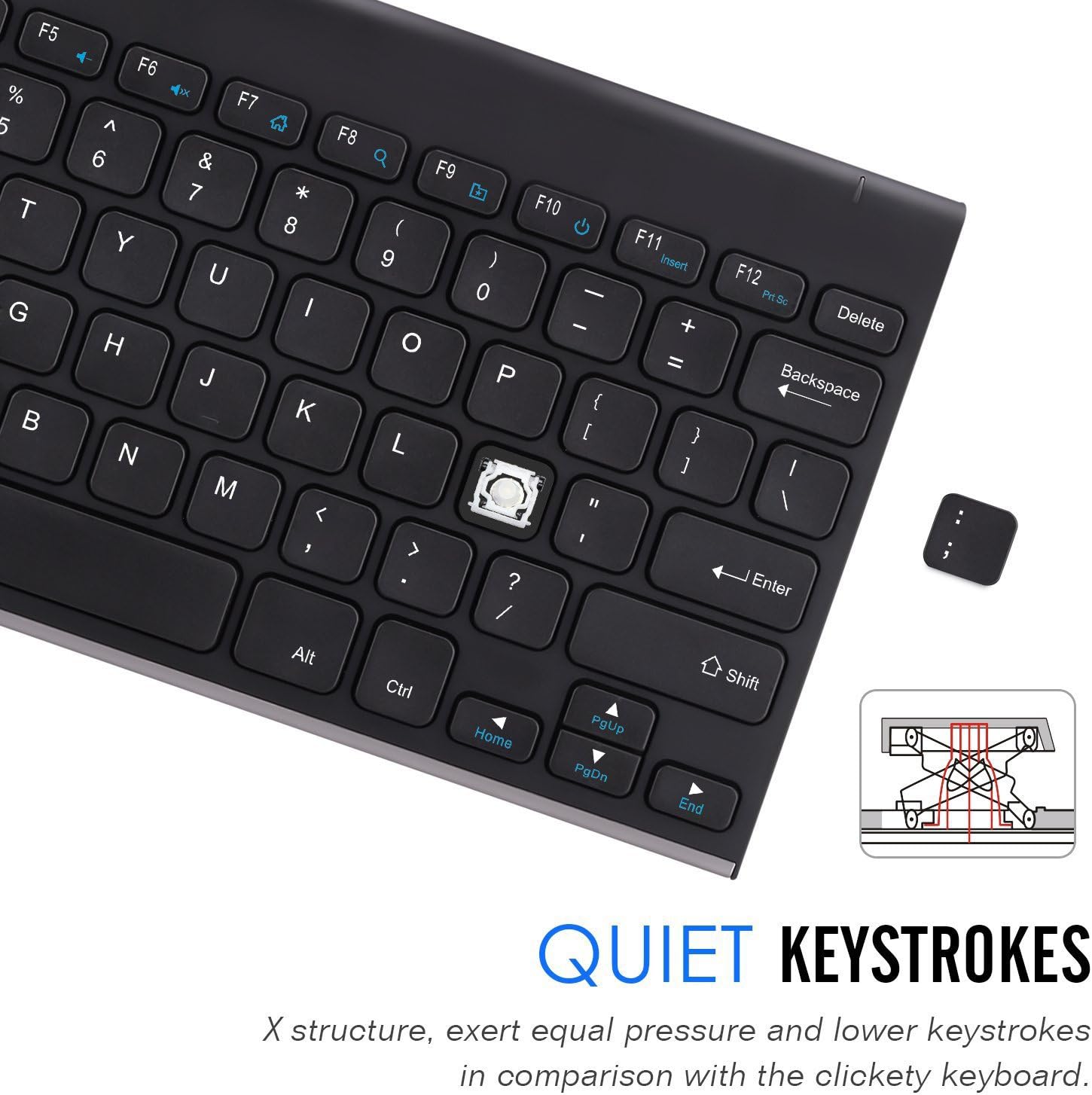
Figure 4: Quiet Keystrokes with X-structure design.
5. Maintenance and Battery Life
The Arteck 2.4G Wireless Keyboard features a built-in rechargeable Li-polymer battery, offering extended usage on a single charge.
5.1. Charging the Keyboard
- Connect the provided USB charging cable to the keyboard's charging port and the other end to a USB power source (e.g., computer USB port, USB wall adapter).
- A charging indicator light (if present) will typically illuminate during charging and turn off or change color when fully charged.
5.2. Battery Life
A full charge provides approximately 6 months of use, based on 2 hours of non-stop use per day. For optimal battery longevity, it is recommended to fully charge the keyboard when the battery is low.

Figure 5: Extended Battery Life.
6. Troubleshooting
If you encounter issues with your Arteck 2.4G Wireless Keyboard, try the following troubleshooting steps:
- Keyboard Not Responding:
- Ensure the keyboard is powered on.
- Check if the nano USB receiver is securely plugged into a working USB port on your device.
- Try plugging the receiver into a different USB port.
- Recharge the keyboard fully. A low battery can cause connectivity issues.
- Restart your computer or device.
- Keys Not Working Correctly:
- Ensure the keyboard is fully charged.
- Clean around and under the keys to remove any debris that might be obstructing them.
- If specific keys are unresponsive, it might indicate a hardware issue.
- Intermittent Connection:
- Ensure the keyboard is within the effective range (up to 33 feet or 10 meters) of the USB receiver.
- Minimize interference from other 2.4 GHz wireless devices.
- Try moving the USB receiver closer to the keyboard.
If these steps do not resolve the issue, please refer to the warranty and support section for further assistance.
7. Specifications
| Feature | Detail |
|---|---|
| Brand | Arteck |
| Model Number | HW086 |
| Connectivity Technology | 2.4 GHz Radio Frequency Wireless |
| Compatible Devices | Laptop, PC, Desktop, Surface, Smart TV |
| Operating System Compatibility | Windows 11/10/8/7/Vista/XP |
| Battery Type | Rechargeable Li-polymer |
| Average Battery Life | 6 months (based on 2 hours non-stop use per day) |
| Dimensions (LxWxH) | 11.1 x 5.3 x 0.16 inches (28 x 13.5 x 0.4 cm) |
| Item Weight | 10.2 oz (310 g) |
| Color | Black |
| Key Type | Low-profile, Scissor-kick mechanism |

Figure 6: Keyboard Dimensions and Weight.
8. Warranty and Customer Support
Arteck provides a 24-month warranty for this product. For warranty claims or any customer service inquiries, please refer to the contact information provided in your welcome guide or visit the official Arteck support website.
For additional support, you may also contact Arteck customer service directly. Contact details are typically available on the manufacturer's official website or through the retailer where the product was purchased.