
1. Introduction
This manual provides instructions for the proper use and maintenance of your Brother PT-E110 P-Touch Electrician Label Maker. The PT-E110 is a handheld label printer designed for creating durable labels for electrical, data communications, and general industrial applications. It features a QWERTY keyboard and specialized functions for efficient label creation.
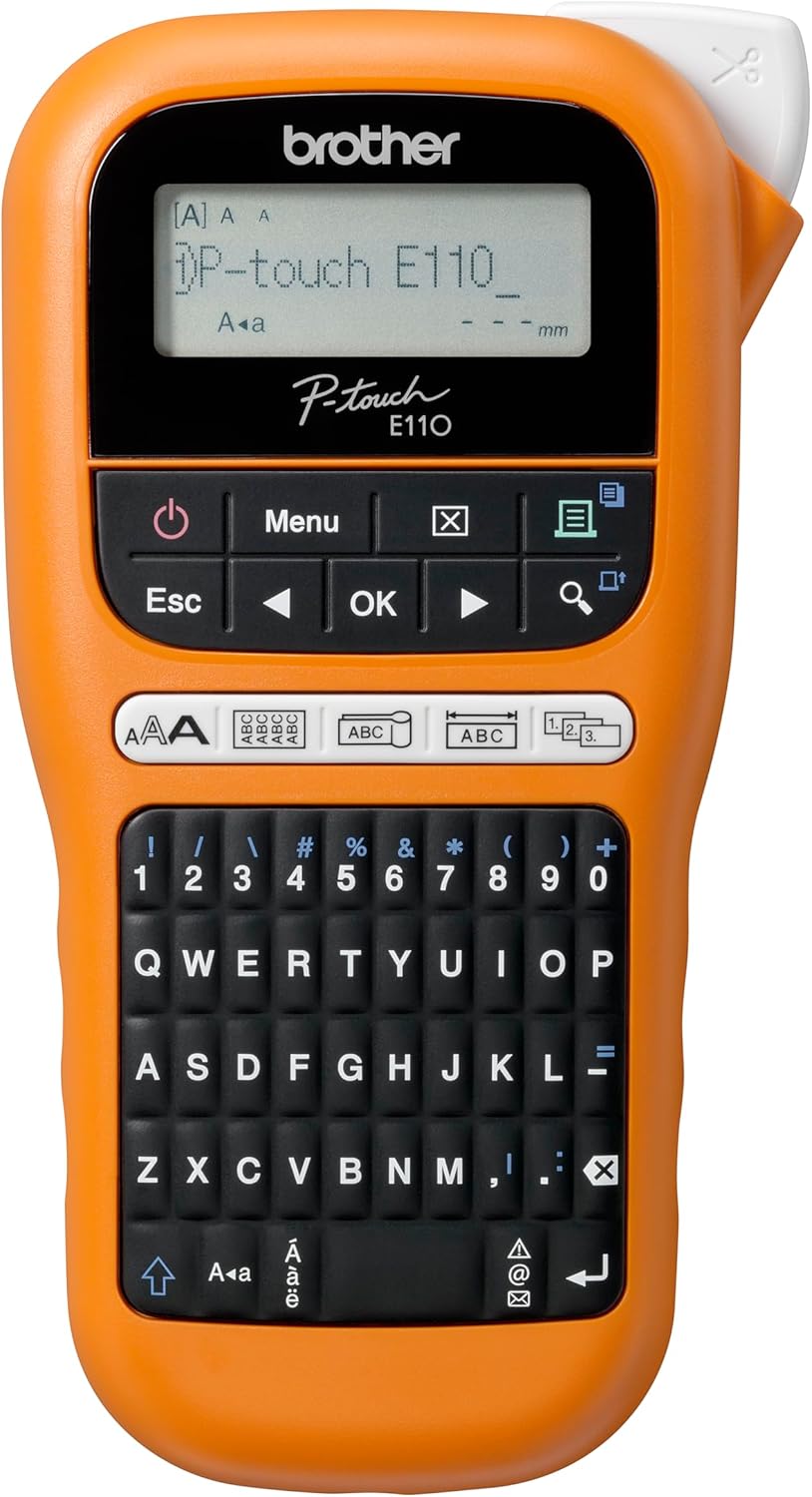
Figure 1.1: Front view of the Brother PT-E110 P-Touch Electrician Label Maker, showing the display and QWERTY keyboard.
2. What's in the Box
Verify that all items listed below are included in your package:
- 1 x Brother PT-E110 Label Printer
- 1 x User Guide (this document)
- 1 x Warranty Card
- 1 x Inbox Tape: 9 mm Black on White Flexible ID TZe Tape (8 m)

Figure 2.1: The Brother PT-E110 label maker shown with its retail packaging and an included TZe tape cassette.
3. Setup
3.1. Battery Installation
The Brother PT-E110 requires six (6) AAA batteries (not included) for operation. An AC adapter (not included) can also be used.
- Ensure the label maker is turned off.
- Locate the battery compartment cover on the back of the unit.
- Slide the cover off in the direction indicated by the arrow.
- Insert six AAA batteries, ensuring correct polarity (+/-).
- Replace the battery compartment cover until it clicks into place.
3.2. Tape Cassette Installation
The PT-E110 uses Brother TZe tape cassettes. Ensure you are using the correct tape width (3.5mm, 6mm, 9mm, or 12mm) for your application.
- Ensure the label maker is turned off.
- Open the tape cassette cover located on the top-rear of the unit.
- Insert the TZe tape cassette firmly into the compartment, ensuring the tape end feeds through the tape guide.
- Close the tape cassette cover until it clicks into place.

Figure 3.1: The Brother PT-E110 label maker positioned next to a TZe tape cassette, illustrating how the tape is inserted into the device.
4. Operating Instructions
4.1. Power On/Off
Press the Power button (symbolized by a circle with a vertical line) to turn the label maker on or off.
4.2. Basic Label Creation
- Turn on the label maker. The display will show the current settings.
- Use the QWERTY keyboard to type your desired text.
- Adjust text size, style, and other settings using the Menu button and arrow keys.
- Press the Print button to print the label.
- Use the integrated cutter to cut the label.

Figure 4.1: Close-up of the Brother PT-E110's QWERTY keyboard, highlighting the layout and dedicated keys for easy access to symbols.
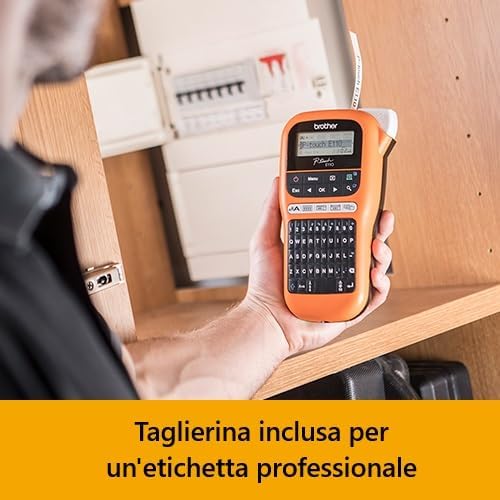
Figure 4.2: The Brother PT-E110 in use, demonstrating the integrated cutter for professional label finishing.
4.3. Specialized Label Functions
The PT-E110 includes dedicated keys for specific labeling applications:
- Cable Wrapping: Create labels that wrap around cables.
- Cable Flagging: Print labels that fold into a flag shape for cable identification.
- Faceplate Labels: Design labels for electrical faceplates and patch panels.
- Sequential Numbering: Automatically print multiple labels with incrementing numbers.
- Symbols: Access over 200 built-in symbols from categories such as electrical, audio/video, security, and network infrastructure.

Figure 4.3: The Brother PT-E110 in operation, demonstrating the creation of a label for cable wrapping.
5. Maintenance
5.1. Cleaning the Print Head
To ensure optimal print quality, clean the print head periodically.
- Turn off the label maker and remove the tape cassette.
- Use a cotton swab moistened with isopropyl alcohol to gently wipe the print head.
- Allow the print head to dry completely before reinserting the tape cassette and turning on the unit.
5.2. Cleaning the Cutter Blade
If labels are not cutting cleanly, the cutter blade may need cleaning.
- Turn off the label maker and remove the tape cassette.
- Carefully use a soft brush or cotton swab to remove any adhesive residue or debris from the cutter blade area.
- Avoid touching the blade directly with your fingers.
6. Troubleshooting
| Problem | Possible Cause | Solution |
|---|---|---|
| Unit does not power on. | Batteries are low or incorrectly installed. No AC adapter connected or faulty. | Replace batteries with new AAA batteries, ensuring correct polarity. Check AC adapter connection if using. |
| Poor print quality or blank labels. | Print head is dirty. Tape cassette is not installed correctly. Incorrect tape type. | Clean the print head (see Section 5.1). Reinstall the tape cassette. Ensure genuine Brother TZe tape is used. |
| Tape jams or does not feed. | Tape cassette is not installed correctly. Debris in the tape path. | Remove and reinsert the tape cassette. Check for and remove any obstructions in the tape path. |
| Labels are not cutting cleanly. | Cutter blade is dirty or dull. | Clean the cutter blade (see Section 5.2). If the problem persists, the blade may need replacement (contact support). |
7. Specifications
| Model Name | Brother PT-E110 Label Printer | P-Touch Electrician Labeller | Handheld |
| Printing Technology | Thermal Transfer |
| Maximum Print Resolution | 180 DPI (Black and White) |
| Maximum Print Speed | 10 ppm (Monochrome) |
| Compatible Tape Widths | 3.5 mm, 6 mm, 9 mm, 12 mm (Brother TZe tapes) |
| Keyboard Layout | QWERTY |
| Power Source | 6 x AAA Batteries (not included) or optional AC Adapter |
| Item Weight | 0.4 Kilograms (14.1 ounces) |
| Product Dimensions | 2.28 x 4.37 x 8.03 inches (58 x 111 x 204 mm) |
| Memory Storage Capacity | 64 MB |
| Included Components | Label Printer, User Guide, Warranty Card, 9mm Black on White TZe Tape |
| Special Feature | Portable, Dedicated Function Keys for Electrician Applications |

Figure 7.1: Dimensions of the Brother PT-E110 label maker, showing its height, width, and depth.
8. Warranty and Support
8.1. Warranty Information
The Brother PT-E110 Label Maker comes with a Limited Warranty. Please refer to the included Warranty Card for specific terms, conditions, and duration of coverage. Retain your proof of purchase for warranty claims.
8.2. Customer Support
For technical assistance, product inquiries, or to purchase accessories and replacement tapes, please visit the official Brother support website or contact their customer service department. Contact information can typically be found on the Brother website or on the Warranty Card.
You can visit the Brother Store for more information: Brother Official Store