
1. Introduction and System Overview
The JWM 5000V8+T8 Long Range Guard Tour Patrol System is designed for efficient and reliable security patrol management. This system utilizes advanced RFID technology, offering both long-range (2.4GHz) and short-range (125kHz) checkpoint reading capabilities. It features a durable patrol reader with an OLED screen, a downloader for data transfer, and comprehensive software for setup, monitoring, and reporting.

Image 1.1: Overview of the JWM 5000V8+T8 Guard Tour Patrol System components.
2. Product Features
- Dual Reading Modes: Supports 2.4GHz checkpoint tags for long-range reading (over 30 meters), ideal for large areas like telecom towers, and 125kHz checkpoint tags for short-range reading (3-5 cm) for general patrolling.
- Multifunctional Patrol Reader: Equipped with a flashlight for low-light conditions, an OLED screen displaying time, compass, temperature, low power alerts, and reading status.
- Efficient Download Station: Data transfer from the patrol reader to the computer is simplified using a download station, eliminating the need for direct cable connections.
- Long Battery Life: A full charge takes approximately 5 hours and allows for up to 26 days of use, based on 500 checkpoint readings per day. The device stores up to 60,000 data entries, retaining data even during power outages.
- Free Software Options: Includes both Stand-Alone and Cloud software versions. Both allow for adding over 1000 checkpoints and setting multiple patrol plans. Reports detail patrol location, time, personnel, and omissions.
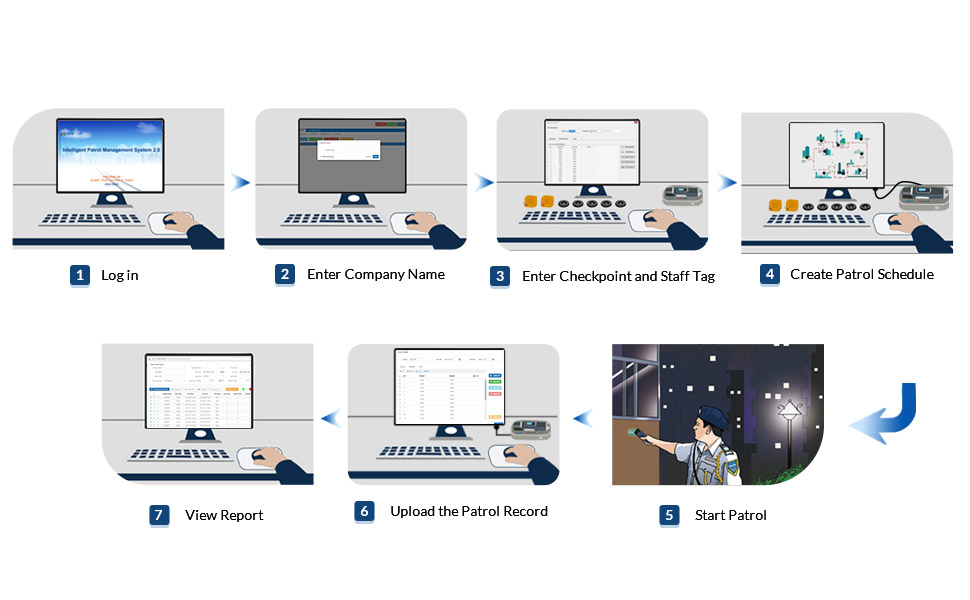
Image 2.1: Visual representation of the system's dual reading capabilities.

Image 2.2: The patrol reader's OLED screen and flashlight function.

Image 2.3: The patrol reader docked in the download station for data transfer.
3. Components Included
The JWM 5000V8+T8 Guard Tour Patrol System typically includes the following components:
- JWM 5000V8+T8 Patrol Reader
- Download Station
- USB Cable
- RFID Checkpoint Tags (125kHz and 2.4GHz)
- Rechargeable Battery (pre-installed)
- Circuit Board (internal)
- Chip (internal)
- OLED LCD Screen (integrated)
- Flashlight (integrated)

Image 3.1: Contents of the JWM 5000V8+T8 Patrol System package.
4. Setup Instructions
4.1. Device Setup
- Charge the Patrol Reader: Connect the patrol reader to the download station, then connect the download station to a power source using the provided USB cable. Ensure the device is fully charged before first use.
- Install Software: The system comes with either stand-alone or cloud software. Install the provided stand-alone software on your computer or access the cloud platform via a web browser.
- Connect Download Station: Connect the download station to your computer via the USB cable. Drivers should install automatically.
4.2. Software Configuration (Cloud Software Example)
The following steps outline the basic setup using the cloud software. The stand-alone software follows a similar logic.
- Log In: Access the cloud platform (e.g., jwmcloud.com) and log in with your credentials.
- Download Driver: If prompted, download and install the necessary driver for device communication.
- Register Device Type: In the software, register your 5000V8 device type.
- Add Device: Add your specific patrol reader device to the system.
- Company Setup: Create or add your company and any relevant subsidiaries or departments within the software.
- Guard Setup: Register your patrol guards. Use the patrol reader to read their guard tags, then assign names in the software.
- Checkpoint Setup: Use the patrol reader to read all checkpoint tags. Upload the data to the software and assign descriptive names to each checkpoint (e.g., "Firedoor," "Workshop").
- Plan Setup: Create patrol plans by defining the patrol route, schedule (start/end times, frequency), and assigned guards.
Video 4.1: This video demonstrates the setup process for the JWM 5000V8 Guard Tour System using the Cloud Software, including driver installation, device registration, company, guard, checkpoint, and patrol plan setup.
5. Operating Instructions
5.1. Performing a Patrol
- Power On: Press the power button on the patrol reader to turn it on.
- Read Guard Tag: At the start of a patrol, the guard should read their assigned guard tag using the patrol reader.
- Scan Checkpoints: As the guard proceeds along the patrol route, they should scan each checkpoint tag. The reader will confirm a successful scan on its OLED screen. For long-range tags, ensure the reader is within the 30-meter range. For short-range tags, hold the reader within 3-5 cm of the tag.
- Complete Patrol: Continue scanning all designated checkpoints according to the patrol plan.
5.2. Data Transfer and Reporting
- Place Reader on Downloader: After completing a patrol, place the patrol reader onto the download station.
- Read Data: In the software, navigate to the "Read Data" section and initiate the data transfer. The software will retrieve all recorded patrol data from the device.
- Generate Reports: Use the software's reporting features to view patrol reports. You can filter by company, checkpoint, guard, and time range. Reports will show arrived times, omission times, and overall patrol performance.
- Export Data: Reports can typically be exported in various formats, such as Excel or PDF, for further analysis or record-keeping.

Image 5.1: Workflow for conducting a patrol and generating reports.
6. Software Usage
6.1. Cloud Software
The cloud software provides a web-based interface for managing your patrol system from anywhere with internet access. It allows for centralized management of devices, guards, checkpoints, and patrol plans. Key functionalities include:
- Real-time data synchronization (when connected).
- Comprehensive reporting and analytics.
- User management and access control.
- Scalability for multiple sites and large numbers of guards/checkpoints.
Video 6.1: This video demonstrates the setup process for the JWM 5000V8 Guard Tour System using the Cloud Software, including driver installation, device registration, company, guard, checkpoint, and patrol plan setup.
6.2. Stand-Alone Software
The stand-alone software is installed directly on a local computer and does not require an internet connection for daily operation after initial setup. It offers similar core functionalities for managing patrol data, guards, checkpoints, and generating reports. This option is suitable for environments where internet connectivity is limited or not preferred.
- Local data storage and management.
- No recurring subscription fees.
- Direct control over data security.
Video 6.2: This video provides a guide on using the Stand-Alone Software for the JWM 5000V8 Guard Tour System, covering checkpoint setup, guard setup, and patrol report generation.
7. Maintenance
- Regular Charging: Ensure the patrol reader is regularly charged to maintain optimal performance.
- Data Backup: Periodically back up your patrol data from the software to prevent loss.
- Cleaning: Clean the patrol reader and download station with a soft, dry cloth. Avoid using harsh chemicals or abrasive materials.
- Durability: The device is rated IP67, meaning it is dustproof and waterproof. However, avoid intentional submersion or exposure to extreme conditions to prolong its lifespan.

Image 7.1: The JWM 5000V8+T8 Patrol Reader's IP67 dustproof and waterproof features.
8. Troubleshooting
- Device Not Connecting:
- Ensure the USB cable is securely connected to both the download station and the computer.
- Verify that the patrol reader is correctly seated in the download station.
- Check if the necessary drivers are installed. Reinstall if needed.
- Try a different USB port or computer.
- Data Not Uploading:
- Confirm the device is connected and recognized by the software.
- Ensure the software is running and you are logged in (for cloud version).
- Check for any error messages in the software.
- Reader Not Scanning Tags:
- Ensure the reader is powered on and has sufficient battery.
- Verify you are using the correct reading mode (long-range for 2.4GHz tags, short-range for 125kHz tags).
- Check the distance to the tag.
- Inspect tags for damage.
- Short Battery Life:
- Ensure the device is fully charged (5 hours for a full charge).
- Reduce the frequency of flashlight use if it's constantly on.
- If battery life significantly degrades, contact support for potential battery replacement.
9. Specifications
| Feature | Detail |
|---|---|
| Brand | JWMGKJ |
| Model Name | 5000V8+T8 |
| Special Feature | 125kHz RFID, 2.4G card, OLED LCD screen, flashlight, long range read |
| Item Dimensions (L x W x H) | 9 x 6 x 3 inches |
| Material | Aluminum, Metal, Stainless Steel |
| Recommended Uses | Building, Government Agencies, Hospital, Petrochemical, Residential Property |
| Color | Blue |
| Item Weight | 1.1 pounds (500 Grams) |
| Control Method | Touch, Voice |
| Connectivity Protocol | USB cable, download station |
| Batteries | 1 Lithium Polymer battery required (included) |
| Date First Available | June 25, 2017 |
| UPC | 709046610050 |
10. Warranty and Support
For warranty information, technical support, or service inquiries, please refer to the contact details provided with your product packaging or visit the official JWMGKJ website. Ensure you have your product model number (5000V8+T8) and purchase details available when contacting support.