
Mbuynow MVT-8540
Mbuynow MVT-8540 Real-time GPS Tracker User Manual
Model: MVT-8540
Introduction
This user manual provides detailed instructions for the installation, operation, and maintenance of your Mbuynow MVT-8540 Real-time GPS Tracker. This device is designed to provide accurate real-time location tracking for vehicles, motorcycles, and bicycles, offering enhanced security and monitoring capabilities. Please read this manual thoroughly before using the device to ensure proper functionality and safety.
Safety Information
- Ensure the device is installed by a qualified professional if you are unsure about electrical wiring.
- Do not expose the device to extreme temperatures, moisture, or corrosive substances.
- Use only the specified power cable and accessories provided with the device.
- Keep the device out of reach of children.
- Do not attempt to disassemble or modify the device, as this will void the warranty and may cause damage.
Package Contents
Upon opening the package, please verify that all the following items are included:
- 1 x Mbuynow MVT-8540 GPS Tracker
- 1 x Power Cable
- 1 x User Manual (this document)
- 4 x Locking Bolts

Image: Contents of the Mbuynow MVT-8540 GPS Tracker package, showing the main unit, power cable, user manual, and four small locking bolts.
Product Overview
The MVT-8540 GPS Tracker is a compact device designed for discreet installation and reliable performance. It features various indicators and connection points for easy setup and monitoring.

Image: The Mbuynow MVT-8540 GPS Tracker, a black rectangular device with an antenna, shown alongside a silver SUV, illustrating its application for vehicle tracking.
Device Components and Indicators

Image: A detailed diagram of the GPS tracker, highlighting its external power connector, USB data interface, and the internal layout showing the battery and SIM card slot. It also points out the GSM Status LED, GPS Status LED, and Power Working Status LED.
- Power Connector: For connecting the device to the vehicle's power supply.
- USB Data Interface: For potential data access or configuration (check specific software requirements).
- GSM Status LED: Indicates the status of the GSM network connection.
- GPS Status LED: Indicates the status of the GPS signal reception.
- Power Working Status LED: Indicates if the device is powered on and functioning.
- Battery: Internal backup battery for continued operation if main power is cut.
- SIM Card Slot: For inserting a standard-sized GSM SIM card required for communication.
Setup
1. SIM Card Installation
A standard-sized GSM SIM card with active data and SMS services is required for the tracker to function. Ensure the SIM card has sufficient balance or an appropriate data plan.
- Carefully open the device casing. You may need a thin tool to gently pry it open.
- Locate the SIM card slot inside the device.
- Insert the standard-sized SIM card into the slot, ensuring correct orientation as indicated on the device or in the diagram.
- Close the device casing securely.

Image: A close-up view demonstrating the proper insertion of a standard SIM card into the designated slot within the Mbuynow GPS tracker's open casing.
2. Power Connection
The tracker is powered by the vehicle's 12V/24V battery. It is recommended to connect it to a constant power source that is not switched off with the ignition, unless ACC monitoring is desired.
- Connect the red wire of the power cable to the vehicle's positive (+) battery terminal or a constant 12V/24V power supply. An inline fuse is provided for protection.
- Connect the black wire of the power cable to the vehicle's negative (-) battery terminal or a reliable ground point.
- Ensure all connections are secure and insulated to prevent short circuits.
3. Initial Configuration and Activation
After power connection, the device will power on. You may need to send initial SMS commands to configure the device, such as setting the administrator phone number or APN settings for your SIM card provider. Refer to the included user manual for a list of specific SMS commands.
Note: The device's IMEI number is crucial for logging into the tracking platform. Make sure to record it before final installation.
Operating Instructions
Real-time Tracking
The MVT-8540 supports real-time tracking via a dedicated mobile application and a web-based platform.
- Mobile Application: Download the official application from the App Store (iOS) or Google Play Store (Android). QR codes for direct download are often provided with the product or on the web platform.
- Web Platform: Access the tracking platform via a web browser at www.gps110.org.
To log in, use the device's IMEI number as your username and the default password (usually "123456", but check your specific manual). You can change the password after your first login.

Image: Screenshots illustrating the mobile application and web server interface for the GPS tracker, displaying login prompts and map-based tracking views. QR codes for app download are also visible.

Image: A visual representation of the real-time tracking capability on Google Maps, along with a smartphone displaying the historical route playback feature, showing past travel paths.
Key Features
- Geo-fence: Set up virtual boundaries. Receive alerts when the vehicle enters or exits a defined area.
- ACC Condition Monitoring: Get notifications when the vehicle's ignition (ACC) is turned on or off.
- Historical Route Playback: Review past travel routes for up to 6 months (or 180 days) on the platform.
- Anti-theft Alerts: Receive alerts if the vehicle's power cable is cut, battery is removed, or the GPS device is tampered with.
- SOS Functionality: If supported by your specific model and wiring, an SOS button can be connected to send emergency alerts.
- Power Saving Mode: Optimize battery usage by adjusting reporting frequency.
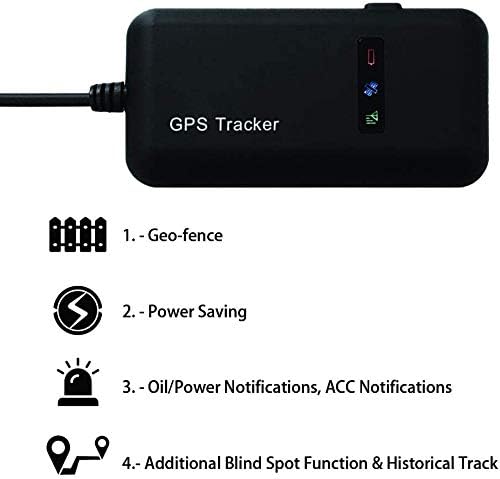
Image: Icons illustrating key features of the GPS tracker: Geo-fence for boundary alerts, Power Saving for efficiency, Oil/Power Notifications for vehicle status, ACC Notifications for ignition status, and Additional Blind Spot Function & Historical Track for comprehensive monitoring.

Image: A demonstration of the ACC Condition Monitoring feature, showing a hand pressing an engine start/stop button and a smartphone receiving an "ACC Alarm" notification, indicating ignition status changes.
SMS Commands
The device can also be controlled and queried via SMS commands sent from an authorized phone number to the SIM card number in the tracker. Common commands include:
- Location Query: Send a specific command (e.g., "URL#") to receive a Google Maps link of the current location.
- Set Admin Number: Designate a primary phone number for receiving alerts and sending commands.
- APN Setting: Configure the Access Point Name for your SIM card's mobile data network.
- Alarm Settings: Enable or disable various alarms (e.g., vibration alarm, overspeed alarm).
Refer to the detailed SMS command list in the separate user manual provided with your product for a complete list and syntax.
Maintenance
- Regular Checks: Periodically check the device's power connections and ensure the SIM card is properly seated.
- SIM Card Balance: Ensure the SIM card has sufficient credit or an active data plan to avoid service interruptions.
- Cleaning: Wipe the device with a soft, dry cloth. Do not use harsh chemicals or abrasive cleaners.
- Firmware Updates: Check the official website or app for any available firmware updates that may improve performance or add features.
Troubleshooting
| Problem | Possible Cause | Solution |
|---|---|---|
| Device not powering on. | No power supply; incorrect wiring; blown fuse. | Check power connections; verify wiring polarity; replace fuse if necessary. |
| No GPS signal. | Device in an area with poor satellite reception (e.g., indoors, underground); GPS antenna obstructed. | Move the vehicle to an open area; ensure the device has a clear view of the sky. |
| No GSM/GPRS connection. | SIM card not inserted correctly; no signal in the area; SIM card balance low; incorrect APN settings. | Reinsert SIM card; move to an area with network coverage; recharge SIM; configure APN settings via SMS. |
| Inaccurate location. | Weak GPS signal; LBS (Location Based Service) being used instead of GPS. | Ensure strong GPS signal; verify device settings to prioritize GPS over LBS. |
| Device not responding to SMS commands. | Incorrect command format; non-admin phone number; SIM card issues. | Verify command syntax; ensure your phone number is set as admin; check SIM card for SMS capability and balance. |
Specifications
| Feature | Detail |
|---|---|
| Manufacturer | Mbuynow |
| Model Number | MVT-8540 |
| Item Weight | 100 grams |
| Package Dimensions | 14.3 x 9.5 x 2.9 cm |
| Specific Features | SOS functionality |
| First Available Date | July 5, 2017 |
Warranty and Support
Mbuynow products are designed for reliability and performance. For information regarding warranty coverage, please refer to the warranty card included with your purchase or visit the official Mbuynow website.
For technical support, troubleshooting assistance, or further inquiries, please contact Mbuynow customer service through their official channels. You can also find additional resources and FAQs on the tracking platform website: www.gps110.org.
Ask a question about this manual
Ask about setup, troubleshooting, compatibility, parts, safety, or missing instructions. Manuals+ will review the question and use this page’s manual context to help answer it.