1. Introduction
This user manual provides detailed instructions for the installation, configuration, and troubleshooting of your ASUS XG-C100C 10G Network Adapter. This high-performance PCI-E x4 card is designed to deliver hyper-fast 10Gbps networking speeds, significantly enhancing data transfer capabilities for demanding tasks. It features a single RJ-45 port and built-in Quality-of-Service (QoS) technology to prioritize network traffic.
Package Contents
- ASUS XG-C100C 10G Network Adapter
- Low-profile bracket (for small form factor PCs)
- Driver CD (or link to download drivers)
- Quick Start Guide

Figure 1: ASUS XG-C100C 10G Network Adapter, showing the red heatsink and RJ-45 port.
2. Key Features
- Hyper-fast 10Gbps Networking: Delivers up to 10X-faster data-transfer speeds for bandwidth-demanding tasks.
- Broad Compatibility: Full compatibility with current network standards, including 10/5/2.5/1Gbps and 100Mbps, ensuring seamless backward compatibility.
- Wide OS Support: Compatible with Windows 10/8.1/8/7 and Linux Kernel 4.4/4.2/3.6/3.2 for flexible operating system integration.
- Easy Upgrade: RJ45 port allows for easy upgrade of your desktop to 10Gbps networking using standard copper network cables.
- Built-in QoS: Prioritize your data with Quality-of-Service technology, allowing you to manage bandwidth and supported data packets for a smooth online experience.
3. Specifications
| Feature | Description |
|---|---|
| Brand | ASUS |
| Model | XG-C100C |
| Hardware Interface | Ethernet (PCI-E x4) |
| Data Link Protocol | Ethernet, Gigabit Ethernet, 10 Gigabit Ethernet |
| Data Transfer Rate | 100Mbps, 1Gbps, 2.5Gbps, 5Gbps, 10Gbps |
| Port Type | Single RJ-45 |
| Compatible Devices | Desktop PCs with available PCI-E x4 slot or higher |
| Operating Systems | Windows 10/8.1/8/7, Linux Kernel 4.4/4.2/3.6/3.2 |
| Product Dimensions | 4.73"L x 3.33"W x 0.81"H (120mm x 84.5mm x 20.5mm) |
| Item Weight | 3.2 ounces (90.7g) |
| Color | Red, Grey |
4. Setup and Installation
4.1 Hardware Installation
- Power Off and Disconnect: Completely shut down your computer and disconnect the power cord from the wall outlet.
- Open Computer Case: Remove the side panel of your computer case to access the motherboard.
- Locate PCI-E Slot: Identify an available PCI-E x4, x8, or x16 slot on your motherboard.
- Remove Slot Cover: Remove the corresponding metal slot cover from the back of your computer case.
- Insert Network Adapter: Carefully align the ASUS XG-C100C network adapter with the PCI-E slot and firmly press it down until it is securely seated. Ensure the bracket is aligned with the opening in the case.
- Secure Adapter: Secure the adapter to the case using the screw or retention clip.
- Close Case: Replace the computer case side panel and reconnect the power cord.
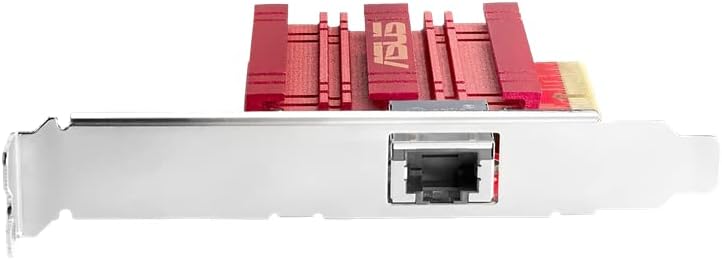
Figure 2: Rear view of the ASUS XG-C100C, illustrating the RJ-45 port and the PCI-E connector for proper slot insertion.
4.2 Driver Installation
After hardware installation, you need to install the appropriate drivers for the network adapter to function correctly.
- Boot Computer: Power on your computer.
- Install Drivers:
- From CD: Insert the provided driver CD into your optical drive and follow the on-screen instructions.
- Download from ASUS Website: If your computer lacks an optical drive or for the latest drivers, visit the official ASUS support website (www.asus.com/support/). Search for "XG-C100C" and download the latest drivers compatible with your operating system.
- Run Installer: Execute the downloaded driver installer and follow the prompts to complete the installation.
- Restart Computer: Restart your computer after the driver installation is complete to ensure all changes take effect.
Once drivers are installed, connect an Ethernet cable from your network device (router/switch) to the RJ-45 port on the ASUS XG-C100C adapter.
5. Operating the Network Adapter
5.1 Basic Network Connectivity
After successful driver installation and connecting the Ethernet cable, your computer should automatically detect the network adapter and establish a network connection. You can verify the connection status through your operating system's network settings.
- Windows: Go to 'Network and Sharing Center' or 'Network & Internet settings' to view adapter status.
- Linux: Use commands like
ip aor network manager GUI to check interface status.
5.2 Quality-of-Service (QoS)
The ASUS XG-C100C features built-in QoS technology. This allows you to prioritize network traffic for specific applications or services, ensuring smoother performance for critical tasks like online gaming, video streaming, or large file transfers.
QoS settings are typically managed through the network adapter's driver utility or your operating system's advanced network settings. Refer to the driver software documentation or your OS help for specific instructions on configuring QoS.
6. Maintenance
The ASUS XG-C100C network adapter is designed for reliable, long-term operation with minimal maintenance. Follow these general guidelines:
- Keep Drivers Updated: Regularly check the ASUS support website for the latest driver updates to ensure optimal performance and compatibility.
- Ensure Proper Airflow: Make sure your computer case has adequate ventilation to prevent overheating of internal components, including the network adapter.
- Clean Dust: Periodically clean dust from inside your computer case, especially around the network adapter's heatsink, using compressed air. Ensure the computer is powered off and unplugged before cleaning.
7. Troubleshooting
If you encounter issues with your ASUS XG-C100C network adapter, try the following troubleshooting steps:
7.1 No Network Connection
- Check Cable: Ensure the Ethernet cable is securely connected to both the adapter and your network device (router/switch). Try a different cable.
- Verify Drivers: Confirm that the correct drivers are installed and updated. Check Device Manager (Windows) or network interface status (Linux) for any error indicators.
- Re-seat Adapter: Power off your computer, unplug it, open the case, and carefully re-seat the network adapter in its PCI-E slot.
- Router/Switch Status: Check if your router or network switch is functioning correctly and providing an active network signal.
7.2 Slow Network Speeds
- Check Cable Category: Ensure you are using a Cat6 or higher Ethernet cable for 10Gbps speeds. Older cables (e.g., Cat5e) may limit performance.
- Network Device Capability: Verify that your router or switch supports 10Gbps networking on the connected port.
- Driver Settings: Check the adapter's advanced driver settings for duplex mode (should be Full Duplex) and speed settings (should be Auto Negotiation or 10Gbps).
- QoS Configuration: If QoS is enabled, ensure it is configured correctly and not inadvertently limiting bandwidth for your primary applications.
- System Resources: Ensure your computer's CPU, RAM, and storage are not bottlenecks for high-speed data transfer.
7.3 Adapter Not Detected
- Check PCI-E Slot: Ensure the adapter is fully seated in a compatible PCI-E x4 (or higher) slot.
- BIOS/UEFI Settings: Check your motherboard's BIOS/UEFI settings to ensure the PCI-E slot is enabled and functioning correctly.
- Try Another Slot: If available, try installing the adapter in a different PCI-E slot.
- Power Supply: Ensure your power supply unit (PSU) provides sufficient power to all components.
8. Warranty and Support
For detailed warranty information, please refer to the warranty card included with your product or visit the official ASUS website. ASUS provides technical support and resources for its products.
Contacting Support
If you require further assistance or have questions not covered in this manual, please visit the ASUS support website:
You can find FAQs, driver downloads, and contact information for technical support in your region.


