
Noctua NA-FC1
Noctua NA-FC1 4-Pin PWM Fan Controller User Manual
Model: NA-FC1
Introduction
The Noctua NA-FC1 is a compact and highly flexible controller designed for 4-pin PWM fans. It can be used either as a standalone unit for manual speed regulation or in conjunction with the automatic fan control of PC motherboards. This manual provides detailed instructions for setting up, operating, maintaining, and troubleshooting your NA-FC1 fan controller.
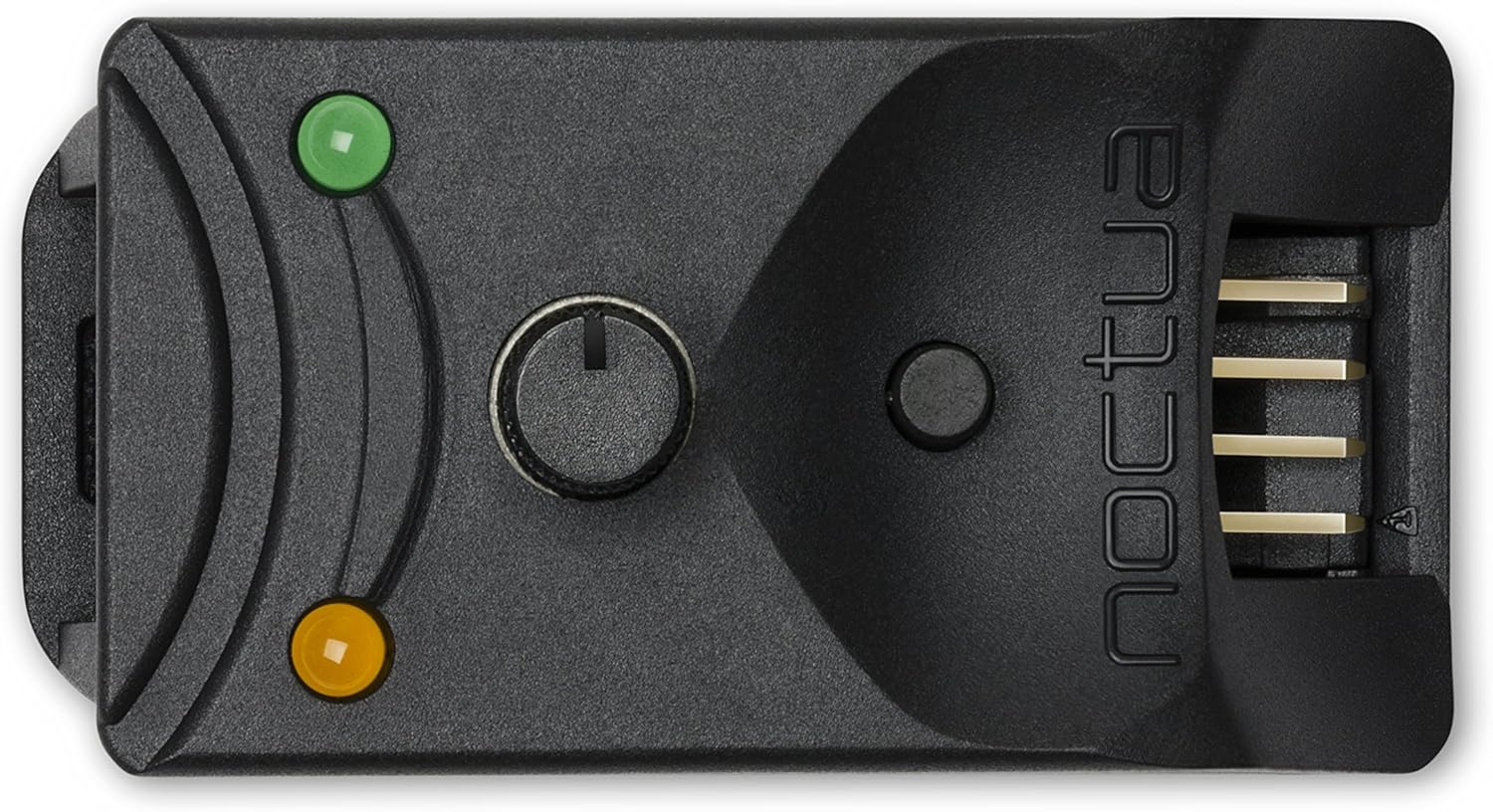
The NA-FC1 allows users to manually set a PWM duty cycle from 0 to 100% using its central rotary dial. It can also reduce the duty cycle provided by the motherboard, enabling fans to run slower than the motherboard's automatic control would typically allow. A push-button activates the "No Stop" mode, ensuring fans do not fall below 300 RPM to prevent BIOS error messages. The package includes adapter cables for controlling up to three fans simultaneously, powered directly from your power supply.
Package Contents
The NA-FC1 package includes the following components:
- Noctua NA-FC1 Fan Controller
- NA-YC1 4-pin PWM Y-cable (for connecting multiple fans)
- NA-AC4 4-pin PWM to SATA power adapter cable (for direct power from PSU)

Setup
Follow these steps to properly set up your Noctua NA-FC1 fan controller:
- Connect Power: Connect the NA-AC4 SATA power adapter cable to a free SATA power connector from your PC's power supply unit (PSU). This provides stable power to the controller and connected fans.
- Connect to Motherboard (Optional): If you wish to use the NA-FC1 in conjunction with your motherboard's automatic fan control, connect the 4-pin PWM input cable from the NA-FC1 to a 4-pin PWM fan header on your motherboard. This allows the motherboard to send its PWM signal to the controller.
- Connect Fans: Connect your 4-pin PWM fans to the output headers of the NA-FC1. You can connect up to three fans using the included NA-YC1 4-pin PWM Y-cable. Ensure all connections are secure.

Operating Instructions
The NA-FC1 offers two primary modes of operation:
- Manual Control: When the NA-FC1 is not connected to a motherboard PWM header, or if the motherboard is not sending a PWM signal, the rotary dial directly controls the fan speed from 0% to 100% PWM duty cycle. Turn the dial clockwise to increase fan speed and counter-clockwise to decrease it.
- Motherboard-Controlled Reduction: If the NA-FC1 is connected to a motherboard PWM header, the rotary dial acts as a "speed reduction" control. It reduces the PWM signal received from the motherboard. For example, if the motherboard sends a 80% PWM signal, setting the NA-FC1 dial to 50% will result in the fans running at 40% (50% of 80%). This allows for fine-tuning fan speeds below what the motherboard's automatic control might allow.
"No Stop" Mode:
Press the small push-button on the NA-FC1 to activate or deactivate the "No Stop" mode. When active, an orange status LED illuminates. In "No Stop" mode, the fan controller ensures that the connected fans do not spin below 300 RPM, even if the PWM signal would otherwise command a lower speed or stop the fan entirely. This prevents potential BIOS error messages related to stopped fans and ensures continuous airflow.
Maintenance
The Noctua NA-FC1 fan controller is designed for durability and requires minimal maintenance. To ensure optimal performance and longevity:
- Cleaning: Periodically inspect the controller for dust accumulation. Use a soft, dry cloth or a can of compressed air to gently remove any dust from the casing and connectors. Do not use liquid cleaners.
- Environment: Ensure the controller is placed in a well-ventilated area within your PC case, away from excessive heat or moisture.
- Connections: Occasionally check that all cables are securely connected to the controller, fans, and power supply. Loose connections can lead to intermittent operation.
Troubleshooting
If you encounter issues with your NA-FC1 fan controller, consider the following troubleshooting steps:
- Fans Not Spinning:
- Ensure the NA-AC4 SATA power adapter is securely connected to a working PSU SATA power connector.
- Check that the fans are properly connected to the NA-FC1 output headers.
- If using manual control, turn the rotary dial clockwise to increase the PWM duty cycle.
- If connected to a motherboard, verify that the motherboard's fan header is enabled and configured correctly in the BIOS/UEFI.
- Deactivate "No Stop" mode to see if fans spin at very low speeds, then reactivate if desired.
- Fans Spinning Too Fast/Slow:
- Adjust the rotary dial on the NA-FC1.
- If connected to a motherboard, check the fan speed settings in your motherboard's BIOS/UEFI or fan control software. The NA-FC1 will reduce the signal from the motherboard.
- Ensure "No Stop" mode is not inadvertently limiting the minimum speed if you desire speeds below 300 RPM.
- No LED Indication:
- Verify that the NA-FC1 is receiving power via the SATA power adapter.
Specifications
| Feature | Detail |
|---|---|
| Model | NA-FC1 |
| Dimensions (L x W x H) | 48 x 25 x 21 mm |
| Weight | 48 grams |
| Input Voltage | 12 Volts |
| Material | Plastic |
| Display Type | LED |
| UPC | 841501120244 |
Warranty and Support
The Noctua NA-FC1 comes with a 6-year manufacturer's warranty, ensuring long-term reliability and peace of mind. For technical support, warranty claims, or further assistance, please visit the official Noctua website or contact their customer service directly. Keep your proof of purchase for warranty purposes.
Official Noctua Website: https://noctua.at/